Keeping your Apple computer screen clean is essential for optimal visibility, hygiene, and longevity. The best way to clean an Apple computer screen involves using a soft, lint-free cloth slightly dampened with water or 70% isopropyl alcohol—never spraying liquids directly on the display. Apple explicitly warns against harsh cleaners like Windex, bleach, or compressed air, which can permanently damage anti-reflective coatings or cause internal moisture issues. Whether you’re using a MacBook, iMac, or Pro Display XDR, following Apple’s official guidelines ensures safe, effective cleaning without voiding your warranty.
This guide walks you through every step—from power-down procedures to tackling stubborn fingerprints—while highlighting critical dos and don’ts. You’ll learn how to care for sensitive nano-texture glass, disinfect safely, avoid common mistakes, and maintain a spotless screen with minimal effort. With the right tools and technique, your Apple display will stay crystal clear and protected for years.
Shut Down and Unplug Before Cleaning
Always power down and disconnect your Mac before cleaning. This prevents accidental input, reduces electrical risks, and makes smudges easier to spot on a dark screen.
Why You Must Power Off First
A powered-off screen provides maximum contrast, revealing dust, oils, and fingerprints that are invisible when the display is active. More importantly, cleaning a live device increases the risk of short circuits if moisture enters ports or seams. Apple mandates shutting down all Macs before cleaning to protect both user and hardware.
Disconnect All Cables and Peripherals
Remove the power adapter, USB devices, external drives, and displays. For iMacs and standalone monitors like the Studio Display, unplug the power cord from the wall. This eliminates shock hazards and gives you full access to clean around the bezel and ports safely.
Use Only a Soft, Lint-Free Microfiber Cloth
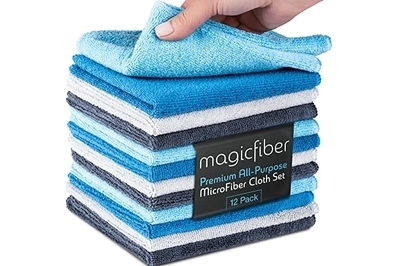
Your cleaning tool matters as much as the solution. A clean, soft, lint-free microfiber cloth is the only safe option for Apple screens.
Why Microfiber Beats Paper Towels and Clothing
Paper towels, tissues, and cotton shirts may seem convenient, but they’re abrasive and can scratch the screen’s oleophobic coating. Microfiber is engineered to lift dust and oils without scratching. If you still have the cloth that came with your Apple display, use it—it’s specifically designed for your screen type.
When to Replace or Wash Your Cloth
A dirty cloth spreads grime instead of removing it. Replace your microfiber if it’s stained, frayed, or leaves lint behind. To clean reusable cloths, wash them with mild detergent—never use fabric softener, which clogs fibers and reduces effectiveness. Air dry only.
Clean Standard Screens With Water Only (Apple’s Primary Method)
For routine cleaning, dampen a microfiber cloth with plain water. This is Apple’s top-recommended method for daily maintenance on MacBook, iMac, and standard glass displays.
How to Safely Dampen the Cloth
Moisten the cloth with clean water, then wring it thoroughly—it should be damp, not wet. Never spray water directly onto the screen; liquid can seep into the display housing and damage internal components. Use just enough moisture to lift oils without leaving streaks.
Wipe in Straight Lines, Not Circles
Gently wipe the screen from top to bottom using light, overlapping strokes. Avoid circular motions, which can smear oils unevenly. Work methodically across the entire surface to ensure full coverage without missing spots.
Dry Immediately With a Second Cloth (If Needed)
If the screen appears wet after wiping, use a second dry microfiber cloth to remove residual moisture. In most cases, a properly dampened cloth will evaporate quickly without streaks or residue.
Remove Tough Smudges With 70% Isopropyl Alcohol

For persistent fingerprints or oily marks, use a 70% isopropyl alcohol (IPA) solution—Apple’s approved disinfectant for hard, nonporous surfaces.
Why 70% IPA Is Safe and Effective
Apple specifically permits 70% isopropyl alcohol because it kills germs and dissolves oils without damaging screen coatings. Higher concentrations (like 99%) evaporate too quickly and may contain additives that harm electronics. Stick to 70% for safe, effective cleaning.
How to Apply IPA Without Risk
Moisten a clean microfiber cloth with the solution—do not soak it. Gently wipe the affected areas, then follow with a dry cloth to remove any residue. Never apply alcohol near speaker grilles, camera lenses, or ports to avoid damage.
Clorox Wipes and Ethyl Alcohol Are Also Approved
Apple allows Clorox Disinfecting Wipes and 75% ethyl alcohol wipes for occasional disinfecting. These are convenient for quick cleanups but should be used sparingly and only on the screen surface—not around edges or openings.
Never Use These 10 Damaging Substances
Using the wrong cleaner can permanently degrade your screen’s finish or void your warranty. Apple strictly prohibits:
• Window cleaners (e.g., Windex) – contain ammonia that destroys anti-reflective coatings
• Household cleaners – too harsh for delicate surfaces
• Bleach – causes discoloration and material breakdown
• Hydrogen peroxide – damages screen finishes
• Acetone (nail polish remover) – strips protective layers
• Aerosol sprays – may contain harmful solvents
• Solvents (e.g., paint thinner) – dissolve screen materials
• Ammonia-based products – corrode display layers
• Abrasive pads or cleaners – scratch the surface
• Compressed air – not for screens; risk of moisture or force damage
Stick to Apple-approved methods to preserve your screen and avoid costly repairs.
Special Care for Nano-Texture Glass Displays

If you own a Pro Display XDR, Studio Display, or iMac with nano-texture glass, cleaning requires extra caution. This matte-finish glass reduces glare but is more sensitive to moisture and abrasion.
Use Only the Apple-Provided Microfiber Cloth
Apple includes a specially designed cloth with nano-texture displays. This cloth is engineered to clean the textured surface safely. Do not substitute with other cloths—even high-quality microfiber—as they may cause micro-abrasions.
Never Apply Water or Any Liquid
Apple explicitly warns against using any liquid on nano-texture glass. Moisture can penetrate the textured surface and cause permanent damage. Cleaning must be done dry only, using gentle, straight-line wiping motions.
Follow Apple’s Official Nano-Texture Cleaning Guide
Refer to Apple’s support article “How to clean the nano-texture glass on your Apple display” for model-specific instructions. Deviating from these guidelines may result in irreversible screen damage and is not covered under warranty.
Clean the Keyboard, Case, and Exterior Too
While cleaning the screen, don’t ignore the rest of your Mac. The same principles apply to the body, keyboard, and Touch Bar.
MacBook Exterior and Keyboard Cleaning Steps
- Shut down and unplug the MacBook
- Dampen a lint-free cloth with water or 70% IPA
- Wipe the aluminum body, avoiding ports and vents
- For the Touch Bar and Touch ID, use only a water-dampened cloth—never apply alcohol directly
iMac and Desktop Models
For iMac, Mac Studio, and Mac mini, power off, unplug, and clean with a damp microfiber cloth. Avoid spraying near the camera, speakers, or cooling vents to prevent internal damage.
Prevent Smudges With Smart Daily Habits
The best cleaning routine is the one you rarely need. Reduce buildup with these simple practices.
Wash Hands Before Using Your Mac
Oils from fingers are the main cause of screen smudges. Washing your hands before use significantly reduces residue accumulation.
Keep Food and Drinks Away
Crumbs and grease increase cleaning frequency and can get trapped in ports or under keys. Maintain a clean workspace to protect your device.
Clean Weekly With a Dry Cloth
Wipe your screen with a dry microfiber cloth once a week to prevent dust and oil buildup. Regular maintenance means less aggressive cleaning later.
Are Screen Protectors Worth It?

Some users apply screen protectors for added protection, especially on MacBooks. While they can reduce glare and fingerprints, there are trade-offs.
Pros and Cons of Screen Protectors
| Pros | Cons |
|---|---|
| Reduces direct contact with screen | May interfere with lid closure |
| Some have anti-reflective coatings | Risk of trapped dust or bubbles |
| Can be replaced if scratched | May degrade over time and peel |
Apple does not endorse or sell screen protectors for MacBooks. If you use one, choose a high-quality, anti-smudge version and ensure it doesn’t prevent the lid from sealing properly.
Troubleshoot Common Cleaning Problems
Even with care, issues can arise. Here’s how to handle them safely.
Streaks After Cleaning
Streaks usually come from using too much liquid or a dirty cloth. Re-wipe with a clean, dry microfiber cloth. If streaks persist, lightly dampen a fresh cloth with distilled water and repeat.
Moisture Inside the Screen
If liquid gets inside, do not turn on the device. Power it off immediately, disconnect all cables, and contact an Apple Authorized Service Provider. Liquid damage is not covered by warranty.
Persistent Fingerprints
If fingerprints remain after water cleaning, use a 70% IPA-dampened cloth. Gently wipe in straight lines, then dry immediately. Avoid scrubbing, which can degrade the oleophobic coating over time.
Key Takeaways for Long-Term Screen Care
Protect your investment with these expert-backed maintenance tips.
Store Your Cloth Properly
Keep your microfiber cloth in a sealed bag when not in use. A dirty cloth reintroduces grime and defeats the purpose of cleaning.
Use Distilled Water for Deep Cleaning (Community Tip)
While Apple says “water,” many users prefer distilled water to avoid mineral deposits from tap water—especially in hard water areas.
Never Use AI to Judge Cleanliness
Avoid relying on AI tools like Be My Eyes. They can misinterpret reflections or shadows as smudges, leading to over-cleaning and potential damage.
Frequently Asked Questions About Cleaning Apple Screens
Can I use Windex or glass cleaner on my Apple screen?
No. Windex and other window cleaners contain ammonia, which damages anti-reflective and oleophobic coatings. Apple strictly prohibits their use.
Is tap water safe for cleaning Apple screens?
Apple says “water” without specifying type. While tap water works, distilled water is preferred by experts to avoid mineral residue, especially in hard water areas.
Can I use Clorox wipes on my MacBook screen?
Yes. Apple approves Clorox Disinfecting Wipes for occasional use on hard, nonporous surfaces. Wipe gently and avoid edges and ports.
How do I clean a nano-texture glass display?
Use only the Apple-provided cloth—never apply liquids. Wipe gently in straight lines. Refer to Apple’s official guide for full instructions.
What should I do if liquid gets inside my Mac?
Power off immediately, disconnect all cables, and contact an Apple Authorized Service Provider. Liquid damage is not covered by warranty.
Can I use compressed air to clean my screen?
No. Compressed air is prohibited for screens and can force moisture or debris into sensitive areas. It’s only recommended for cleaning the Magic Mouse sensor.
Best Practices for a Spotless, Safe Apple Screen
The best way to clean an Apple computer screen is simple: power down, use a soft microfiber cloth dampened with water or 70% isopropyl alcohol, and never spray directly on the display. Follow Apple’s guidelines, avoid prohibited substances, and treat nano-texture glass with special care. With regular, gentle cleaning and smart usage habits, your screen will stay clear, protected, and performing like new for years.