You sit down to work, but within an hour, your back aches, your eyes strain, and your focus fades. The problem isn’t your discipline—it’s likely your setup. A poorly arranged workspace can silently drain your energy and damage your health over time. The best computer desk setup combines ergonomic science with personalized efficiency, reducing physical stress while boosting productivity. Whether you’re coding, designing, gaming, or managing emails, your desk environment plays a crucial role in how well you perform.
Creating an optimal workspace means more than buying expensive gear. It’s about aligning your desk, chair, monitor, and accessories to support natural posture, reduce clutter, and enhance concentration. This guide breaks down every element of a high-functioning computer desk setup—from desk selection and ergonomic alignment to cable management and ambient lighting. You’ll learn how to build a workspace that feels intuitive, looks clean, and keeps you comfortable for hours.
Choose the Right Desk for Your Space and Needs
Your desk sets the stage for everything else. A poorly sized or unstable surface undermines even the best accessories.
Decide Between Sitting and Standing Desks
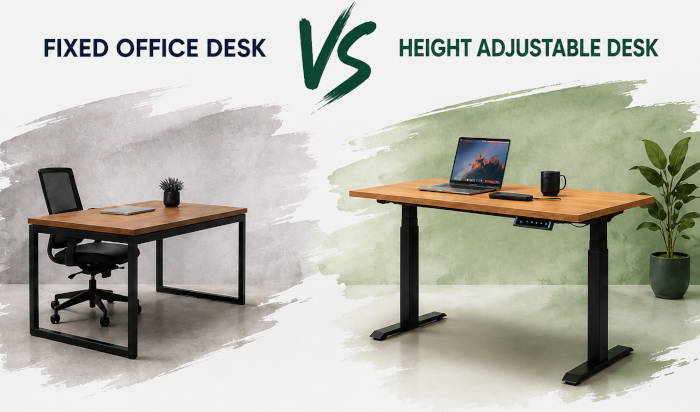
Choose a sit-stand desk if you want flexibility and long-term health benefits. Alternating between sitting and standing every 30–60 minutes improves circulation and reduces lower back strain. Electric height-adjustable desks offer smooth transitions with a simple button press, while manual crank models are quieter and more affordable. If you prefer a fixed desk, ensure it allows your elbows to bend at 90 degrees when typing, with your forearms parallel to the floor.
Measure Your Room Before Buying
Take accurate measurements of your space before selecting a desk. Allow at least 28–36 inches behind the chair for legroom and movement. Compact desks (40–48 inches wide) fit well in small rooms, while larger 60-inch or L-shaped desks suit dual-monitor or multi-device setups. Corner desks maximize underused space, and wall-mounted models free up floor area in tight environments.
Focus on Depth, Stability, and Material
Aim for a desk depth of 24–30 inches to comfortably fit a monitor, keyboard, and mouse without crowding. Thicker desktops (1.5 inches or more) reduce vibrations and feel more durable. Solid wood offers a premium look and longevity, while high-pressure laminate resists scratches and costs less. Always check for sturdy frames—steel legs or desks with gusset plates prevent wobbling under heavy loads.
Optimize Ergonomic Positioning to Prevent Strain

Proper alignment reduces fatigue and protects your body during long work sessions.
Position Your Monitor at Eye Level
Place the top of your screen at or slightly below eye level to avoid neck strain. Looking up or down for extended periods causes tension. Use a monitor arm or an adjustable stand to fine-tune height. For dual monitors, center your primary screen and angle the secondary one at 30 degrees to reduce neck twisting. Keep the screen 20–30 inches from your eyes.
Align Keyboard and Mouse for Natural Arm Position
Keep your keyboard close enough so your elbows stay at 90 degrees and hang naturally at your sides. Use a negative tilt—front edge slightly lower—to keep wrists straight. Place the mouse at the same level as the keyboard and within easy reach. A vertical mouse can help reduce wrist pronation and prevent repetitive strain injuries.
Support Your Spine with Proper Seating
Pair your desk with an ergonomic chair that supports your lower back’s natural curve. Adjust the seat height so your feet rest flat on the floor or on a footrest. Your knees should be level with or slightly below your hips. Sit all the way back in the chair to engage lumbar support—never lean forward or perch on the edge.
Upgrade to High-Performance Peripherals
Your tools should match the demands of your work for speed, comfort, and accuracy.
Use Mechanical Keyboards for Better Typing Experience
Mechanical keyboards offer superior tactile feedback, faster response times, and longer durability than membrane keyboards. Choose switches based on your needs:
• Blue: Clicky and loud—ideal for typists who want audible feedback
• Brown: Tactile with moderate noise—great for balanced typing and office use
• Red: Smooth and linear—best for gaming or fast typists
Backlit keys improve visibility in low light, and programmable keys let you automate repetitive tasks.
Select a Precision Mouse That Fits Your Hand
Choose a mouse with adjustable DPI (1600–3200 for most users) for accurate cursor control. Pick a shape that matches your grip style—palm, claw, or fingertip. Wireless models with low-latency tech like Logitech Lightspeed or Bluetooth 5.0 eliminate cable clutter without sacrificing performance. Look for customizable buttons to streamline workflows.
Add a Second Monitor or Ultrawide Display
Dual monitors can boost productivity by up to 30%. Use one screen for active tasks and the other for references, emails, or video calls. Match both monitors in size and resolution (27-inch QHD is ideal) for seamless transitions. Alternatively, a 34-inch ultrawide (21:9 aspect ratio) offers a single, immersive workspace with minimal bezel interruption.
Eliminate Clutter with Smart Cable Management

A tidy desk promotes focus and makes troubleshooting easier.
Bundle Cables with Velcro Ties and Clips
Use reusable Velcro straps or braided sleeves to group power cords, USB cables, and headset wires. Attach adhesive cable clips under the desk to route wires neatly along the frame. Avoid zip ties—they’re hard to remove and limit future adjustments.
Install a Cable Management Tray
Mount a tray beneath or behind your desk to hide power strips and excess cord length. This keeps connections accessible but out of sight. Desks with built-in grommets and trays make cable routing easier—prioritize these features when shopping.
Label Cables for Quick Identification
Use small tags or colored tape to mark each cable (e.g., “Laptop,” “Monitor,” “Speaker”). This saves time when disconnecting devices or diagnosing issues. Labeling your power strip outlets is also helpful, especially in shared or mobile workspaces.
Enhance Focus with Strategic Lighting and Ambience

Lighting affects alertness, mood, and eye comfort during long screen sessions.
Use Adjustable Task Lighting
Choose a desk lamp with dimmable brightness and color temperature (2700K–5000K). Position it to the side of your monitor to prevent screen glare. LED panels or bias lighting mounted behind the monitor reduce eye strain by balancing ambient light with screen brightness.
Add RGB Lighting for Atmosphere (Optional)
RGB strips under the desk or behind the monitor can enhance mood and immersion, especially for gaming or creative work. Use software like Razer Chroma or Corsair iCUE to sync colors with your system. Keep lighting subtle—bright or flashing colors can distract during focused tasks.
Minimize Screen Glare and Reflections
Avoid placing your desk directly under overhead lights or facing windows. Use blackout curtains or an anti-glare screen filter if needed. Matte-finish monitors scatter light better than glossy ones, making them ideal for bright rooms.
Personalize Your Workspace with Functional Accessories
Small touches improve comfort, organization, and motivation.
Use a Desk Mat for Protection and Style
A large desk pad—especially one that covers the entire surface—protects against scratches and unifies your setup. Rubber-backed mats stay in place, while leather or stitched fabric options add a professional look. Gaming-sized mousepads offer extended movement space for low-DPI users.
Install a Monitor Stand with Storage
Elevate your screen to eye level and reclaim desk space with a stand that includes drawers or shelves. Store pens, notebooks, or headphones underneath. Alternatively, add vertical storage with wall-mounted shelves or pegboards to keep essentials within reach.
Add Plants or Inspirational Decor
A low-maintenance plant like a snake plant or pothos improves air quality and reduces stress. Frame motivational quotes, technical schematics, or artwork to personalize your space. Keep decor minimal—too many items create visual clutter and distract from work.
Maintain Your Setup for Long-Term Performance
Even the best desk setup degrades without regular care and evaluation.
Clean Your Desk Weekly
Wipe surfaces with a microfiber cloth to remove dust and fingerprints. Use compressed air to clean between keyboard keys and around ports. Disinfect high-touch areas like the mouse and keyboard with alcohol wipes to maintain hygiene.
Reassess Every 3–6 Months
Check for wear and tear: loose desk legs, flickering lights, or unresponsive peripherals. Update device drivers and firmware. Reposition equipment if your workflow changes—such as switching from coding to video editing.
Listen to Your Body’s Signals
Persistent pain, fatigue, or distraction are signs your setup needs adjustment. Try a different chair, reposition your monitor, or test a longer standing routine. The best computer desk setup evolves with your needs, not stays static.
Key Takeaways for Building the Best Computer Desk Setup
The best computer desk setup is not about having the most expensive gear—it’s about creating a workspace that supports your body, workflow, and focus. Start with a stable, properly sized desk and build around ergonomics: eye-level monitors, 90-degree elbows, and lumbar support. Upgrade to responsive peripherals like mechanical keyboards and precision mice, and use dual monitors to expand your digital workspace. Keep cables tidy with trays and labels, control lighting to reduce eye strain, and personalize with functional accessories. Most importantly, maintain and adapt your setup over time.
Take action today: assess your current desk, adjust one ergonomic element, and clean up at least three loose cables. Small changes lead to big improvements in comfort and productivity.
Frequently Asked Questions About Best Computer Desk Setup
What is the ideal desk height for sitting?
Your desk should allow your elbows to bend at 90 degrees with forearms parallel to the floor when typing. For most people, this means a desk height of 28–30 inches with a chair adjusted so feet rest flat on the ground.
How far should my monitor be from my eyes?
Position your monitor 20–30 inches away—about an arm’s length. The top of the screen should be at or slightly below eye level to prevent neck strain.
Are standing desks better than sitting desks?
Standing desks offer health benefits like improved circulation and reduced back pain when used in rotation with sitting. However, prolonged standing can cause leg fatigue. The best approach is alternating every 30–60 minutes.
How do I stop my desk from wobbling?
Ensure the desk is on a level floor and all legs are touching the ground. Tighten bolts and check for reinforced frames or gusset plates. Heavier desks with steel legs or solid wood construction are less prone to wobbling.
Should I use one large monitor or two smaller ones?
Dual monitors improve multitasking, while ultrawide monitors offer a seamless, immersive display. Choose based on your workflow: two screens for heavy app switching, one ultrawide for video editing or coding.
How can I hide cables without drilling?
Use adhesive cable clips, Velcro ties, and a cable management sleeve. Route wires along the back of the desk and bundle them neatly. A power strip with a long cord lets you plug everything in one spot near the outlet.