
In today’s digital workspace, the best computer monitor setup isn’t about how many screens you have—it’s about how well your setup supports focus, comfort, and real productivity. Many users assume more monitors equal better performance, but research and real-world testing show otherwise: ergonomics, visual consistency, and workflow alignment matter far more than screen real estate.
A software engineer who tested seven different configurations found that starting with one high-quality display and adding peripherals only when they solve actual problems leads to better long-term efficiency. Whether you’re coding, analyzing data, editing video, or managing emails, the optimal setup reduces distractions, minimizes physical strain, and keeps your attention where it belongs—on the task at hand.
Choose Your Monitor Configuration Wisely
Start With One High-Quality Primary Monitor
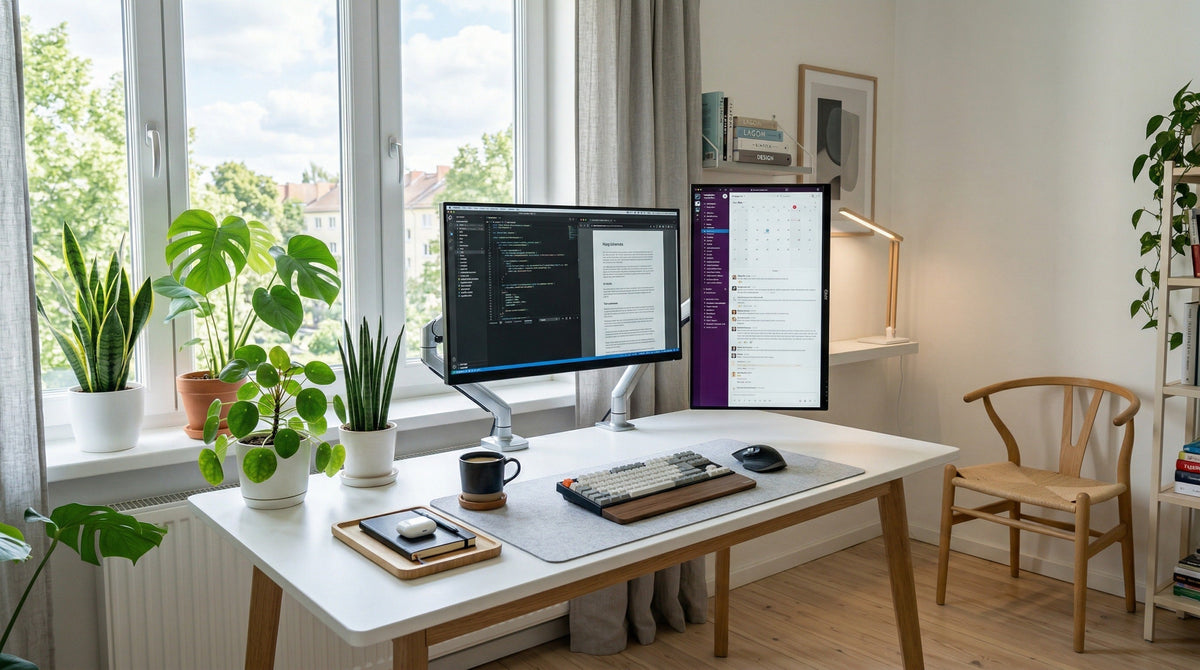
The foundation of any effective setup is a single large, high-resolution monitor (27″ or larger) placed directly in front of you. This central screen should handle your main workflow—be it coding, writing, design, or spreadsheets.
Why it works:
– Eliminates head turning, reducing neck strain
– Provides ample space for multitasking with window management tools
– Ensures visual clarity and color accuracy when using IPS or OLED panels
Recommended specs:
– Size: 27″–32″
– Resolution: QHD (2560×1440) or 4K (3840×2160)
– Panel: IPS for color accuracy, OLED for contrast
– Mount: VESA-compatible for arm flexibility
Use window-splitting tools like FancyZones (Windows) or Rectangle (macOS) to divide your screen into zones for apps, documents, and browsers—simulating multiple displays without the clutter.
Pro Tip: A 27″ 1440p monitor offers the sweet spot between screen space and text readability. Avoid 4K on smaller screens unless you adjust scaling settings.
Dual Monitors: Only Add If It Solves a Problem
Adding a second monitor can boost productivity—but only if used strategically. The key is purpose-driven placement, not just extra pixels.
Side-by-Side Identical Monitors
Best for: Media editing, financial dashboards, multitasking with wide layouts
Pros:
– Symmetrical layout feels balanced
– Great for comparing spreadsheets or timelines
– Seamless experience with matching models
Cons:
– Neck strain from constant head turning
– Bezel gap disrupts continuous content (e.g., code, images)
– Mismatched panels cause visual fatigue
✅ Only works well with identical monitors on adjustable arms to align height and tilt.
Primary + Side Secondary (Recommended)
Best for: Developers, writers, analysts
Place your main monitor center-facing, and add a secondary display to the left or right for reference materials, Slack, email, or logs.
Example setup:
– Center: 27″ LG UltraGear 1440p 144Hz
– Left: 24″ BenQ 1080p 60Hz on arm (for Slack)
– Right: MacBook on stand (for Outlook)
Benefits:
– Primary screen stays in natural line of sight
– Secondary screen supports passive tasks
– Easy screen sharing while keeping notes visible
⚠️ Avoid placing the secondary too far off-axis—keep it within 30° of your primary to reduce neck rotation.
Vertical Dual Monitor: Ideal for Coders and Readers

Stacking two monitors vertically—especially with one in portrait mode—can enhance readability and reduce scrolling.
User insight (Kloud, 20-year WFH veteran):
– Uses upper monitor for icons/downloads
– Lower monitor as primary workspace
– Taskbar at top of both screens for 5+ years
– Uses 7+ Taskbar Tweaker to manage windows via scroll wheel
Advantages:
– Look straight ahead—no neck craning
– Perfect for long documents, code files, PDFs
– Cleaner desk appearance
macOS Warning:
– Dock becomes inaccessible when displays are stacked
– Cursor often gets “trapped” on lower screen
– Not recommended unless using third-party dock replacements
✅ Works best on Windows with proper taskbar customization.
Ultrawide Monitors: Space Without Clutter

A 34″ ultrawide QHD (3440×1440) replaces two 24″ monitors while eliminating bezels and cable clutter.
Ideal for:
– Gaming
– Video editing
– Multitasking with side-by-side apps
Pros:
– Continuous screen surface
– Fits two full windows side by side
– Curved models improve immersion
Cons:
– Requires wide desk (at least 40″)
– Side-to-side eye movement causes fatigue over time
– Not ideal for vertical workflows
💡 Curved ultrawides help reduce peripheral distortion, but preference varies—test before buying.
Triple+ Monitor Setups: Overkill for Most
While triple monitors look impressive, most users only actively use two at a time.
When it makes sense:
– Financial traders monitoring multiple feeds
– Video editors with timeline, preview, and tools open
– Data scientists analyzing dashboards across platforms
Reality check:
– Requires powerful GPU and docking station
– MacBook M1 supports only one external monitor
– High cost and complexity
❌ Avoid “symmetry fix” setups (adding third monitor just to balance duals)—they satisfy aesthetics, not productivity.
Optimize for Your Workflow
Coding & Development: Vertical Secondary Wins
Developers benefit most from vertical space for long code files and documentation.
Recommended setup:
– Primary: 27″ 1440p centered
– Secondary: 24″ 1080p in portrait mode (left or right)
Real user feedback:
– One developer called vertical 24″ BenQ “excellent” for coding
– Another uses 27″ 1440p vertical alongside 48″ OLED main
✅ Use vertical screen for:
– Code review
– API docs
– Terminal/logs
– Chat windows❌ Avoid vertical orientation for Excel or PowerPoint comparisons
Office & Multitasking: Dual or Ultrawide
For email, spreadsheets, and communication tools, dual monitors or an ultrawide offer efficient app separation.
Dual monitor advantage:
– Left: Calendar, Slack, Teams
– Right: Excel, Word, browser
– Center: Main document (if three screens)
Ultrawide alternative:
– Split screen into three zones: communication, work, reference
– Use FancyZones or DisplayFusion for precise layout control
📊 Users report faster task switching and fewer missed messages with dedicated comms screen.
Content Creation: Prioritize Resolution & Color Accuracy

Video editors, designers, and photographers need color-accurate, high-resolution displays.
Must-have features:
– 4K resolution
– IPS or OLED panel
– 100% sRGB / Adobe RGB coverage
– HDR support (optional)
Recommended:
– Samsung 32″ ViewFinity UJ59 4K UHD VA monitor – $339.99, 1,637 reviews
– HP 27″ QHD IPS with USB-C – $332.99, 657 reviews
💡 Use one high-end monitor as primary, second for timeline/tools.
Financial & Data Analysis: Triple Monitors Justified
Traders and analysts often need simultaneous visibility across multiple data streams.
Typical layout:
– Left: News feeds, market updates
– Center: Trading platform
– Right: Analytics dashboard
Hardware note:
– Requires desktop with multi-GPU support or docking hub
– Consider USB-C hub with dual DisplayPort output
⚠️ Avoid vertical orientation for Excel—side-by-side comparison gets cut off by bezels.
Ergonomics: Protect Your Body
Prevent Neck Strain With Proper Placement

Golden rule: Top of screen at or slightly below eye level.
Head movement risks:
– Side-to-side (ultrawide, side-by-side): causes neck strain
– Up-and-down (vertical stack): leads to fatigue
– Far-off secondary: forces constant turning
Solutions:
– Use gas spring VESA arms to align monitor heights
– Keep secondary within 30° of centerline
– Match screen brightness and color temp
✅ Example: 15″ portable monitor mounted vertically next to Apple Studio Display—same height, same clarity, minimal movement.
Reduce Eye Strain With Smart Features
Look for:
– Flicker-free backlight
– Low blue light modes
– Auto-brightness adjustment
Best practices:
– Follow 20-20-20 rule: every 20 minutes, look 20 feet away for 20 seconds
– Use ambient lighting to reduce screen glare
– Adjust contrast to match room lighting
💡 Monitors like Westinghouse 24″ 120Hz include built-in eye comfort features.
Ensure Visual Consistency
Match Screens to Avoid Fatigue
Mismatched monitors create visual jarring—especially when moving windows between Retina and IPS screens.
Problems:
– Different color temperatures
– Varying brightness levels
– Sharpness mismatch (e.g., MacBook vs. budget IPS)
Solutions:
– Use identical models for dual setups
– Choose secondary with similar PPI (pixels per inch)
– Calibrate colors using built-in presets or software
✅ Portable monitors that match your main display (like iPad or high-end USB-C panels) minimize disruption.
Eliminate Bezel Gaps
Bezels interrupt continuity, especially when splitting documents or videos.
Workarounds:
– Use ultrawide instead of dual
– Place secondary above/below to avoid horizontal splits
– Choose monitors with ultra-slim bezels
❌ Never split a spreadsheet or code file across a thick bezel.
Connectivity & Hardware Limits
Check Your Device’s Output Capability
Not all computers support multiple monitors.
Critical limitation:
– MacBook M1/M2: Only one external monitor supported
– M1 Mac Mini: Supports two displays
– Most Windows laptops: Support 2+ via USB-C/DisplayPort
Fix:
– Use a USB-C docking station with dual video outputs
– Upgrade to desktop with multi-GPU support
🛠️ Example: HP Z240 supports up to six displays with proper graphics cards.
Use the Right Cables and Ports
Connection types:
– HDMI: Common, supports up to 4K@60Hz
– DisplayPort: Best for high refresh rates and daisy-chaining
– USB-C: Carries power, data, and video—ideal for laptops
Tip: Always use DisplayPort 1.4 or HDMI 2.0+ for 1440p or 4K.
Build the Ideal Hybrid Setup
The Best Secondary: 15″ Vertical Portable Monitor
Mounting a 15″ portable monitor vertically next to a high-end display (like Apple Studio Display) has been called “the best secondary display setup I’ve tried.”
Why it works:
– Same height as main display → no head movement
– Matches Retina clarity
– Magnetic or VESA arm allows repositioning
– No bezel gap or color mismatch
✅ Perfect for: logs, docs, dashboards, chat apps
iPad Mini Below Main Display: Lightweight Alternative
Prop an iPad Mini below your main screen for quick reference.
Pros:
– No extra cables—just charge via USB-C
– Same Retina quality as Mac
– Runs Notes, Slack, Safari, or terminal apps
Cons:
– Too small for heavy multitasking
– Not ideal for full IDEs or complex UIs
🎯 Best for: note-taking, lightweight tasks, secondary input
Maximize with Accessories
Use Monitor Arms for Flexibility
Benefits of VESA arms:
– Adjust height, tilt, swivel
– Save desk space
– Align mismatched monitor sizes
Gas spring arms (like those used by users with 48″ OLED + 27″ vertical) allow perfect alignment of different-sized screens.
💰 Invest in quality arms—they last longer than monitors.
Enhance Workflow With Software
Window Management:
– FancyZones (Windows): Create custom grid layouts
– Rectangle (macOS): Snap windows with keyboard shortcuts
Taskbar Tools:
– 7+ Taskbar Tweaker: Hover + scroll to minimize/open apps
– Essential for vertical dual-monitor users
Manage Cables Cleanly
Solutions:
– Cable trays under desk
– Monitor arms with built-in routing
– Wireless keyboard/mouse
– USB hubs for centralized connections
🧼 A clean setup reduces stress and improves focus.
Frequently Asked Questions About Best Computer Monitor Setup
What is the ideal monitor size for productivity?
The ideal size is 27″ or larger with QHD or 4K resolution. A 27″ 1440p monitor offers the best balance of screen space and text readability for most users.
Can I use different monitor models in a dual setup?
Yes, but mismatched panels cause visual fatigue. Use monitors with similar size, resolution, and color accuracy. VESA arms help align height and tilt.
Why does my MacBook only support one external monitor?
MacBook M1 and M2 models are limited to one external display. Use an M1 Mac Mini or desktop if you need more screens.
Is a vertical monitor good for coding?
Yes. A vertical 24″ or 27″ monitor provides excellent space for long code files, documentation, and logs. Use it as a secondary display to avoid neck strain.
Do ultrawide monitors cause eye strain?
They can, due to constant side-to-side eye movement. Curved ultrawides reduce peripheral distortion, but test one first if you plan long work sessions.
How do I reduce neck pain from multi-monitor setups?
Keep your primary screen centered and at eye level. Use VESA arms to align secondary monitors within 30° of your line of sight. Avoid extreme head turns.
Key Takeaways for Building the Best Computer Monitor Setup
The best computer monitor setup starts with a single high-quality display and adds only what solves real workflow problems. Focus on ergonomics, visual consistency, and task alignment—not screen count.
Prioritize a 27″ or larger QHD/4K monitor as your foundation. Add a secondary display only if it improves focus—like a vertical 24″ for coding or a 15″ portable next to a Studio Display. Use VESA arms, window management tools, and cable organizers to enhance comfort and efficiency.
Test configurations, listen to your body, and build a system that supports your unique workflow. Whether you choose dual monitors, an ultrawide, or a hybrid iPad setup, the goal is the same: maximum focus, minimal strain.



