Shipping a computer—whether it’s a high-end gaming desktop, a custom-built workstation, or a business laptop—carries real risks. One jolt during transit can mean a cracked motherboard, dislodged GPU, or total data loss. The best way to mail a computer isn’t just about stuffing it in a box; it’s a precise process involving disassembly, double-boxing, insurance, and smart carrier choices. With hardware often worth thousands, cutting corners isn’t an option. This guide gives you a step-by-step blueprint to ship your PC safely, whether you’re selling, relocating, or sending it for repair.
You don’t need a degree in engineering, but you do need a plan. We’ll walk you through how to back up your data, remove fragile components, pack like a pro, choose the right carrier, and protect your investment with full-value insurance. From avoiding liquid cooling disasters to using professional packing services, you’ll learn exactly how to get your computer from point A to point B—intact and functional.
Remove and Protect Sensitive Components
Back Up Data and Document Everything First
Before touching any hardware, back up all your data to an external drive or cloud service. Never assume your drive will survive transit unscathed. Also, take photos of your system before disassembly—inside the case, connected cables, and final packed state. These help with reassembly and insurance claims. Attach a printed list of components and their values to the box for customs or damage reporting.
Unplug and Power Down Completely
Shut down your computer and unplug it from power. Disconnect every peripheral: monitor, keyboard, mouse, USB hubs, and external drives. Remove all cables from the back and front of the case to prevent strain on ports during shipping.
Take Out the Graphics Card
The GPU is one of the most vulnerable parts. Carefully unseat it from the PCIe slot and place it in its original anti-static bag or a rigid protective box. Wrap it in bubble wrap, especially protecting the gold contacts and metal bracket. Store it separately or secure it inside the case with padding to prevent movement.
Remove the CPU Cooler
Whether air or liquid-cooled, remove the CPU cooler. A heavy heatsink can shift and crack the motherboard if the case is dropped. Store it in an anti-static bag or padded container. If it’s an AIO or custom loop, ensure it’s fully drained and dry—never ship liquid-filled coolers.
Secure RAM and SSDs
Remove RAM sticks and M.2 or 2.5” SSDs, especially for long-distance or international shipments. Store them in anti-static bags and label them. This prevents loosening, damage from vibration, or data loss. Reinstall them only after delivery.
Reinstall and Stabilize the Motherboard
If shipping the case with the motherboard inside, ensure all components are firmly seated. Use foam, bubble wrap, or even a soft bedsheet to fill empty spaces inside the case so nothing shifts. If shipping the motherboard alone, place it in an anti-static bag with cardboard support on both sides.
Pack with Double-Boxing and Shock Protection

Use the Original Box If You Have It
If you still have the original manufacturer’s packaging, use it. These boxes are designed specifically for your system and include custom foam inserts. Place the computer inside with all original padding, then proceed to double-box it for maximum protection.
Apply the Double-Boxing Method
Double-boxing is the best way to mail a computer when no original box is available. Here’s how:
- Choose an outer box at least 6 inches larger than the inner box or PC on all sides.
- Fill the bottom with 3 inches of bubble wrap, air pillows, or packing peanuts—never crushed paper.
- Place the inner box (or wrapped PC) in the center.
- Fill all gaps around it with cushioning material to prevent movement.
- Seal both boxes using the H-taping method: apply at least three 2-inch-wide strips of tape across the top and bottom seams, plus all flaps.
This method absorbs shocks and prevents box collapse during handling.
Wrap the Case Properly Without a Box
If shipping without a case box:
- Wrap the PC case in plastic to block dust and moisture.
- Cover all sides with thermocol (expanded polystyrene) for cushioning.
- Seal edges with tape.
- Wrap the entire unit in bubble wrap, focusing on corners and edges.
- Place it in a sturdy cardboard box and fill empty space to prevent shifting.
Avoid Spray Foam and Crushed Paper
Never use expanding spray foam—it can stick to components, create pressure points, and generate static electricity that damages circuits. Also, avoid crushed paper as it compresses over time and offers poor shock absorption.
Label and Prepare the Shipment Correctly
Mark the Box as Fragile and Oriented
Clearly label the box with “Fragile” and “This Side Up” on at least two sides. Use printed or adhesive labels—handwritten ones are often ignored. This increases the chance of careful handling during sorting.
Place Shipping Label on Top
Always put the shipping label on the top of the box. This helps ensure it’s scanned and handled right-side up throughout transit.
Include a Component Inventory
Attach a printed list of all included parts and their estimated values. This speeds up customs processing for international shipments and supports insurance claims if damage occurs.
Choose the Right Carrier and Service

Compare FedEx, UPS, USPS, and DHL
Top options for computer shipping:
- FedEx: Offers specialized laptop boxes and fast delivery; ideal for urgent or high-value shipments
- UPS: Reliable ground and air services; The UPS Store provides professional packing
- USPS: Best for small, lightweight packages; limited insurance for electronics
- DHL: Strong global network for international deliveries
For systems over 70 lbs, use freight shipping via FedEx Freight or UPS Freight.
Select Service Based on Speed and Budget
Need It Fast? Use Overnight or 2-Day Shipping
Choose FedEx Priority Overnight or UPS Next Day Air for time-sensitive deliveries like repairs or business use.
Saving Money? Use Ground Shipping
FedEx Ground or UPS Ground is cost-effective for non-urgent shipments, delivering in 1–5 business days.
Shipping Heavy or Odd-Shaped Systems?
Use freight services with skids or crates. These are handled by forklifts, reducing drop risk.
Use Professional Packing Services When Possible
The UPS Store Packing Experts
Many UPS Store locations have certified packing professionals trained in ISTA-certified methods that pass drop tests. If they pack it and it’s damaged, you may qualify for the Pack & Ship Guarantee, covering the item’s value.
Services include:
• Custom crating
• Blanket wrapping
• Palletizing
• Shrink-wrapping
Call ahead to confirm availability and pricing—locations are independently owned.
FedEx Office Solutions
FedEx Office sells ready-made laptop and tablet boxes with built-in cushioning. While they don’t offer full packing services, staff can guide you on materials. For heavy gear, call 1.800.GoFedEx for freight support.
Insure for Full Replacement Value
Declare the Complete Value
Always insure your computer for its full replacement cost, including parts, labor, and accessories. If you built it yourself, add up all component prices.
Carrier insurance limits:
– UPS: Up to $50,000 (with forms)
– FedEx: Up to $5,000 standard; higher with notice
– USPS: Max $5,000 for electronics
Pay extra for full coverage—it’s cheaper than replacing a damaged GPU.
Save All Packaging for Claims
If your computer arrives damaged, do not throw away any packaging. Carriers require the box, padding, and labels for inspection. Report damage immediately to the sender or shipping location.
Never Ship a Filled Liquid Cooling Loop
Drain and Disassemble Before Shipping
Never mail a PC with liquid in the cooling system. Coolant can leak, damage components, or be flagged as hazardous. If you must ship a custom loop:
• Drain and dry all parts
• Pack radiator, pump, and tubing separately
• Use freight shipping on a skid
Even AIO coolers should be removed if possible.
Handle International Shipments with Care
Disassemble for Customs Clearance
Customs officials may open packages. A fully assembled PC risks damage or delays. Disassemble and pack components separately to avoid issues.
Use FedEx International or UPS Worldwide. Include a commercial invoice with declared values.
Check Import Rules in Advance
Some countries restrict electronics or impose high taxes. Research destination regulations before shipping to avoid seizure or fees.
Schedule Drop-Off or Home Pickup
Drop Off at Carrier Locations
- FedEx: Drop off at FedEx Office, Walgreens, or Target
- UPS: Use The UPS Store or authorized drop points
- USPS: Bring to Post Office or use collection boxes (for small packages)
Request Carrier Home Pickup
All major carriers offer home pickup:
• Schedule online via FedEx or UPS
• Have the box ready with label attached
• Pay at pickup or include in shipping cost
Ideal for heavy desktops you can’t transport.
Track and Manage Your Shipment in Real Time
Use Tracking and Notifications
Every shipment comes with a tracking number. Use it to:
• Monitor progress
• Get delivery alerts
• Estimate arrival
Enable email notifications for updates.
Change Delivery with UPS Delivery Intercept®
Use UPS Delivery Intercept® to:
• Redirect the package
• Reschedule delivery
• Return to sender
• Hold at pickup location
There’s a fee, but it’s useful for last-minute changes.
Upgrade Service Mid-Transit
If your timeline changes, contact the carrier to upgrade from ground to overnight. This is often possible while the package is en route.
Special Cases: Laptops and Tablets
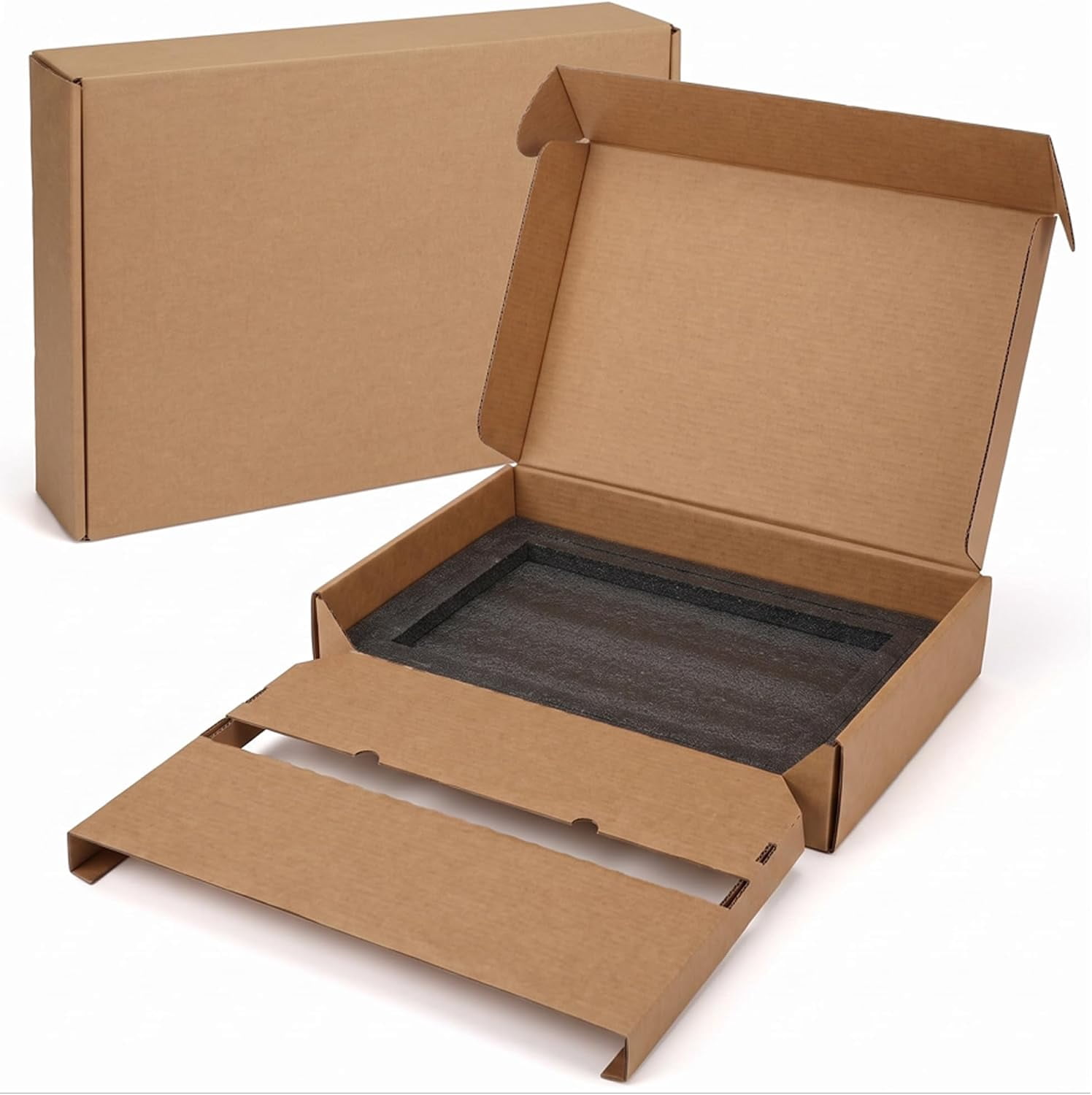
Use Specialized Laptop Boxes
FedEx and UPS sell pre-designed laptop shipping boxes with foam inserts. These are ideal for high-end or business laptops.
Pack Tablets Securely
Wrap tablets in bubble wrap, place in a rigid box, and double-box if needed. Use original packaging when possible.
Key Takeaways for Safely Mailing Your Computer
The best way to mail a computer combines smart disassembly, military-grade packaging, and smart logistics. Always:
• Back up data and photograph everything
• Remove GPU, CPU cooler, and SSDs
• Use double-boxing with 6 inches of clearance
• Insure for full replacement value
• Choose FedEx, UPS, or freight for heavy systems
Skip shortcuts. Use professional packing if unsure. With these steps, your computer will survive even the roughest transit.
Frequently Asked Questions About Mailing a Computer
Can I ship a computer without removing the GPU?
You can, but it’s risky. The GPU is heavy and can shift, damaging the PCIe slot or motherboard. Always remove it for long-distance or international shipping.
Should I remove the CPU cooler before shipping?
Yes. A heavy air cooler or liquid AIO can crack the motherboard during impact. Remove it, drain if liquid, and pack separately.
What’s the safest way to pack a desktop PC?
The double-boxing method is safest: use a sturdy inner box or wrapped case, place it in a larger outer box with 6 inches of cushioning on all sides, and seal with H-taping.
Can I use The UPS Store to pack my computer?
Yes. Many locations have certified packing experts who use ISTA-certified methods. If damaged, you may qualify for the Pack & Ship Guarantee.
Is it safe to ship a PC with a liquid cooling system?
No. Never ship a filled loop. Drain and dry all parts, pack separately, and use freight shipping. Even AIOs should be removed when possible.
How much does it cost to ship a computer?
Cost varies: $20–$50 for ground shipping a laptop, $100+ for insured desktops. Freight for heavy systems can exceed $200. Get quotes from FedEx, UPS, and USPS.