
Is your computer sluggish, unresponsive, or taking forever to boot? You’re not alone. Over time, Windows 10 and 11 systems accumulate junk files, background apps, and outdated settings that drain speed and efficiency. The best way to improve computer performance isn’t about buying new hardware—it starts with smart, free software optimizations. From disabling startup bloat to freeing up critical disk space, these proven steps can restore your PC’s responsiveness and extend its life. This guide delivers a complete, Microsoft-backed action plan to diagnose slowdowns and fix them fast.
You’ll learn how to clean up storage, eliminate resource-hogging apps, and optimize system settings—using only built-in tools and safe practices. Whether you’re troubleshooting lag, preparing for a big project, or just want a faster daily experience, this step-by-step approach delivers real results without risk.
Install Windows and Driver Updates for Peak Performance
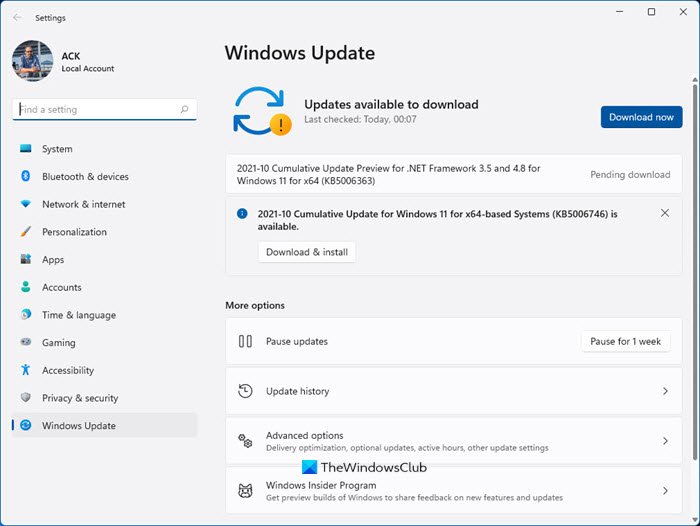
Outdated software is a major cause of slow performance. Windows updates include critical fixes, security patches, and behind-the-scenes optimizations that improve speed and stability.
Check for Core Windows Updates
- Press Start > Settings > System > Windows Update
- Click Check for updates
- If available, select Download & install
- Allow your PC to restart if required
Even if your system says it’s up to date, manually checking ensures no pending updates are stuck. These updates often resolve known performance bugs and improve compatibility with modern apps.
Install Optional Driver Updates
Drivers control how hardware communicates with Windows. Outdated versions can cause lag, crashes, or poor resource use.
- Go to Windows Update > Advanced options > Optional updates
- Expand the driver list
- Select relevant drivers (e.g., graphics, audio, chipset)
- Click Download & install
These non-critical updates are often overlooked but can deliver noticeable improvements in system responsiveness.
Run a Full Malware Scan to Remove Hidden Threats
Malware can run silently in the background, consuming CPU, disk, and memory—slowing your PC without warning.
Use Built-in Windows Security
- Open Start > Settings > Privacy & security > Windows Security
- Select Virus & threat protection
- Click Scan options > choose Full scan or Microsoft Defender Offline Scan
- Run the scan and remove any detected threats
A full scan checks all files and running processes. For deep infections, the Offline Scan runs before Windows starts, catching malware that hides during normal operation.
Pro Tip: Stick with Windows Security or trusted Microsoft Store apps. Avoid third-party “boosters” that may install bloatware.
Free Up Disk Space to Boost System Speed
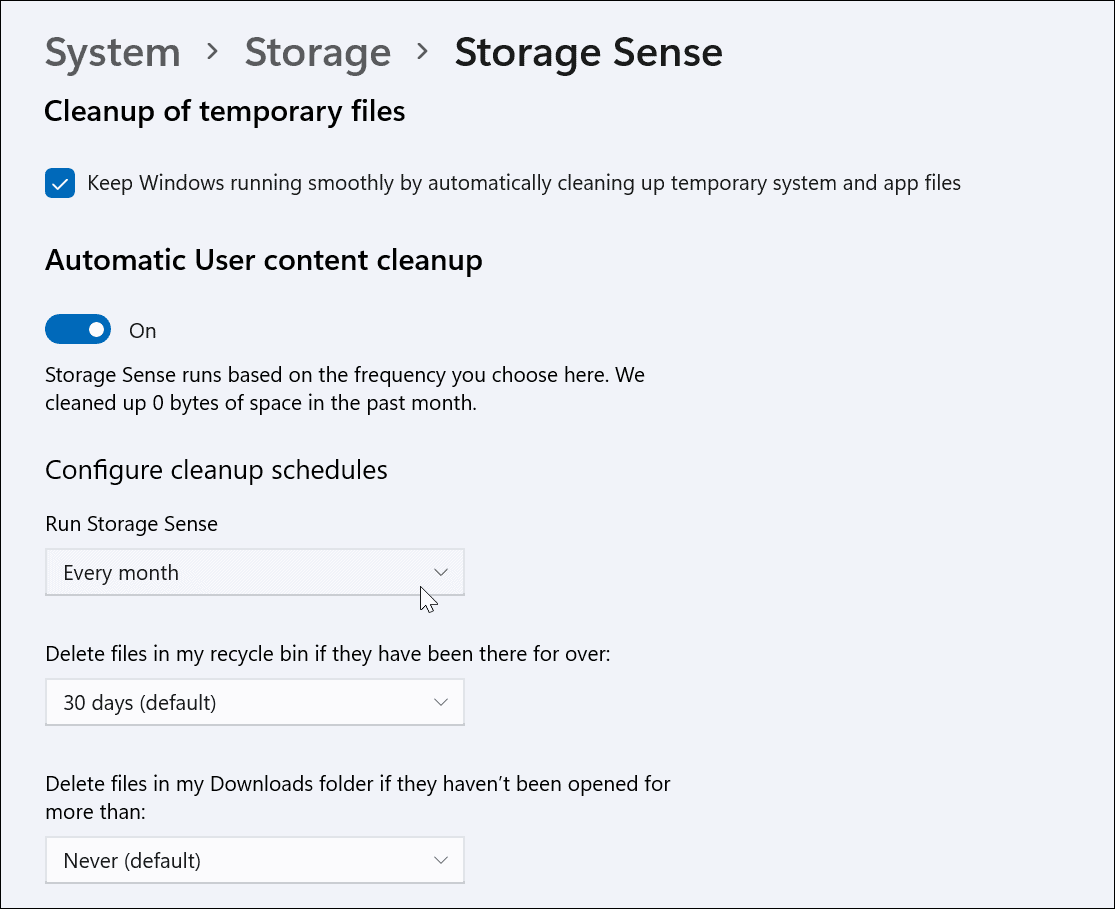
Low disk space cripples performance by limiting virtual memory and slowing file access. Keep at least 15–20% of your drive free for optimal operation.
Enable Storage Sense Automatically
- Go to Start > Settings > System > Storage
- Turn on Storage Sense
- Click Configure Storage Sense
- Set it to run weekly and delete temp files, Recycle Bin contents, and delivery optimization files
This hands-off tool keeps your system clean without manual effort—ideal for ongoing maintenance.
Manually Remove Temporary Files
- In Storage settings, click Temporary files
- Select:
• Temporary files
• Recycle Bin
• Delivery Optimization Files
• Windows Update Cleanup - Click Remove files
This gives you full control over what’s deleted and can reclaim several gigabytes instantly.
Use Disk Cleanup for System Files
For deeper cleaning:
- Press Windows + R, type
cleanmgr, press Enter - Select drive C:
- Click Clean up system files
- Re-select C:
- Check all boxes, especially:
• Windows Update Cleanup
• Previous Windows Installation(s) - Click OK > Delete files
This step is especially effective after major Windows upgrades, often freeing 5–15 GB.
Uninstall Unused Programs to Reduce Bloat

Every installed app takes up space and may run background services—even when you don’t use them.
Remove Apps via Settings
- Start > Settings > Apps > Apps & features
- Sort by size or name
- Select an unused app > Uninstall
- Confirm removal
Target large, rarely used apps like old games, trial software, or duplicate utilities.
Use Control Panel for Legacy Programs
Some older apps only appear here:
- Press Windows + R, type
appwiz.cpl, press Enter - In Programs and Features, select unwanted software
- Click Uninstall
Warning: Never remove system components or drivers unless certain. When in doubt, skip it.
Disable Startup Apps for Faster Boot Times
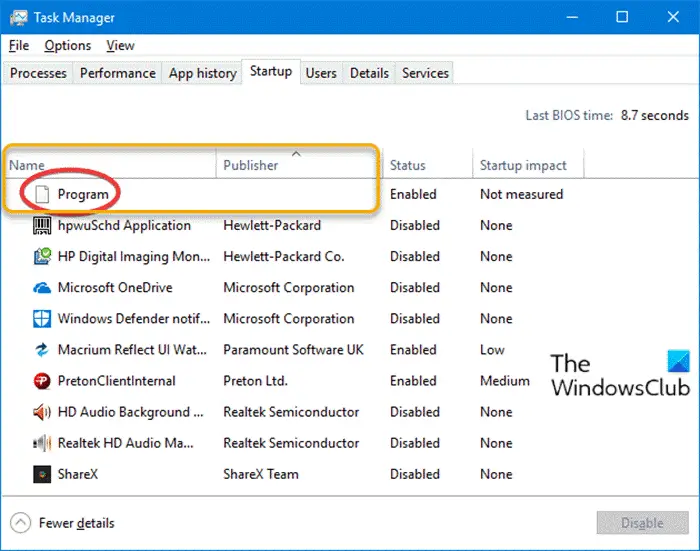
Too many apps launching at startup delays boot and consumes RAM.
Manage Startup via Task Manager
- Press Ctrl + Shift + Esc to open Task Manager
- Go to the Startup apps tab
- Right-click unnecessary apps (e.g., Spotify, Adobe Updater, cloud tools)
- Select Disable
Common culprits:
• Dropbox
• Skype
• Printer utilities
• Messaging apps
Disabling them doesn’t uninstall—just stops them from launching at boot.
Result: Boot times can improve by 30–60 seconds, with more RAM available immediately.
Turn Off Background Apps to Save Resources
Even when closed, some apps run in the background, using CPU and memory.
Limit Background Activity
- Start > Settings > Privacy > Background apps
- Under Choose which apps can run in the background, toggle off:
• Mail
• Calendar
• Third-party apps you don’t need
This reduces resource drain with no impact on core functionality.
Clear System Tray Programs
- Click the ^ icon in the taskbar
- Right-click running apps (e.g., updaters, utilities)
- Select Exit, Quit, or Close
Many of these run silently—closing them frees memory instantly.
Optimize Visual Effects for Maximum Responsiveness
Windows animations look smooth but cost performance, especially on older hardware.
Set for Best Performance
- Press Start, type Adjust the appearance and performance of Windows
- Open the result
- On the Visual Effects tab, select Adjust for best performance
- Click Apply > OK
This disables:
• Window animations
• Transparency effects
• Live thumbnails
• Shadow effects
Your desktop will feel snappier during window switching and app launching.
Alternative Path: Press Windows + X > System > Search “Performance” > Open the same tool.
Set Power Mode to Best Performance for Full CPU Power
By default, many PCs use power-saving modes that throttle CPU speed.
Switch to High Performance
On Windows 11:
1. Start > Settings > System > Power & battery
2. Under Power mode, select Best performance
On Windows 10:
1. Start > Settings > System > Power & sleep > Additional power settings
2. Select High performance
This allows your CPU to run at full speed when needed.
Warning: Increases fan noise, heat, and battery drain. Use only when plugged in or during heavy tasks like video editing or gaming.
Optimize Hard Drives (HDDs Only) to Reduce Fragmentation
If your PC uses a traditional hard drive (HDD), file fragmentation slows access times.
Defragment Your Drive
- Press Start, type Defragment and Optimize Drives, open it
- Select your drive (usually C:)
- Click Analyze
- If fragmentation is over 10%, click Optimize
Or use the Run command:
• Press Windows + R, type dfrgui, press Enter
Critical Note: Never defragment SSDs. It reduces lifespan. This step is for HDDs only.
Windows usually schedules this automatically, but manual optimization helps after large file changes.
Monitor Resource Usage to Identify Performance Hogs
Use built-in tools to see what’s slowing your PC in real time.
Use Task Manager to Find Heavy Processes
- Press Ctrl + Shift + Esc
- Go to Processes tab
- Sort by:
• CPU
• Memory
• Disk - End tasks for unresponsive or unnecessary apps
Watch for:
• Browser tabs using high memory
• Unknown processes at 100% CPU
• Apps stuck at high disk usage
Tip: Close unused browser tabs—each one consumes RAM and CPU.
Reduce App Notifications to Minimize Distractions and Load
Frequent pop-ups interrupt focus and use system resources.
Disable Unnecessary Notifications
- Start > Settings > System > Notifications
- Turn off notifications for:
• Social media apps
• Games
• Promotional software
You can still check these apps manually—without the performance cost.
Restart Regularly to Clear Memory and Reset Processes
A simple restart clears RAM, stops memory leaks, and resets background services.
Make Restarting a Habit
- Close open apps
- Click Start > Power > Restart
- Wait for full reboot
Even if your PC seems fine, restart weekly to maintain peak performance.
Why it works: Apps leave behind cached data and failed processes. A restart clears the slate.
Use Microsoft PC Manager for One-Click Optimization
Microsoft’s official tool simplifies many performance fixes.
Key Features
• One-click storage cleanup
• Startup app manager
• System performance dashboard
How to Use
- Download Microsoft PC Manager from the Microsoft Store
- Open and run Cleanup and Optimize tools
- Review suggestions under Performance
This lightweight, secure app is designed specifically for Windows 10/11.
Avoid: Third-party “PC boosters” that modify the registry or install bloatware. Stick with Microsoft-approved tools.
Avoid Risky Third-Party Optimizers That Harm Your System
Many free tools promise speed boosts but can damage your PC.
Risks of Unknown Tools
• Modify critical system files
• Install hidden malware
• Over-clean registry, causing crashes
Safer Alternatives
• Trend Micro PC Health Checkup (for Trend Micro users)
• Cleaner One Pro (reputable, free trial available)
Always download tools from official stores or vendor websites.
Follow a Monthly Maintenance Routine to Prevent Slowdowns
Consistent upkeep stops problems before they start.
Monthly Checklist
• Run Disk Cleanup or Storage Sense
• Check for Windows and driver updates
• Perform a malware scan
• Review startup apps
• Empty the Recycle Bin
Set a calendar reminder to stay on track.
Know When to Upgrade Hardware for Lasting Speed Gains
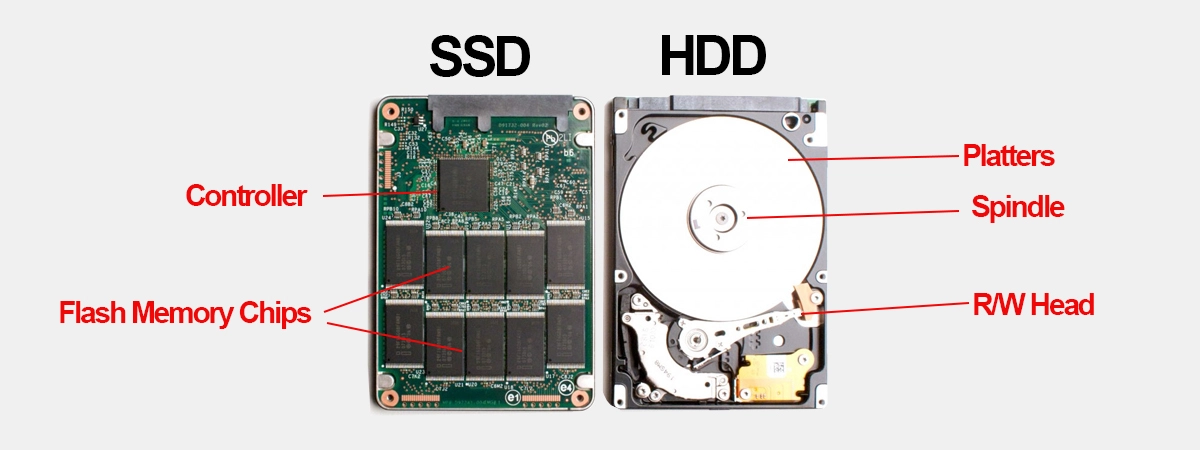
Software fixes have limits—especially on older machines.
Signs You Need Hardware Upgrades
• Still slow after all optimizations
• Using HDD instead of SSD
• Less than 8GB RAM
• CPU older than 8–10 years
Most Effective Upgrades
• Replace HDD with SSD – Biggest speed boost for older PCs
• Add more RAM – Improves multitasking
• Clean internal dust – Prevents overheating and throttling
Fact: Upgrading to an SSD can make a 10-year-old PC feel like new.
Frequently Asked Questions About Improving Computer Performance
Why is my computer suddenly so slow?
Your PC may be slow due to low disk space, too many startup apps, malware, or outdated drivers. Run a malware scan, free up space, and disable unnecessary startup programs to fix it quickly.
Does restarting your computer make it faster?
Yes. Restarting clears RAM, stops memory leaks, and resets background processes. It’s one of the fastest ways to restore performance—especially after long uptime.
How do I stop programs from running in the background?
Go to Settings > Privacy > Background apps and toggle off apps you don’t need. Also, check the System Tray and close unused programs manually.
Should I defragment my computer to make it faster?
Only if you have a traditional hard drive (HDD). Defragmenting organizes fragmented files for faster access. Do not defragment SSDs—it reduces their lifespan.
Can too many browser tabs slow down my computer?
Yes. Each tab uses memory and CPU. Having 10+ tabs open can significantly slow down your system, especially on machines with 8GB RAM or less. Close unused tabs to free resources.
Is it safe to use third-party PC optimizer tools?
Most are not safe. Many modify system files, install bloatware, or over-clean the registry. Stick with built-in Windows tools or Microsoft Store apps like Microsoft PC Manager.
Key Takeaways for Improving Computer Performance
The best way to improve computer performance combines regular software maintenance with smart hardware choices. Start with free, built-in tools: update Windows, clean storage, disable startup apps, and monitor resource usage. These steps resolve most slowdowns and can restore your PC to near-new speed.
For lasting results, adopt a monthly maintenance routine and avoid risky third-party optimizers. If your system still lags, consider upgrading to an SSD or adding more RAM—especially if you’re using older hardware.
Take action today: run a cleanup, disable three startup apps, and restart. You’ll feel the difference immediately.



