
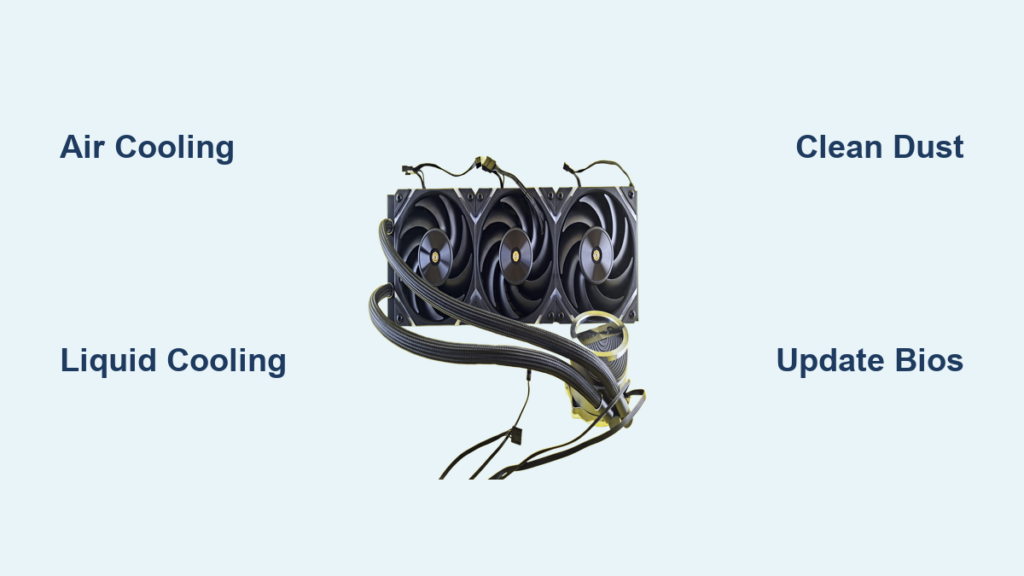
Is your computer slowing down during intense gaming sessions or video rendering? Does the fan sound like a jet engine taking off? You’re not alone—overheating is one of the most common performance killers in modern PCs and laptops. The best way to keep your computer cool involves a smart mix of hardware, maintenance, and software optimization. Whether you’re a casual user or a hardcore gamer, uncontrolled heat can lead to thermal throttling, system crashes, or even permanent hardware damage. In this guide, you’ll learn how to choose the right cooling solution, maintain your system, and optimize settings to keep temperatures in the safe zone—without breaking the bank.
From air and liquid cooling to dust management and thermal settings, we’ll break down every proven method to maximize cooling efficiency. You’ll discover which solution fits your use case, how to spot early signs of overheating, and what steps to take before it’s too late.
Choose the Right Cooling Solution for Your Needs

The foundation of effective cooling starts with selecting the right system. Your workload, budget, and noise tolerance determine whether air or liquid cooling is the better fit.
Air Cooling: High Performance Without the Cost
Air cooling remains the top choice for most users due to its reliability and simplicity.
Why it works:
• Uses a heatsink and fan to pull heat away from the CPU
• No risk of leaks or complex maintenance
• Most CPUs include a stock cooler—ideal for budget builds
• High-end models handle moderate overclocking with ease
Best for:
• Everyday computing and office work
• 1080p or 1440p gaming
• Compact cases and standard workloads
• Users who want plug-and-play reliability
Pro tip: Modern air coolers with heat pipes and direct-contact designs match entry-level liquid coolers in performance—without the added cost or risk.
Liquid Cooling: Maximize Heat Dissipation Under Load
Liquid cooling delivers superior thermal control, especially for sustained high-performance tasks.
How it works:
• A water block absorbs heat from the CPU
• Coolant flows through tubing to a radiator
• Fans on the radiator expel heat from the case
Types:
• All-in-One (AIO): Pre-filled, sealed units (120mm to 360mm). Easy to install and maintain.
• Custom loop: Full DIY setup cooling CPU, GPU, and VRMs. Highest performance but complex and expensive.
Best for:
• 4K gaming and VR
• 8K video editing and 3D rendering
• Overclocked systems
• Enthusiasts who want quiet, efficient cooling
Key advantage: Liquid conducts heat better than air—like jumping into a pool versus standing in front of a fan. This means lower CPU temps during long sessions.
Optimize Case Airflow for Maximum Cooling Efficiency
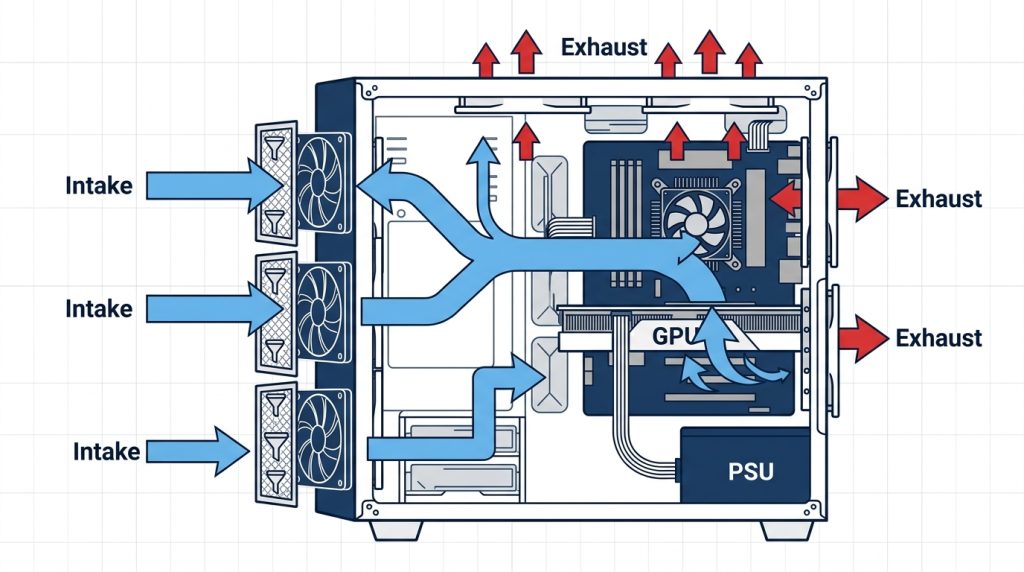
Even the best cooler fails if your case traps heat. Proper airflow keeps all components cool, not just the CPU.
Set Up Intake and Exhaust Fans Correctly
A balanced airflow setup ensures hot air exits and cool air enters efficiently.
Recommended layout:
• Intake fans at the front and bottom (pull in cool air)
• Exhaust fans at the rear and top (push out hot air)
• Maintain slight positive pressure (more intake than exhaust) to reduce dust buildup
Fan size matters:
• 120mm and 140mm fans offer the best airflow-to-noise ratio
• Larger fans move more air at lower RPMs, reducing noise
Prevent Blocked Air Vents
• Never place your desktop in a closed cabinet or flush against a wall
• Leave 4–6 inches of clearance around all sides
• For laptops, avoid using on beds, sofas, or pillows—these block bottom vents
Quick fix: Elevate the rear of your laptop slightly to improve airflow from the underside.
Clean Dust Every 3–6 Months to Restore Cooling Performance
Dust acts like a thermal blanket, trapping heat in fans, heatsinks, and vents.
How to Clean Your PC Safely and Effectively
Steps:
1. Power off and unplug the computer
2. Open the case (desktop) or access vents (laptop)
3. Use compressed air to blow dust from fans, heatsinks, and vents
4. Hold fans in place while spraying to prevent overspinning
5. Wipe exterior vents with a dry microfiber cloth
Frequency:
• Every 3–6 months for desktops
• Every 2–3 months for laptops (especially in dusty environments)
Warning: Never use a vacuum cleaner—it can generate static electricity and damage components.
Replace Thermal Paste Every 2–3 Years for Better Heat Transfer

Thermal paste fills microscopic gaps between the CPU and cooler. Over time, it dries out and loses effectiveness.
When to Apply New Thermal Paste
• Every 2–3 years for standard paste
• Every 5+ years for high-quality compounds like Arctic MX-4 or Thermal Grizzly
• After removing or reseating the cooler
Best practice: Use a pea-sized amount of high-performance thermal paste for full coverage without spillage.
Use a Cooling Pad to Lower Laptop Temperatures by 5–10°C

Laptops overheat due to compact designs and limited airflow.
How Cooling Pads Improve Performance
• Add extra fans beneath the laptop to boost airflow
• Reduce bottom-case temperatures by 5–10°C
• Improve comfort during long sessions
What to look for:
• Adjustable fan speeds
• Ergonomic tilt for better typing angle
• USB-powered (no extra adapter needed)
• Size that matches your laptop (15″, 17″, etc.)
Best use cases:
• Gaming on a laptop
• Video editing or streaming
• Use in warm rooms or on soft surfaces
Adjust Power and Thermal Settings to Reduce Heat Output
Software settings can cut heat generation without changing hardware.
Switch to Balanced Power Mode in Windows
Steps:
1. Go to Settings > System > Power & battery
2. Select Balanced or Best Power Efficiency
3. Avoid Best Performance unless needed
Why it works: High-performance modes increase CPU voltage and clock speeds, generating more heat. Balanced mode keeps performance smooth while reducing thermal output.
Set Thermal Profiles in Dell Optimizer or Alienware Command Center
On compatible systems:
• Open Dell Optimizer or Alienware Command Center
• Set thermal mode to Cool for lower temps (fans run faster)
• Use Performance mode only for gaming or rendering
• Choose Quiet mode when noise is a concern
Trade-off: Cool mode reduces temperatures but increases fan noise.
Update BIOS, Drivers, and Firmware for Better Thermal Control
Outdated firmware can cause inefficient fan curves or poor hardware communication.
How to Update:
- Open SupportAssist (Dell) or visit the manufacturer’s website
- Check for BIOS, chipset, and fan control updates
- Install and restart
Benefits:
• Improved thermal management algorithms
• Better fan speed control
• Fixes for overheating bugs
Caution: Always ensure stable power during BIOS updates to avoid bricking the system.
Monitor Temperatures and Run Diagnostics to Catch Problems Early

Stay ahead of overheating by tracking your system’s thermal health.
Use Monitoring Tools to Track Real-Time Temperatures
• HWMonitor, Core Temp, or SpeedFan for real-time CPU and GPU temps
• Check loads under stress (gaming, rendering)
• Safe limits:
• CPU: Below 80–85°C under load
• GPU: Below 85–90°C under load
• Laptop surface: Shouldn’t be uncomfortable to touch
Run Hardware Diagnostics
• Use SupportAssist or built-in BIOS tools
• Test fan operation and sensor accuracy
• Detect failing fans or clogged heatsinks early
Prevent Overheating During Gaming and Heavy Workloads
Intensive tasks push your system to the limit. Take proactive steps to avoid thermal throttling.
For Gamers:
• Lower in-game settings (shadows, anti-aliasing) to reduce GPU load
• Cap frame rates to match your monitor’s refresh rate
• Use Cool thermal profile to keep fans aggressive
• Ensure case has at least 2 intake and 1 exhaust fan
For Creators:
• Close background apps during rendering
• Use liquid cooling for 8K video or long 3D renders
• Schedule heavy tasks during cooler parts of the day
• Consider undervolting CPU/GPU for less heat without performance loss
Upgrade Cooling When Temperatures Stay Above 90°C
Sometimes, basic fixes aren’t enough. It may be time for a hardware upgrade.
Signs You Need a Cooling Upgrade:
• CPU/GPU consistently hits 90°C+ under load
• Frequent crashes or shutdowns during use
• Fan runs at 100% even at idle
• Dust cleaning and thermal paste replacement don’t help
Possible solutions:
• Upgrade to a 240mm or 360mm AIO cooler
• Add more case fans or switch to a better-ventilated case
• Replace aging thermal paste or faulty fans
• Contact technical support for hardware diagnostics
Frequently Asked Questions About Keeping Your Computer Cool
How do I know if my computer is overheating?
If your laptop feels hot to the touch, the fan runs constantly at full speed, or the system crashes during use, it may be overheating. Use monitoring tools like HWMonitor to check CPU and GPU temperatures—anything above 85°C under load is a warning sign.
Can I use my computer while it’s overheating?
It’s best to shut down the system until it cools down. Continued use under high temperatures can cause permanent damage to the CPU, GPU, or motherboard. Let it rest, clean the vents, and check for dust buildup before resuming.
How can I reduce fan noise without sacrificing cooling?
Clean dust from fans and heatsinks first. Then switch to a Balanced power plan and use a Cool thermal profile with optimized fan curves. Larger 140mm fans or liquid cooling can also reduce noise while improving performance.
Should I update my BIOS to fix overheating?
Yes. BIOS updates often include improved thermal management, better fan control, and bug fixes. Use SupportAssist or your manufacturer’s website to install the latest version. Always ensure stable power during the update.
Is it safe to use compressed air to clean my PC?
Yes, as long as you hold the can upright and use short bursts. This prevents moisture from spraying onto components. Never use a vacuum cleaner—it can generate static electricity and damage sensitive parts.
Do cooling pads really work for laptops?
Yes. Cooling pads add extra airflow from beneath the laptop, reducing bottom-case temperatures by 5–10°C. They’re especially effective during gaming, video editing, or use on soft surfaces like beds or couches.
Key Takeaways for Keeping Your Computer Cool
The best way to keep your computer cool isn’t one single fix—it’s a combination of smart hardware choices, regular maintenance, and software tuning. For most users, a high-quality air cooler, clean internals, and balanced power settings are more than enough. Enthusiasts running 4K gaming or 8K editing should invest in liquid cooling and optimized airflow.
Regardless of your setup, stay on top of dust, update firmware, and monitor temperatures regularly. These habits extend your system’s life and maintain peak performance. If you’re still seeing high temps, consider upgrading your cooler or seeking professional diagnostics. Stay cool, stay fast.



