
Spending long hours in front of a computer can leave your eyes feeling tired, dry, and strained. While screens don’t cause permanent damage, the best way to protect eyes from computer use involves tackling digital eye strain head-on. This common condition stems from prolonged focus, reduced blinking, and exposure to blue light. The good news? Simple, science-backed changes—like adjusting screen settings, following the 20-20-20 rule, and using blue light filters—can dramatically improve comfort and long-term eye health.
You’ll learn how to optimize your workspace, adopt daily habits that reduce strain, and support your vision with nutrition and eye care. Whether you work from home or in an office, these strategies will help you stay focused and comfortable—without sacrificing screen time.
Adjust Screen Brightness and Color Temperature

Your screen’s default settings are often too bright or too blue for comfortable viewing. Tweaking these settings reduces glare and minimizes eye fatigue throughout the day.
Match Screen Brightness to Room Lighting
A screen that’s brighter than your surroundings forces your eyes to strain. Adjust brightness so it blends with ambient light—use automatic settings or manual controls. In dim rooms, lower brightness; in well-lit spaces, increase it slightly. Avoid working in total darkness with a glowing screen.
Shift to Warmer Colors in the Evening
Blue light disrupts melatonin and increases eye discomfort, especially at night. Enable built-in features like:
• Night Shift (Mac/iOS)
• Night Light (Windows)
• Blue Light Filter (Android)
Set them to activate at sunset or during evening hours. Warmer tones reduce visual stress and support better sleep.
Increase Text Size and Optimize Contrast
Small text forces you to squint, increasing strain. Boost font size in browsers and apps. Use dark text on a light background—it’s the most readable. Avoid high-contrast combinations like red-on-green or yellow-on-black, which cause visual fatigue.
Use Physical Blue Light and Glare Protection

Software adjustments help, but physical tools add a stronger layer of defense against harmful light and reflections.
Apply Blue Light Screen Protectors
Stick-on filters block up to 65% of blue light and reduce glare. Choose anti-reflective models for older monitors without built-in filters. These are especially useful for dual-screen setups or in brightly lit rooms.
Wear Blue Light Blocking Glasses
Clear or amber-tinted computer glasses filter 40–80% of blue light in the 400–450nm range—the most disruptive wavelengths. They:
• Reduce eye fatigue during long work sessions
• Improve screen contrast
• Support natural sleep cycles
Look for lenses labeled for daytime use and avoid overly dark tints unless used at night.
Install Anti-Glare Screen Filters
Glare from overhead lights or windows forces your eyes to constantly refocus. An anti-glare filter scatters reflected light, making images clearer. Ideal for offices with fluorescent lighting or large windows.
Follow the 20-20-20 Rule to Prevent Focus Lock
One of the most effective ways to reduce eye strain is the 20-20-20 rule, recommended by eye care professionals worldwide.
Take a 20-Second Break Every 20 Minutes
Every 20 minutes, look at something 20 feet away for at least 20 seconds. This relaxes the ciliary muscle, which tenses during close-up screen work. Even glancing out a window or across the room counts.
Pro Tip: Use free apps like EyeLeo or Pomodoro timers to remind you. Set recurring alerts until it becomes a habit.
Why the 20-20-20 Rule Works
Constant near-focus causes accommodative spasm—your eyes “lock” onto the screen. This leads to blurred vision and discomfort. The 20-20-20 rule resets focus, reducing strain by up to 50% over time.
Blink Fully and Frequently to Fight Dry Eyes
People blink 66% less when using computers—dropping from 15–20 times per minute to just 5–7. This leads to dry, gritty, irritated eyes.
Make Blinking a Daily Habit
Set phone reminders or sticky notes to prompt full blinks. A complete blink—where the eyelids fully close—moistens the entire eye surface, unlike partial blinks common during screen use.
Try the Hourly Blink Exercise
Boost tear production with this quick routine:
1. Close your eyes slowly for 2 seconds
2. Pause
3. Open fully
4. Repeat 5 times
Do this every hour, especially in air-conditioned or heated rooms where air is dry.
Set Up Proper Lighting and Screen Position
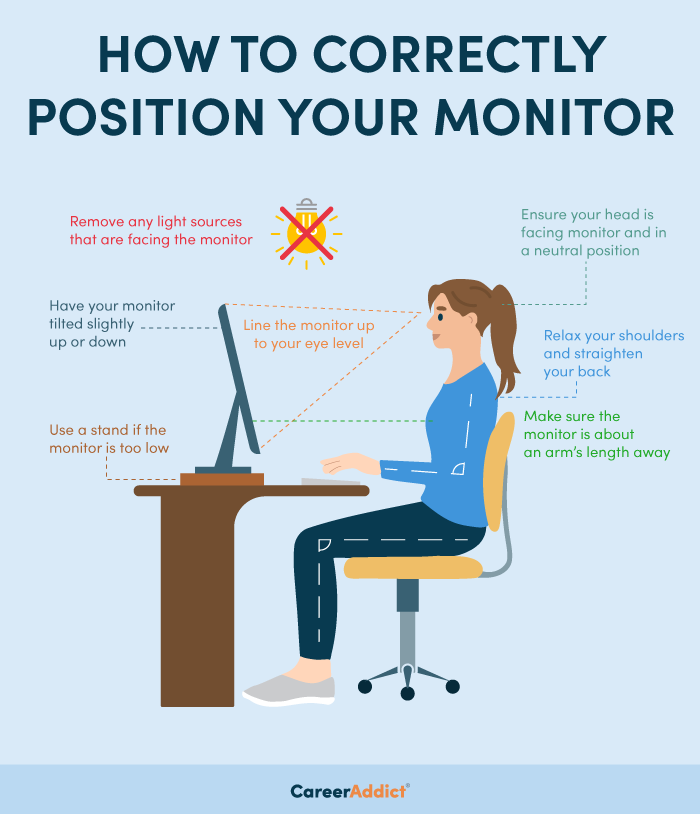
Poor lighting and screen placement silently contribute to eye strain and neck pain.
Eliminate Harsh Light and Glare
Never face a bright window directly or have it behind your screen. Side lighting is best. Use blinds or curtains to soften sunlight. Replace harsh fluorescent bulbs with warm-white desk lamps (2700–3000K) to reduce contrast stress.
Position Monitor at Arm’s Length
Keep your screen 20–28 inches from your eyes—about an arm’s length. Too close increases focus strain; too far causes squinting. Use a ruler or measuring tape to confirm distance.
Align Top of Screen at Eye Level
The top of your monitor should be at or slightly below eye level. This allows a natural downward gaze of 10–15 degrees, reducing eyelid exposure and tear evaporation. Use a monitor stand or stack books. For laptops, use an external keyboard and raise the screen.
Use Artificial Tears for Immediate Dryness Relief
Even with blinking, dry air and screen focus can leave eyes parched.
Choose Preservative-Free Lubricating Drops
Use “artificial tears” without preservatives like benzalkonium chloride, which can irritate with frequent use. Apply 1–2 drops per eye when dryness strikes.
Best times to use:
• Mid-morning
• After long video calls
• Before bed
Avoid redness-relief drops (e.g., Visine)—they can worsen dryness with regular use.
Stop Screens 2–3 Hours Before Bed
Nighttime screen use harms both sleep and eye recovery.
Limit Evening Screen Exposure
Blue light suppresses melatonin, making it harder to fall asleep. Poor sleep worsens eye fatigue the next day. Stop using phones, tablets, and computers 2–3 hours before bedtime.
Use Grayscale or Dark Mode at Night
Enable “Do Not Disturb” or “Wind Down” modes that dim screens and remove color. Some phones offer grayscale after 8 PM. This reduces stimulation and supports melatonin production.
Alternative: Read a physical book or wear blue light blocking glasses if screen use is unavoidable.
Support Long-Term Vision with Nutrition and Health
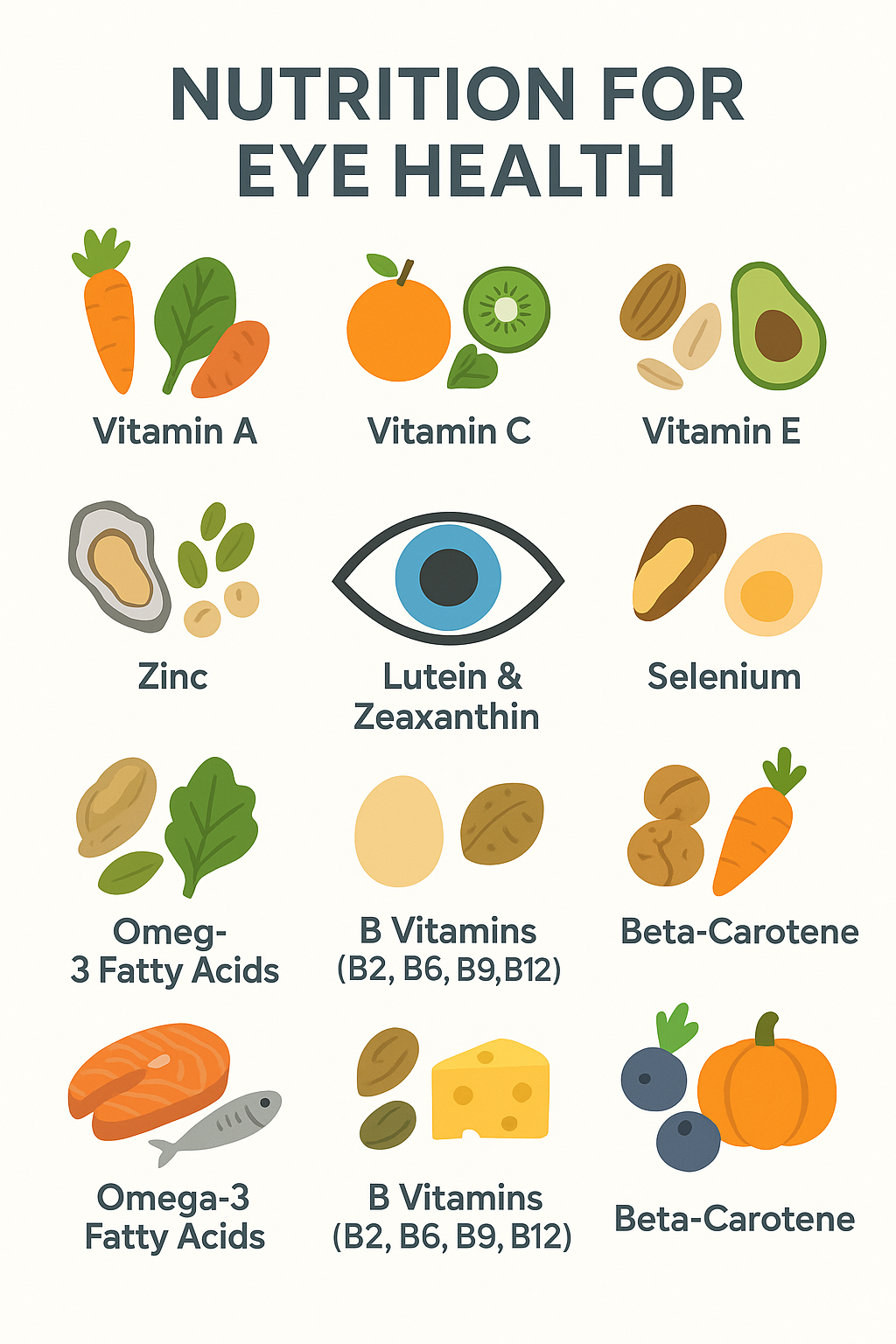
Daily habits protect your eyes now, but lifelong vision depends on overall wellness.
Eat Foods That Boost Eye Health
Key nutrients for retinal and lens health include:
• Lutein & Zeaxanthin: Kale, spinach, collard greens
• Omega-3 Fatty Acids: Salmon, sardines, flaxseeds, walnuts
• Vitamin C: Oranges, strawberries, bell peppers
• Vitamin E: Almonds, sunflower seeds
• Zinc: Beans, nuts, lean meats
Aim for a colorful, plant-rich diet to lower the risk of age-related macular degeneration.
Manage Blood Sugar to Prevent Retinal Damage
High blood sugar damages retinal blood vessels, leading to diabetic retinopathy—a leading cause of blindness. If you have diabetes, keep HbA1c in range and get annual eye exams.
Wear UV-Blocking Sunglasses Daily
UV exposure increases cataract risk. Wear sunglasses that block 99–100% of UVA and UVB rays—even on cloudy days. Wraparound styles offer the best protection.
Maintain Contact Lens and Makeup Hygiene
Poor hygiene worsens screen-related eye discomfort and infection risk.
Follow Contact Lens Safety Rules
• Wash hands before handling lenses
• Replace lenses as scheduled
• Never sleep in daily disposables
• Clean reusable cases weekly
Dry eyes from screen use make contacts uncomfortable—consider switching to daily disposables or wearing glasses during long work sessions.
Replace Eye Makeup Every 3–6 Months
Mascara and eyeliner harbor bacteria over time. Old makeup increases the risk of conjunctivitis or styes—especially if you rub tired eyes. Discard products if:
• Smell changes
• Texture dries out
• You’ve had an eye infection
Key Takeaways for Protecting Eyes from Computer Use
The best way to protect eyes from computer screens is a combination of smart habits, proper setup, and long-term care. Start with the 20-20-20 rule and screen adjustments—these offer immediate relief. Then build in blinking exercises, blue light filters, and proper lighting to reduce daily strain.
Don’t forget long-term strategies: eat eye-healthy foods, wear UV protection, and get annual eye exams. Small changes add up to lasting comfort and vision health.
Next Step: Create your eye-friendly workspace checklist and commit to one new habit this week—like setting a 20-minute timer or adjusting screen brightness.
Frequently Asked Questions About Protecting Eyes from Computer Use
What is the 20-20-20 rule for eye strain?
Every 20 minutes, look at something 20 feet away for at least 20 seconds. This relaxes your eye muscles, reduces focus lock, and prevents digital eye strain during prolonged screen use.
Do blue light glasses really work?
Yes, blue light blocking glasses can reduce eye fatigue and improve sleep when used in the evening. Choose lenses that filter 40–80% of blue light in the 400–450nm range for best results.
How far should my computer screen be from my eyes?
Keep your monitor 20–28 inches away—about an arm’s length. This distance reduces focus strain and prevents squinting or leaning forward.
Why do my eyes feel dry when using a computer?
You blink 66% less while staring at screens, reducing tear production. This causes dryness and irritation. Make a habit of full, slow blinks and use preservative-free artificial tears as needed.
Can screen use damage my eyes permanently?
No conclusive evidence shows screens cause permanent eye damage. However, prolonged use leads to digital eye strain, dryness, and discomfort—most of which are preventable with proper habits.
What screen settings help reduce eye strain?
Match brightness to room lighting, use warmer color tones at night, increase text size, and optimize contrast. Enable Night Shift, Night Light, or blue light filters to reduce visual stress.



