Is your computer sluggish, freezing, or plagued by software errors that won’t go away? The best way to reset computer issues often lies in a full system reset—a powerful fix that reinstalls Windows, clears out corrupted files, and returns your PC to like-new performance. Whether you’re troubleshooting persistent bugs, preparing to sell your device, or just want a clean start, a proper reset can resolve problems that simple restarts or updates can’t touch.
But not all resets are equal. Choosing the wrong option or skipping essential steps can lead to data loss, activation failures, or a botched installation. This guide walks you through every phase of the process: selecting the right reset type, backing up critical files, recovering from failed resets, and even performing hardware-level resets on Dell systems. You’ll learn how to wipe your drive securely before selling, reinstall Windows using bootable media, and restore full functionality after the reset. By the end, you’ll know the best way to reset computer safely, completely, and successfully—no matter your scenario.
Choose the Right Reset Type for Your Goal

Keep My Files vs Remove Everything: What’s the Difference?
When resetting your PC, you’ll face two main choices: Keep my files or Remove everything. The Keep my files option reinstalls Windows but preserves your personal data—photos, documents, downloads, and desktop items. It removes all apps and custom settings, making it ideal for fixing performance issues without losing important files.
Choose Remove everything if you’re selling, donating, or giving the PC to someone else. This wipes all personal files, installed programs, and system settings. For maximum privacy, enable the Clean data option, which overwrites your drive multiple times to prevent file recovery by standard tools. Note: This process takes longer but is essential for sensitive data.
Cloud Download vs Local Reinstall: Which Should You Pick?
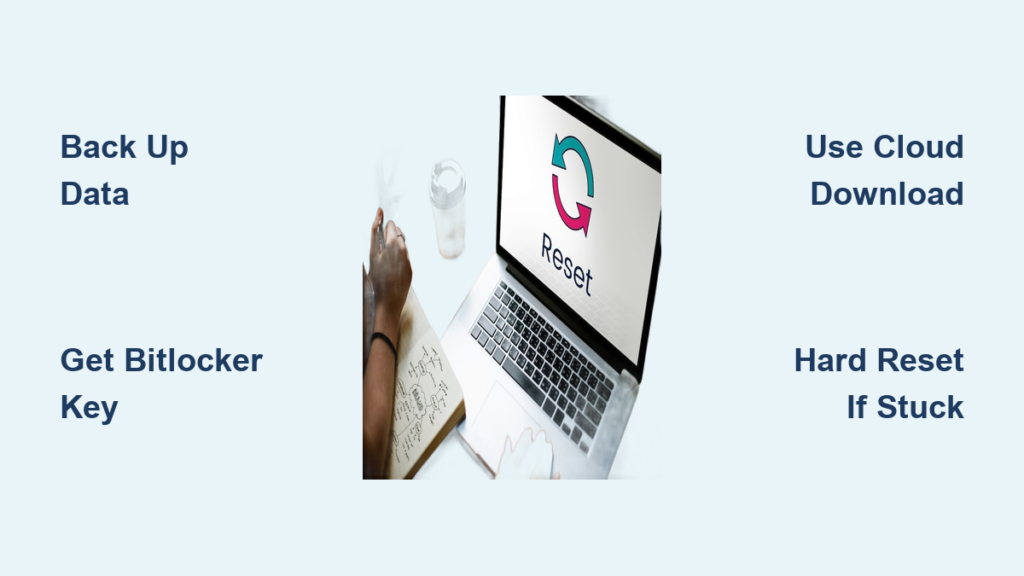
You can reinstall Windows using either Cloud download or Local reinstall. Cloud download fetches a fresh, updated version of Windows directly from Microsoft. Use this if your system files are corrupted or outdated—it ensures you get the latest security patches and features.
Local reinstall uses existing system files on your PC. It’s faster and doesn’t require internet, but if those files are damaged, the reset may fail. Only choose this option if you have a slow connection and suspect your local files are intact.
Pre-Reset Checklist: Don’t Skip These Steps
Backup All Personal and Critical Files
Before any reset, back up your data. Even with “Keep my files” selected, technical glitches can result in data loss. Copy important folders—Documents, Pictures, Desktop, Downloads—to an external drive or cloud service like OneDrive, Google Drive, or Dropbox.
For complete protection, create a system image backup using Windows Backup or tools like Macrium Reflect. This lets you restore your entire system state later if needed.
Retrieve Your BitLocker Recovery Key
If your drive is encrypted with BitLocker, you must have the recovery key before resetting. Without it, you won’t be able to access your drive after the reset. Find your key:
- Sign in to https://account.microsoft.com/devices/recoverykey
- Check printed copies or USB drives where you saved it
- Contact your IT department if it’s a work or school device
Save the 48-digit key in a secure location before proceeding.
Unplug All External Devices
Disconnect all peripherals—USB drives, printers, webcams, SD cards, docking stations—before starting the reset. These can interfere with the boot process or cause installation errors. Only keep your keyboard, mouse, and monitor connected.
How to Reset from Windows Settings (Windows 10 & 11)
Reset via Windows 10 Settings
- Click Start > Settings > Update & Security > Recovery
- Under Reset this PC, click Get started
- Choose Keep my files or Remove everything
- Select Cloud download (recommended) or Local reinstall
- Confirm your choices and let the process begin
The system will restart and reinstall Windows. Expect 20–60 minutes depending on your hardware and internet speed.
Reset via Windows 11 Settings
- Open Settings > System > Recovery
- Click Reset PC under Recovery options
- Choose Keep my files or Remove everything
- Pick Cloud download for latest updates or Local reinstall for offline use
- Follow prompts to confirm and start
Do not turn off the PC during the process. Screens may go black for several minutes—this is normal.
Quick Access: Search for “Reset This PC”
If you can’t navigate settings:
1. Press the Windows key
2. Type: reset this PC
3. Click the result and select Get started
4. Proceed with your chosen options
This shortcut works on both Windows 10 and 11.
Fix a PC That Won’t Boot: Reset from Recovery Mode
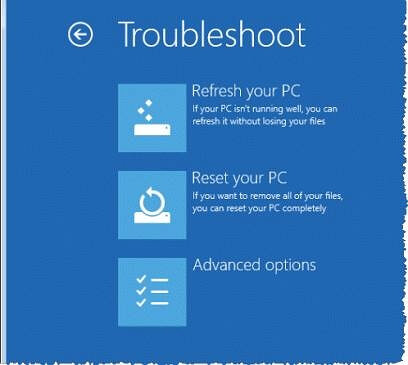
Use Shift + Restart to Enter Recovery
If your PC starts but won’t load the desktop:
1. On the login screen, click the power icon
2. Hold Shift while clicking Restart
3. After reboot, go to Troubleshoot > Reset this PC
4. Choose Remove everything for a full wipe
5. Follow on-screen instructions
This boots into the Windows Recovery Environment (Windows RE), bypassing the main OS.
Force Recovery After Failed Boot Attempts
If Windows won’t start at all:
1. Force shut down the PC three times in a row
2. On the fourth boot, Windows launches Automatic Repair
3. Select Advanced options > Troubleshoot > Reset this PC
4. Proceed with reset
This method triggers recovery even when the OS is unresponsive.
Fix: “There’s a Problem Resetting Your PC”
Try an In-Place Upgrade First
If the reset fails:
1. Download the Windows 11 Media Creation Tool from Microsoft
2. Run it and select Upgrade this PC now
3. When asked, choose Nothing to erase all data
4. Let it reinstall Windows over the existing system
This repairs corrupted files without needing a USB drive and often fixes reset errors.
Perform a Clean Install with Bootable USB
If the in-place upgrade fails:
1. On another PC, download the Media Creation Tool
2. Create a bootable USB (8GB+ required)
3. Insert USB into target PC
4. Restart and enter BIOS/UEFI (press F2, F12, or Del)
5. Set USB as first boot device
6. Save and exit—PC boots from USB
7. In setup, select your drive and delete all partitions
8. Install Windows fresh
This is the most reliable method when all else fails.
Dell Hard Reset: Fix No-Power or Boot Issues

When to Perform a Power Drain Reset
If your Dell laptop or desktop won’t turn on, has no display, or is stuck in a boot loop, perform a hard reset (also called a “flea power drain”). This clears residual electricity from capacitors on the motherboard that may prevent startup.
Applies to: Dell Latitude, Inspiron, XPS, Alienware, OptiPlex, Vostro, and all-in-one models.
Step-by-Step: Drain Residual Power
- Shut down the computer
- Unplug the AC adapter (laptops) or power cable (desktops)
- Remove the battery if it’s user-removable
- Disconnect all peripherals
- Press and hold the power button for 15–20 seconds
- Reconnect power and battery
- Press power to restart
This often resolves no-power, no-display, or freezing issues.
Securely Wipe Your PC Before Selling or Donating
Use Remove Everything + Clean Data
To protect your privacy:
1. Go to Settings > System > Recovery
2. Click Reset PC
3. Choose Remove everything
4. Enable Clean data to overwrite the drive
5. Confirm and reset
This makes file recovery extremely difficult for average users.
For Maximum Security: Use DBAN or BitLocker
For sensitive data (tax records, IDs, financial info):
– Use DBAN (Darik’s Boot and Nuke) for a military-grade wipe
– Or, encrypt the drive with BitLocker first, then reset
Note: The built-in clean data option does not meet government or industry data erasure standards. Use third-party tools for true security.
Restore True Factory Image (OEM State)
A standard reset doesn’t restore the original OEM factory image with preloaded software. To return to out-of-box state:
– Use recovery media from Dell, HP, or Lenovo
– Or create a Windows installation USB and install from scratch
– Avoid checking “Use recommended settings” during setup to prevent activation issues
Post-Reset Setup: Restore Full Functionality
Activate Windows and Verify License
After reset:
1. Press Windows + I > System > Activation
2. Sign in with your Microsoft account
3. Most PCs use digital licenses tied to your account or hardware
If not activated, check your internet and sign in with the correct account.
Update Missing Drivers
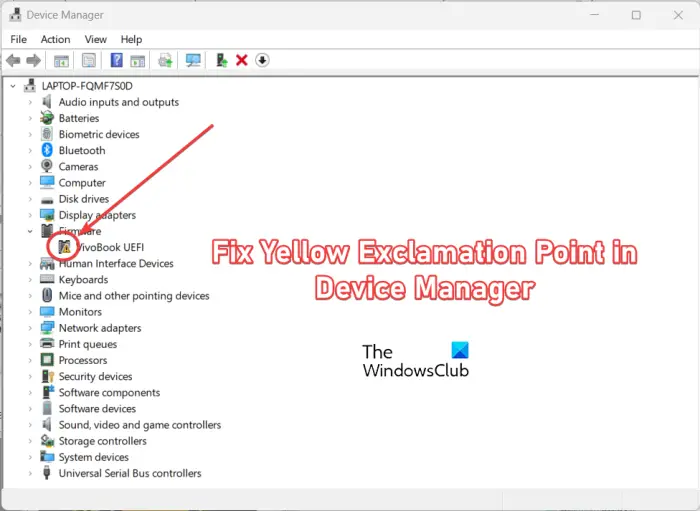
Open Device Manager (Windows + X > Device Manager):
– Look for devices with yellow exclamation marks
– Right-click and select Update driver > Search automatically
– If no updates found, visit your manufacturer’s website (e.g., “Dell XPS 13 drivers”)
– Install chipset, audio, network, and USB drivers
Always use official sources—avoid third-party driver tools that may contain malware.
Install Graphics and System Updates
Update GPU drivers:
– NVIDIA: Use GeForce Experience or nvidia.com/drivers
– AMD: Visit amd.com/support
– Intel: Use Intel Driver & Support Assistant
Then check for Windows Updates:
1. Go to Settings > Windows Update
2. Click Check for updates
3. Install all updates, including optional ones
4. Reboot if prompted
These often include critical fixes for stability and security.
Reinstall Essential Software
After reset, reinstall:
– Web browser (Chrome, Edge, Firefox)
– Antivirus (Windows Defender is built-in; consider Malwarebytes for scans)
– Productivity apps (Office, Adobe Reader, Zoom)
– Backup tools (OneDrive, Google Drive)
Avoid bloatware—only install what you need.
When Reset Fails: Next Steps
Check Hardware Health
If Windows still won’t install:
– Run Windows Memory Diagnostic (search for it)
– Check hard drive health using CrystalDiskInfo
– Test with a different USB drive or installation media
Failing hardware can block a successful reset.
Contact Manufacturer Support
If your PC is under warranty:
– Contact Dell Support, HP Customer Care, or Lenovo Tech Support
– Provide service tag or serial number
– Request recovery media or diagnostics
Many offer free tools and support for reset issues.
Key Takeaways for Resetting Your PC Successfully
| Goal | Best Method |
|---|---|
| Fix lag, keep files | Keep my files + Cloud download |
| Sell or donate PC | Remove everything + Clean data |
| Corrupted OS files | Cloud download reset |
| Slow internet | Local reinstall |
| Reset fails | In-place upgrade or USB clean install |
| PC won’t power on (Dell) | Hard reset (power drain) |
| True factory restore | Clean install from USB |
Critical Warnings to Remember
• Always back up first—resetting can lead to data loss
• Have your BitLocker key ready—you’ll need it to unlock your drive
• No undo option—reset is permanent
• Don’t interrupt the process—even if the screen is black
• Download drivers from official sites only—avoid third-party updaters
• Reset ≠ factory image—use installation media for true OEM restore
Frequently Asked Questions About Resetting Your Computer
What is the best way to reset a computer?
The best way depends on your goal. For performance issues, use Keep my files + Cloud download. For selling your PC, choose Remove everything + Clean data. If the reset fails, try an in-place upgrade or clean install via USB.
Does resetting your PC remove everything?
If you choose Remove everything, yes—it deletes all personal files, apps, and settings. With Keep my files, only apps and settings are removed. Always back up first.
How long does a PC reset take?
Most resets take 20–60 minutes, depending on your hardware and internet speed. The Clean data option can extend this to 2+ hours due to drive overwriting.
Why can’t I reset my PC in Windows 11?
Common causes include corrupted system files, missing BitLocker key, or failing hardware. Try the in-place upgrade method or reset from Windows Recovery Environment.
Will resetting my PC remove Windows?
No. Resetting reinstalls Windows—it does not remove it. Your license is preserved via digital entitlement linked to your Microsoft account or hardware.
How do I reset a Dell computer that won’t turn on?
Perform a hard reset: unplug power, remove battery (if possible), hold power button for 15–20 seconds, then reconnect and restart. This clears residual power and often fixes no-power issues.
Best Practices for a Successful Computer Reset
The best way to reset computer issues combines the right method with careful preparation. Whether you’re fixing a slow system, removing malware, or wiping a PC for sale, following these steps ensures a secure, complete, and successful reset. Always back up your data, retrieve your BitLocker key, and choose the correct reset type for your needs. When in doubt, use a clean install via USB—it’s the most reliable method for a truly fresh start.