
Moving large files—whether hundreds of gigabytes of videos, photos, or critical work projects—shouldn’t mean slow transfers, failed uploads, or security risks. The best way to share large files between computers depends on your setup: Are both machines nearby? Do you need speed, security, or remote access? This guide breaks down every practical method, from zero-cost LAN sharing to high-speed SSD transfers and secure cloud syncing. You’ll learn exactly which approach delivers the fastest, most reliable results—without wasting time on outdated or risky methods.
We cover tested techniques like Robocopy for error-free bulk transfers, USB drive enclosures for full system access, and cloud tools like OneDrive and Dropbox for remote sharing. Whether you’re upgrading your PC, collaborating across locations, or just moving personal data, you’ll find a clear, step-by-step solution tailored to your needs—backed by real-world benchmarks and expert tips.
Fastest Zero-Cost Transfer: Use LAN Sharing
When both computers are on the same network, LAN file sharing is the fastest free method for transferring large files. It bypasses the internet entirely, using your local network to achieve speeds far beyond most cloud uploads.
Enable Network Discovery and File Sharing

For PCs to see each other, both must be on a Private network with sharing enabled:
- Open Settings > Network & Internet > Wi-Fi
- Click your active network → Properties
- Change Network profile type from Public to Private
- Go to Advanced sharing settings
- Under Private networks, turn on:
• Network discovery
• File and printer sharing - Under All networks, turn off password protected sharing
This allows seamless access without login prompts.
Share a Folder Over LAN
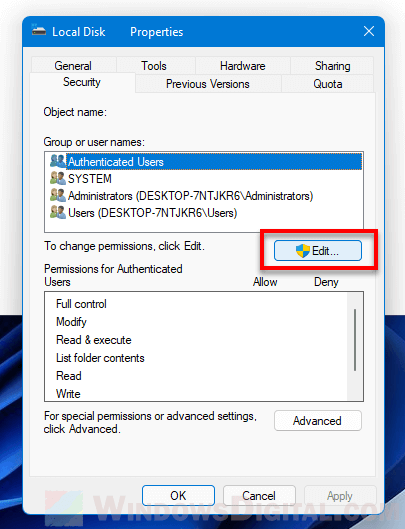
On the source PC (where files are stored):
- Right-click the folder → Give access to > Specific people
- Type Everyone → Add → Set permission to Read/Write
- Click Share → Note the network path (e.g.,
\\DESKTOP-ABC\Videos)
On the destination PC:
- Open File Explorer
- In the address bar, type:
\\[SourcePCName](e.g.,\\DESKTOP-ABC) - Press Enter → Open the shared folder
- Copy and paste files as needed
💡 Pro Tip: Assign static IP addresses to both PCs to prevent connection drops during long transfers.
Maximize Speed with Robocopy
For large or complex transfers, Robocopy outperforms Windows File Explorer with better speed and reliability.
Run this in Command Prompt (Admin):



