
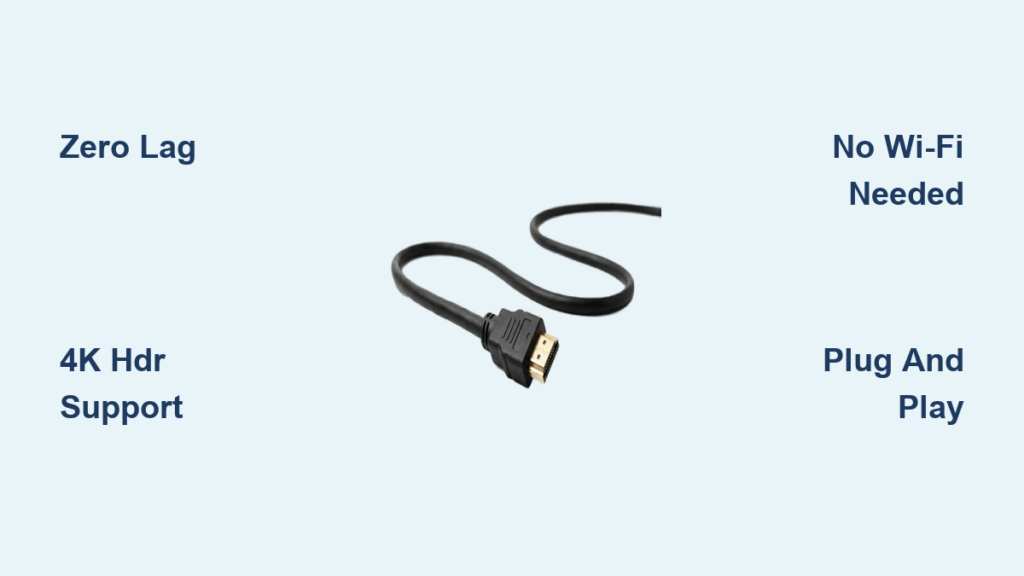
Want to watch a 4K movie, play PC games on a big screen, or present a work report from your laptop to the living room TV? The best way to stream computer to TV depends on your hardware, content type, and network setup. Whether you’re using Windows, macOS, or Chrome, this guide cuts through the noise with real-world tested methods—from zero-lag HDMI cables to wireless casting with Chromecast, Miracast, and AirPlay. You’ll learn how to avoid buffering, maintain full 4K quality, and even stream while using a VPN.
You’ll discover which method delivers the smoothest performance for gaming, media, or browsing—and how to fix common issues like lag, audio dropouts, and connection failures. No fluff, no outdated advice—just clear, step-by-step guidance based on hardware compatibility, user feedback, and technical benchmarks.
HDMI Cable: Zero-Lag Streaming
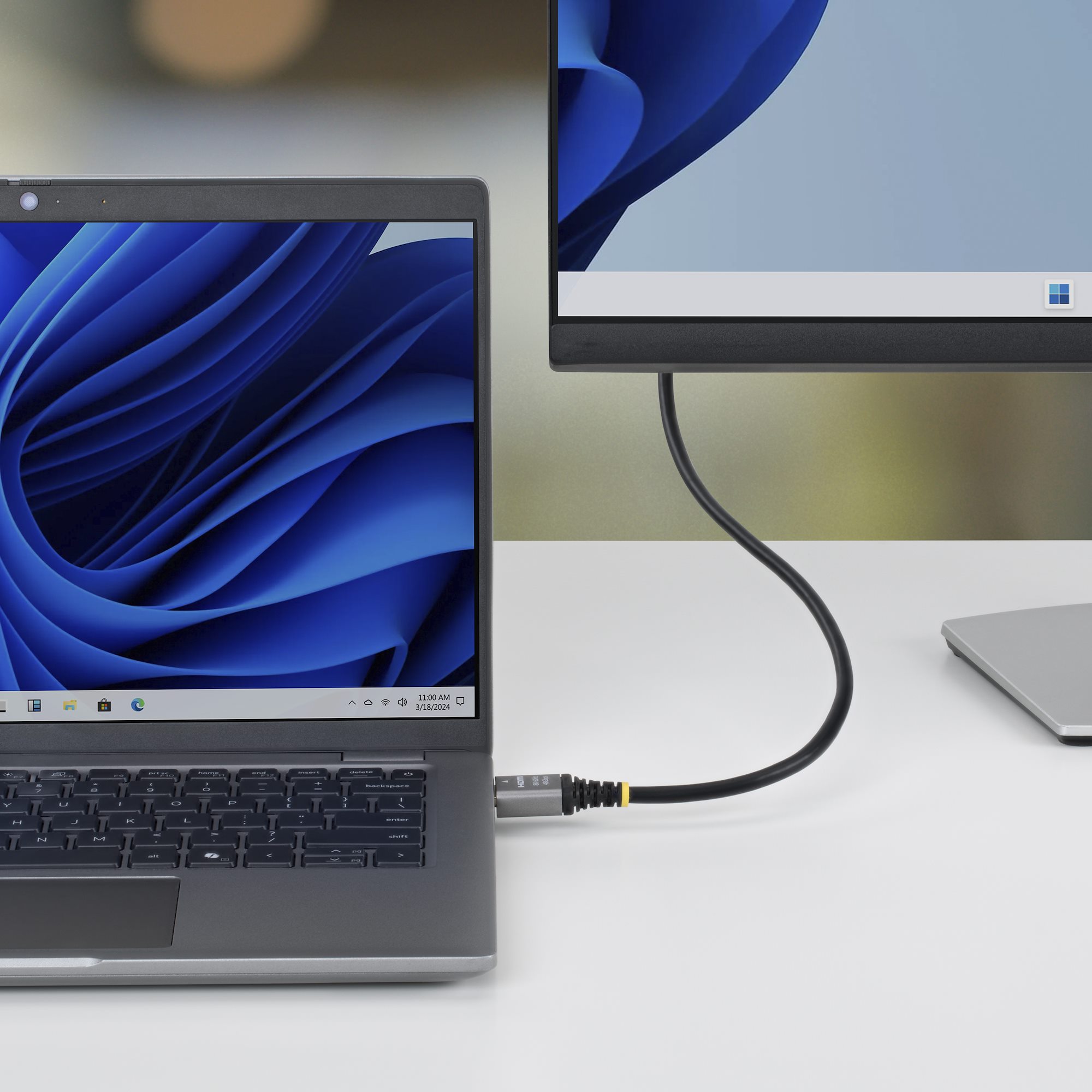
Why HDMI Is the Gold Standard
When you need perfect video and audio with no delay, an HDMI cable is the best way to stream computer to TV. It offers zero latency, full 4K HDR support, and no compression, making it ideal for gaming, video editing, or watching high-bitrate movies.
• No Wi-Fi or network required
• Supports up to 4K@60Hz (or 120Hz with HDMI 2.1)
• Carries both audio and video in one cable
• Fully compatible with Windows, macOS, and Linux
• Works even when your PC is offline
How to Connect HDMI in 3 Steps
- Plug one end of the HDMI cable into your PC’s HDMI port
- Connect the other end to your TV’s HDMI input
- Switch your TV to the correct HDMI source
Then configure your display:
– On Windows: Press Win + P → choose Duplicate or Extend
– On macOS: Go to System Settings > Displays → enable mirroring
Pro Tips for HDMI Success
• Use a high-speed HDMI 2.0 or 2.1 cable for 4K HDR content
• For long distances (up to 30 ft), a $15 active HDMI cable from Amazon works reliably
• If audio doesn’t play through the TV, go to Sound Settings and set HDMI as the default output
USB-C to HDMI: For Modern Laptops

Stream from Thin-and-Light Devices
Many newer laptops—including MacBooks, Ultrabooks, and Chromebooks—lack HDMI ports but support video output via USB-C with DisplayPort Alt Mode. A simple adapter lets you connect directly to your TV.
What You Need
• A USB-C to HDMI cable or adapter
• A USB-C port that supports video output (check your device specs)
Advantages
• Zero latency—same performance as HDMI
• Supports 4K@60Hz with compatible hardware
• Compact and travel-friendly
• Affordable—adapters start at $6
Limitations
• Not all USB-C ports support video (common on older Chromebooks)
• Some adapters don’t carry audio—test before relying on them
Setup Steps
- Plug the USB-C end into your laptop
- Connect the HDMI end to your TV
- Switch TV input to the correct HDMI source
- Adjust display mode using
Win + P(Windows) or Displays (macOS)
DisplayPort to HDMI: For Desktops

Connect High-Performance PCs
Gaming desktops and workstations often use DisplayPort instead of HDMI. If your TV only has HDMI inputs, a DisplayPort to HDMI adapter or cable bridges the gap.
Key Benefits
• Supports high refresh rates (ideal for 144Hz gaming)
• Zero latency and full resolution support
• Carries audio (if adapter supports it)
What to Watch For
• Confirm your adapter supports audio pass-through
• Use active adapters for long runs or 4K output
• Older adapters may max out at 1080p
How to Set Up
- Connect DisplayPort end to your PC
- Plug HDMI end into your TV
- Switch TV to the correct input
- Configure display settings in your OS
Miracast: Wireless Windows Streaming
Built-in Screen Mirroring for Windows
If you want to cut the cord, Miracast is the best wireless option for Windows users. It uses Wi-Fi Direct to mirror your screen without needing a router.
How to Use Miracast
- On your TV:
• Open Settings > Network > Screen Mirroring or Miracast
• Turn it on - On your PC:
• PressWin + K
• Select your TV from the list
• Confirm connection on the TV
Strengths
• No extra hardware—built into Windows 10/11 and most smart TVs (2015+)
• Works without a router (peer-to-peer)
• Free and plug-and-play
Limitations
• Not supported on macOS
• Can’t stream Netflix, Hulu, or Amazon Prime (DRM blocks it)
• Moderate latency—not ideal for fast-paced games
• May disconnect on older or low-end hardware
Fix Common Miracast Issues
• TV not showing up? Reboot both devices and ensure Wi-Fi is on
• Laggy video? Use 5GHz Wi-Fi or move closer to the router
• No audio? Check sound settings and set TV as default output
Chromecast: Best for Chrome Users

Stream from Browser to TV
If you watch BBC iPlayer, YouTube, or Netflix in Chrome, Chromecast is the smoothest way to send content from your PC to TV.
How It Works
- Plug Chromecast into your TV’s HDMI port
- Connect it to Wi-Fi
- In Chrome:
• Click three dots > Cast
• Select your TV
• Choose Cast tab or Cast desktop
Strengths
• HD and 4K streaming with supported devices
• Low latency for video playback
• Works with most browser-based content
Limitations
• Only works in Chrome browser
• Can’t reliably mirror full desktop
• No gaming support
Chromecast with a VPN
• Problem: VPNs break local network connections
• Fix: Use split-tunneling (NordVPN, ExpressVPN) to exclude casting traffic
• Or use NordVPN Chrome extension to route only browser traffic through the VPN
AirPlay: Apple’s Seamless Solution
Mirror Mac to TV Wirelessly
If you’re in the Apple ecosystem, AirPlay is the cleanest way to stream your Mac to a TV.
Requirements
• Mac running macOS Monterey or later
• AirPlay 2-compatible TV (Samsung, LG, Sony, Vizio) or Apple TV
How to Use
- Click Control Center in the menu bar
- Select Screen Mirroring
- Choose your TV
Strengths
• Low latency
• Perfect macOS and iOS integration
• Supports 4K HDR
Limitations
• Only works with Apple devices
• Most VPNs block AirPlay
• Fix: Use a router-level VPN (NordVPN, ExpressVPN, Mullvad) so all devices stay on the same network
DLNA: Stream Local Media Libraries
Share Movies, Music, and Photos
If you have a large media library on your PC, DLNA lets you stream it directly to your smart TV—no extra apps needed.
How to Set Up
- On PC:
• Open Plex, Jellyfin, or VLC
• Enable media server and share folders - On TV:
• Open Media Player app
• Select your PC from network devices
Strengths
• No extra hardware
• Works with any DLNA-compatible TV or game console
• Supports 4K files
• VPN-friendly—uses internal network
Limitations
• No screen mirroring—only media files
• Initial setup required
• No live browser content
Pro Tip
Use Plex for a polished experience with thumbnails, metadata, and mobile access.
Steam Link: For PC Gamers
Stream Games to Another Device
Steam Link lets you stream PC games to phones, tablets, or Raspberry Pi—but not directly to most TVs.
How It Works
- Install Steam Link app on your device
- Connect to the same network as your PC
- Launch and follow pairing steps
Strengths
• Lower latency than Windows Mirroring
• Supports controller input
• Better compression for smoother gameplay
Limitations
• Not for full desktop mirroring
• Streaming to phone then to TV adds lag
• Requires strong 5GHz Wi-Fi or Ethernet
Fix Wireless Lag and Buffering
Optimize for Smooth Streaming
Wireless methods depend heavily on network quality. Here’s how to get the best performance.
Use 5GHz Wi-Fi
• Less interference than 2.4GHz
• Faster speeds for HD/4K streaming
• Ensure both PC and TV are on the same band
Switch to Ethernet
• Connect PC or streaming device (Chromecast, Apple TV) via Ethernet cable
• Reduces lag and buffering
• Critical for gaming or 4K streaming
Position Router Centrally
• Keep router close to both PC and TV
• Avoid walls, microwaves, and cordless phones
Limit Network Congestion
• Pause downloads or streaming on other devices
• Use QoS (Quality of Service) settings on router to prioritize streaming
Stream While Using a VPN
Avoid Network Conflicts
VPNs often break local casting by routing your PC to a remote server. Here’s how to fix it.
Split-Tunneling (Chromecast, DLNA)
• Use NordVPN or ExpressVPN
• Exclude casting apps (Chrome, Plex) from the VPN tunnel
• Keeps local network active
Router-Level VPN (AirPlay, Miracast)
• Install NordVPN on your router
• All devices stay on the same network
• Casting works seamlessly
Miracast and DLNA
• Work with most VPNs—use peer-to-peer or internal network
• No extra setup needed
Frequently Asked Questions About Streaming Computer to TV
What is the easiest way to stream PC to TV?
Using an HDMI cable is the simplest method. It transmits both video and audio through one cable, requires no setup, and works on all operating systems.
Can I stream PC to TV without Wi-Fi?
Yes. HDMI, USB-C to HDMI, and DisplayPort to HDMI work without any network connection.
Does my PC need special software for streaming?
Wired connections don’t need software. Wireless methods like Miracast, Chromecast, and AirPlay use built-in OS features or apps.
Can I stream 4K content from PC to TV?
Yes, if your PC, cable, and TV support 4K. Use HDMI 2.0+ or DisplayPort 1.2+ for 4K@60Hz.
Can I use Bluetooth to stream PC to TV?
No. Bluetooth lacks the bandwidth for video. It’s only suitable for audio.
Can I extend my desktop instead of mirroring it?
Yes. In Windows, press Win + P and choose Extend. On macOS, go to Displays and arrange screens.
Why is there a delay when streaming wirelessly?
Wireless streaming introduces latency due to encoding and signal transmission. Wired connections have zero lag.
Key Takeaways for Streaming Computer to TV
• For gaming: Always use HDMI cable—wireless adds lag that ruins gameplay
• For movies: Use Chromecast or DLNA with Plex for best quality
• For Mac users: AirPlay is unbeatable—if your TV supports it
• For long distances: A 30 ft HDMI cable is cheap and reliable
• For privacy: Use router-level VPN to keep casting working
• No smart TV? Plug a Chromecast or Fire Stick into any HDMI port
The best way to stream computer to TV is HDMI for zero lag, Miracast for Windows wireless, AirPlay for Mac, and Chromecast for browser content. Choose based on your hardware, content, and network—and avoid Bluetooth for video at all costs.



