Typing on a tiny phone screen just to send a quick text? That’s a thing of the past. The best way to text from a computer is faster, more efficient, and keeps your workflow uninterrupted. Whether you’re confirming plans, sharing files, or replying to time-sensitive messages, using your full keyboard makes all the difference. For Android users, Google Messages for Web is the top choice—free, instant, and works on any computer. Windows users with Android or iPhone can also use Microsoft Phone Link, though with key limitations. In this guide, you’ll learn how to set up both, compare their strengths, and pick the right one for your device and needs.
Google Messages for Web: Instant Access from Any Computer
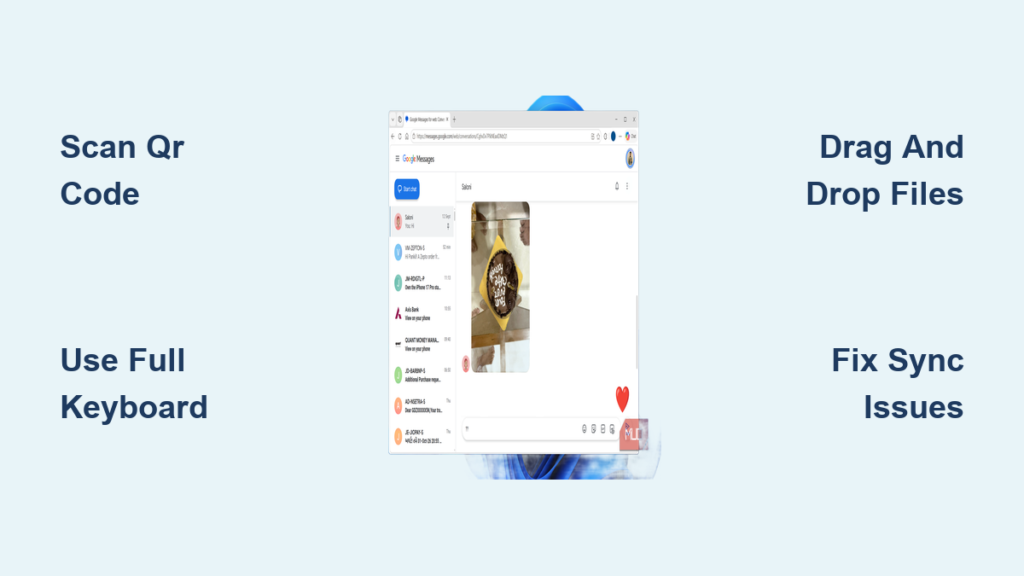
Google Messages for Web is the most flexible and widely compatible way to text from a computer. It works on Windows, Mac, Linux—any device with a browser. No downloads, no setup delays. Just scan a QR code and start typing.
How to Connect Your Android Phone to Messages for Web
Follow these steps to start texting from your computer in under a minute:
- Open your browser and go to messages.google.com
- On your Android phone, open the Messages by Google app
- Tap the three-dot menu → “Link to computer”
- Scan the QR code on your screen with your phone’s camera
- Confirm the connection on your phone
- (Optional) Tap “Remember this computer” to skip scanning next time
Once linked, your full message history appears instantly. You can send SMS, MMS, and RCS messages just like on your phone.
Send Texts, Photos, and Files in Seconds
With Google Messages on your computer, you get full messaging control:
• Type long messages quickly using your full keyboard
• Drag and drop screenshots or images from your desktop
• Copy and paste links, addresses, or notes without switching devices
• Send and reply to group messages seamlessly
• Use Enter to send and Shift+Enter for a new line for faster typing
All messages sync in real time. Replies you send from your PC appear on your phone instantly.
Fix Sync Problems with a Simple Wi-Fi Reset
If messages stop appearing on your computer:
- Turn off Wi-Fi on your phone
- Wait 10 seconds
- Turn Wi-Fi back on
This forces a fresh connection and usually restores sync within seconds. It’s the most effective fix for rare background sync issues.
Install Messages as a Chrome Desktop App
For faster, app-like access:
- Open Chrome and go to
messages.google.com - Click the three-dot menu → Install Messages
- Confirm the installation
Now, Messages appears as a standalone app in your taskbar or dock. You can minimize it, reopen it instantly, and keep texting without browser tabs.
Pro Tip: Use the desktop app if you text often. It stays synced even when Chrome is closed and behaves like any native app.
Microsoft Phone Link: Built-in Windows Messaging
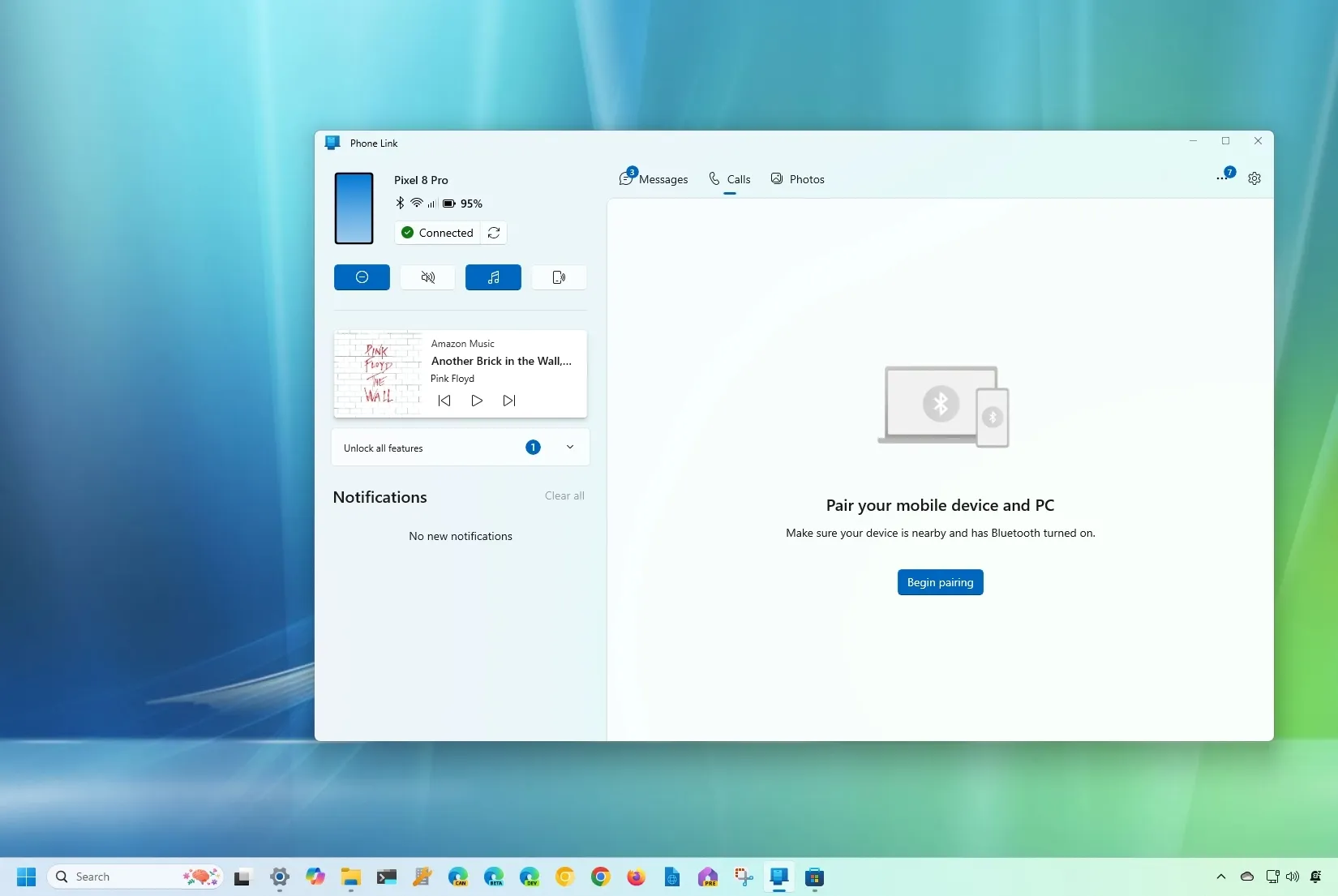
If you’re on a Windows PC, Microsoft Phone Link offers deep integration with your system. It supports both Android and iPhone, but with major differences in functionality.
Set Up Phone Link on Windows 10 or 11
- Open the Phone Link app (preinstalled on most Windows PCs)
- Sign in with your Microsoft account
- Choose Android or iPhone
- Follow the pairing steps (Wi-Fi for Android, Bluetooth for iPhone)
- Grant Messages permission when prompted
After pairing, click Messages to start texting directly from your PC.
Send Texts and Media (Android Only)
If you have an Android phone, you can:
• Send and receive SMS and MMS
• Insert emojis and GIFs with one click
• Attach photos from your phone or PC
• Use RCS messaging (on select Samsung devices)
To send a photo from your PC:
- Click the Image button below the message box
- Select Browse this PC
- Choose your file and click Open
iPhone Users: Text-Only with Bluetooth Required
If you use an iPhone:
• You can read and reply to texts
• But cannot send images, GIFs, or Memojis
• Group messages appear as notifications—replying requires your phone
• Message history vanishes when Bluetooth is turned off
Warning: Your iPhone must stay connected via Bluetooth. If the connection drops, all synced messages disappear.
Compare Google Messages vs. Phone Link
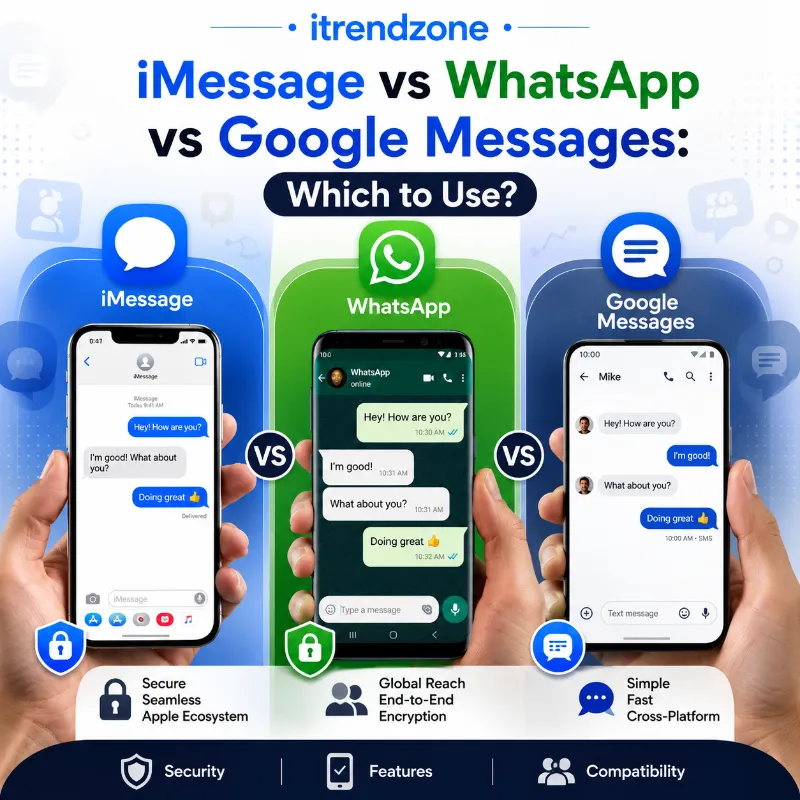
| Feature | Google Messages for Web | Microsoft Phone Link |
|---|---|---|
| Works on any OS | ✅ (Windows, Mac, Linux) | ❌ (Windows only) |
| Android support | ✅ Full features | ✅ Full features (30-day history) |
| iPhone support | ❌ Not supported | ✅ Text-only |
| App install needed | ❌ (browser-based) | ✅ (Phone Link app required) |
| Group messaging | ✅ Create and reply | ❌ Cannot create (Android); View-only (iOS) |
| Send files from PC | ✅ Drag and drop | ✅ Browse PC for images |
| Desktop app | ✅ Chrome only | ✅ Native Windows app |
| Message history | Full while paired | 30 days (Android); Connection-based (iOS) |
| 2FA SMS visibility | ✅ (on phone) | ⚠️ Syncs to PC—privacy risk |
| Setup time | <1 minute (QR code) | 2–5 minutes (app + pairing) |
Choose the Right Method for Your Setup
Android + Any Computer = Google Messages for Web
This is the best overall option. It’s fast, reliable, and works everywhere. No downloads, no clutter—just open a browser and go. Install the Chrome app for persistent access.
Android + Windows = Either Option Works
• Use Google Messages for better group chat support and full history
• Use Phone Link for tighter Windows integration and emoji/GIF support
iPhone + Windows = Phone Link (Text Only)
Your only choice. You can reply to texts, but media and group messages are limited. Keep your iPhone nearby and Bluetooth on.
Mac or Chromebook + Android = Google Messages for Web
This is your only real option. Phone Link doesn’t support Mac, so Google’s web solution is essential.
Protect Your Privacy When Texting from a PC
Both platforms sync sensitive data—especially 2FA codes.
• Phone Link: Syncs all SMS, including 2FA messages, to your PC. Only use on personal, secure devices
• Google Messages: Messages stay on your phone; the web version mirrors them. Still, avoid public computers
• Always log out of shared devices
• Use “Remember this computer” only on trusted machines
Expert Note: Never use computer texting on public or work devices if you receive sensitive codes or private messages.
Troubleshoot Common Issues Fast
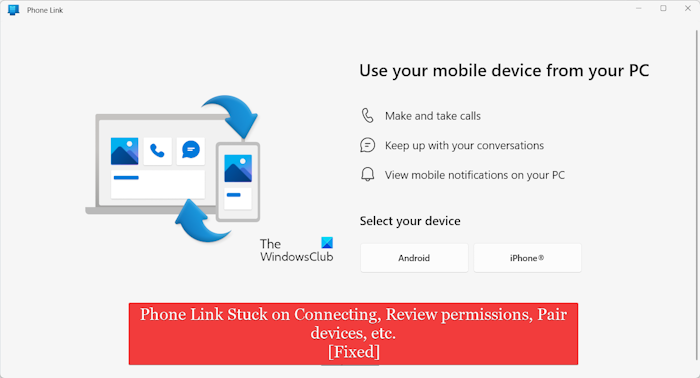
Messages Not Syncing? Reset Wi-Fi
For Google Messages:
- Turn off Wi-Fi on your phone
- Wait 10 seconds
- Turn Wi-Fi back on
This forces a fresh connection and resolves most sync problems.
Phone Link Not Working?
• Restart the app
• Re-pair your phone
• Ensure Bluetooth is on (especially for iPhone)
• Update Phone Link from the Microsoft Store
Best Practices for Smooth Texting
• Keep your phone charged and online—both methods require your phone to be active
• Use Chrome for the desktop app—only Chrome lets you install Messages as a standalone app
• Use keyboard shortcuts—Enter to send, Shift+Enter for new line
• Close the tab when done—if on a shared PC, simply closing the browser ends the session
Frequently Asked Questions About Texting from a Computer
Can I text from my computer without my phone?
No. Both Google Messages for Web and Microsoft Phone Link require your phone to be powered on and connected to the internet. The computer acts as a remote screen—it doesn’t send messages independently.
Does Google Messages for Web work on Mac?
Yes. Google Messages for Web works on any computer with a browser, including Mac. Just go to messages.google.com, scan the QR code, and start texting.
Can iPhone users text from a Windows PC?
Yes, but with limits. Microsoft Phone Link allows iPhone users to read and reply to texts, but you can’t send photos, GIFs, or Memojis, and group messages require your phone to respond.
Is Google Messages for Web safe?
Yes, if used on trusted devices. The connection is secured via QR code, and messages are encrypted in transit. However, avoid using it on public or shared computers to protect your privacy.
Why can’t I send pictures from Phone Link?
If you’re using an iPhone, Phone Link doesn’t support sending media. For Android users, ensure you click Browse this PC when attaching a photo. If the option is missing, restart the app or update it from the Microsoft Store.
Can I install Google Messages on Firefox or Safari?
You can use Google Messages for Web in any browser, but the desktop app is only available in Chrome. Firefox, Safari, and Edge users must use the web version directly at messages.google.com.
Key Takeaways for Texting from Your Computer
The best way to text from a computer is Google Messages for Web if you have an Android phone. It’s fast, free, and works on any operating system. Just open a browser, scan a QR code, and start typing. Windows users can also use Microsoft Phone Link, especially for emoji and GIF support, but it’s limited to 30 days of message history and doesn’t work on Mac. iPhone users have only one option—Phone Link—and it’s text-only with Bluetooth dependency.
Choose Google Messages for flexibility, speed, and full features. Use Phone Link if you’re on Windows and want deeper integration. Set up your preferred method in under a minute, keep your phone nearby, and enjoy the convenience of texting from your keyboard.