
Tired of tripping over HDMI cables every time you want to show a video, presentation, or game on the big screen? The best way to wirelessly connect computer to TV is often right in your operating system—Miracast. For most Windows users with a modern smart TV, this built-in feature lets you mirror your screen in seconds with just Windows + K. No extra apps, no monthly fees, and no dongles required. It’s fast, free, and works over Wi-Fi or even a wired network.
But if your TV is older or lacks Miracast support, don’t worry. Alternatives like Google Chromecast, Amazon Fire Stick, or wireless HDMI kits can deliver a seamless experience. Whether you’re streaming movies, giving a business presentation, or helping a family member watch their favorite shows, this guide covers every method, troubleshooting tip, and pro trick—so you can choose the right solution and get it working fast.
Use Miracast (Free & Built-In)
Miracast is the top choice for Windows users because it’s already installed on most PCs and compatible smart TVs. It creates a direct wireless link between your computer and TV using Wi-Fi Direct—no router needed.
Why Miracast Is the Top Choice
Miracast mirrors your entire screen securely and instantly. It works with any display that supports the standard, including most Samsung, LG, and Sony smart TVs from 2015 onward. Since it runs natively in Windows 10 and 11, there’s no laggy software or third-party app to slow things down.
No subscription. No downloads. No setup. Just press Windows + K, pick your TV, and start sharing.
Check If Your PC Supports Miracast
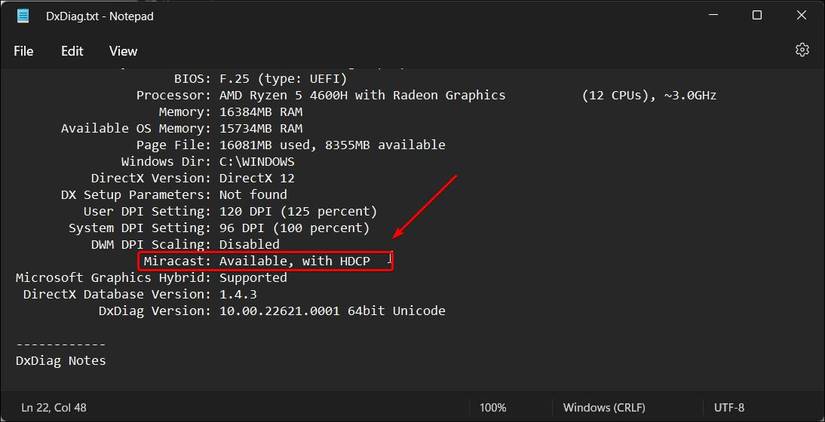
Not all computers support Miracast. To verify:
- Press Windows + X and open Command Prompt (Admin) or Windows Terminal (Admin)
- Type:



