
Is your computer sluggish, freezing, or constantly warning you about low disk space? You’re not alone. Over time, temporary files, bloated apps, and forgotten downloads pile up—often consuming tens of gigabytes without you realizing it. The best way to free up space on your computer isn’t random deletion—it’s a targeted strategy using built-in tools and smart file management to reclaim space safely and quickly.
This guide walks you through proven methods that work on Windows 10 and 11, from using Disk Cleanup and Storage Sense to disabling hibernation and analyzing space hogs with WinDirStat. You’ll learn how to delete unnecessary system files, uninstall space-heavy apps, move personal data off your drive, and even tweak settings like hiberfil.sys to recover 50–100+ GB in under 30 minutes. We’ll also show you how to prevent future clutter with automation and smart storage habits.
Let’s get your PC running faster by eliminating the biggest space drains—safely and effectively.
Run Disk Cleanup to Remove System Junk
Disk Cleanup is the fastest way to remove gigabytes of hidden system files without risking your personal data. It targets temporary files, update leftovers, and old Windows installations—often freeing 5–20 GB or more in minutes.
How to Use Disk Cleanup
- Press Windows + S, type Disk Cleanup, and open the app
- Select your main drive (usually C:) and click OK
- Click Clean up system files (requires admin rights)
- Select the drive again
- Check these boxes:
• Temporary files
• Windows Update Cleanup
• Previous Windows Installation(s) (Windows.old)
• System error memory dump files
• Delivery Optimization Files - Click OK → Delete Files
⚠️ Warning: Deleting Windows.old removes your ability to roll back to a previous Windows version. Only do this if you’ve used the current OS for over 10 days.
Enable Storage Sense for Automatic Cleanup
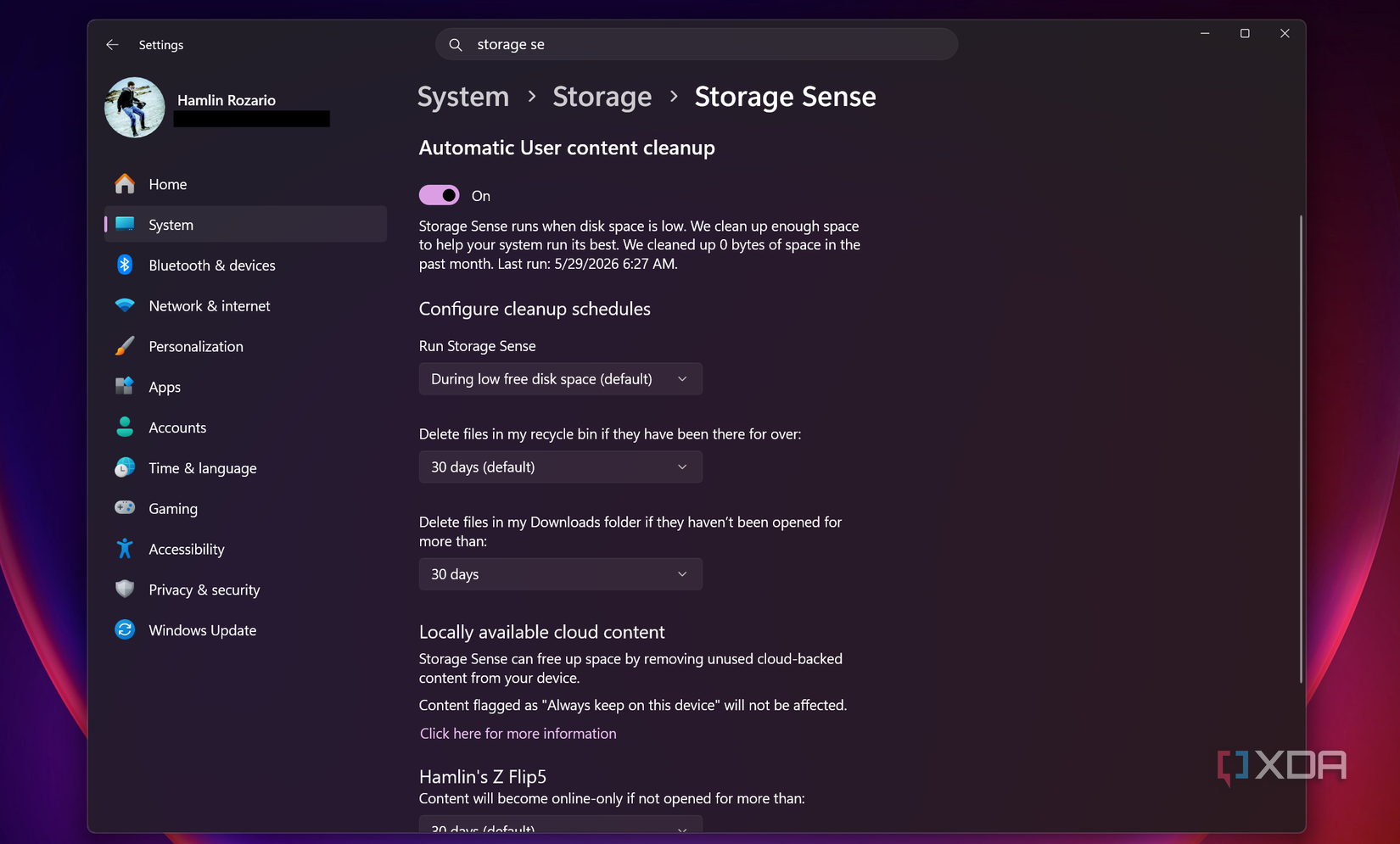
Let Windows clean up for you. Storage Sense automatically deletes temporary files and clears the Recycle Bin when space runs low—perfect for ongoing maintenance.
Turn On and Configure Storage Sense
- Go to Settings > System > Storage
- Toggle Storage Sense to On
- Click Configure Storage Sense
- Set:
• Run Storage Sense: When low on disk space
• Delete temporary files: Checked
• Recycle Bin: Remove files older than 14 days
• Downloads folder: Delete files not opened in 30 days - Click Clean now to run an immediate cleanup
This feature helps maintain free space without manual effort.
Use Cleanup Recommendations in Windows 11
Windows 11 users get a guided assistant that finds large, unused, or cloud-synced files—making cleanup faster and safer.
Access and Use Cleanup Recommendations
- Open Settings > System > Storage > Cleanup recommendations
- Review suggestions in these categories:
• Temporary files
• Large or unused files
• Files synced to cloud (e.g., OneDrive)
• Unused apps - Select items to remove
- Click Clean up
Each suggestion includes a space-saving estimate, so you know exactly what you’re gaining.
Uninstall Large, Unused Apps and Games

Games, video editors, and development tools can each take 10–50 GB. Removing just one or two can dramatically boost free space.
Uninstall via Settings
- Press Windows + I → Apps > Installed apps
- Click Sort by > Size
- Select the largest unused app (e.g., old game, trial software)
- Click Uninstall and follow prompts
Repeat for other space-heavy programs.
Use Classic Programs List (appwiz.cpl)
- Press Windows + R
- Type
appwiz.cpland press Enter - In Programs and Features, sort by size (if column visible)
- Uninstall unwanted programs
✅ Avoid removing:
– Antivirus software
– Microsoft Office
– Drivers or system utilities
– Apps labeled “Windows” or “Microsoft”
Clean Up Downloads, Pictures, and Videos Folders
Your Downloads folder is likely the biggest clutter zone—most users find 10–30 GB of junk here alone.
Sort and Delete Large Files
- Open File Explorer > This PC > Downloads, Pictures, Videos
- Switch to Details view
- Right-click column header → Sort by > Size (Descending)
- Review top files:
• ISO files
• Video downloads
• Installer packages (.exe, .msi)
• Duplicate photos or videos - Delete or move them
🔍 Pro Tip: Use Thumbnail view to preview images/videos before deleting.
Empty the Recycle Bin to Free Up Space
Deleted files still occupy space until the Recycle Bin is emptied.
How to Empty Recycle Bin
- Right-click Recycle Bin on desktop
- Select Empty Recycle Bin
- Confirm deletion
Or enable Storage Sense to auto-empty it.
Move Files to External Storage
Keep files accessible while freeing up space by moving them to a USB drive, SD card, or external SSD.
Transfer Files Safely
- Connect your external drive
- Open File Explorer
- Navigate to Downloads, Videos, Pictures, etc.
- Select large files or folders
- Right-click → Move to > Choose location → Select external drive
- Click Move
Best Files to Move:
• Home videos
• Music libraries
• Old project files
• Software installers
• Archived documents
Label and store the drive safely for future access.
Use Cloud Storage to Save Local Space
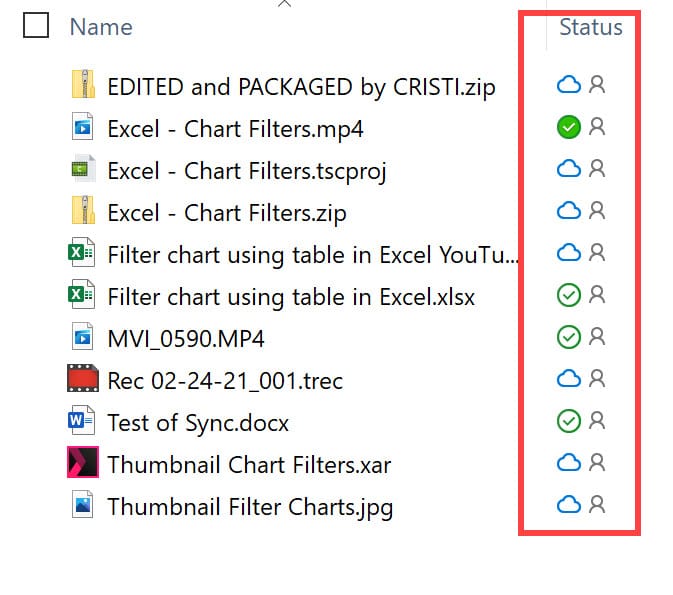
Services like OneDrive, Google Drive, and Dropbox let you access files without storing them locally.
Enable OneDrive Files On-Demand
This feature keeps files in the cloud but shows them in File Explorer—saving space while maintaining access.
Steps:
- Right-click OneDrive icon in system tray
- Go to Settings > Sync and backup > Choose folders
- Select which folders to sync locally
- Unselected folders stay in the cloud and are removed from your PC
Now, files appear with a cloud icon—you can open them anytime, but they don’t use local space.
Upload to Google Drive or Dropbox
- Install the app (Google Drive or Dropbox)
- Drag files into the synced folder
- Files upload automatically
- Delete local copies after confirming upload
✅ Best for: Documents, photos, and non-intensive media.
Change Default Save Locations to Another Drive
Prevent future clutter by saving new files to a drive with more space.
Redirect New File Saves
- Open Settings > System > Storage
- Under More storage settings, click Change where new content is saved
- For each category (Documents, Music, Pictures, Videos), select a different drive (e.g., D: or external)
- Click Apply
Now, downloads and new files go to the new location automatically.
⚠️ Note: The external drive must be connected when saving.
Compress the C: Drive to Save Space
Use NTFS compression to shrink system files without deleting anything—ideal for older systems with small SSDs.
Compress Your OS Drive
- Open File Explorer > This PC
- Right-click C: drive → Properties
- Check Compress this drive to save disk space
- Click Apply → *Apply changes to drive C:*
⚠️ Trade-off: Slight performance impact on older hardware. Revert anytime by unchecking the box.
Disable Hibernation to Reclaim GBs
Windows reserves a hidden file (hiberfil.sys) equal to your RAM size (e.g., 8–16 GB). If you don’t use hibernation, disable it.
Turn Off Hibernation
- Right-click Start → Terminal (Admin)
- Type this command and press Enter:



