
Is your computer slowing down or showing low disk space warnings? A cluttered hard drive is often the culprit—filled with temporary files, outdated updates, and forgotten downloads. The best way to clean up computer hard drive space doesn’t require expensive upgrades. Instead, it uses built-in tools and smart strategies to free up tens of gigabytes in under 20 minutes, boosting speed and performance on Windows 10 and 11.
This guide walks you through proven methods—from Disk Cleanup and Storage Sense to using WinDirStat for visual analysis. You’ll learn how to delete junk files safely, uninstall space-hogging apps, clear the Recycle Bin, and even compress your C: drive. Whether you’re troubleshooting slow performance or prepping for a Windows update, these steps will help you reclaim space and keep your system running smoothly.
Check Your Drive’s Free Space
Before cleaning, know how much space you’re dealing with.
View Storage in File Explorer
- Open File Explorer from the taskbar
- Click This PC on the left
- Look under Devices and drives to see your C: drive’s total and free space
If free space is below 10%, your system may struggle with updates and performance. Use the following tools to start cleaning immediately.
Run Windows Disk Cleanup
Remove Temporary Files and System Junk
Disk Cleanup is the fastest way to delete unnecessary files without risking system stability.
Launch Disk Cleanup
- Press
Windows + S, type “disk cleanup”, and open the app - Or: Right-click C: drive in File Explorer > Properties > Disk Cleanup
Select Safe Files to Delete
Check boxes for:
• Temporary Internet Files
• Thumbnails
• Downloaded Program Files
• Recycle Bin (if not emptied)
• Temporary files
Click OK > Delete Files
Free More Space with System Files
- Click Clean up system files
- Select C: drive
- Now available:
• Windows Update Cleanup
• Previous Windows Installation(s) (e.g., Windows.old)
• Delivery Optimization Files - Select all and confirm deletion
⚠️ Warning: Deleting “Previous Windows” removes rollback ability.
Expected Gain: 5–20 GB or more, especially after major updates.
Turn On Storage Sense
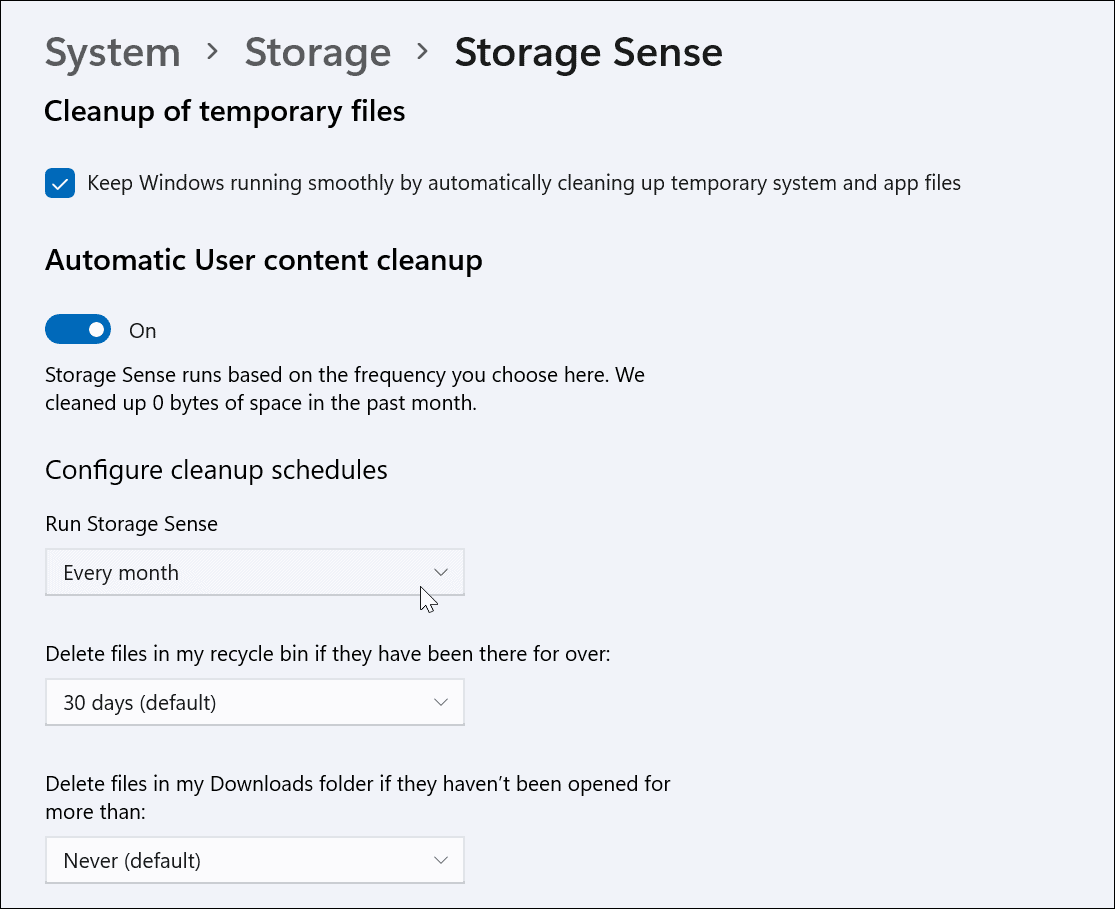
Automate Junk File Removal
Let Windows clean up automatically when space runs low.
Enable Storage Sense
- Go to Start > Settings > System > Storage
- Toggle Storage Sense to On
- Click Configure Storage Sense or run it now
- Set frequency: Daily, Weekly, or Monthly
- Configure rules for:
• Deleting Recycle Bin items after 30 days
• Removing Downloads folder files after 60 days
Run Immediately
Click Clean now under Storage usage to trigger an instant scan.
Manually Delete Temp Files
Clear Hidden System and User Temp Folders
Even after Disk Cleanup, temp folders often hold leftover files.
Clear System Temp (temp)
- Press
Win + R, typetemp, press Enter - Press
Ctrl + Ato select all - Press
Shift + Delete(permanent delete) - Skip any files in use—this is normal
Clear User Temp (%temp%)
- Press
Win + R, type%temp%, press Enter - Select all (
Ctrl + A) >Shift + Delete - Confirm and skip locked files
✅ Pro Tip: Reboot first—fewer files are locked during startup.
Empty the Recycle Bin
Reclaim Hidden Gigabytes
The Recycle Bin can store up to 10% of your drive’s capacity—up to 100GB on a 1TB drive.
Empty in One Step
- Right-click Recycle Bin on desktop
- Select Empty Recycle Bin
- Confirm with Yes
🔍 Check Size First: Right-click Bin > Properties to see current usage and adjust max size.
Uninstall Space-Hogging Apps

Remove Largest Programs First
Games, video editors, and old development tools can each take 10–50 GB.
Sort Apps by Size
- Open Settings > Apps > Installed apps
- Click Sort by > Size
- Review top 10 largest apps
Uninstall Safely
- Click ⋯ (three dots) next to an app > Uninstall
- Follow prompts; some apps require separate uninstallers
Avoid Removing:
• Antivirus software
• Microsoft Office
• Graphics drivers
• System utilities (unless confirmed unused)
Clean Up Downloads, Pictures, and Videos
Find and Delete Largest Personal Files
These folders often hide forgotten large files.
Sort by File Size
- Open File Explorer > This PC
- Open Downloads, Videos, or Pictures
- Switch to Details view (View > Details)
- Click Size column to sort largest first
Delete or Move Files
• Delete if no longer needed
• Move to USB drive, SD card, or cloud storage
– Select files > Cut > Paste into external device
📌 Downloads Folder Tip: Right-click folder > Empty Folder if all contents are safe to remove.
Typical Gain: 10–30 GB recovered from Downloads alone.
Declutter Your Desktop
Improve Speed and Save C: Drive Space
Every desktop file slows startup and uses system drive space.
Organize or Remove
• Delete unused shortcuts (look for arrow icon)
• Move documents, images, videos to proper folders:
– Documents, Pictures, Videos
• Avoid saving new files directly to desktop
Why It Matters
- Desktop files live in
C:\Users\[Name]\Desktop - They count against OS drive space and increase boot time
✅ Best Practice: Keep desktop clean—only active projects.
Visualize Space Usage With WinDirStat
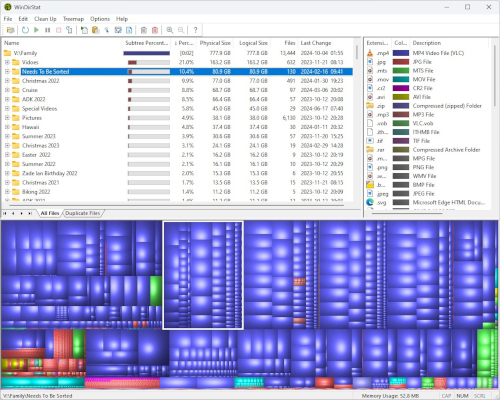
See Exactly What’s Using Your Disk
WinDirStat gives a color-coded map of your drive—big blocks = big files.
Install and Scan
- Download from windirstat.net
- Install and launch
- Select C: drive > OK
- Wait for scan to complete
Read the Map
• Each colored block = a file or folder
• Hover to see name, size, path
• Right-click to Delete or Open
Focus Areas
• Users > [Your Name] > Downloads
• Users > [Your Name] > AppData (enable hidden files)
• Avoid deleting from Program Files unless certain
🔁 Refresh After Cleanup: Click Refresh to see updated usage.
Compress C: Drive to Save Space
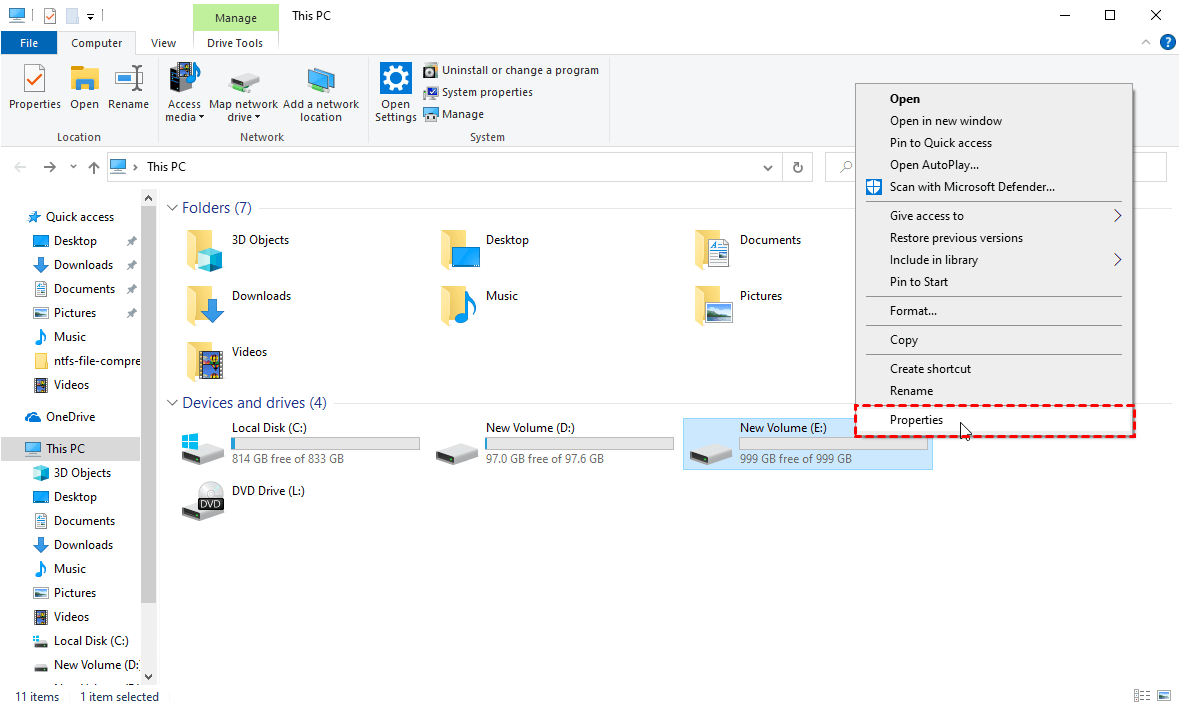
Gain Extra GBs Without Deleting Files
Compress system files—safe and reversible.
Enable Compression
- Open File Explorer > This PC
- Right-click C: drive > Properties
- Check Compress this drive to save disk space
- Click Apply > Apply changes to drive C:\…
⚠️ Note: May slightly affect performance on older HDDs. SSDs handle it fine.
Gain: 5–15% space saved, depending on content.
Change Default Save Locations
Stop Future Clutter
Redirect new files to a larger drive or partition.
Set New Defaults
- Go to Settings > System > Storage
- Click Change where new content is saved
- For each type (Documents, Music, etc.), choose a different drive
- Ensure external drive is connected and formatted
💡 Use Case: Save all new videos to D: drive or external SSD.
Offload Files to Cloud or External Drives
Keep Files Accessible, Not on C: Drive
Move large files permanently off your main drive.
Use OneDrive Files On-Demand
• Files appear in File Explorer but stay in cloud
• Local placeholder uses minimal space
• Right-click any file > Free up space to remove local copy
Move Files to External Drives
- Connect USB drive or SD card
- Copy large folders (e.g., Videos, Backups)
- Delete originals only after confirming transfer
☁️ Cloud Options: OneDrive, Google Drive, Dropbox
Fix Microsoft Store Temp File Bloat
Stop .appx Files from Filling Temp
Some Store apps leave behind .appx files that pile up.
Reset Microsoft Store
- Go to Settings > System > Troubleshoot > Other troubleshooters
- Run Windows Store Apps troubleshooter
Clear Store Cache
- Press
Win + R, typewsreset.exe, press Enter - Wait 10 seconds—Command Prompt opens and closes
- Store reopens automatically
Reset Windows Update
- In same Troubleshooters menu, run Windows Update
Then restart your PC.
Run Full Antivirus Scan
Rule Out Malware-Driven Space Loss
Malware can create fake files or corrupt data, eating space.
Use Windows Security
- Open Start > Settings > Privacy & Security > Windows Security
- Click Virus & threat protection
- Select Scan options > Full scan > Scan now
Remove any detected threats before continuing cleanup.
Schedule Monthly Maintenance
Prevent Clutter from Returning
Keep your drive clean long-term with routine checks.
Recommended Routine
| Task | Frequency |
|---|---|
| Run Disk Cleanup | Monthly |
| Empty Recycle Bin | Weekly or after big deletions |
| Review Installed Apps | Quarterly |
| Scan with WinDirStat | Every 2–3 months |
| Backup and offload large files | As needed |
🛠️ Pro Tip: Set a calendar reminder for the first of each month.
Frequently Asked Questions About Cleaning Computer Hard Drive
How do I free up space on my computer without deleting important files?
Use Disk Cleanup, Storage Sense, and WinDirStat to identify and remove temporary files, system junk, and duplicates. These tools target non-essential files and leave your personal data intact.
What is the fastest way to clean up my hard drive?
Run Disk Cleanup with system files, empty the Recycle Bin, and uninstall one or two large unused apps. These three steps alone can free 30–50 GB in under 10 minutes.
Can I compress my C: drive to save space?
Yes. Right-click C: drive > Properties > check Compress this drive to save disk space. This safely compresses files without deleting them. Best for SSDs or newer systems.
Why is my temp folder so full?
The temp folder collects files from apps, updates, and downloads. Sometimes files aren’t deleted properly. Manually clear temp and %temp% folders, or run wsreset.exe if Microsoft Store apps are the cause.
Should I use third-party cleanup tools?
Stick to built-in tools and trusted apps like WinDirStat. Many third-party cleaners make risky changes or sell fake “optimizations.” WinDirStat is free, safe, and gives accurate visual feedback.
How often should I clean my hard drive?
Run Disk Cleanup monthly and check storage every few weeks. Enable Storage Sense to automate routine cleanup and prevent low space warnings.
Key Takeaways for Cleaning Your Hard Drive
The best way to clean up computer hard drive space combines speed, safety, and automation. Start with Disk Cleanup and system files, then uninstall large unused apps, clean Downloads, and empty the Recycle Bin. Use WinDirStat to find hidden space hogs and enable Storage Sense to maintain results.
You can typically reclaim 30–80 GB in under 20 minutes—no new hardware needed. Focus on high-impact actions: temp files, old updates, and personal folders. Then set up automatic cleanup to prevent future clutter.
💬 Next Step: Run Disk Cleanup now, then enable Storage Sense to keep your drive clean long-term.



