
Is your computer suddenly slow, flooded with pop-ups, or redirecting your browser? These are classic signs of a virus or malware infection. The best way to remove virus from computer isn’t just running one antivirus scan—it’s a complete, step-by-step process that combines system cleanup, multiple malware scanners, and manual checks. While Windows Defender offers baseline protection, it often misses hidden threats like adware, PUPs (potentially unwanted programs), or browser hijackers. To fully eliminate malware, you need a layered strategy using trusted tools and smart habits.
This guide walks you through the proven method: start by clearing junk files where malware hides, run deep scans with Microsoft and third-party tools, remove suspicious apps and browser extensions, secure your accounts, and lock down your system. You’ll learn how to use free tools like Microsoft MRT, Malwarebytes, and Bitdefender effectively—and how to prevent reinfection. Whether you’re dealing with fake OneDrive emails, desktop pop-ups, or sluggish performance, this approach delivers real results.
Clear Hidden Junk Files Where Malware Lurks
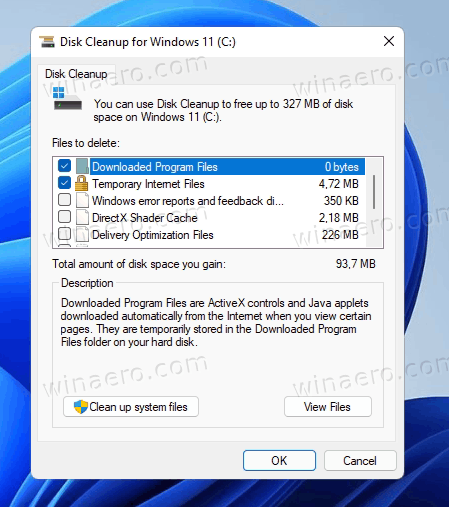
Before scanning, eliminate temporary files that can hide or protect malware. Cleaning these folders improves scan accuracy and system speed.
Run Disk Cleanup to Remove System Clutter
Press the Windows key, type cleanmgr, and open Disk Cleanup. Select your main drive (usually C:) and click OK. Check every box—especially Windows Update Cleanup, Delivery Optimization Files, and Temporary Internet Files—then click OK to delete.
Next, click Clean up system files, reselect the drive, and check all options again. This second pass removes deeper system junk. Confirm deletion. The process may take several minutes but can free up to 7 GB or more of space.
⚠️ This permanently deletes files—but they’re safe to remove. No system damage will occur.
Manually Delete Temp Files to Expose Hidden Threats
Press Windows + R, type temp, and press Enter. In the folder that opens, press Ctrl + A to select all, then Delete. If some files are in use, close programs like browsers or Grammarly and try again.
Repeat: Press Windows + R, type %temp%, and press Enter. Delete all files you can. Skip any locked or missing files—these aren’t critical.
✅ Tip: If deletion fails, restart your computer and try again after logging back in.
Clear the Prefetch Folder to Reset Cached Data
Press Windows + R, type prefetch, and press Enter. Select all files with Ctrl + A and delete them. Some files may be in use—skip those.
🔄 Don’t worry: Windows will rebuild this folder automatically. Clearing it helps eliminate cached malicious data without harming performance.
Run Microsoft’s Built-in Virus Removal Tools
After cleaning junk, use Microsoft’s free, powerful tools to detect and remove known malware.
Perform a Full Windows Defender Scan
Go to Settings > Update & Security > Windows Security > Virus & threat protection. Click Scan options, then choose Full scan. Start the scan and wait for it to finish.
If threats are found, click Remove or Quarantine as prompted. Even if previous quick scans showed nothing, a full scan may uncover hidden malware.
Some infections trigger a Clean computer notification—click it to let Windows handle removal automatically.
💡 Note: Windows Defender is effective but not foolproof. Always follow up with additional tools.
Launch Microsoft Malicious Software Removal Tool (MRT)
Press Start, type MRT, and run the Microsoft Malicious Software Removal Tool. Click Next, select Full scan, then Next again. Let the scan run—it may take 10–15 minutes.
This tool targets known viruses, especially those from email attachments or downloads. It’s updated monthly and runs independently of Windows Defender.
🔍 Result: If malware is found, MRT removes it automatically. No extra steps needed.
Download and Run Microsoft Safety Scanner
Visit the official Microsoft Safety Scanner page and download the tool. It’s a free, on-demand scanner that detects threats Defender might miss.
Run the executable, let it update definitions, then perform a full system scan. It’s lightweight and doesn’t install permanently—perfect for one-time deep checks.
✅ Use this when you suspect a stubborn infection, even after other scans.
Use Third-Party Scanners for Maximum Coverage

Built-in tools are essential—but not enough alone. Add third-party anti-malware scanners to catch advanced threats like spyware, adware, and zero-day malware.
Scan with Malwarebytes for Hidden Threats
Go to malwarebytes.com, download the free version, and install it. Open the app and click Scan now.
The tool updates its virus definitions first, then scans your entire system. In real cases, it has found 7+ suspicious items missed by Defender.
When the scan finishes, click Quarantine to remove all detected threats. You’ll see a prompt to upgrade—just close it. The free version is fully capable for one-time cleanup.
✅ Why it works: Malwarebytes excels at detecting browser hijackers, PUPs, and adware.
Try Bitdefender or Kaspersky for Stubborn Infections
If Malwarebytes finds nothing but problems persist, try Bitdefender Free Scanner or Kaspersky Virus Removal Tool. Both are reputable, free, and deep-scanning capable.
- Bitdefender: Offers real-time protection in paid versions, but the free scanner removes existing threats effectively.
- Kaspersky Virus Removal Tool: Runs independently, doesn’t require installation, and performs aggressive deep scans.
Run one of these after Malwarebytes for extra assurance. Don’t run multiple real-time tools at once—only use one on-demand scanner at a time.
Uninstall Suspicious Apps and Browser Extensions
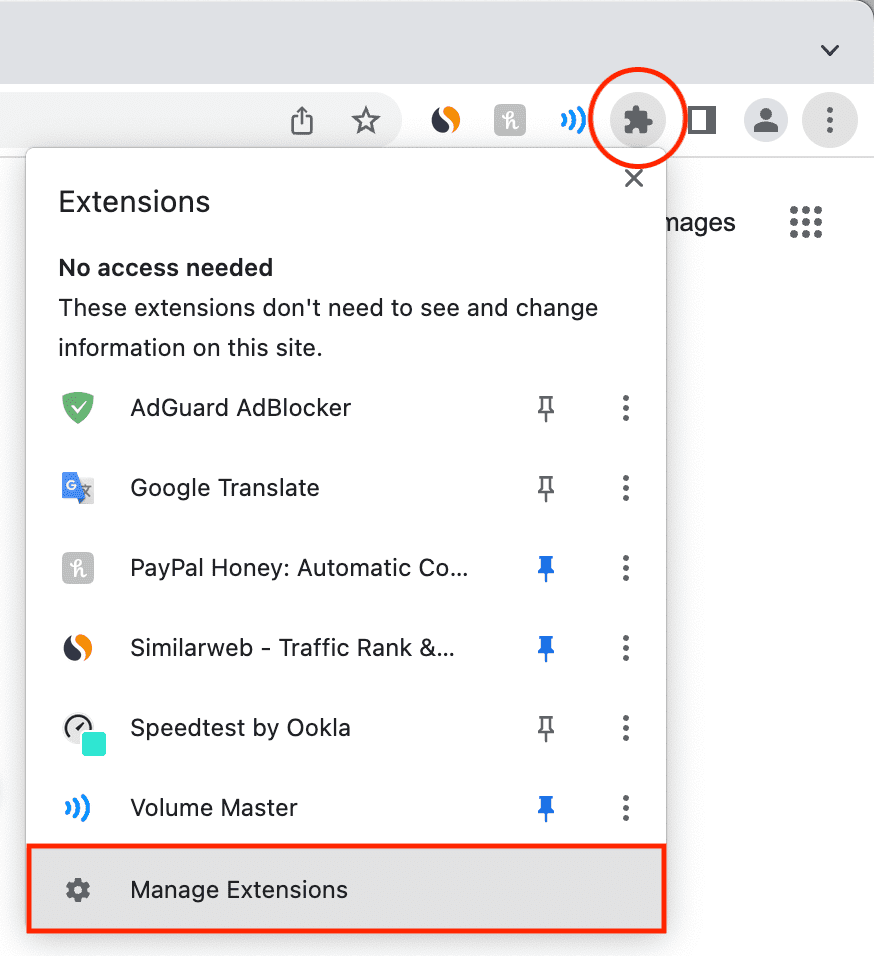
Many viruses enter through fake software or malicious browser add-ons. Even if scans come back clean, manually inspect apps and extensions.
Remove Unknown or Recently Installed Programs
Go to Settings > Apps > Apps & features. Sort by Install date to spot recently added software.
Look for anything unfamiliar—especially apps with vague names like “System Manager,” “Update Helper,” or “Driver Optimizer.” These are often bundled malware.
Click the app, then Uninstall. Follow prompts to remove it completely.
🚫 Red flags:
• Apps you don’t remember installing
• Programs with poor reviews or no publisher info
• Tools claiming to “speed up” your PC
Delete Risky Browser Extensions
Malware often hides in browser extensions. Check each browser:
Chrome:
• Open Chrome > click three dots > Extensions > Manage extensions
• Remove anything unknown or suspicious
Firefox:
• Click menu > Add-ons and themes > Extensions
• Disable and remove questionable add-ons
Edge:
• Click three dots > Extensions
• Turn off or delete unrecognized extensions
✅ Pro tip: Reset your browser to default settings if pop-ups or redirects continue. This wipes corrupted settings caused by hijackers.
Secure Your Microsoft and Email Accounts
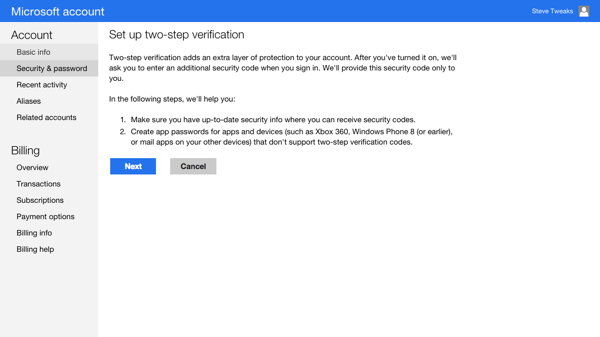
Some threats aren’t viruses—they’re phishing scams targeting your login credentials. Don’t ignore them.
Identify Fake OneDrive or Microsoft Emails
You may see emails claiming:
• “Your OneDrive is full” (even with low usage)
• “Click here to upgrade storage”
• “Suspicious login detected”
These are scams. Do not click links or download attachments.
✅ Action: Delete these emails and block the sender. If they keep coming, your account may be compromised.
Change Password and Enable 2FA
If scam emails persist, change your Microsoft password immediately.
Go to account.microsoft.com, sign in, and update your password. Then enable two-factor authentication (2FA) for added security.
🔐 Why it matters: Hackers use stolen credentials to send spam, install malware remotely, or lock you out.
Keep Windows and Apps Updated
An outdated system is an easy target. Updates patch security holes that viruses exploit.
Install All Windows Updates
Go to Settings > Update & Security > Windows Update. Click Check for updates and install all pending ones.
Restart if prompted. Keeping Windows 10 or 11 up to date closes vulnerabilities that malware uses to enter.
Update Browsers and Common Software
Outdated browsers, PDF readers, and plugins (like Java or Flash) are common attack vectors.
Enable auto-updates for:
• Google Chrome / Mozilla Firefox / Microsoft Edge
• Adobe Reader
• Antivirus software
• Office applications
✅ Set a monthly reminder to manually check for updates if auto-updates are off.
Prevent Future Infections with Smart Habits
Cleaning a virus is only half the battle. Prevent it from coming back with routine maintenance and safe practices.
Avoid Untrusted Downloads
Never install:
• Free software from unknown websites
• “Cracked” programs or pirated tools
• Browser toolbars or “optimizer” apps
These often bundle malware. Stick to official app stores or developer websites.
Practice Safe Browsing
• Don’t click links in suspicious emails
• Avoid pop-up ads, especially “virus detected” warnings
• Use an ad blocker (like uBlock Origin) to reduce exposure
✅ Monitor for unusual behavior:
• Desktop pop-ups = likely adware
• Redirected searches = browser hijacker
• Slowed performance = possible background malware
Schedule Monthly Maintenance
Set a calendar reminder to:
1. Run Disk Cleanup and clear temp, %temp%, and prefetch
2. Perform a full scan with Windows Defender
3. Run Malwarebytes or another third-party scanner
💡 Monthly checks catch threats early—before they cause serious damage.
Reboot and Confirm Your System Is Clean
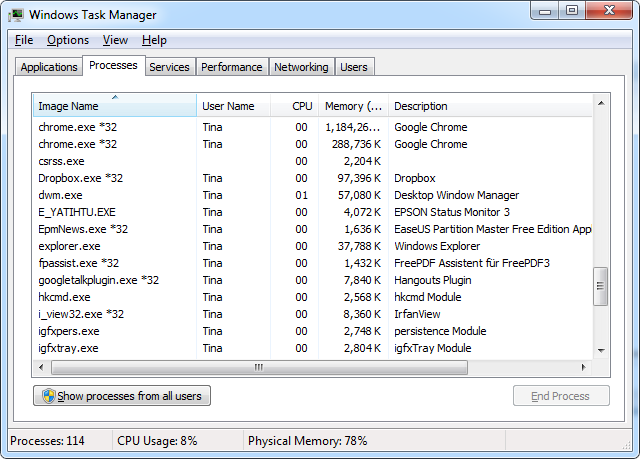
After completing all steps, let the Microsoft MRT scan finish if still running. Then restart your computer.
After reboot:
• Pop-ups should stop
• System speed should improve
• No suspicious processes in Task Manager
If problems continue:
• Run another scan with Kaspersky or Bitdefender
• Consider seeking professional help
• As a last resort, back up your data and reinstall Windows cleanly
Frequently Asked Questions About Removing Viruses from Computers
What is the best way to remove a virus from a Windows computer?
The best way to remove virus from computer involves multiple steps: clean temporary files, run a full Windows Defender scan, use Microsoft MRT and Safety Scanner, then scan with Malwarebytes or Kaspersky. Also, uninstall suspicious apps and browser extensions. This multi-layered approach ensures deeper cleanup than any single tool.
Can Windows Defender remove all viruses?
Windows Defender can remove many common threats, but it may miss adware, PUPs, or sophisticated malware. Always follow up with a third-party scanner like Malwarebytes for full coverage. Relying solely on Defender increases the risk of leftover infections.
How do I know if my computer is still infected after scanning?
Signs of ongoing infection include persistent pop-ups, slow performance, browser redirects, or unfamiliar programs. Check Task Manager for suspicious processes. If issues continue, run another scan with Kaspersky or Bitdefender, or consider a clean Windows reinstall.
Should I reinstall Windows if I have a virus?
Reinstalling Windows is a last resort—if scans fail and problems persist. First, back up your important files (after scanning them), then perform a clean install. This guarantees removal of all malware and restores system integrity.
Can a virus steal my passwords or Microsoft account?
Yes. Some malware logs keystrokes or steals browser data. If you’ve clicked a phishing link or seen fake OneDrive emails, change your Microsoft password immediately and enable two-factor authentication to protect your account.
How can I prevent viruses in the future?
Avoid untrusted downloads, don’t click suspicious email links, keep Windows and apps updated, and run monthly scans with Malwarebytes. Use an ad blocker and only install software from official sources. These habits drastically reduce your risk.
Key Takeaways for Removing and Preventing Computer Viruses
The best way to remove virus from computer is not a single tool, but a complete process: start with system cleanup, use multiple scanners (Microsoft and third-party), manually remove suspicious apps and extensions, and secure your accounts. Prevention is just as important—update regularly, avoid risky downloads, and schedule monthly maintenance.
By following this method, you’ll not only eliminate current threats but also build long-term protection. If problems persist, don’t hesitate to seek professional help or perform a clean Windows reinstall. Stay vigilant—your digital safety depends on it.



