
Your computer stores your digital life—banking details, private photos, work documents, and sensitive communications. A single breach can lead to identity theft, financial loss, or permanent data destruction. The best way to protect your computer isn’t relying on one tool, but building a layered defense using updated software, strong authentication, and smart online behavior. Cybercriminals use phishing, malware, and social engineering to exploit small mistakes. But with the right steps—like enabling Tamper Protection, using a password manager, and running real-time antivirus scans—you can stop most threats before they take hold. This guide gives you clear, actionable steps to lock down your system, from firewall settings to backup strategies.
You’ll learn how to set up automatic defenses, recognize phishing scams, and create unbreakable passwords. We’ll cover essential tools like Microsoft Defender, Spybot Search and Destroy, and cloud backups, plus habits that keep you safe even when software fails. No jargon, no fluff—just proven methods that work.
Install One Reliable Antivirus Program
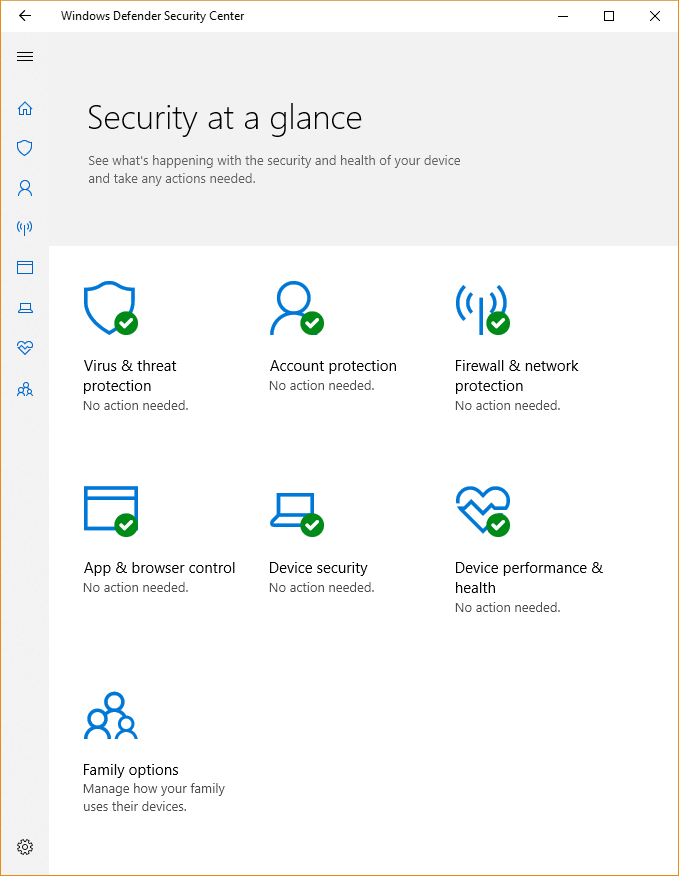
Running multiple antivirus tools slows your system and causes conflicts. Stick to one trusted solution. Windows Security (Microsoft Defender) comes built-in and automatically disables itself if you install third-party software like Norton or Kaspersky. For most users, Microsoft Defender is enough—especially with a Microsoft 365 subscription. It offers real-time protection, cloud-based threat detection, and automatic updates.
Avoid Conflicts from Multiple Security Apps
Using more than one antivirus or antispyware program can cause:
– System slowdowns
– Software crashes
– Unexpected restarts
– Disabled security features
If you install a third-party app, Microsoft Defender will turn off. Never run two third-party tools at once. If you uninstall one, ensure Microsoft Defender reactivates to keep your system protected.
Enable Real-Time Scanning and Automatic Updates
Your antivirus must be active at all times. Turn on real-time protection so it scans files, downloads, and email attachments instantly. Configure it to:
– Check for virus definition updates weekly
– Run a full system scan at least once a month
– Automatically scan USB drives when connected
Without real-time scanning, malware can infect your system before you notice. If your antivirus fails to block a threat, use Microsoft Defender Offline, which runs outside Windows to remove hidden rootkits.
Keep All Software Updated Automatically

Outdated software is the top entry point for hackers. Unpatched flaws in Windows, browsers, or apps like Adobe Reader let malware slip through. Enable automatic updates for:
– Your operating system (Windows Update or macOS Software Update)
– Web browsers (Chrome, Edge, Firefox)
– Office suites and PDF readers
– Plugins like Java (if still in use)
Go to Settings > Windows Update and set updates to install automatically. Restart when prompted—delaying leaves you exposed.
Patch Mobile Apps and Browser Extensions
Your phone and browser are just as vulnerable. Ensure:
– Android apps update via Google Play
– iPhone apps update through the App Store
– Browser extensions are kept current
Many attacks happen through malicious add-ons or outdated mobile apps. Always download software from official sources—avoid third-party sites like CNET Download or Softonic, which often bundle malware.
Turn On and Configure Your Firewall
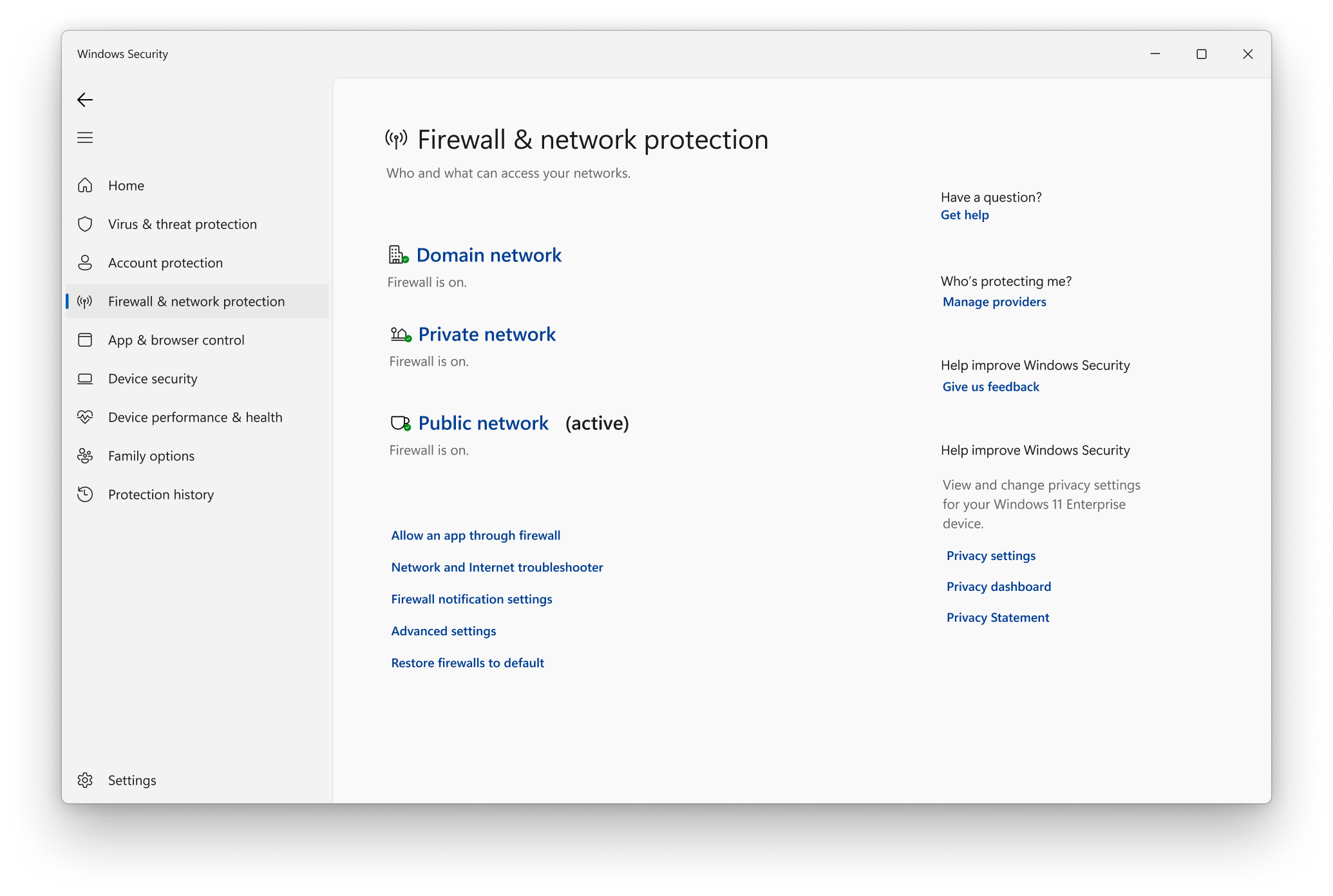
Your firewall blocks unauthorized access to your computer. Windows Firewall is on by default, but verify it’s active:
1. Search for Firewall & network protection
2. Ensure protection is on for all network types (private, public)
If you use a router, it likely has a firewall too—keep both enabled for layered defense.
Block High-Risk Ports Like 139 and 445
Hackers scan for open ports to launch attacks. Block unused ones, especially:
– Port 139 (NetBIOS)
– Port 445 (SMB)
These are common targets for ransomware and remote access exploits. You can adjust port settings in advanced firewall rules, but most users can rely on default settings unless managing a network.
Create Strong, Unique Passwords for Every Account
Weak passwords like “123456” or “password” are cracked in seconds. Use:
– At least 8 characters
– A mix of uppercase, lowercase, numbers, and symbols
– No personal info (birthdays, pet names)
Instead of random strings, use a passphrase: take the first letters of a sentence like “My first car was a Toyota in 2010!” → MfcwaTi2010!
Use a Password Manager to Store Credentials Securely
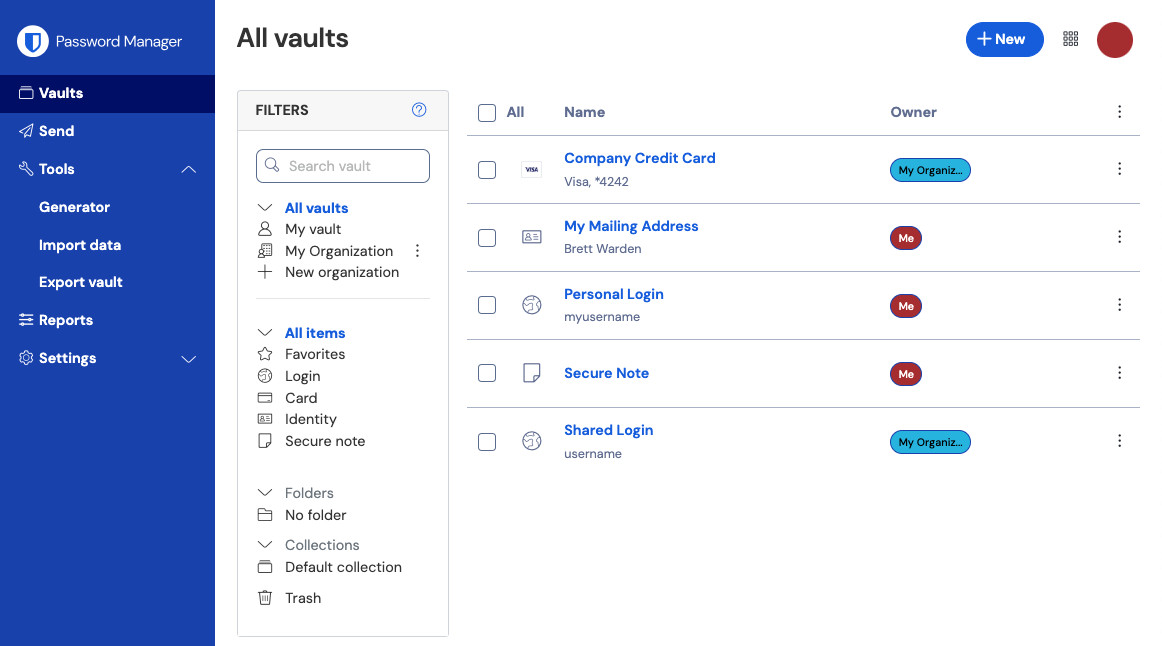
Remembering dozens of complex passwords is impossible. A password manager (like Bitwarden, 1Password, or Keeper) generates and stores strong, unique passwords for every account. You only need to remember one master password. It also:
– Auto-fills login forms
– Alerts you to reused or weak passwords
– Syncs across devices securely
Avoid saving passwords in your browser—malware can steal them.
Enable Multi-Factor Authentication (MFA) on All Critical Accounts
Even strong passwords can be stolen. Add a second layer:
– One-time code from an app (Google Authenticator, Microsoft Authenticator)
– Fingerprint or face scan
– Security key (like YubiKey)
Turn on MFA for email, banking, social media, and cloud storage. It stops 99% of account takeover attempts.
Practice Safe Browsing and Avoid Risky Sites
Malware often hides on sites offering pirated movies, cracked software, or free music. Even legitimate sites can be compromised. Stick to trusted sources:
– Download software only from official websites
– Use Google Play for Android, App Store for iPhone
– Avoid third-party download sites—they often bundle spyware
Recognize Secure Websites Before Entering Data
Before typing in personal info, check for:
– https:// in the address bar (not http://)
– A padlock icon 🔒
– A valid domain (e.g., www.bankofamerica.com, not bankofamerica.login.security-update.net)
These mean your data is encrypted during transmission.
Block Pop-Ups and Avoid Suspicious Links
Never click “close” buttons inside pop-up windows—they may install spyware. Instead:
– Click the X in the top corner
– Use your browser’s built-in pop-up blocker
– Avoid links in unexpected messages, even from friends (their accounts may be hacked)
Spot and Avoid Phishing and Tech Support Scams
Phishing emails pretend to be from banks, Amazon, or Microsoft, urging you to “verify your account” or “unlock your device.” Red flags include:
– Urgent or threatening language
– Misspelled URLs or email addresses
– Requests for passwords or Social Security numbers
Never click links or download attachments from suspicious messages. Go directly to the company’s website instead.
Verify Sender Email Addresses Carefully
A fake email from “support@amaz0n.com” looks real at a glance. Hover over the sender name to see the actual address. Legitimate companies won’t ask for sensitive info via email.
Ignore Fake Tech Support Alerts
Messages claiming “your computer is infected” or “Microsoft detected a virus” are scams. Microsoft doesn’t call or email you about infections. Close the message and run a scan with your own antivirus.
Back Up Data Daily Using Local and Cloud Storage

Even the best security can’t prevent hardware failure or ransomware. Back up your files daily using:
– External hard drive with File History (Windows) or Time Machine (Mac)
– Cloud services like iDrive, Carbonite, or OneDrive
A dual backup strategy ensures your data survives theft, fire, or malware.
Test Your Backups Regularly to Ensure They Work
A backup is useless if it won’t restore. Periodically:
– Open a backed-up file to confirm it’s readable
– Simulate a restore from cloud or drive
Automate backups so you don’t forget. Set File History to run every hour.
Limit User Access and Lock Down Physical Security
Never use an admin account for daily tasks like browsing or email. Create a standard user account for regular use. When software needs admin rights, Windows will prompt you—this stops malware from installing silently.
Use a Privacy Filter in Public Spaces
Working in cafes or airports? Use a privacy filter—a screen overlay that makes your display invisible from the side. Prevents “shoulder surfing” where strangers steal login details.
Enable Tamper Protection in Windows 10 and 11
Malware often tries to disable your antivirus or firewall. Tamper Protection stops unauthorized changes. To check:
1. Open Windows Security
2. Go to Virus & threat protection
3. Ensure Tamper Protection is on
This prevents viruses from turning off your defenses.
Monitor for Data Breaches and Respond Immediately
Cybercriminals sell stolen passwords on the dark web. Use services like:
– Have I Been Pwned (free)
– Identity monitoring with Microsoft 365 or credit bureaus
These alert you if your email or password appears in a data breach—so you can change it before it’s used.
Freeze Your Credit If Personal Information Is Stolen
If your data is compromised:
1. Place a fraud alert with one credit bureau (Experian, Equifax, TransUnion)
2. Freeze your credit to block new accounts
3. Monitor accounts for suspicious activity
Act fast—most banks won’t cover losses if you delay.
Optimize Performance Without Compromising Security
Clean Temporary Files Automatically with Storage Sense
Junk files slow your system and may contain traces of sensitive data. Enable Storage Sense:
– Go to Settings > System > Storage
– Turn on Storage Sense to auto-delete temp files, downloads, and recycle bin contents
Runs in the background—no manual effort needed.
Defragment HDDs Monthly, Never Defragment SSDs
If you have a hard disk drive (HDD), defragment it monthly to speed up file access:
– Search for Optimize Drives
– Run the tool weekly
Don’t defragment SSDs—it wears them out. Windows automatically detects drive type and applies the right optimization.
Frequently Asked Questions About Protecting Your Computer
How do I know if my computer has a virus?
Signs of infection include slow performance, unexpected pop-ups, browser redirects, programs crashing, or your computer rebooting on its own. Run a full scan with Microsoft Defender or a trusted antivirus to check.
Should I use free antivirus software?
Yes—Microsoft Defender is free, built into Windows, and effective for most users. It includes real-time protection and automatic updates. Third-party tools offer extra features but aren’t always necessary.
Can I use two antivirus programs at once?
No. Running multiple antivirus tools causes system slowdowns, conflicts, and instability. Stick to one—either Microsoft Defender or a third-party app.
What’s the safest way to store passwords?
Use a password manager like Bitwarden or 1Password. It generates and stores strong, unique passwords securely. Never save passwords in your browser.
How often should I back up my computer?
Back up daily if possible. Use File History (Windows) or Time Machine (Mac) for local backups and a cloud service like OneDrive or iDrive for offsite protection.
What should I do if I click a phishing link?
Disconnect from the internet immediately. Run a full antivirus scan. Change passwords for sensitive accounts, especially if entered after clicking the link. Enable MFA if not already active.
Key Takeaways for Securing Your Computer
The best way to protect your computer combines automated tools with smart habits. Install one antivirus and keep it updated. Enable your firewall and automatic OS updates. Use strong, unique passwords with a password manager and turn on MFA everywhere possible. Back up your data daily using both local and cloud storage. Avoid phishing scams by verifying sender addresses and never clicking suspicious links.
Take action now: Enable Tamper Protection, run a full antivirus scan, and set up automatic backups. Stay skeptical of urgent messages and untrusted downloads. Security isn’t a one-time fix—it’s an ongoing practice. Stay informed, stay cautious, and stay protected.



