
Need to pull a file from your office PC while on vacation, help a parent fix a frozen screen, or run design software from a hotel room? The best way to get remote access to a computer depends on your needs—whether it’s speed, security, ease of setup, or cross-platform support. Fortunately, powerful tools like Chrome Remote Desktop, Splashtop, and TeamViewer make secure, reliable remote control easier than ever—without requiring a tech degree.
Remote access lets you operate another computer as if you were sitting in front of it. Whether you’re a remote worker, IT pro, or just helping a family member, the right tool ensures fast performance and strong protection. Built-in options like Windows RDP offer high speed but demand careful security, while cloud-based platforms like TeamViewer and Splashtop simplify setup and enhance safety. This guide compares the top solutions, highlights the safest setups, and helps you choose the best way to get remote access—so you can stay productive and protected.
Choose the Right Remote Access Tool for Your Needs

Match the Tool to Your Use Case
The best way to get remote access starts with picking the right tool for your situation. Not every solution fits every scenario—some excel in performance, others in simplicity or security.
| Use Case | Recommended Tool |
|---|---|
| Quick help for family | Chrome Remote Desktop, AnyDesk |
| Business IT support | TeamViewer, RemotePC |
| High-performance tasks (e.g., video editing) | Splashtop |
| Full network access | Tailscale, ZeroTier |
| Free and simple | Chrome Remote Desktop |
| Cross-platform flexibility | TeamViewer |
Chrome Remote Desktop is ideal for beginners—free, no setup, and works across Windows, Mac, and Linux. TeamViewer delivers enterprise-grade reliability and security, perfect for unattended access and professional support. Splashtop offers 60fps streaming, making it the top choice for designers and video editors. Tailscale creates a secure private network, letting you access RDP or SSH safely.
Avoid exposing Windows RDP directly to the internet—it’s fast but a major security risk without a VPN or secure tunnel.
Compare Pricing and Features
Cost matters, especially for personal or small business use. Here’s how top tools stack up:
| Tool | Free Tier? | Starting Price (Paid) | Best For |
|---|---|---|---|
| Chrome Remote Desktop | ✅ Yes | Free | Simple, occasional use |
| TeamViewer | ✅ (Personal) | $52.90/month (Business) | Enterprise, IT teams |
| Splashtop | ✅ Yes | $1.84/month (promo) | High performance, security |
| RemotePC | ❌ No | $1.84/month (first year) | Budget-friendly business |
| AnyDesk | ✅ (Personal) | $10.90/month | Lightweight, fast |
| Tailscale | ✅ Yes | Free | Secure network access |
Splashtop offers the best value during promotions, delivering high-speed access at a fraction of competitors’ prices. RemotePC is a solid budget pick for businesses needing compliance and admin controls.
Securely Use Windows Remote Desktop (RDP)
Enable RDP on Windows Pro Only
Windows Remote Desktop (RDP) is built into Windows Pro, Enterprise, and Education editions—but not available on Windows Home. If your host PC runs Windows 10/11 Pro, RDP is a free, high-performance option.
To enable:
1. Go to Settings > System > Remote Desktop
2. Toggle Remote Desktop on
3. Note the PC name—you’ll need it to connect
Ensure your firewall allows RDP (port 3389) under Windows Defender Firewall > Allow an app.
Never Expose RDP to the Internet
RDP uses port 3389, a prime target for hackers. Never expose it directly to the internet without protection. Brute-force attacks can compromise weak passwords in minutes.
Instead:
– Use a VPN (like SoftEther or corporate network)
– Or tunnel RDP through Tailscale or Cloudflare WARP
– Change the default RDP port (advanced users only)
Without a secure tunnel, RDP is a major security risk.
Connect from Any Device
Once RDP is enabled and secured:
– From Windows: Use Remote Desktop Connection app
– From Mac/iOS: Install Microsoft Remote Desktop from App Store
– From Android: Download Remote Desktop from Google Play
Enter the PC name or IP address, then sign in with your Windows credentials.
Fix Common RDP Issues
If RDP fails:
– PC asleep? Set Sleep to Never in Power & Sleep settings
– IP changed? Use Dynamic DNS (DDNS) like No-IP or DuckDNS
– Can’t connect externally? Set up port forwarding on your router (port 3389) or use a VPN
– Corporate PC? Contact IT—many require company VPN access first
Set Up Chrome Remote Desktop in Minutes
Install with No Technical Skills
Chrome Remote Desktop is the easiest way to get remote access—perfect for non-tech users.
To set up:
1. Open Chrome and go to remotedesktop.google.com/access
2. Click Download and install the app
3. Sign in with your Google account
4. Name your computer and set a 6-digit PIN
No port forwarding, firewall rules, or static IP required. It just works.
Share Your Screen Securely with One-Time Codes
Need someone to help you? Generate a one-time access code:
1. Go to remotedesktop.google.com/support
2. Click Generate Code
3. Share the code with the helper
4. Approve the connection when prompted
The session ends after 30 minutes unless renewed. You stay in control.
Access from Mobile Devices with Trackpad Mode
On Android or iPhone:
1. Install Chrome Remote Desktop app
2. Tap Remote Access
3. Select your computer
4. Enter the PIN
Use Trackpad Mode to control the cursor:
– Tap = left-click
– Two-finger tap = right-click
– Swipe = move mouse
Touch input is only supported on Windows hosts.
Troubleshoot Connection Problems
If Chrome Remote Desktop won’t connect:
– Ensure internet is active on both devices
– Disable antivirus temporarily—some block UDP on port 3478 (STUN)
– Allow TCP 443 and UDP 3478 in firewall
– Restart Chrome and retry
Google collects anonymized data (like latency) to improve service—no personal content is stored.
Deploy TeamViewer for Reliable, Enterprise-Grade Access

Connect in Under 5 Minutes with ID and Password
TeamViewer is one of the most trusted remote access tools, used by millions.
To connect:
1. Download TeamViewer from teamviewer.com
2. Install and run it
3. Note your 9-digit ID and password
4. Share both with the person helping you
For unattended access, set a permanent password in settings.
Use TeamViewer on Any Device
TeamViewer works on:
– Windows, Mac, Linux
– iOS and Android (via app or web)
– Raspberry Pi
No router configuration needed. It bypasses firewalls using cloud relays.
Enable Critical Security Features
For business or frequent use:
– Turn on Multi-Factor Authentication (MFA)
– Use conditional access policies (TeamViewer Tensor)
– Enable session recording and audit logs
– Deploy Wake-on-LAN to power on sleeping PCs
TeamViewer uses AES 256-bit encryption and TLS for all connections—enterprise-grade security.
Avoid Common Setup Mistakes
- ❌ Don’t share your ID publicly—it’s like giving out your home address
- ❌ Don’t leave TeamViewer running unattended without a strong password
- ✅ Use personal password mode for unattended access
- ✅ Log out after sessions on shared devices
TeamViewer is free for personal use. Business use requires a paid plan.
Optimize Splashtop for High-Performance Tasks
Get 60fps Streaming for Video and Design Work
If you edit video, design graphics, or need smooth remote performance, Splashtop is the best choice.
It delivers:
– Up to 60fps screen refresh
– 256-bit encryption
– Low latency even on moderate bandwidth
– No port forwarding required
Ideal for remote work requiring responsiveness.
Choose the Right Splashtop Plan
Plans include:
– Solo: $1.84/month (first year) – personal use
– Pro: $2.46/month – access work devices
– Team/Enterprise: For IT departments
– HelpDesk: $9.95 first year – remote support
All plans support multi-monitor, file transfer, and remote printing.
Set Up Unattended Access with Wake-on-LAN
To access your PC anytime:
1. Install Splashtop Streamer on the host
2. Log in with your Splashtop account
3. Set a strong device password
4. Enable Wake-on-LAN in BIOS and Splashtop settings
Now access your computer from any device—even if no one’s at the desk.
Maximize Speed and Reliability
For best performance:
– Use wired Ethernet (not Wi-Fi) on the host
– Close unused apps to free CPU
– Adjust display quality in Splashtop settings
– Use LAN mode when on the same network
Splashtop outperforms RDP and TeamViewer in speed tests, especially for graphics-heavy tasks.
Use AnyDesk for Lightweight, Fast Access
Fastest Remote Tool for Quick Fixes
AnyDesk is ultra-lightweight and starts in seconds. It’s perfect for quick fixes or helping family.
Key advantages:
– Minimal CPU usage
– Works behind firewalls
– No installation required (portable version available)
– Free for personal use
Connect with a Single 9-Digit ID
Each AnyDesk client has a unique 9-digit ID:
1. Open AnyDesk on the remote PC
2. Share the ID with the helper
3. Helper enters ID and requests connection
4. Remote user approves the session
For unattended access, set a password in Security > Unattended Access.
Secure and Simple with TLS 1.3 Encryption
AnyDesk uses TLS 1.3 and AES 256-bit encryption. Connections are peer-to-peer when possible, reducing lag.
Unlike RDP, it doesn’t require port forwarding or static IP.
Limitations to Know
- No built-in session recording
- Fewer enterprise features than TeamViewer
- File transfer available but less robust
Best for individuals and small teams needing fast, reliable access.
Secure Remote Access with Tailscale
Create a Private Network in Minutes
Tailscale uses WireGuard to create a secure zero-trust network between your devices—no port forwarding, no firewall changes.
Install Tailscale on:
– Your home PC
– Laptop
– Phone
– Server
All devices appear on a private network, as if on the same Wi-Fi.
Access RDP or VNC Safely Over a Secure Tunnel
Once Tailscale is running:
1. Connect both devices to the same Tailscale account
2. Use the Tailscale-assigned IP (e.g., 100.x.y.z)
3. Connect via RDP, VNC, or SSH
Now RDP is secure—even over public Wi-Fi.
Why Tailscale Beats Traditional VPNs
- Automatically handles NAT traversal
- No complex configuration
- Works with dynamic IPs
- Free for up to 100 devices
Ideal for tech-savvy users who want full network access, not just desktop control.
Prevent Security Risks in Remote Access
Always Enable Multi-Factor Authentication
Enable MFA on any tool that supports it—TeamViewer, Splashtop, RemotePC. It stops 99% of unauthorized access attempts.
Even with a strong password, MFA adds a critical second layer.
Avoid These Dangerous Practices
- ❌ Never expose RDP (port 3389) to the internet
- ❌ Don’t use default passwords on remote tools
- ❌ Don’t leave remote access running unattended without protection
- ❌ Don’t share access codes via unencrypted messages
Use end-to-end encrypted apps like Signal or WhatsApp to share credentials.
Use Strong, Unique Passwords
Create a 12+ character password with:
– Uppercase and lowercase letters
– Numbers
– Symbols
Use a password manager (Bitwarden, 1Password) to store and autofill.
Limit Access Duration
For temporary help:
– Use one-time access codes (Chrome Remote Desktop)
– Set time-limited sessions
– Monitor active connections
– Disconnect when done
Enable Wake-on-LAN for True Unattended Access
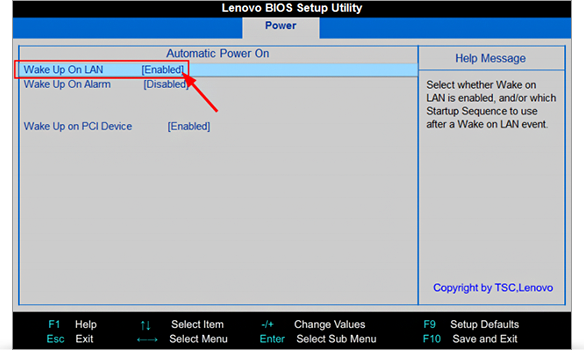
Wake Your PC Remotely with a Magic Packet
If your computer is off, Wake-on-LAN (WoL) can power it on—but only if:
– BIOS has Wake on LAN enabled
– Network adapter supports WoL
– PC is plugged into power and Ethernet (Wi-Fi WoL is unreliable)
Send a Magic Packet to Power On
To wake the PC:
1. Find the MAC address (via ipconfig /all)
2. Use a WoL tool (e.g., Angry IP Scanner, WakeOnLAN GUI)
3. Enter the MAC and broadcast IP (e.g., 192.168.1.255)
4. Send the magic packet
The PC should power on within seconds.
Limitations of Wake-on-LAN
- Won’t work if PC loses power
- Some ISPs block WoL packets
- Router must allow incoming UDP on port 9
- Use DDNS if your IP changes
Pair WoL with Splashtop or TeamViewer for true unattended access.
Transfer Files Without Full Remote Access
Use Cloud Storage Instead of Remote Desktop
If you only need files, don’t remote in—ask someone to upload them to:
– OneDrive
– Google Drive
– Dropbox
– SharePoint
Faster, safer, and no setup required.
Enable Remote Printing from Anywhere
Most tools (TeamViewer, Splashtop, RemotePC) support remote printing:
– Print from remote PC to local printer
– Select your local printer during the session
Handy for urgent documents.
Frequently Asked Questions About Remote Access
What is the easiest way to get remote access to a computer?
Chrome Remote Desktop is the easiest—free, no setup, and works across devices. Just install, set a PIN, and connect.
Is TeamViewer safe for remote access?
Yes. TeamViewer uses AES 256-bit encryption and TLS. Enable MFA and use strong passwords for maximum security.
Can I use remote access on Windows Home?
No. Windows RDP only works on Pro, Enterprise, or Education editions. Use Chrome Remote Desktop, TeamViewer, or Splashtop instead.
How do I access my work computer from home?
Use your company’s VPN first, then connect via RDP or a remote tool. If no setup exists, ask IT or use cloud storage to retrieve files.
Why is my remote desktop connection slow?
Slow performance is usually due to poor internet, high latency, or low bandwidth. Use wired Ethernet, close background apps, and lower display quality.
Can I wake my PC remotely before connecting?
Yes, if Wake-on-LAN is enabled in BIOS and the PC is on Ethernet. Use tools like Splashtop or TeamViewer with WoL support.
Key Takeaways for Getting Remote Access Safely
The best way to get remote access to a computer balances ease, speed, and security. For most users, Chrome Remote Desktop or Splashtop offers the safest, simplest start. IT professionals and businesses should consider TeamViewer or Tailscale + RDP for scalability and control.
Always prioritize security—use MFA, avoid exposing RDP, and never leave remote tools running unattended. For file access only, use cloud storage instead of full remote control. Before relying on remote access, back up critical data to avoid loss during connection failures.
Start with a free tool like Chrome Remote Desktop or Splashtop, test the connection, and upgrade only if you need advanced features. With the right setup, you can securely control any computer—from anywhere.



