
Is your computer taking forever to start up, freezing when you open a few programs, or struggling to keep up with everyday tasks? You’re not alone. Over time, even high-performing machines slow down due to software clutter, outdated drivers, or hardware limitations. The best way to make a computer run faster isn’t a single magic fix—it’s a strategic combination of software cleanup, system optimization, and knowing when to upgrade your hardware. Whether you’re using a Windows PC, a Dell laptop, or an aging machine, this guide delivers proven, step-by-step methods to restore speed, improve responsiveness, and extend your computer’s lifespan.
You’ll learn how to eliminate performance drains like startup bloat, malware, and disk clutter, optimize system settings for peak efficiency, and identify when hardware upgrades like an SSD or extra RAM are the real solution. From quick daily habits to advanced tweaks, these actionable steps work across most Windows systems and include Dell-specific tools for maximum results.
Restart and Close Unused Programs
Restart Your Computer Weekly
One of the most effective yet overlooked ways to speed up your PC is a simple restart. Over time, background apps accumulate, memory fills up, and system services become sluggish. A restart clears RAM, stops rogue processes, and resets network and graphics drivers.
How to restart:
1. Click Start > Power > Restart
2. Wait for the full reboot
3. Open only essential apps
Pro tip: Set a weekly reminder to restart—especially if you leave your computer on for days at a time. This alone can prevent gradual slowdowns.
Close Unused Apps and Browser Tabs
Running too many programs or browser tabs consumes CPU, memory, and disk resources, even when minimized. Each tab in Chrome or Edge can use hundreds of MB of RAM.
What to do:
– Close apps you’re not actively using
– Limit browser tabs to 5–10 at a time
– Use Task Manager (Ctrl + Shift + Esc) to identify high-usage processes
Warning: Avoid ending critical system processes like “Windows Explorer” or “Antimalware Service Executable” unless you’re certain they’re causing issues.
Clean Up Desktop and Taskbar
A desktop full of files and shortcuts forces Windows to render dozens of icons at startup, increasing boot time and background load.
Quick cleanup steps:
– Move documents to Documents or cloud storage
– Delete or archive old shortcuts
– Group remaining items into folders
Result: Faster file explorer response and reduced system strain.
Update Software and Drivers
Install Windows Updates Regularly
Outdated operating systems lack performance patches and security fixes that can cause lag and instability. Windows updates often include driver improvements and system optimizations.
Steps:
1. Go to Start > Settings > System > Windows Update
2. Click Check for updates
3. Install all available updates
4. Check Optional updates for driver and feature improvements
Note: Some updates require a restart—complete it promptly to apply changes.
Update Drivers and BIOS for Peak Performance
Drivers are essential for hardware communication. Outdated or corrupt drivers can cause crashes, lag, and poor performance.
Best methods:
– Use Dell SupportAssist:
1. Open SupportAssist from Start menu
2. Go to Update software > Start
3. Install driver and BIOS updates
4. Restart if prompted
– Manual method: Visit Dell Drivers & Downloads and enter your service tag
Critical drivers to update:
• Graphics (GPU)
• Network (Wi-Fi/Ethernet)
• Chipset
• Audio
Keep Applications Updated
Older app versions may not be optimized for current Windows versions, leading to crashes or high resource use.
How to update:
– Open the app and check for updates in settings
– Use Microsoft Store for UWP apps
– Visit official websites (e.g., Adobe, Zoom, Chrome)
Pro tip: Enable auto-updates where available to avoid performance issues.
Scan for Malware and Viruses

Run Windows Security Full Scan
Malware often runs in the background, consuming CPU and disk resources. A scan can detect and remove hidden threats.
Steps:
1. Go to Start > Settings > Privacy & security > Windows Security
2. Click Virus & threat protection
3. Select Quick scan
For deeper inspection:
– Choose Scan options > Full scan > Scan now
– Let it run—it may take 30+ minutes
Result: Removes background threats that drain performance.
Use SupportAssist for Automated Cleanup
Dell SupportAssist can automatically scan for malware, remove junk files, and optimize performance.
To boost performance:
1. Open SupportAssist
2. Click Boost performance
3. Let it analyze and apply fixes
4. Restart your PC
Benefits: One-click optimization for storage, security, and system health.
Free Up Disk Space
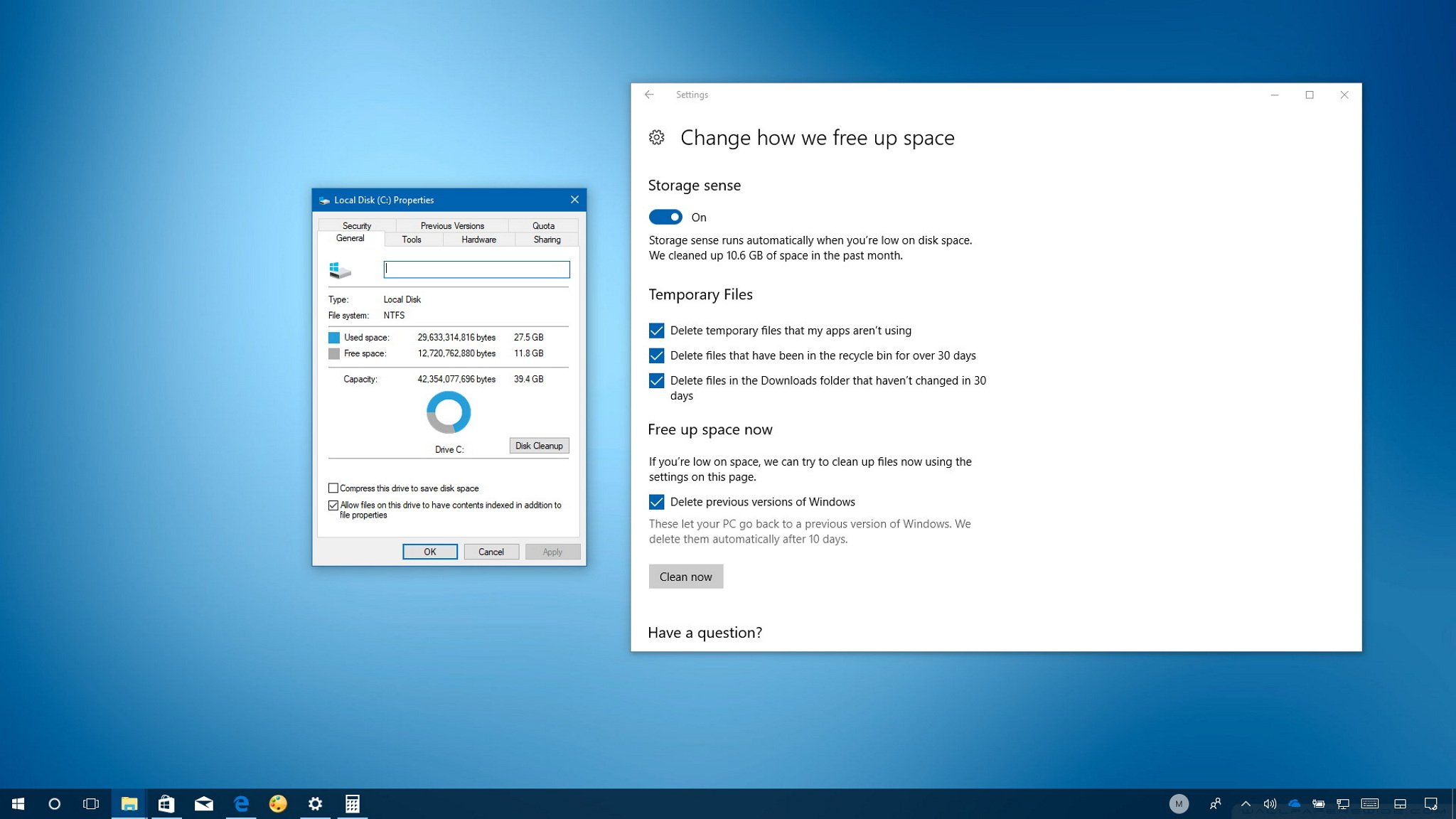
Enable Storage Sense Automatically
Windows can automatically delete temporary files and recycle bin contents.
Turn on Storage Sense:
1. Go to Settings > System > Storage
2. Toggle Storage Sense to On
3. Click Configure Storage Sense to set cleanup rules
What it removes:
• Temporary files
• Recycle Bin contents
• Download folder clutter
• Windows update leftovers
Run Disk Cleanup for Deep Cleaning
The built-in Disk Cleanup tool removes system files you no longer need.
Steps:
1. Type Disk Cleanup in Start menu and open it
2. Select drive (usually C:)
3. Click Clean up system files
4. Check boxes for:
• Temporary files
• Windows Update Cleanup
• Delivery Optimization Files
• Previous Windows installations (if present)
5. Click OK > Delete Files
Pro tip: This can free up 5–20 GB on older systems.
Uninstall Unused Apps and Delete Large Files
Unneeded programs take up space and may run background services.
How to uninstall:
1. Go to Settings > Apps > Installed apps
2. Sort by size or name
3. Click Uninstall on unused apps
Common space-hogging apps to remove:
• Trial software (e.g., McAfee, Norton)
• Old games
• Duplicate utilities
Manage Startup and Background Apps

Disable Unnecessary Startup Programs
Too many apps launching at boot can turn a 30-second startup into several minutes.
Steps:
1. Press Ctrl + Shift + Esc to open Task Manager
2. Go to Startup apps tab
3. Right-click unnecessary apps (e.g., Spotify, Adobe Updater)
4. Select Disable
Keep these enabled:
• Antivirus
• Cloud storage (if needed)
• Hardware utilities (e.g., Dell SupportAssist)
Turn Off Background Apps
Some apps run in the background even when closed, using memory and CPU.
Disable them:
1. Go to Settings > Privacy > Background apps
2. Turn off apps under Choose which apps can run in the background
Common offenders:
• Mail
• Weather
• Social media apps
• Messaging apps
Stop Unnecessary Notifications
Notifications trigger background processes and can slow performance.
Turn them off:
1. Go to Settings > System > Notifications & actions
2. Disable notifications for non-essential apps
Result: Smoother performance and fewer distractions.
Optimize System Performance Settings
Adjust for Best Performance in Windows
Visual effects like animations and transparency look nice but slow down older PCs.
Disable them:
1. Type Adjust the appearance and performance of Windows in Start
2. Open it
3. Select Adjust for best performance
4. Click Apply > OK
Alternative path:
– Settings > System > About > Advanced system settings > Performance Settings
Result: Faster window transitions and app launches.
Monitor Resource Usage with Task Manager
Use Task Manager to identify what’s slowing your PC.
Check:
• CPU: Sustained usage over 80% indicates a problem
• Memory (RAM): If consistently full, consider upgrading
• Disk: High usage with no active apps may signal malware or a failing drive
How to fix high usage:
– End task on non-essential processes
– Update drivers
– Scan for malware
Set Power Mode to High Performance
Choose Best Performance Power Plan
On desktops or plugged-in laptops, power-saving modes limit CPU speed.
Enable High Performance:
1. Go to Settings > System > Power & sleep
2. Click Additional power settings
3. Select High performance or Best performance
Warning: This increases power consumption and heat—use only when needed.
For Dell laptops:
– Use Dell Power Manager to set performance modes
– Choose Ultra Performance for maximum speed
Maintain Hardware and Cooling
Clean Air Vents and Fans Every 3–6 Months
Dust buildup blocks airflow, causing overheating and thermal throttling (CPU slowing down to cool off).
How to clean:
– Power off and unplug the PC
– Use compressed air to blow dust from vents and fans
– Focus on intake and exhaust areas
Frequency: Every 3–6 months
Manage Thermal Settings with Dell Optimizer
Overheating reduces performance. Use Dell tools to optimize cooling.
Use Dell Optimizer:
1. Open Dell Optimizer from Start
2. Go to Thermal Management
3. Choose a profile:
• Cool: Lower temps, reduced noise
• Ultra Performance: Max speed, higher temps
• Optimized: Balanced default
Benefit: Prevents thermal throttling during heavy tasks.
Run Hardware Diagnostics
A failing hard drive or memory module can cause slowdowns.
Use SupportAssist:
– Open SupportAssist > Run Full System Scan
– It checks:
• Hard drive health
• RAM
• CPU
• Battery (laptops)
Alternative: Use Pre-Boot System Assessment (restart and press F12, then select diagnostics)
Optimize and Defragment Your Drive

Optimize Drives (SSD/HDD)
Windows includes a tool to defragment HDDs and optimize SSDs.
Steps:
1. Type Defragment and Optimize Drives in Start
2. Select your drive
3. Click Optimize
Note:
• HDDs: Benefit from regular defragmentation
• SSDs: Don’t defrag—Windows uses TRIM to optimize
Schedule: Set to run automatically weekly
Check for Disk Errors with chkdsk
Corrupted files or bad sectors can slow your system.
Run chkdsk:
1. Open Command Prompt as Admin
2. Type:



