
You just unboxed your new computer—now what? The best way to set up a new computer goes far beyond turning it on. Whether it’s a Windows laptop, Chromebook, or business-grade PC, a proper setup ensures your device runs securely, efficiently, and tailored to your workflow from day one. Skipping key steps like driver updates, security configuration, or data migration can lead to slow performance, security gaps, or lost files. This guide delivers a complete, step-by-step process based on expert recommendations and real-world best practices so you can maximize speed, security, and usability right out of the box.
You’ll learn how to prepare your workspace, complete initial configuration, install essential software, transfer files safely, and optimize long-term performance. Whether you’re setting up a personal laptop, gaming rig, or managed business device, these proven steps will ensure your new computer performs at its peak for years to come.
Optimize Your Physical Workspace First

Set Up an Ergonomic Work Environment
Before powering on, arrange your desk for comfort and long-term use. Position your screen at eye level to prevent neck strain and adjust your chair so your hands rest naturally at or below elbow height while typing. This reduces fatigue during extended use and supports better posture.
If using an external monitor, confirm it matches your laptop’s connection type—HDMI or Thunderbolt™ are most common. For a clean setup, use a USB dock to connect wired keyboard, mouse, and Ethernet without cable clutter. Wireless peripherals like Bluetooth mice offer flexibility but will need pairing later.
Ensure Power and Network Readiness
New laptops aren’t fully charged when unboxed. Plug into a wall outlet before starting setup to avoid interruptions during critical updates. A stable internet connection is essential—know your Wi-Fi network name and password ahead of time.
For business or managed devices, prepare admin credentials if required. If using Ethernet, connect the cable now to bypass potential Wi-Fi issues and ensure faster, more reliable connectivity during setup.
Complete Initial Windows Configuration
Choose Correct Language and Region Settings
When you power on your new PC, Windows prompts you to select language, time zone, and keyboard layout. These affect date formats, display language, and typing behavior. Choose accurately—while they can be changed later, correct initial selection prevents confusion.
Use the dropdown menus to pick your country, preferred language, and keyboard type (e.g., QWERTY or AZERTY). Once confirmed, the system moves to network setup.
Connect to Wi-Fi or Ethernet
Select your Wi-Fi network and enter the password. For best results, use a 5GHz band if available—it’s faster and less congested than 2.4GHz. Choose “Connect automatically” to avoid re-entering credentials each time.
If using Ethernet, the connection typically activates automatically. After connecting, Windows may pause for several minutes while checking for firmware and OS updates. Do not skip this—early updates patch security flaws and improve system stability.
Assign a Unique Device Name
After updates install, you’ll be prompted to name your PC. Choose a clear, recognizable name like “Sarah’s Laptop” or “Sales Desktop.” This helps identify your device on shared networks, cloud services, and remote access tools.
Avoid generic names like “User” or “PC1.” A descriptive name simplifies file sharing, troubleshooting, and device management.
Create or Sign In to Your Microsoft Account
Use a Microsoft Account for Full Features
Windows prompts account creation during setup. While a local account is an option, a Microsoft account unlocks essential capabilities:
• Sync settings across Windows devices
• Access Microsoft 365 apps
• Enable OneDrive cloud backup
• Download apps from Microsoft Store
Sign in with an existing Outlook, Hotmail, or Xbox email, or create a new one. For business PCs, your IT department may provide a work or school account.
Set Up Fast and Secure Login Options
After signing in, configure faster access methods:
PIN: A device-specific numeric code that’s quicker than a password. Set it during setup or later via Settings > Accounts > Sign-in options.
Biometrics: If your PC has facial recognition (Windows Hello) or a fingerprint reader, enable it now for secure, one-touch login.
You can use multiple methods—set up a PIN as backup in case biometrics fail.
Choose Whether to Sync Settings
Windows asks if you want to sync apps, passwords, themes, and Wi-Fi networks from other devices.
• Sync on: Ideal if you own other Windows PCs and want a consistent experience
• Set up as new: Best for shared or public devices where privacy is a priority
Your choice depends on whether you value continuity or a clean start.
Install Critical Windows and Driver Updates

Run All Available OS Updates
New PCs often ship with outdated software. Even if updates ran during setup, manually verify afterward:
- Press Windows + S, type “Update,” and open Windows Update
- Click Check for updates
- Install all available updates
Updates can take hours and require multiple reboots. Let the process finish—interrupting it may cause system errors.
Priority updates include security patches and OS improvements. These download automatically by default.
Install Optional and Hardware-Specific Drivers
After core updates, check for optional ones:
- In Windows Update, click Advanced options
- Select Optional updates
- Install driver updates for:
• Wi-Fi adapters
• Webcams
• Audio devices
• Printers
Missing drivers are a common cause of non-working peripherals. For gaming or creative work, visit NVIDIA or AMD’s website to install the latest GPU driver for optimal performance.
Install Essential Software and Productivity Tools
Activate Microsoft 365 or Office Suite
If your PC includes Microsoft 365:
- Open the Start menu
- Click your profile picture in the bottom-left corner
- Sign in with your Microsoft account
If no subscription exists, use free web versions at office.com or purchase a license. Business users should contact IT to confirm licensing and policy enforcement.
Add Must-Have Applications
Install apps you rely on daily:
• Video conferencing: Zoom, Microsoft Teams
• Team chat: Slack, Discord
• Cloud storage: Dropbox, Google Drive
• Accounting/inventory: QuickBooks, Xero
Download directly from official websites or the Microsoft Store. During installation, opt to create desktop or taskbar shortcuts for quick access.
Avoid third-party download sites—they often bundle malware.
Explore Microsoft Store for Utilities and Media
The Microsoft Store offers apps for:
• Photo and video editing
• Gaming (Xbox Game Pass)
• Streaming (Netflix, Disney+)
• Productivity (PDF readers, password managers)
Browse by category or use the “Recommended” section for top picks.
Configure Your Preferred Web Browser
Stick with Edge or Switch to Chrome/Firefox
New Windows PCs come with Microsoft Edge pre-installed. It’s fast, secure, and integrates well with Windows.
If you prefer Google Chrome or Mozilla Firefox:
- Open Edge and search for “Chrome download”
- Go to google.com/chrome
- Download and install
After installation, sign in to sync bookmarks, passwords, extensions, and browsing history—restoring your web experience from previous devices.
Make Your Browser the Default
To set your preferred browser as default:
- Open Settings > Apps > Default apps
- Scroll to Web browser
- Select your browser
Now links in emails and apps will open in your chosen browser.
Secure Your New Computer Immediately
Verify Microsoft Defender Is Active
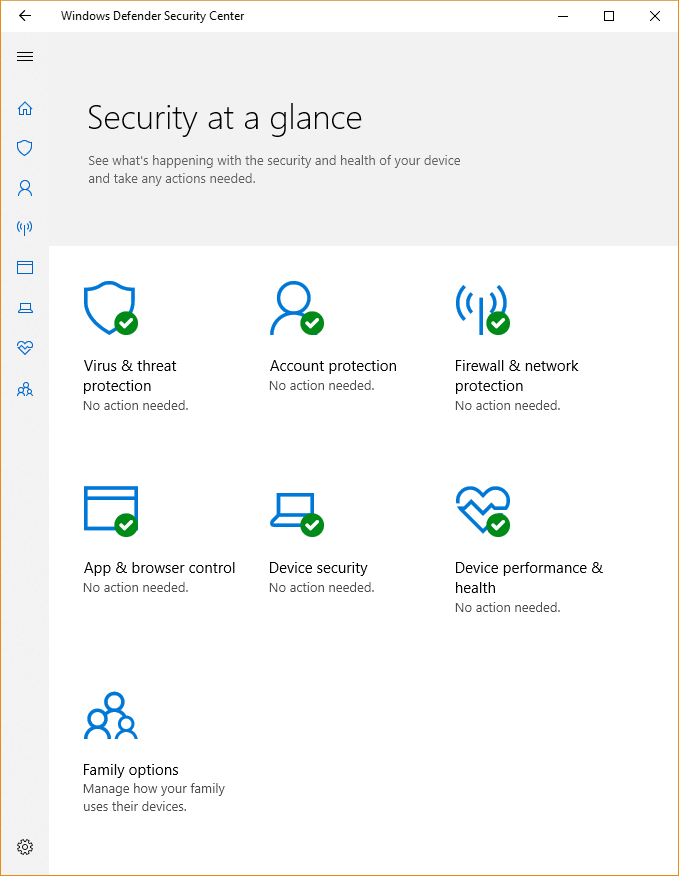
Windows Defender (now Microsoft Defender) runs by default. It includes:
• Real-time antivirus scanning
• Firewall protection
• Cloud-based threat detection
To confirm it’s working:
- Open Start, type “Defender”
- Open Microsoft Defender Security Center
- Ensure all shields are “On”
Run a quick scan to verify no threats exist.
Enable Business-Grade Security (If Applicable)
For business PCs, consider:
• Intel vPro®: Hardware-level protection that works even if the OS is compromised
• Mobile Device Management (MDM): Enforce policies, remote wipe, and app control
– Use Microsoft Intune with Office 365
– Use Google Endpoint Management for Workspace
These tools help IT manage fleets securely.
Install Third-Party Antivirus Only If Required
Some organizations require tools like Bitdefender or Norton. Install only if directed—running multiple antivirus programs can cause conflicts.
Transfer Files and Data Safely
Use Cloud Storage for Fast Migration
The fastest way to move files is via cloud services.
For Windows users:
1. On your old PC, install OneDrive
2. Upload Documents, Photos, Desktop
3. On your new PC, sign in—files sync automatically
For Mac or Chromebook users:
Use Google Drive, Dropbox, or iCloud with desktop apps.
Ensure files are fully synced before disconnecting the old device.
Alternative Transfer Methods
No cloud access? Try:
• External drive: Copy files to USB drive, then transfer
• Local network: Share folders over Wi-Fi (enable File Sharing in Settings)
• PC-to-PC cable: Use a bridge cable with transfer software
Always scan external drives for malware before connecting.
Confirm Backup Systems Are Active
After transfer, verify:
• Critical files are present
• Backups run automatically (OneDrive, File History)
• Data is stored on cloud or network drive
This protects against device loss or failure.
Personalize Your Desktop and Interface
Customize Themes and Visuals
Make your PC feel like yours:
- Search “Themes” in Windows
- Choose from pre-made themes or create your own
- Change:
• Background image
• Accent colors
• Sounds
• Mouse cursor
Windows 11 offers sleek, modern themes with subtle animations.
Organize Taskbar and Start Menu
Right-click apps on the taskbar to:
• Pin frequently used apps (e.g., Chrome, Outlook)
• Unpin trial games or unused tools
In Start menu, drag apps to rearrange or remove tiles.
Customize Quick Access in File Explorer to show favorite folders.
Remove Bloatware and Optimize Performance
Uninstall Unwanted Pre-Installed Apps
PC makers often install bloatware—trial software, games, or toolbars. To remove:
- Open Settings > Apps > Installed apps
- Click any app > Uninstall
- Remove:
• Trial antivirus
• Dubious utilities
• Preloaded games
This frees storage and improves speed.
Disable Unnecessary Startup Programs
Too many apps launching at boot slow startup. To fix:
- Press Ctrl + Shift + Esc to open Task Manager
- Go to Startup apps tab
- Right-click unnecessary apps (e.g., updaters, music players) > Disable
Keep only essentials like antivirus and cloud sync tools. Restart to see performance gains.
Maximize Battery Life and Cooling Efficiency
Extend Laptop Battery Longevity
New laptops aren’t fully charged. Keep plugged in during setup.
After setup, conserve battery by:
• Lowering screen brightness
• Turning off Bluetooth when unused
• Using battery saver mode (Settings > System > Power & battery)
• Avoiding heavy tasks on battery
Gaming laptops: Keep plugged in—backlit keys and high graphics drain power fast.
Prevent Overheating and Performance Throttling
Heat reduces performance and lifespan. Keep your PC cool by:
• Using it on a hard, flat surface
• Avoiding soft surfaces (beds, couches) that block vents
• Closing unused programs
• Using a cooling pad for gaming or video editing
If fans run loudly, check Task Manager for high-CPU processes.
Optimize Your Wi-Fi and Home Network
Check Modem and Router Performance
A weak network hurts performance. Your home network needs:
- ISP connection (e.g., Comcast, AT&T)
- Modem – Converts signal from ISP
- Router – Distributes Wi-Fi
Check your modem’s speed rating—look for a sticker with values like 32 x 8, which is ideal for modern homes. Higher numbers mean faster, more reliable internet.
Improve Wi-Fi Signal Strength
Boost coverage by:
• Placing router centrally
• Elevating it off the floor
• Angling antennas outward
• Keeping it away from microwaves and thick walls
Test speed room-by-room using Speedtest.net or the Best Buy Home App. If signal is weak, consider a Wi-Fi extender or mesh system.
Pair Bluetooth Devices and Peripherals
Connect Wireless Mice, Keyboards, and Headphones
To pair Bluetooth devices:
- Open Settings > Bluetooth & devices
- Turn on Bluetooth
- Put device in pairing mode (check manual)
- Click Add device and follow prompts
Most devices pair in under a minute. Ensure they’re charged and within 30 feet.
Set Up a Chromebook (Alternative OS)
Complete Chromebook Initial Setup
Chromebooks run on Chrome OS and rely on your Google Account. Plug in during setup. Sign in with your Gmail to sync bookmarks, apps, and settings.
Files are stored in Google Drive by default, but you can also save locally or use a flash drive.
Install Chromebook Apps
Download apps from the Google Play Store (if supported) or Chrome Web Store. Essential apps include:
• Google Docs, Sheets, Slides – Free Office equivalents
• Zoom, Meet – Video calls
• Adobe Scan, PDF Editor – Document tools
These apps work offline and sync when online.
Optimize a Gaming PC for Peak Performance
Maximize Game Load Speed and Frame Rates
For gaming laptops or desktops:
• Storage: SSDs load games faster than HDDs
• Graphics: Dedicated GPU (NVIDIA, AMD) outperforms integrated graphics
• Settings: Match game requirements to your hardware
Check game specs (e.g., on Steam) for minimum and recommended specs.
Enhance Your Gaming Setup
Improve experience with:
• External gaming keyboard – More durable, with backlit keys
• Gaming monitor – Higher refresh rate (144Hz) for smoother play
• Cooling pad – Prevents thermal throttling
Always keep the laptop plugged in—battery mode limits performance.
Configure a Business Computer Properly
Enroll in Managed Device Setup
Business PCs often require:
• Managed device setup – Enforced by IT policies
• Office 365 enrollment – For email, Teams, SharePoint
• Security compliance – Endpoint protection, encryption
Select “Set up for work or school” during initial setup if prompted.
Leverage AI and Remote Management Tools
Modern business PCs (e.g., Intel vPro® or AI PCs) offer:
• Remote troubleshooting
• Automated updates
• AI-powered performance tuning
These help IT teams maintain security and productivity across devices.
Maintain Long-Term Performance and Security
Schedule Routine Maintenance
Keep your PC fast and secure:
• Weekly: Check for Windows updates
• Monthly: Review installed apps, remove unused ones
• Quarterly: Clean temporary files (use Disk Cleanup)
• Ongoing: Verify cloud backups
Enable “Get latest updates as soon as available” in Windows Update for fastest patching.
Practice Smart Usage Habits
• Avoid pirated software
• Use strong, unique passwords
• Enable “Find my device” in Settings
• Never leave your PC unattended in public
These habits prevent data loss and security breaches.
Frequently Asked Questions About Setting Up a New Computer
Should I use a Microsoft account or local account?
Use a Microsoft account unless you need maximum privacy. It enables cloud sync, OneDrive backup, and access to Microsoft Store apps. Local accounts are simpler but lack cross-device features.
How do I transfer files from my old computer?
The fastest way is using cloud storage like OneDrive, Google Drive, or Dropbox. Sync files from your old PC, then sign in on the new one. Alternatives include external drives or local network sharing.
Why is my new computer running slow after setup?
This is normal during initial updates. If slowness persists, check for bloatware, disable startup apps, and ensure all drivers are updated. Also, verify your storage isn’t nearly full.
Do I need to install antivirus on a new Windows PC?
No—Microsoft Defender provides strong built-in protection. Only install third-party antivirus if required by your organization. Running multiple antivirus tools can cause system conflicts.
How can I make my laptop battery last longer?
Lower screen brightness, turn off Bluetooth, use battery saver mode, and avoid resource-heavy tasks on battery. Keep your laptop plugged in during intensive use like gaming or video editing.
What should I do if Wi-Fi is slow or unstable?
Check your modem and router specs—aim for a 32 x 8 modem. Place the router centrally, elevate it, and avoid obstructions. Test speed with Speedtest.net and consider a mesh system if needed.
Key Takeaways for the Best Way to Set Up a New Computer
The best way to set up a new computer combines technical precision with personalization and long-term planning. Start with a clean workspace and stable power and network connections. Complete initial setup with correct language, region, and account settings. Install all OS and driver updates immediately, then remove bloatware and manage startup apps to maximize speed.
Secure your device with Microsoft Defender, personalize your interface, and transfer files using cloud storage. Optimize battery, cooling, and Wi-Fi performance based on your usage. Whether for work, school, or gaming, a well-configured PC saves time and prevents frustration.
Take action now: Follow this guide step by step, and within a few hours, your new computer will be secure, fast, and fully yours. A strong setup today ensures years of reliable performance tomorrow.



