
Is your computer sluggish, bombarded with pop-ups, or acting strangely? These could be signs of a virus or malware infection. The best way to scan your computer for viruses is a layered approach: use built-in Windows Security (Microsoft Defender) for real-time protection and initial scanning, then run a trusted third-party tool like Malwarebytes as a second opinion. Most users don’t realize that relying on just one antivirus scanner leaves dangerous gaps—different tools detect different threats. By combining Microsoft Defender’s deep system integration with Malwarebytes’ specialized malware detection, you significantly increase your chances of catching and removing all malicious software. In this guide, you’ll learn exactly how to perform a complete virus scan, interpret results, and protect your system from future infections—step by step.
You’ll start with a Full scan using updated definitions, run an offline scan for hidden threats, use Malwarebytes for a second opinion, check for suspicious processes, and learn how to prevent reinfection. This comprehensive protocol ensures your system stays clean, secure, and running smoothly.
Run a Full Microsoft Defender Scan

Choose the Right Scan Type
For the most thorough check, always start with a Full scan in Microsoft Defender. Unlike a Quick scan—which only checks high-risk areas—a Full scan examines every file, folder, and program on your device. This is essential if you suspect an infection or haven’t scanned in a while. A Full scan typically takes over an hour, depending on your system’s age and storage size.
To start it:
1. Open Start > Settings > Update & Security > Windows Security > Virus & threat protection
2. Under Current threats, click Scan options
3. Select Full scan, then click Scan now
You can continue using your computer during the scan, but do not shut it down. If threats are found, click Start Actions to remove them automatically.
Use Custom Scans for Specific Files
If you only want to check a particular file or folder—like a recently downloaded document or an external drive—use the Custom scan option. This lets you manually select the location to scan. After selecting the folder or file, click Scan now. This is useful when you receive a suspicious email attachment or plug in a USB drive from an untrusted source.
Run Microsoft Defender Offline Scan
Why Run an Offline Scan?
Some malware hides by running alongside Windows, making it invisible during normal scans. The Microsoft Defender Offline scan solves this by scanning your system before Windows fully loads. This deep scan runs in the Windows Recovery Environment, where malware can’t interfere.
To run it:
1. Save all open work
2. In Windows Security > Virus & threat protection > Scan options, select Microsoft Defender Offline scan
3. Click Scan now
4. Your PC will restart and begin scanning automatically
After the scan completes, Windows restarts normally. To view results, go to Protection history in Windows Security.
Enable Cloud and Real-Time Protection
Turn On Cloud-Delivered Protection
Microsoft Defender uses cloud-delivered protection to stay updated with the latest threat intelligence in real time. This means it can detect new or rare malware that traditional signature-based scanners might miss. To ensure it’s active:
- Go to Windows Security > Virus & threat protection > Manage settings
- Confirm Cloud-delivered protection is set to On
This feature improves detection accuracy by allowing Defender to query Microsoft’s cloud database during scans.
Keep Real-Time Protection Active
Real-time protection continuously monitors your system, scanning files as you open, download, or execute them. It’s the first line of defense against malware. While you can temporarily disable it, Windows automatically re-enables it after a short period.
To check status:
– In Virus & threat protection settings, ensure Real-time protection is On
Never leave this off for extended periods—doing so leaves your system vulnerable to immediate threats.
Submit Suspicious Files Automatically
With Automatic sample submission enabled, Defender can send unknown or suspicious files to Microsoft for analysis. If a file contains personal data, you’ll be notified and asked for permission before it’s sent. This helps improve threat detection for everyone.
To enable:
– In Manage settings, ensure Automatic sample submission is On
– Or manually submit a file via Submit a sample manually
Update Security Intelligence Before Scanning
Manually Check for Definition Updates
Security intelligence (virus definitions) tells Microsoft Defender what to look for. Outdated definitions mean missed threats. While Windows Update automatically downloads the latest definitions, it’s wise to manually check before scanning—especially if you suspect an infection.
To update:
1. Open Windows Security > Virus & threat protection > Protection updates
2. Click Check for updates
3. Under Threat definitions, click Check for updates
After updating, run another Full scan to catch newly detectable threats.
Why Updated Definitions Matter
Malware evolves daily. A scanner with outdated definitions may not recognize the latest ransomware or spyware variants. Think of definitions as your antivirus’s “wanted list”—if it’s not current, dangerous threats can slip through unnoticed. Always update before a deep scan for maximum effectiveness.
Perform a Second Opinion Scan with Malwarebytes

Download and Install Malwarebytes Free
Even with Windows Security active, run Malwarebytes Free as a second opinion scanner. It specializes in detecting malware that traditional antivirus tools often miss, such as adware, PUPs (potentially unwanted programs), and advanced trojans.
To get started:
1. Visit the Malwarebytes website and download the free version
2. Install it by following the on-screen prompts
3. Open the app and click Scan
Malwarebytes does not run in the background with the free version—it’s an on-demand scanner, meaning you launch it only when you want to scan.
Disconnect From Internet Before Scanning
For maximum effectiveness, disconnect from the internet before running your Malwarebytes scan. This prevents malware from “phoning home” or downloading additional payloads during the scan. Turn off Wi-Fi or unplug your Ethernet cable before starting.
Then:
1. Run a Quick Scan first
2. Follow with a Full Scan for deeper inspection
3. Review results and click Quarantine to remove all detected threats
4. Restart your computer if prompted
Why Use a Second Scanner?
No single antivirus catches 100% of threats. Microsoft Defender excels at blocking known viruses, while Malwarebytes is stronger at detecting zero-day malware and PUPs. Using both increases your detection coverage significantly. Think of it like getting a second medical opinion—two experts are better than one.
Check for Suspicious Processes
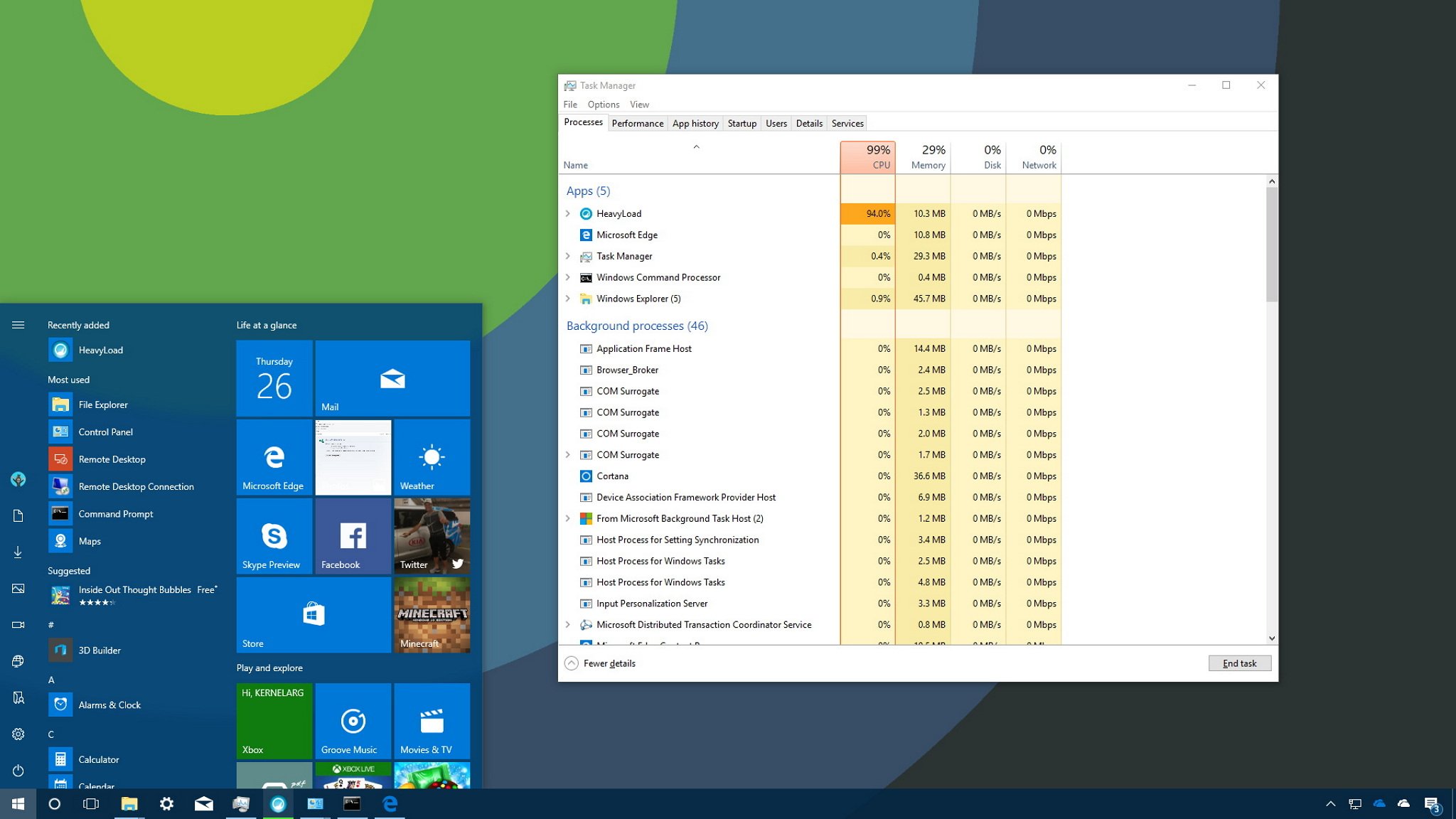
Open Task Manager to Investigate
After scanning, check for lingering suspicious activity. Open Task Manager by pressing Ctrl + Shift + Esc. Go to the Processes tab and sort by CPU or Memory usage.
Look for:
• Unknown processes with random names (e.g., abc123.exe)
• High resource usage by unfamiliar apps
• Processes running from strange locations (e.g., AppData\Local\Temp)
Research Unfamiliar Processes
If you see a process you don’t recognize, right-click it and select Search online. This opens your browser and shows you whether it’s legitimate or potentially malicious. Never end a process unless you’re sure it’s harmful—some system processes are critical to Windows.
Recognize Signs of Infection

Common Symptoms of Malware
Your computer may be infected if you notice:
• Frequent pop-ups urging you to download software or visit shady sites
• Slow performance or constant freezing
• Homepage changed in your browser without your input
• Password changes or locked accounts
• Emails sent from your account without your knowledge
• Cursor moving or Task Manager opening on its own
These are red flags that require immediate scanning.
Immediate Action for Remote Access Signs
If your cursor moves independently or programs open without input, disconnect from the network immediately. This could indicate remote access by an attacker. Unplug Ethernet or turn off Wi-Fi, then run the full scan protocol described above.
Prevent Future Infections
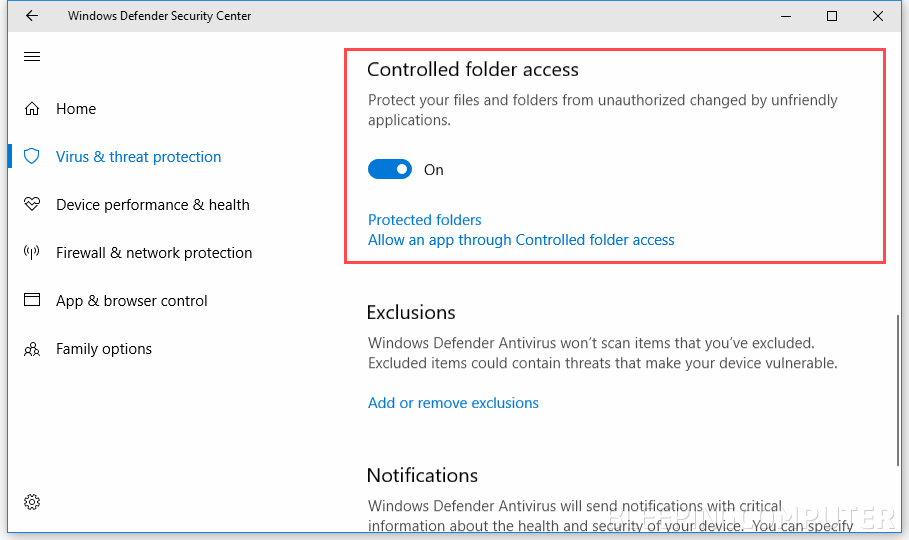
Enable Controlled Folder Access
This Windows Security feature protects your files from ransomware. It blocks unauthorized apps from modifying files in protected folders like Documents, Pictures, and Desktop.
To enable:
1. Go to Windows Security > Virus & threat protection > Manage ransomware protection
2. Turn on Controlled folder access
3. Add any additional folders you want to protect
Only allow trusted apps when prompted—malware can disguise itself as legitimate software.
Avoid Risky Email Attachments
Never open unexpected email attachments or click links in e-cards—even if they appear to come from someone you know. Phishing emails often spread malware. If you receive a suspicious email, forward it to phishbowl@famu.edu (or your organization’s phishing reporting address).
Use a Modern Browser With SmartScreen
Browsers like Microsoft Edge include Defender SmartScreen, which blocks access to known malicious websites. Keep it enabled to prevent drive-by downloads and phishing scams.
Troubleshoot Persistent Infections
Repeat the Offline Scan
If threats keep reappearing after removal, run the Microsoft Defender Offline scan again. Some malware reinstalls itself during normal Windows operation. Scanning before Windows loads increases the chance of complete removal.
Avoid Re-Exposure
Don’t revisit the same suspicious website, open the same email attachment, or plug in the same infected USB drive. Re-exposure can reinfect your system immediately after cleanup.
Contact IT Support for Email Issues
If your email account is sending spam despite a clean scan:
1. Notify your IT helpdesk
2. Confirm you’ve completed a full virus scan
3. Request that your email access be re-enabled
They may need to reset your account or apply additional security measures.
Frequently Asked Questions About Scanning for Viruses
How can I scan my computer for viruses for free?
You can use the built-in Windows Security (Microsoft Defender) or download Malwarebytes Free. Both are free and effective. Defender runs in the background with real-time protection, while Malwarebytes acts as an on-demand second opinion scanner.
What devices does Malwarebytes support?
Malwarebytes supports Windows, Mac, Android, and iOS. The free version works on all platforms and allows you to scan files, folders, and external drives by right-clicking and selecting the scan option.
What’s the difference between Malwarebytes Free and Premium?
Malwarebytes Free is an on-demand scanner that removes existing threats. Premium adds real-time protection, browser guard, privacy VPN, identity protection, and automatic scanning to stop new threats before they infect your device.
How long does a Full scan take?
A Full scan typically takes over an hour, depending on your system’s age and storage size. A Quick scan takes only a few minutes and checks high-risk areas.
Can I use my computer during a scan?
Yes, you can continue using your computer during a scan, but avoid shutting it down. Performance may slow slightly during intensive scans.
How do I see results of a Microsoft Defender Offline scan?
Open Windows Security > Protection history to view the results of an offline scan. Any detected threats will be listed with removal actions taken.
Key Takeaways for Scanning Your Computer for Viruses
The best way to scan your computer for viruses combines built-in tools like Microsoft Defender with a trusted third-party scanner like Malwarebytes. Start with a Full scan using updated definitions, run an Offline scan for deep cleaning, then use Malwarebytes for a second opinion. Stay vigilant for signs of infection, enable real-time and cloud protection, and practice safe browsing habits.
To protect your system long-term:
• Keep definitions updated
• Enable Controlled Folder Access
• Avoid suspicious email attachments
• Use a modern browser with SmartScreen
Run this full scan protocol quarterly—or immediately if you notice unusual behavior. Your computer’s health and your personal data depend on it.



