
You’ve just finished a big project. You saved all the files somewhere—but where? Was it in “Work,” “Projects,” or buried in a subfolder called “Final_v2_REALLYFINAL”? If this sounds familiar, you’re not alone. Poor file organization wastes hours every year in searching, duplicating, and re-creating lost work. The best way to organize computer files and folders isn’t about perfection—it’s about creating a system that matches how you think, work, and retrieve information.
The truth is, there’s no one-size-fits-all solution. But there is a universal principle: a consistent, intentional system beats chaos every time. Whether you’re a student, creative professional, or business owner, organizing your digital life starts with planning, naming, and structuring files so they’re easy to find—today and five years from now. This guide reveals proven methods like PARA, A-Z systems, and fiscal-year models, plus tools like symbolic links and smart folders that make organization dynamic and sustainable.
You’ll learn how to build a structure that scales, name files so they sort correctly, and integrate digital with physical systems. Most importantly, you’ll discover how to choose the method that fits your brain—not someone else’s.
Plan Your File Structure Before Creating Folders
Identify How You Naturally Search for Files
Before making a single folder, ask: How do I look for things? Do you search by project, client, date, or topic? Your answer shapes your entire system. A writer might organize by manuscript title, while a consultant sorts by client name. Misaligning your system with your thinking leads to frustration and abandonment.
Start by listing your major categories: Projects, Areas of Responsibility, Reference Materials, and Archives. This mirrors the PARA method, a framework for knowledge workers. Define what each means for you:
– Projects: Active efforts with deadlines (e.g., “Q3 Marketing Campaign”)
– Areas: Ongoing responsibilities (e.g., “Finances,” “Health”)
– Resources: Topics of interest (e.g., “SEO Tips,” “Photography Tutorials”)
– Archives: Completed or inactive items
Build a Scalable Folder Hierarchy
Avoid flat, overcrowded folders like “Misc” or “Stuff.” Instead, create a hierarchy that grows with you. A folder named “Clients” can contain subfolders for each client, with further divisions like docs, invoices, and assets. This prevents future clutter and supports automation.
Ensure consistency between digital and physical files. If you have a physical “Taxes” folder, mirror it digitally. This reduces cognitive load and streamlines retrieval.
Choose the Right Organization Method for Your Workflow

Use the PARA Method for Knowledge Workers
The PARA method, developed by Tiago Forte, is ideal for managing diverse digital information across tools like Notion, Evernote, or file systems. It separates active work from reference and archives, reducing mental clutter.
Structure your top-level folders as:
– Projects – Time-bound tasks with outcomes
– Areas – Long-term responsibilities
– Resources – Topic-based references
– Archives – Inactive content
This system works because it reflects how your brain categorizes information. A research paper draft lives in Projects, while collected articles go in Resources > Writing > Research Methods.
Pro Tip: Archive completed projects monthly. This keeps your active workspace clean and searchable.
Apply A-Z Filing for Simplicity and Speed

If you prefer simplicity, use an alphabetical (A-Z) system. Inspired by David Allen’s GTD methodology, this approach uses two main folders:
– Projects – Active work (e.g., “Book Proposal,” “Website Redesign”)
– Reference – Informational content (e.g., “Recipes,” “Manuals”)
Within Reference, create thematic folders like “Green Folder (Finances)” or “Family Reunion.” This mirrors physical filing, making transitions seamless.
Best for: Users who want minimal hierarchy and rely on search tools like Spotlight or Google Desktop.
Use Hierarchical Structures for Software and Client Projects
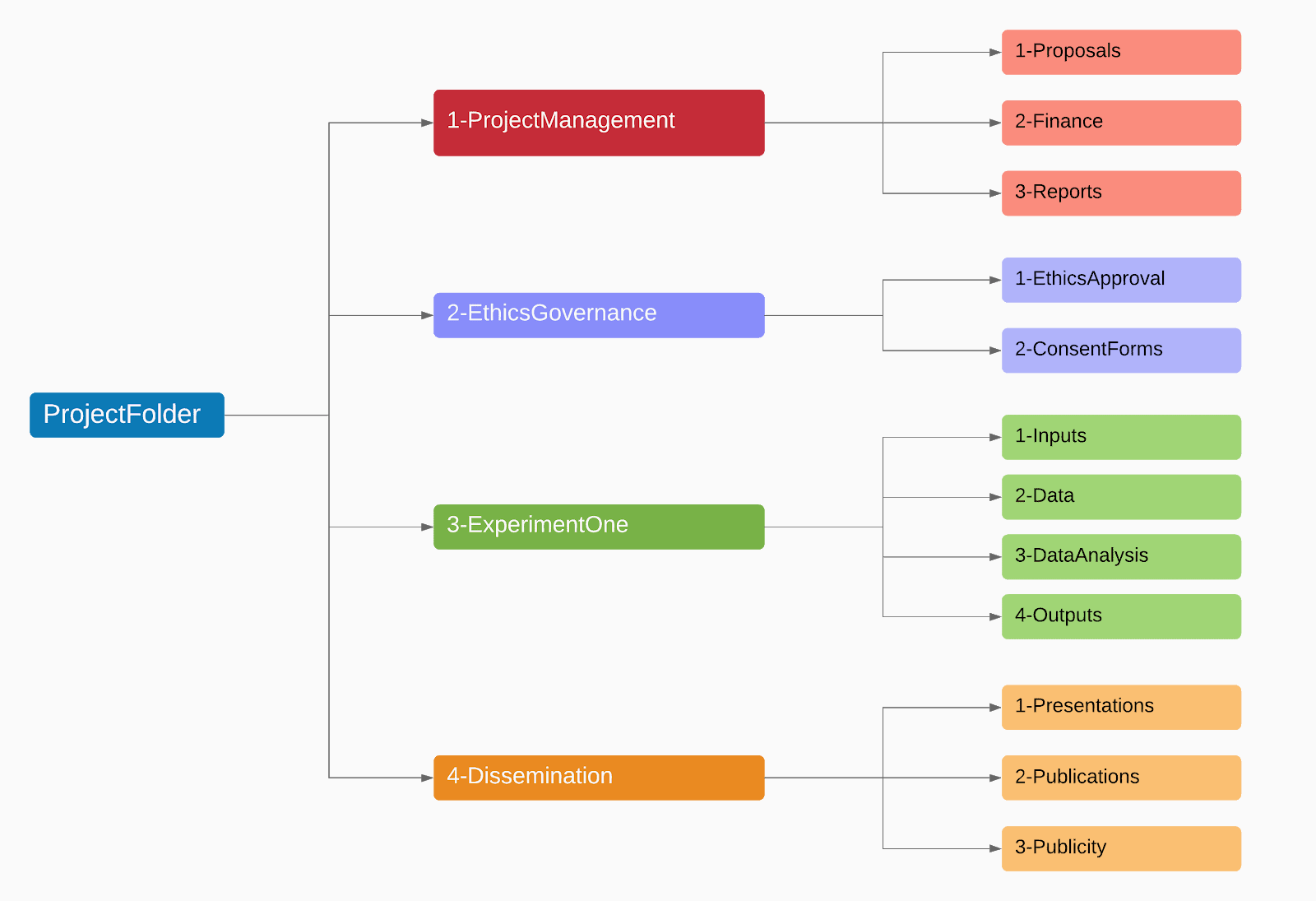
For developers, freelancers, or agencies, a multi-level hierarchy prevents naming conflicts and clarifies ownership.
Example structure:



