
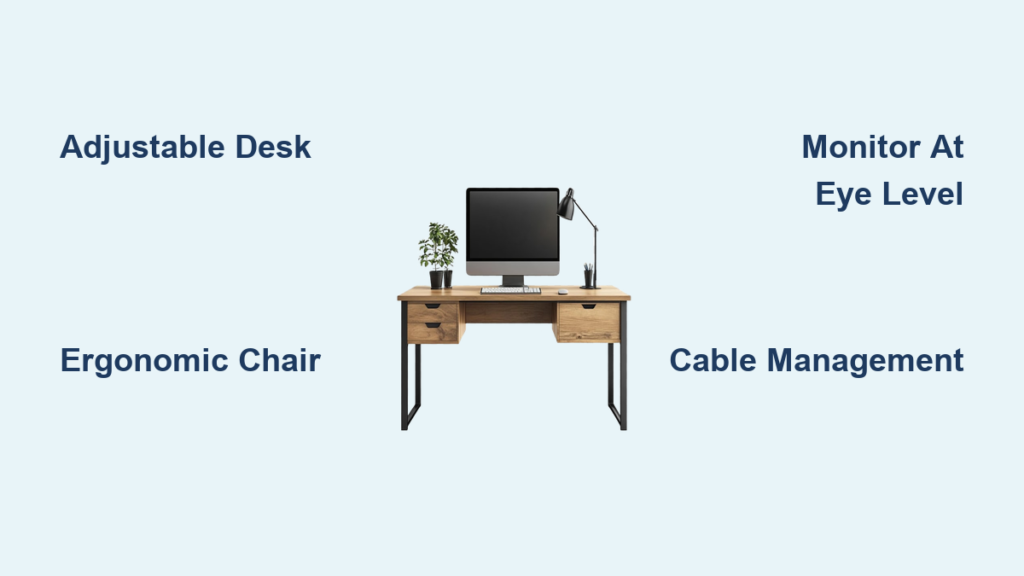
You spend hours each day at your desk—whether working, creating, or gaming. A poorly arranged workspace can lead to fatigue, discomfort, and reduced productivity. The best computer workstation setup isn’t just about having the latest gear; it’s about combining ergonomics, performance, and personal workflow needs into a seamless environment. From monitor height to cable management, every detail impacts your efficiency and well-being.
This guide breaks down the essential components of a high-performance workstation. You’ll learn how to choose the right desk and chair, position your screen and keyboard correctly, integrate powerful hardware, and optimize lighting and acoustics. Whether you’re building a home office, upgrading a professional studio, or fine-tuning a gaming rig, these actionable tips will help you create a workspace that supports focus, comfort, and long-term health.
Choose an Adjustable Standing Desk for Posture Support
A sit-stand desk promotes movement and reduces the risks of prolonged sitting. Electric height-adjustable desks offer smooth transitions between positions with the touch of a button.
Look for Dual-Motor Stability and Memory Presets
Dual-motor lift systems handle heavy loads—like multiple monitors and desktops—without wobbling. Models such as the Uplift V2 and Fully Jarvis include programmable height settings so you can switch between sitting (25–28 inches) and standing (35–42 inches) with ease. This customization ensures consistent ergonomic alignment.
Prioritize Desk Size and Cable Management Features
Select a desktop surface of at least 60 inches wide by 30 inches deep to accommodate dual monitors, a keyboard, and workspace tools. Built-in grommet holes, under-desk trays, and routing channels keep cables organized and out of sight. A solid frame with three- or four-leg stability prevents shaking during use.
Invest in an Ergonomic Office Chair That Supports Your Spine

Your chair is critical for spinal health during long work sessions. A poorly designed seat leads to lower back pain and poor circulation.
Adjust Lumbar Support, Seat Depth, and Armrests
Top models like the Herman Miller Aeron, Steelcase Leap, and Haworth Zody allow fine-tuning of lumbar support height and depth. Set the seat depth so there’s a two-finger gap between the edge of the chair and the back of your knees. Armrests should support your forearms without raising your shoulders.
Maintain Proper Sitting Posture
Sit with feet flat on the floor, knees bent at 90 degrees, and hips slightly higher than your knees. Avoid crossing legs or slouching forward. Replace chairs every 5–7 years as foam degrades and mechanisms wear out, reducing support.
Position Your Monitor at Eye Level to Prevent Neck Strain

Improper screen height forces you to tilt your head up or down, causing cervical spine stress over time.
Align the Top of Screen With Your Eyeline
When seated, the top of your primary monitor should be at or slightly below eye level. Use a monitor arm like the Ergotron LX to achieve precise vertical positioning. This reduces neck flexion and helps maintain a neutral spine.
Keep Screen 20–30 Inches Away From Your Face
Sit an arm’s length from the display to minimize eye strain. For dual setups, place the main monitor directly in front of you and angle the secondary screen inward at a 30-degree angle to reduce excessive head turning.
Set Up Your Keyboard and Mouse for Wrist Health

Poor input device placement contributes to carpal tunnel syndrome and repetitive strain injuries.
Position Keyboard to Keep Elbows at 90 Degrees
Your upper arms should hang naturally at your sides, with elbows bent at a right angle. The keyboard should sit close to the desk edge to prevent overreaching. Use a negative tilt—front slightly higher—if your wrists tend to bend upward while typing.
Use an External Mechanical Keyboard for Better Typing Angles
Laptop keyboards often force users into hunched postures. An external mechanical keyboard like the Keychron Q1 or Logitech MX Keys allows you to position the typing surface optimally. Mechanical switches also provide tactile feedback, reducing finger fatigue.
Switch to an Ergonomic Mouse to Reduce Forearm Strain
Traditional mice cause ulnar deviation, where the wrist tilts outward. Vertical mice such as the Logitech MX Vertical keep your hand in a handshake position, aligning the forearm naturally. Trackballs like the Kensington Expert Wireless minimize wrist movement entirely.
Build a High-Performance PC for Seamless Multitasking
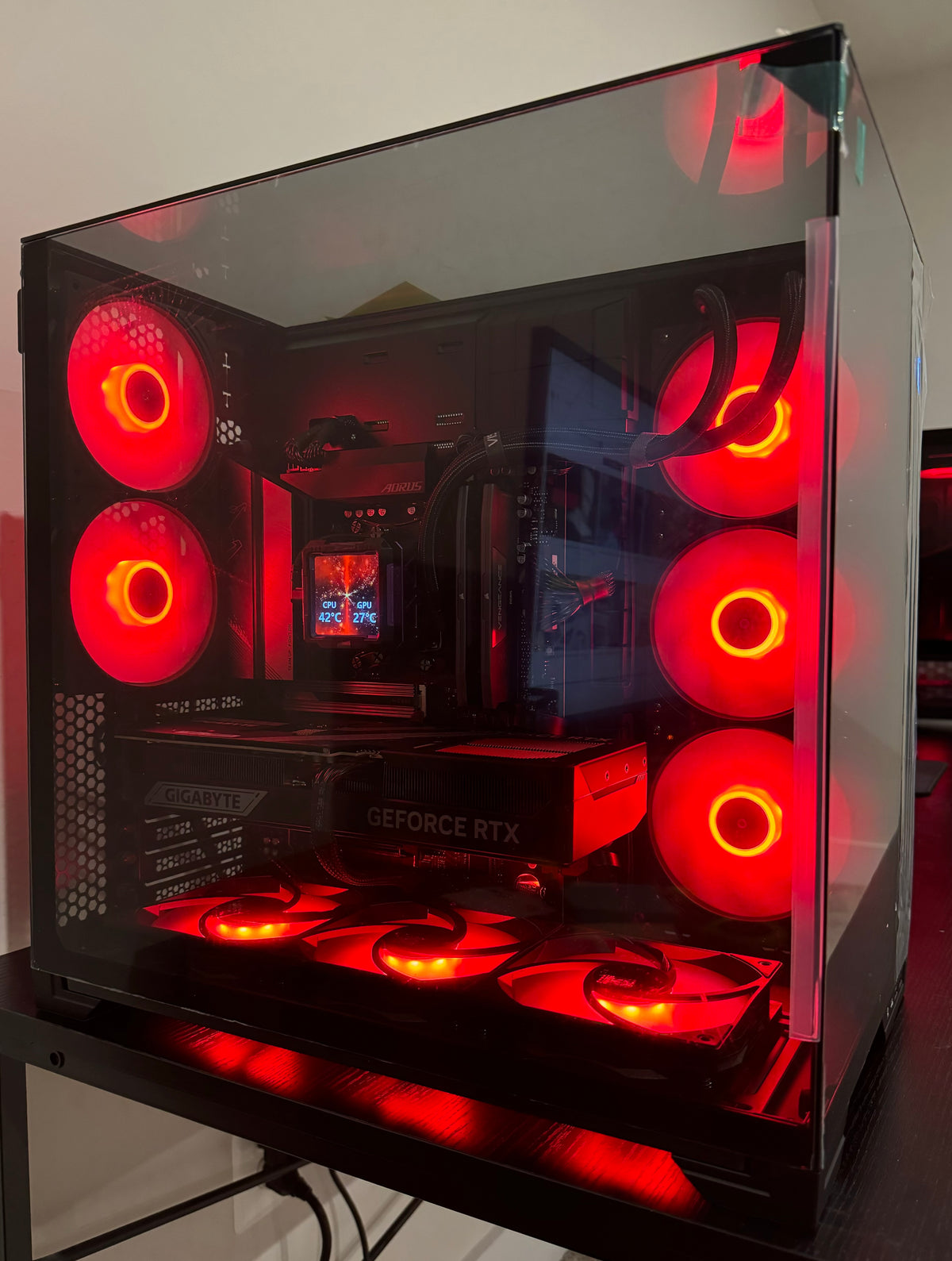
A responsive system eliminates lag and boosts workflow efficiency, especially for demanding applications.
Select a Powerful CPU and Sufficient RAM
For video editing, programming, or 3D rendering, use at least an Intel Core i7 or AMD Ryzen 7 processor. Creative professionals and developers should consider 32GB RAM or more to handle large files and virtual machines. Gamers benefit from high clock speeds and 12+ cores for modern titles.
Install NVMe SSDs for Lightning-Fast Load Times
Replace slow HDDs with NVMe SSDs like the Samsung 980 Pro or WD Black SN850X. Boot your OS from the SSD to cut startup time to under 10 seconds. Store active projects and applications on the SSD for instant access.
Add a Dedicated GPU Even for Non-Gaming Tasks
Graphics cards accelerate software like Adobe Premiere, Blender, and AutoCAD. An NVIDIA RTX 3060 or higher enables real-time rendering, AI processing, and smooth 4K playback. Gamers should aim for RTX 4070 or equivalent for 1440p or 4K gaming.
Optimize Dual or Triple Monitor Setup for Productivity
Multiple displays let you view documents, browsers, and tools side by side without constant tab switching.
Match Monitors by Size, Resolution, and Panel Type
Use identical 27-inch 1440p IPS monitors for consistent color, brightness, and scaling. Mismatched resolutions cause window resizing issues when dragged between screens. IPS panels offer wider viewing angles and better color accuracy than TN or VA.
Arrange Screens in a Curved Configuration
Place the center of each monitor within 30 degrees of your midline. A slight inward curve reduces head movement and creates a more immersive experience. Mount all displays on adjustable arms for perfect alignment.
Extend Desktop Across Screens and Use Virtual Workspaces
In Windows Settings or macOS System Preferences, extend your desktop across all monitors. Reserve mirroring for presentations. Use virtual desktops (Task View or Mission Control) to separate work, communication, and entertainment apps.
Control Lighting and Eliminate Glare for Eye Comfort
Poor lighting leads to digital eye strain, headaches, and disrupted sleep cycles.
Layer Ambient, Task, and Accent Lighting
Combine overhead LED panels (ambient), a dimmable desk lamp (task), and monitor-back LED strips (accent). Use warm-white lights (2700K–4000K) to reduce blue light exposure. Avoid fluorescent ceiling lights, which flicker and create harsh contrasts.
Position Desk Perpendicular to Windows
Natural light is ideal, but direct sunlight causes screen glare. Place your desk sideways to windows and use blackout blinds during peak daylight. Matte screen protectors reduce reflections without blurring text or images.
Install Bias Lighting Behind Your Monitor
Attach LED strips like Nanoleaf Lines or Philips Hue Play behind your display. Bias lighting reduces eye strain by balancing screen brightness with the surrounding room, especially in low-light conditions.
Master Cable Management for a Clean, Functional Desk

Tangled cords create visual clutter and make upgrades difficult.
Route Cables Through Trays, Clips, and Grommets
Use adhesive cable clips under the desk to group power, USB, and display cables. Run them through grommet holes or vertical sleeves. Keep high-speed data cables (HDMI, USB 3.0) away from power cords to prevent electromagnetic interference.
Label All Cables for Easy Troubleshooting
Attach colored tags or printed labels to identify each device. Take a photo of your PC back panel and monitor connections for quick reference during reassembly or moves.
Use a Smart Power Distribution Unit
Upgrade from basic power strips to a PDU with surge protection, individual switches, and USB-C PD ports. The Anker PowerExtend Hub powers laptops, monitors, and peripherals from a single unit while reducing outlet clutter.
Optimize Acoustics and Air Quality for Focus
Noise and poor ventilation disrupt concentration and energy levels.
Reduce Background Noise With Acoustic Panels
Mount foam panels on walls or use a desk-mounted diffuser to absorb sound. In noisy environments, wear noise-canceling headphones like Sony WH-1000XM5. For voice recording, use a directional condenser mic with a foam pop filter.
Maintain Room Temperature Between 68°F and 72°F
Cooler temperatures improve alertness. Use a thermostat-controlled fan or heater to stabilize your workspace climate. Ensure your PC has proper airflow to avoid thermal throttling and loud fan noise.
Add Low-Maintenance Plants for Cleaner Air
Snake plants, pothos, and peace lilies remove toxins and increase humidity. They also soften the look of a tech-heavy desk and reduce stress through biophilic design.
Customize Your Setup for Work or Gaming Priorities
Tailor your workstation to your primary activity for maximum effectiveness.
Optimize for Productivity With Minimal Distractions
Writers, coders, and remote workers benefit from a clean layout. Use dark mode in apps to reduce eye strain. Set up keyboard shortcuts with AutoHotkey or a Stream Deck. Place a document holder beside your screen for easy reference.
Enhance Gaming With High Refresh Rates and RGB Sync
Gamers need 144Hz or 240Hz monitors for smooth motion. Use software like iCUE or Razer Synapse to synchronize RGB lighting across devices. Cover your desk with a large gaming mousepad and mount a webcam and microphone boom arm for streaming.
Maintain Your Workstation With a Regular Upkeep Routine
Even the best setup degrades without care. Regular maintenance keeps performance high and extends equipment life.
Clean Desk and Devices Weekly
Wipe surfaces with a microfiber cloth and electronics-safe cleaner. Use compressed air to remove dust from keyboards, fans, and ports. Disinfect high-touch areas like mouse and keyboard regularly.
Update Drivers and Firmware Monthly
Visit manufacturer websites for GPU, motherboard, and peripheral updates. New drivers fix bugs, improve compatibility, and unlock performance gains. Enable automatic updates where possible.
Reassess Setup Every Six Months
Evaluate what’s working and what isn’t. Upgrade RAM or storage as needs grow. Rotate input devices—like switching between a mouse and trackpad—to prevent repetitive strain injuries.
Key Takeaways for Building the Best Computer Workstation Setup
The best computer workstation setup balances ergonomics, performance, and personal workflow. Start with an adjustable desk and supportive chair to protect your body. Position your monitor at eye level, use ergonomic peripherals, and build a fast PC with SSD storage and a capable GPU. Add layered lighting, manage cables neatly, and control noise and temperature for sustained focus.
Customize your space based on whether you work, create, or game—and maintain it with regular cleaning and updates. Your workstation should evolve with your needs. Begin with one improvement today, like adjusting your chair height or adding a monitor arm, and gradually refine your space into a productivity powerhouse.
Frequently Asked Questions About Best Computer Workstation Setup
What is the ideal desk height for a computer workstation?
For seated work, the desk should allow your elbows to bend at 90 degrees with hands resting flat on the keyboard. Standard desk height is 28–30 inches, but adjustable desks let you customize based on your body. Standing desks should be set so your elbows are level with the desk surface.
How far should my monitor be from my eyes?
Keep your monitor 20–30 inches (about an arm’s length) away. This distance reduces eye strain and supports a comfortable field of view. Larger screens (32-inch or more) may require slightly more distance.
Is a dual monitor setup worth it for productivity?
Yes. A dual monitor setup increases multitasking efficiency by letting you view documents, browsers, and communication apps side by side. Studies show productivity gains of up to 30% in tasks like coding, writing, and data analysis.
Do I need a mechanical keyboard for a better workstation?
Mechanical keyboards aren’t required, but they offer better tactile feedback, durability, and customization. They help reduce finger fatigue during long typing sessions and can be positioned ergonomically for improved posture.
How can I reduce eye strain at my computer desk?
Reduce eye strain by positioning your monitor at eye level, using bias lighting, enabling dark mode, and following the 20-20-20 rule: every 20 minutes, look at something 20 feet away for 20 seconds. Also, control glare with proper lighting and screen placement.
What are the best accessories for cable management?
Top cable management tools include under-desk trays, adhesive clips, braided sleeves, grommet rings, and vertical cable ducts. Pair these with a labeled power distribution unit to keep all connections tidy and accessible.



