
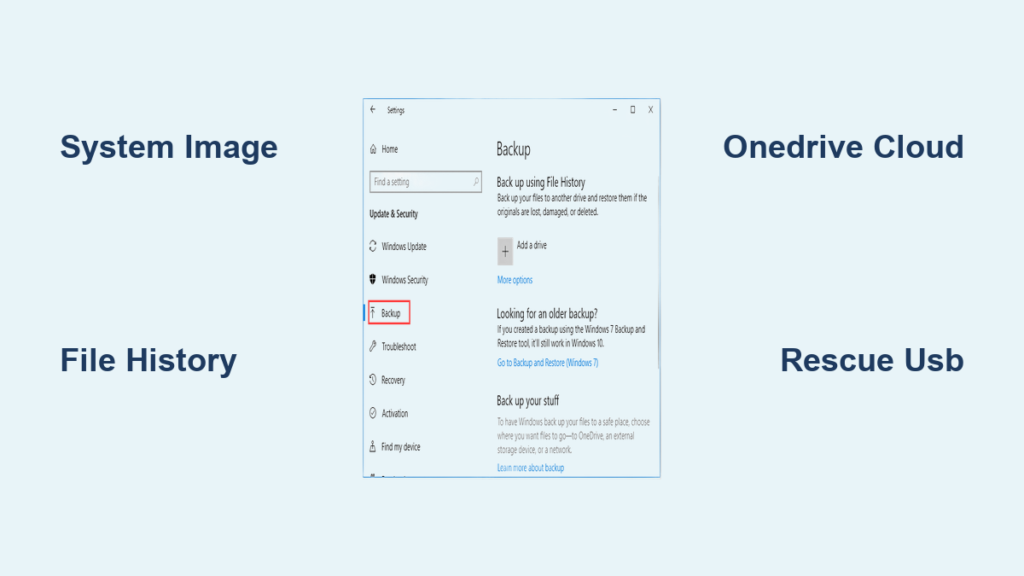
If your Windows 10 PC crashes, gets hit by ransomware, or suffers a hard drive failure, the only thing standing between you and total data loss is a reliable backup. The best way to backup computer Windows 10 isn’t just copying files—it’s creating a complete safety net that includes your operating system, apps, settings, and personal data. With Microsoft ending support for Windows 10 on October 14, 2025, now is the time to lock in a solid backup strategy before upgrading or replacing your system.
You need more than one layer of protection: system image backups for full recovery, File History for continuous file protection, and OneDrive for offsite cloud security. This three-tiered approach guards against hardware failure, accidental deletion, malware, theft, and natural disasters. The good news? You can build this protection using free tools already on your PC—like Windows’ built-in features—or trusted third-party software like Macrium Reflect Free. In this guide, you’ll learn how to set up each method, avoid common mistakes, restore when disaster strikes, and ensure your digital life survives any crisis.
Create Full System Image Backups
A system image captures your entire drive—Windows 10, installed programs, settings, and files—so you can restore your PC exactly as it was. This is your best defense against total system failure.
Use Windows Backup and Restore (Legacy Tool)
Despite its outdated look, Backup and Restore (Windows 7) is Microsoft’s official tool for full system images in Windows 10.
Requirements:
• External USB hard drive (not a flash drive)
• At least equal or greater capacity than your C: drive
• USB 3.0+ connection recommended
Steps to Create a System Image:
1. Press Win + S, type “Backup and Restore”, and open it
2. Click “Create a system image” on the left
3. Select your external drive as the destination
4. Optionally include other drives (e.g., D: or E:)
5. Click Next > Start backup
The process takes 30–90 minutes. You can use your PC during the backup, but avoid major changes.
After completion, create a system repair disc or USB when prompted. It’s essential if Windows won’t start.
Restore Using System Image Recovery
If Windows boots:
1. Go to Settings > Update & Security > Recovery
2. Under Advanced startup, click Restart now
3. Choose Troubleshoot > Advanced options > System Image Recovery
4. Follow prompts to restore the latest image
If Windows won’t start:
1. Boot from a Windows 10 installation USB
2. Click Repair your computer > Troubleshoot > System Image Recovery
3. Select and restore your image
This method works even on new or larger drives, automatically resizing partitions.
Why Use a System Image?
• Recovers entire OS, apps, and settings
• Fastest way to return to a working state
• Ideal after malware, corruption, or drive failure
Warning: System images do not protect against accidental file deletion—use File History or OneDrive for that.
Set Up File History for Continuous Protection
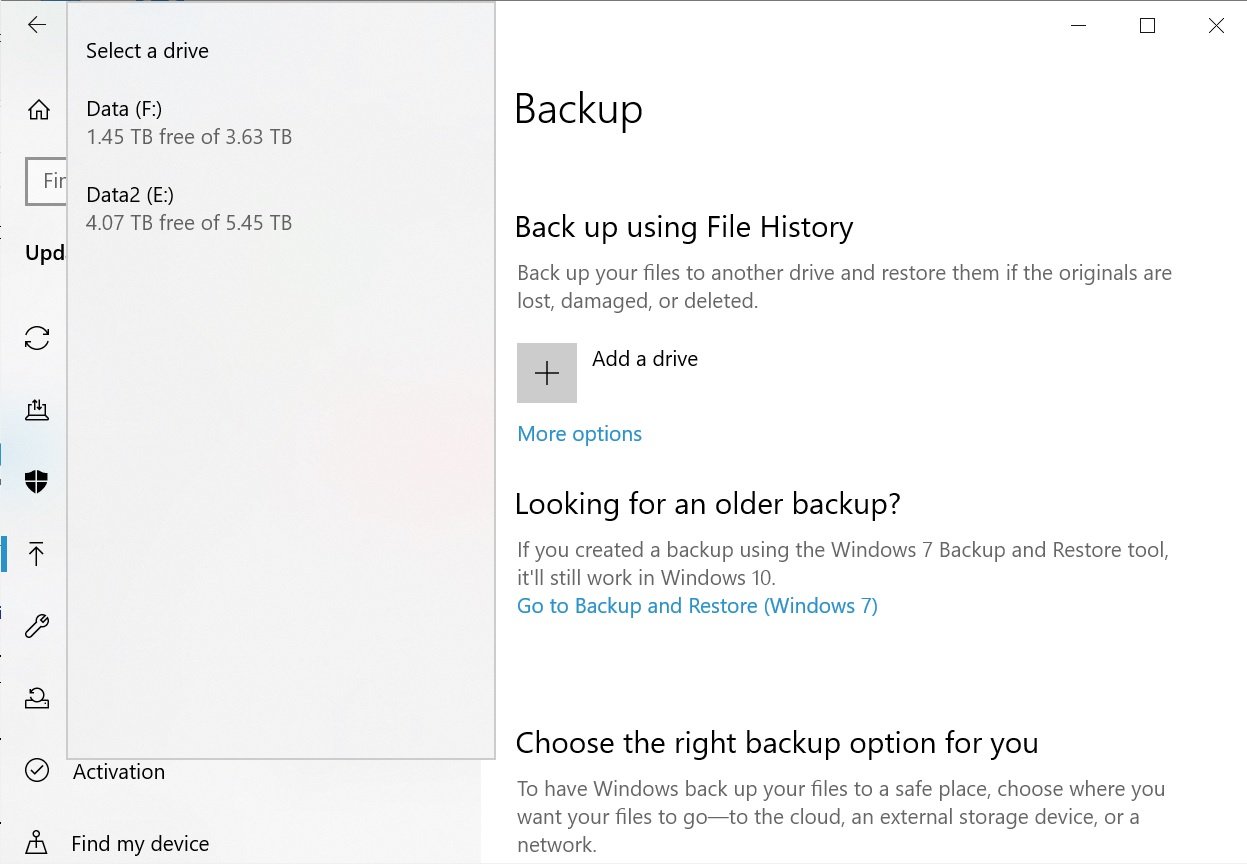
File History automatically saves versions of your personal files—Documents, Pictures, Desktop, and more—so you can recover previous versions or deleted files.
Enable File History on External Drive
- Connect an external drive via USB
- Open Settings > Update & Security > Backup
- Click Add a drive and select your external drive
- Toggle File History to On
By default, it backs up:
• Documents
• Desktop
• Downloads
• Pictures
• Videos
• Music
• Favorites
• Camera Roll
Customize Backup Frequency and Retention
Click More options to adjust:
• Backup frequency: Choose from every 10 minutes to daily
Recommended: Daily for most users
• Retention period: How long old versions are kept
Recommended: One month (balances space and protection)
Exclude Redundant Folders
Avoid duplicating data by excluding folders already synced elsewhere.
Exclude OneDrive Folder:
1. Under More options, go to Exclude these folders
2. Click Add a folder and browse to your OneDrive folder
3. Click Remove
Also exclude temporary files, cache folders, or large media libraries you don’t need backed up.
Restore Files from File History
- Open File History from Settings
- Browse by date and time
- Select the version you want
- Click Restore to return it to its original location
This is perfect for recovering from accidental edits, deletions, or corrupted files.
Use OneDrive for Cloud Backup

OneDrive provides offsite protection—your files are safe even if your PC is stolen, damaged, or hit by ransomware.
Set Up OneDrive Sync
- Sign in with your Microsoft account (required)
- Open OneDrive from Start menu
- Follow setup to choose folders to sync
- Enable Files On-Demand to save space
Your free account includes 5 GB of storage. For more, purchase additional space or subscribe to Microsoft 365.
Back Up Critical Files Automatically
OneDrive continuously syncs selected folders like:
• Desktop
• Documents
• Pictures
Changes are saved in real time and accessible from any device.
Recover Files After Ransomware or Deletion
Go to onedrive.live.com:
1. Navigate to the file or folder
2. Right-click and select Version history
3. Restore a previous version from before the attack
Or:
1. Open the Recycle Bin in OneDrive
2. Restore deleted files within 30 days (longer with paid plans)
This makes OneDrive a powerful defense against ransomware.
Use Macrium Reflect Free for Reliable Imaging
While Windows has built-in tools, Macrium Reflect Free offers a modern, reliable alternative for system image backups.
Download and Install Macrium Reflect
- Visit macrium.com
- Download and install Macrium Reflect Free
- Launch the software
Create a Full System Image
- Select your C: drive (system drive)
- Click Image this disk > Create Image
- Choose your external drive as destination
- Select Full Image and click Finish
- Start the backup
The first backup takes 30–90 minutes; subsequent ones are faster with incremental options.
Create a Rescue USB
Critical step: Create a bootable rescue media.
- In Macrium, go to Other Tasks > Create Rescue Media
- Insert a USB flash drive (8GB+)
- Follow prompts to build the rescue disk
This USB lets you restore your system even if Windows won’t start.
Restore from Macrium Image
- Boot from the rescue USB
- Launch Macrium Reflect
- Select Restore and choose your latest image
- Confirm and start the process
This fully replaces your current drive—ideal after a crash or new hardware.
Combine Backup Methods for Maximum Safety

No single method is enough. The best way to backup computer Windows 10 is a three-layer strategy.
Layer 1: System Image (Disaster Recovery)
• Use Macrium Reflect Free or Windows Backup and Restore
• Full snapshot of your entire system
• Restore in under an hour after total failure
• Store on external drive (1TB+ recommended)
Layer 2: File History (Daily File Protection)
• Continuous backup of personal files
• Recover deleted or corrupted files instantly
• Use a separate external drive or partition
Layer 3: OneDrive (Offsite Cloud Backup)
• Protects against theft, fire, or ransomware
• Access files from any device
• Version history recovers pre-attack files
This combination ensures you’re covered in every scenario.
Create a Bootable Rescue USB
If your PC won’t boot, you can’t restore a system image without a rescue disk.
Build Windows Recovery Drive
- Insert USB (16GB+ recommended)
- Open Settings > Update & Security > Recovery
- Under Advanced startup, click Create a recovery drive
- Check Back up system files and click Next
- Follow prompts to complete
This USB includes tools to:
• Reset your PC
• Repair startup issues
• Access command prompt
• Reinstall Windows
Use Third-Party Rescue Media
Tools like Macrium Reflect and EaseUS Todo Free also create bootable USBs with their own recovery environments.
These allow you to:
• Browse and restore system images
• Recover individual files from backups
• Diagnose disk issues
Pro Tip: Label and store your rescue USB in a safe place—test it annually.
Transfer Data to a New PC
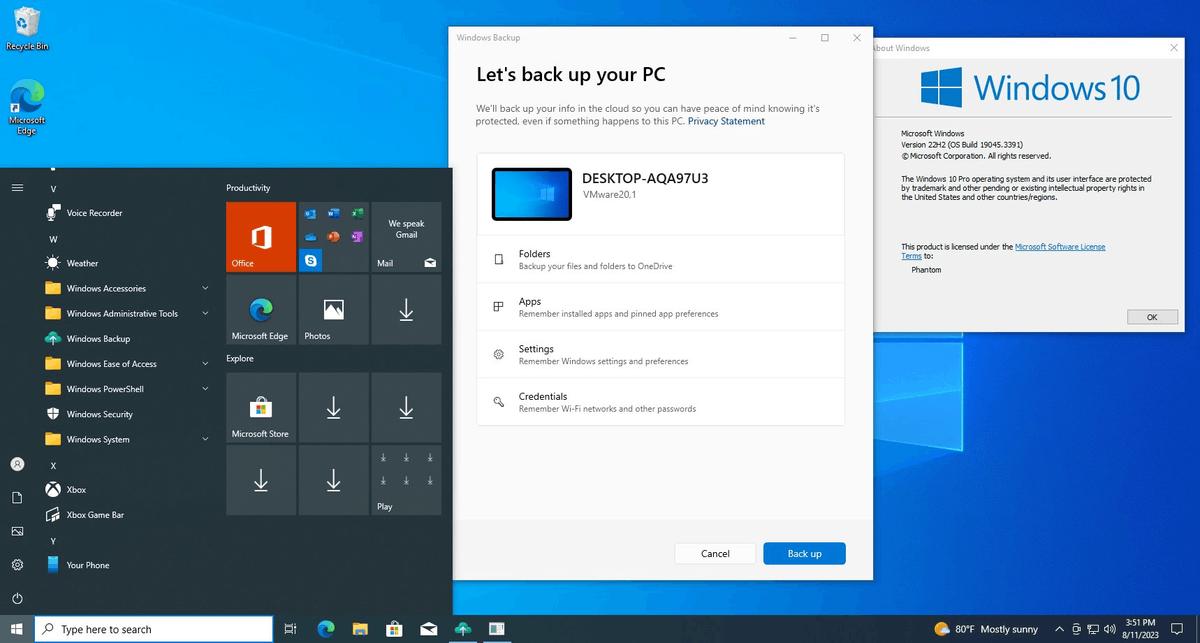
Upgrading to Windows 11? Use built-in tools to move your data seamlessly.
Use Windows Backup App
Available in latest Windows 10 updates, this app syncs your settings and files to your Microsoft account.
Requirements:
• Microsoft account (e.g., @outlook.com)
• Signed in to OneDrive
• At least 5 GB free cloud storage
Steps:
1. Open Settings > Accounts > Windows backup
2. Turn on:
• Back up files (syncs folders to OneDrive)
• Get quick access to apps (saves app list)
• Remember my preferences (saves settings)
3. Click Back up
On your new PC:
1. Sign in with the same Microsoft account
2. Windows detects your backup and offers to restore
3. Choose what to bring over
What Gets Transferred?
• Files: From synced folders (Desktop, Documents, etc.)
• Settings: Language, preferences, dictionary, personalization
• App list: Not the apps themselves—Windows prompts to reinstall from Store
Note: Traditional desktop apps (e.g., Photoshop, Steam games) must be reinstalled manually.
Schedule and Maintain Backups
A backup is useless if it’s outdated. Automate and maintain your system.
Set Backup Frequency
• System image: Monthly or after major updates
• File History: Daily (default)
• OneDrive: Real-time sync
Use EaseUS Todo Free or Macrium Reflect to schedule automatic image backups.
Monitor Storage Space
Check your external drive and OneDrive:
• Low space halts backups
• Old versions consume space
• Delete outdated images manually if needed
Test Your Restore Process
Once a year:
1. Boot from your rescue USB
2. Restore a file or test image to a spare drive
3. Verify it works
This ensures your backup isn’t corrupted.
Refresh Backups Every 3 Months
Update your system image:
• After installing major software
• Following OS updates
• When adding critical files
Old backups may lack recent data or drivers.
Avoid Common Backup Mistakes
Even with the best tools, mistakes can leave you unprotected.
Using USB Flash Drives for System Images
❌ Never use USB flash drives for system image backups.
They lack:
• Sufficient capacity
• Reliable write speeds
• Long-term durability
✅ Use a dedicated external hard drive (500GB+, USB 3.0+).
Relying Only on File History
File History only backs up user files—not Windows, apps, or settings.
If your system crashes, you’ll still need to:
• Reinstall Windows
• Reinstall all apps
• Reconfigure everything
✅ Always pair File History with a system image.
Forgetting the Rescue USB
You can’t restore a system image from within Windows if it won’t boot.
✅ Create a bootable rescue USB with Macrium, EaseUS, or Windows Recovery Drive.
Not Testing Backups
Many users discover their backup is corrupt only when they need it.
✅ Test your restore process annually.
Skipping Offsite Backup
A fire, flood, or theft can destroy both your PC and backup drive.
✅ Use OneDrive or another cloud service for offsite protection.
Frequently Asked Questions About Best Way to Backup Computer Windows 10
Can I use a USB flash drive for a system image backup?
No. USB flash drives lack the capacity, speed, and durability needed for reliable system image backups. Always use a dedicated external hard drive (500GB+, USB 3.0+).
Does File History back up my entire system?
No. File History only backs up personal files like Documents, Pictures, and Desktop. It does not include Windows, apps, or system settings. For full recovery, use a system image.
How do I restore files after a ransomware attack?
Use OneDrive’s Version History to restore files from before the attack. Go to onedrive.live.com, right-click the file, and select Version history. You can also restore from a system image using Macrium or Windows Backup and Restore.
Can I transfer my apps to a new PC using backup?
The Windows Backup app saves your app list but does not transfer the apps themselves. When you sign in on a new PC, Windows will prompt you to reinstall apps from the Microsoft Store. Traditional desktop apps must be reinstalled manually.
What’s the best free tool for system image backups?
Macrium Reflect Free is the top choice. It offers a modern interface, reliable imaging, incremental backups, and bootable rescue media—all for free with personal use.
Do I need a Microsoft account for Windows 10 backup?
Yes, for cloud features like OneDrive and Windows Backup. A Microsoft account is required to sync files, settings, and preferences across devices and restore them on a new PC.
Key Takeaways for Best Way to Backup Computer Windows 10
The best way to backup computer Windows 10 is a three-layer strategy:
• System image for full recovery after crashes or malware
• File History for daily protection of personal files
• OneDrive for offsite cloud backup
Use free tools like Macrium Reflect Free or Windows Backup and Restore to create system images, pair with File History for continuous file protection, and enable OneDrive for ransomware defense. Always create a bootable rescue USB, test your restore process annually, and refresh backups every 3 months. Don’t wait for disaster—set up your backup today and protect your digital life.



