
Writing your thoughts digitally is more secure, searchable, and versatile than ever. The best way to keep a diary on computer combines strong privacy, cross-device syncing, multimedia support, and long-term data control. Whether you’re journaling for mental clarity, tracking personal growth, or preserving memories, modern tools let you enhance entries with photos, voice notes, and even sketches—while keeping everything encrypted and backed up. This guide reveals the top apps, essential security steps, and habits that ensure your digital journal lasts a lifetime.
You’ll discover how Day One, Diarium, and Outlook Journal compare in real-world use, what features actually matter for privacy and longevity, and how to avoid common pitfalls like data lock-in or accidental exposure. With the right setup, your digital diary becomes a trusted companion for decades.
Choose the Right Journaling App for Your Needs
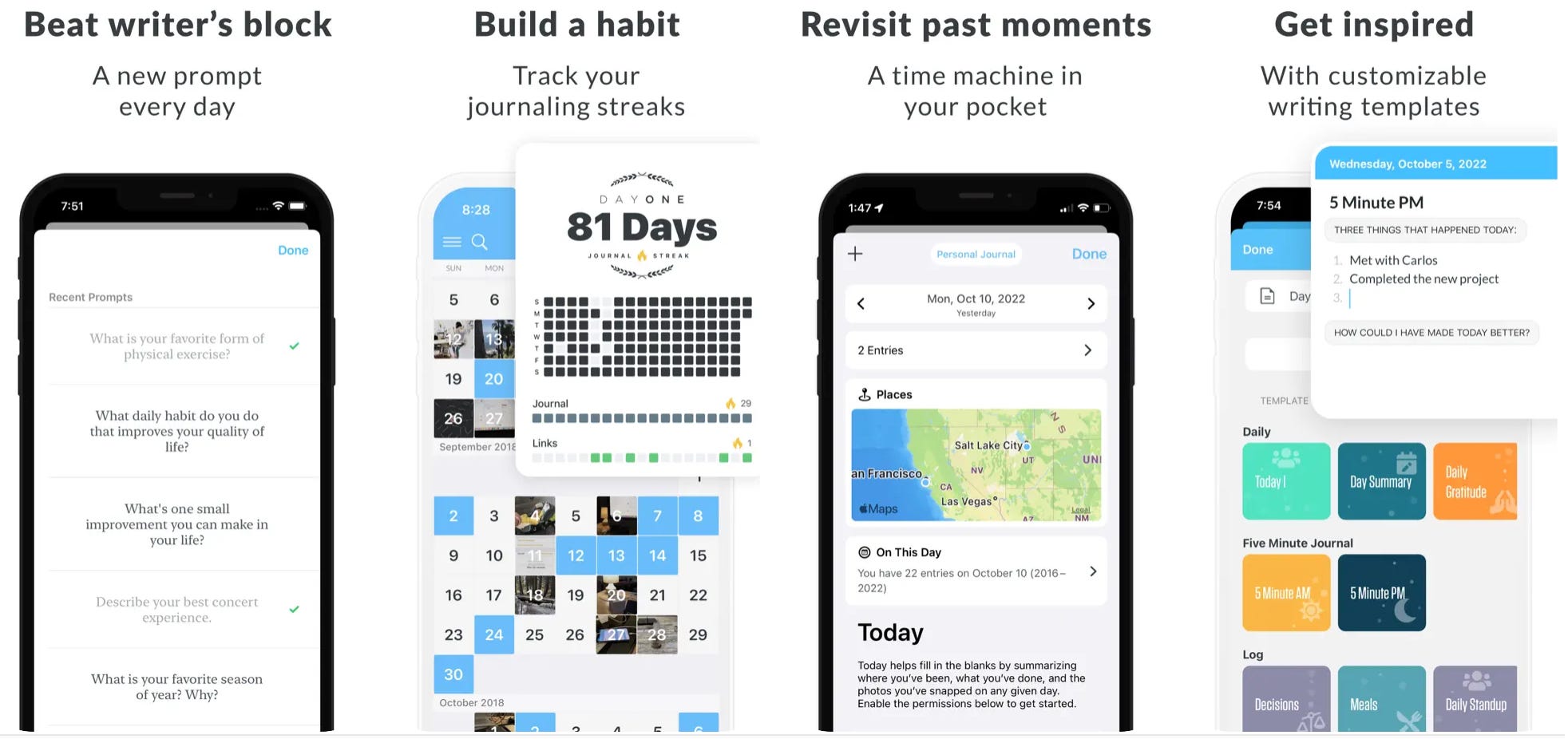
The app you pick shapes your journaling experience. Look for strong security, export options, and seamless syncing. These top three options serve different priorities.
Use Day One for a Secure, Feature-Rich Experience
Day One is the most trusted name in digital journaling—ideal for long-term, meaningful writing.
Why users love it:
– Clean, distraction-free interface focused on writing
– Syncs across iPhone, iPad, Mac, Android, Apple Watch, and web
– End-to-end encryption and biometric lock (Face ID, fingerprint)
– Automatic backups and full data ownership
Its “On This Day” feature shows past entries from the same date, turning journaling into a daily ritual. Many users say it’s a “constant source of joy” and the main reason they’ve kept writing for years.
“I’ve journaled for 10+ years with Day One… 1,469 days straight. It’s an essential app.”
With over 150,000 five-star reviews, Day One is the top choice for serious journalers.
Add Photos, Audio, and Drawings to Entries
Go beyond text with rich media:
• Attach photos and videos from your day
• Record audio entries when typing feels too slow
• Insert hand-drawn sketches directly in the app
• Upload scanned pages from physical journals
This turns your diary into a full memory archive—not just words on a screen.
Export Your Journal Anytime, No Lock-In
Unlike apps that trap your data, Day One lets you export your entire journal at any time in standard formats. You own your entries, so you can switch apps or back up your life story safely.
Try Diarium for Full Data Ownership
If you want complete control over where your journal lives, Diarium is a powerful option—especially if you use OneDrive or Google Drive.
Key benefits:
• Stores entries directly in OneDrive, Google Drive, Dropbox, or WebDAV
• No account sign-in required—just install and write
• Saves media as standard files (JPEG, MP3, etc.)
• Exports to DOCX, HTML, RTF, or TXT
Because Diarium uses open file formats, your journal stays readable even if the app vanishes. You can open entries in any text editor or word processor.
“My journal is in OneDrive—no third-party cloud. I can open entries in any text editor.”
Avoid Third-Party Download Risks
Diarium is hosted on a third-party site, and some users report ads promoting potentially unwanted programs (PUPs). Always download from trusted sources, scan files, and avoid clicking suspicious banners.
Use Outlook Journal for Simple, Built-In Logging
Already use Microsoft Outlook? You have a free journal feature—no extra app needed.
How to access it:
1. Open Outlook
2. Click the Journal icon in the navigation bar
It works as a basic daily log, syncing with your Exchange account across devices.
Pros:
• No setup or download required
• Integrated with your Microsoft ecosystem
• Good for work logs or light personal notes
Limitations:
• Minimal multimedia support
• No “On This Day” memory feature
• Limited export options
Best for casual journaling, not deep reflection or long-term memory keeping.
Prioritize Security and Privacy from Day One

Your diary contains private thoughts. Protect it like the sensitive data it is.
Enable End-to-End Encryption
Only a few apps—like Day One—offer end-to-end encryption. This means:
• Your entries are encrypted on your device before syncing
• Not even the app provider can read them
• Data stays secure even if the cloud is breached
Without this, your journal could be exposed in a data leak.
Lock Your Journal with Biometrics or Passcode
Always enable passcode or biometric protection (Face ID, fingerprint). It’s a simple step that blocks access if your device is lost or shared.
Pro Tip: Set auto-lock to 1 minute or less for maximum privacy.
Own and Backup Your Data Regularly
Never use an app that won’t let you export your journal.
Best practices:
• Export your data every 6 months
• Save copies in multiple places (cloud + external drive)
• Use apps that support plain text or DOCX exports
If you can’t export, you don’t truly own your journal.
Sync Across Devices Without Losing Access
The best digital journal works on your computer, phone, and tablet—whether online or off.
Pick a Cloud Sync Method That Fits Your Ecosystem
Most apps sync via:
• OneDrive (best for Windows/Microsoft users)
• Google Drive (ideal for Android/Chromebook)
• iCloud (for Apple users)
• WebDAV (advanced, self-hosted option)
Diarium supports all four. Day One uses its own secure sync but integrates with iCloud.
Ensure Offline Writing Is Supported
You should be able to write without Wi-Fi.
Both Day One and Diarium save entries locally and sync when online—perfect for travel, flights, or quiet spaces.
Enrich Entries with Photos, Voice, and More
A digital diary can capture more than words. Use your computer’s tools to make entries vivid.
Attach Photos and Videos
Snap a picture of a sunset, a concert, or your morning coffee—and add it to your journal. Day One makes this seamless.
“I take photos of my physical journal pages and upload them. Now I have a digital backup.”
Record Voice Memos Instead of Typing
Too tired to write? Record a voice note instead. Day One supports audio entries, so you can capture thoughts on the go.
Draw or Sketch in Your Entries
Some apps let you draw directly in entries—great for visual thinkers or creative journalers.
Build a Daily Journaling Habit That Lasts
Consistency beats perfection. The best journals are written regularly, not perfectly.
Use “On This Day” to Stay Motivated
Day One’s “On This Day” feature shows past entries automatically. Users say it’s the reason they keep writing.
“I look forward to it every day. It reminds me of small moments I’d otherwise forget.”
This daily nudge turns journaling into a lasting habit.
Start Small—Just 5 Minutes a Day
You don’t need to write 1,000 words. Even three sentences count.
Try this:
• Morning: “What’s one thing I’m looking forward to?”
• Evening: “What made me smile today?”
Over time, these build a rich personal archive.
Track Your Progress to Stay Encouraged
One user hit 72,000 words in less than two years. Seeing your word count grow can be a powerful motivator.
Some apps show:
• Streaks (e.g., 4+ years of daily entries)
• Total entries
• Words written
Use these as encouragement, not pressure.
Organize and Find Entries Fast
A journal is only useful if you can find what you wrote.
Use Tags and Full-Text Search
Tag entries by theme:
• #Gratitude
• #Travel
• #Work
• #Anxiety
Then search for “#gratitude” when you need a mood boost.
Day One offers full-text search, so you can find entries by keyword, date, or location.
Let the App Surface Old Memories
Day One automatically shows entries from past years on the same date. It’s like a personal time machine.
“I forgot I went to that concert in 2016—seeing it today made my day.”
Avoid Common Journaling Mistakes
Even small oversights can risk your privacy or data.
Don’t Use Untrusted or Unknown Apps
Avoid apps from sketchy websites. Some may:
• Install malware
• Sell your data
• Disappear, taking your journal with them
Always:
• Download from official app stores or trusted sites
• Read reviews
• Research the developer
Don’t Skip Backups
Cloud sync isn’t backup. If your account is deleted or hacked, your journal could vanish.
Do this instead:
• Export your journal every 6 months
• Save to an external drive
• Keep a copy in a different cloud (e.g., Google Drive + OneDrive)
Don’t Get Locked Into Proprietary Formats
Avoid apps that:
• Use closed file formats
• Don’t allow exports
• Require subscriptions to access your data
Your journal should outlive any single app.
Pick the Best Option Based on Your Priorities
Here’s how to choose the right app for your goals.
Best Overall: Day One
Choose Day One if you want:
• A beautiful, distraction-free writing experience
• Cross-device syncing with encryption
• “On This Day” memory feature
• Multimedia support and long-term reliability
Ideal for: Apple users, long-term journalers, memory keepers.
“My most prized possession is my Day One library—thousands of entries since 2014.”
Best for Data Control: Diarium
Choose Diarium if you want:
• Full ownership of your files
• Direct OneDrive or Google Drive integration
• No account sign-in
• Export to standard formats
Ideal for: Privacy-focused users, Windows users, those who hate vendor lock-in.
Best Built-In Option: Outlook Journal
Choose Outlook Journal if you:
• Already use Outlook daily
• Want a simple log without extra apps
• Don’t need multimedia or mobile features
Ideal for: Casual journaling, work logs, minimalists.
Frequently Asked Questions About Keeping a Diary on Computer
What is the safest way to keep a diary on a computer?
Use a journal app with end-to-end encryption like Day One, enable biometric lock, and store backups in multiple locations. Avoid apps that don’t let you export your data.
Can I keep a diary on my computer for free?
Yes. Day One offers a free version with core features. Diarium and Outlook Journal are also free to use. For long-term safety, consider upgrading to premium for full encryption and sync.
How do I sync my journal across devices?
Use apps that sync via iCloud, OneDrive, Google Drive, or WebDAV. Day One and Diarium both support secure, automatic syncing across phone, tablet, and computer.
Can I add photos and voice notes to a digital diary?
Yes. Apps like Day One let you attach photos, videos, audio recordings, and drawings to entries—making your journal a full multimedia archive.
How do I make sure I don’t lose my digital diary?
Export your journal every 6 months. Save copies to an external drive and a second cloud service. Use apps that support DOCX, HTML, or TXT exports so your data stays readable.
Is it better to journal on a computer or phone?
Both work well. Computers are better for long entries and organizing. Phones are ideal for quick notes and voice memos. Use an app that syncs across both for the best experience.
Key Takeaways for Keeping a Secure Digital Diary
The best way to keep a diary on computer is to use a secure, flexible app like Day One or Diarium, enable encryption and backups, and write consistently—even if it’s just a few lines. Prioritize apps that let you export your data, sync across devices, and protect your privacy with biometric locks and end-to-end encryption.
Start today with a simple entry. Combine digital with physical journaling if you like. Review old entries monthly to reflect and grow. With the right system, your digital diary becomes a powerful tool for self-discovery, memory preservation, and personal growth that lasts a lifetime.



