
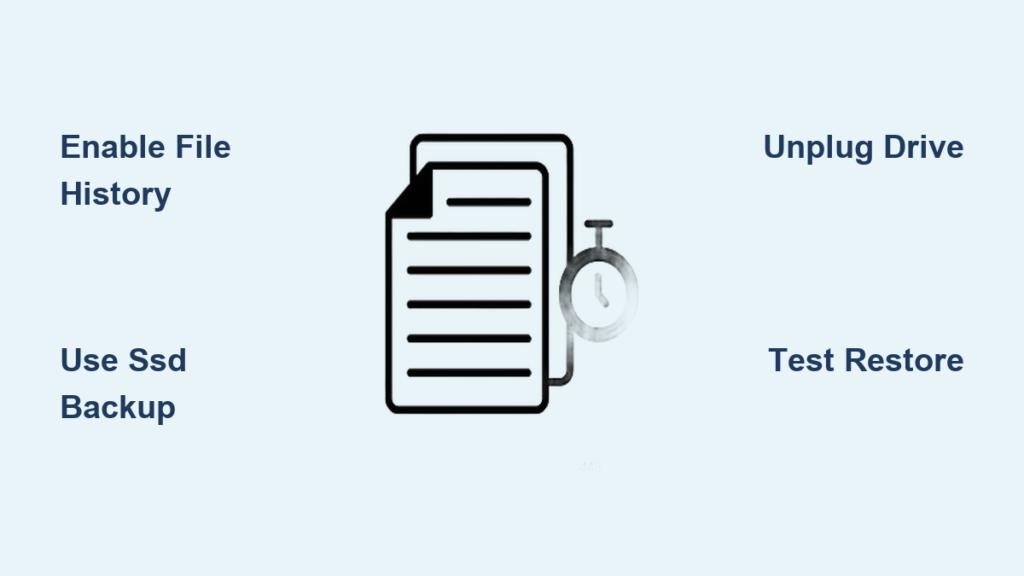
Losing years of photos, documents, or critical work to a failed hard drive is more common than you think. Yet most people delay backing up because they assume it’s complicated, expensive, or time-consuming. The truth? The best way to save computer files is simple, free, and takes less than 10 minutes to set up. With just a portable SSD and Windows’ built-in File History tool, you can automate hourly backups, protect against ransomware, and restore lost data in seconds—no subscriptions or technical skills required.
This method gives you full control over your data, keeps everything offline, and runs silently in the background. Let’s walk through exactly how to set up a reliable, future-proof backup system using only tools already on your PC.
Set Up Automatic Backups with File History
Windows includes a powerful, often-overlooked feature that backs up your files every hour without slowing your system or requiring cloud storage.
Enable File History in 3 Steps
- Press
Windows + S, type “control panel”, and open it. - Go to System and Security > File History.
- Click Turn on when your external drive appears.
Once enabled, File History automatically saves previous versions of your files every hour. If you delete a photo or overwrite a document, you can recover the original version instantly.
Why File History Is Superior to Other Tools
• No OneDrive required – works completely offline
• Keeps multiple file versions over time, not just one snapshot
• Lightweight and runs in the background with no performance impact
Avoid cloud-only solutions if you want full control. File History delivers local, versioned, automated backups—the foundation of strong data protection.
Choose the Right External Drive for Long-Term Safety

Your backup is only as reliable as the hardware it’s stored on. Picking the right drive ensures your data survives for years.
SSD vs HDD: Which Should You Use?
| Feature | SSD | HDD |
|---|---|---|
| Speed | ✅ Fast backups and restores | ❌ Slower transfer speeds |
| Durability | ✅ No moving parts, shock-resistant | ❌ Sensitive to drops and vibration |
| Price | ❌ Slightly higher cost per GB | ✅ Budget-friendly for large storage |
| Best For | Frequent use, long-term safety | One-time setup, cost savings |
For most users, a 1–2 TB portable SSD (like Samsung T7 or SanDisk Extreme) is ideal. It’s faster, safer, and more reliable than older spinning drives.
Repurpose an Old Internal Drive
If you have a spare internal hard drive:
• Buy a USB enclosure ($15–$25)
• Insert the drive and connect via USB
• Use it exactly like a portable drive
This saves money and gives new life to old hardware.
What Files Are Backed Up by Default?
File History automatically protects key personal folders organized into Libraries in Windows.
Folders Protected Automatically
• Documents
• Pictures
• Music
• Videos
• Desktop
• Favorites (browser bookmarks)
• Contacts
These are the most likely places you store irreplaceable files. If your school projects, tax records, or family photos live here, they’re already backed up.
How to Show Libraries in File Explorer
- Open File Explorer.
- Right-click the left navigation pane.
- Select Show libraries.
If you don’t see Libraries, this means they’re hidden. Enabling them lets you manage what gets backed up.
Add Custom Folders to Your Backup Without Moving Files
Important files often live outside default locations—like a “Tax Records” folder on your D: drive or a “Client Projects” folder on your desktop.
You can include any folder in your backup—without relocating it.
Link Custom Folders to Libraries
- Open File Explorer and navigate to your folder.
- Right-click it → Include in library → Choose the closest match (e.g., add “Tax 2023” to Documents library).
✅ The file stays where it is
✅ File History now backs it up automatically
✅ No duplicate copies or confusion
Repeat this for any folder with critical data—even network drives or external media you use regularly.
Unplug the Drive: The Most Important Security Step

This is the most overlooked but essential rule: Unplug your backup drive after each use.
Why Leaving It Plugged In Puts You at Risk
• Ransomware can encrypt both your PC and connected drive
• Malware may corrupt or delete backup files
• Power surges can damage both devices simultaneously
Even with antivirus software, modern threats can bypass protection in seconds. An always-connected drive gives attackers access to your backup—making recovery impossible.
Create a Weekly Backup Habit
• Pick a day (e.g., Sunday morning)
• Plug in the drive
• Let File History sync automatically
• Click Run now to force an immediate backup if needed
• Once complete, safely eject the drive and store it in a drawer or safe
This creates an air gap—a physical separation that blocks digital threats. It’s the same principle used by banks and government agencies.
Restore Lost Files in Under a Minute
When disaster strikes, recovering your data should be fast and simple.
Recover Deleted or Corrupted Files
- Connect your backup drive.
- Open File History (via Control Panel).
- Click Restore personal files.
- Browse or search for the file.
- Select the version you want (use timeline on the right).
- Click Restore.
Files return to their original location—no setup needed.
Recover to a New Computer
If your PC fails:
1. Install Windows on a new machine.
2. Plug in your backup drive.
3. Open File History.
4. Click Restore and follow prompts.
Your entire digital life—photos, documents, bookmarks—comes back exactly as it was.
Avoid These Common Backup Mistakes
Even with the best tools, small errors can leave you unprotected.
Mistake #1: Never Testing Your Restore Process
Many people set up backups and never check them—until it’s too late.
✅ Test your restore now
• Delete a test file.
• Restore it from File History.
• Confirm it works.
Doing this once builds confidence when real data loss occurs.
Mistake #2: Using the Backup Drive for Other Tasks
Never use your backup drive for:
• Storing temporary files
• Transferring data between computers
• Saving downloads
This increases wear, raises the risk of accidental deletion, and opens the door to malware.
✅ Dedicate the drive only to backups
Label it clearly: “BACKUP – DO NOT EJECT DURING USE”
Mistake #3: Forgetting to Update Your Backup
If you create a new folder but don’t add it to a library, it won’t be backed up.
✅ Review your folders quarterly
• Ask: “Have I created any new important folders?”
• Add them to a library immediately
Set a calendar reminder every 3 months to stay protected.
Strengthen Your Backup with Optional Upgrades
Once your local backup is solid, add layers for even stronger security.
Add Cloud Backup for Offsite Protection
If your home burns down or the drive is stolen, offsite copies save your data.
Use one of these free or low-cost options:
• OneDrive (5 GB free) – Integrates with Windows
• Google Drive (15 GB free) – Great for documents
• Backblaze ($7/month) – Unlimited backup, fully automated
⚠️ Don’t rely on cloud alone. Combine it with your local File History backup for best results.
Use Two Drives for Rotation
Advanced protection: Use two external drives and alternate weekly.
• Week 1: Use Drive A
• Week 2: Use Drive B
• Store the unused drive offsite (e.g., at a friend’s house)
If one drive fails or gets infected, the other is clean and safe.
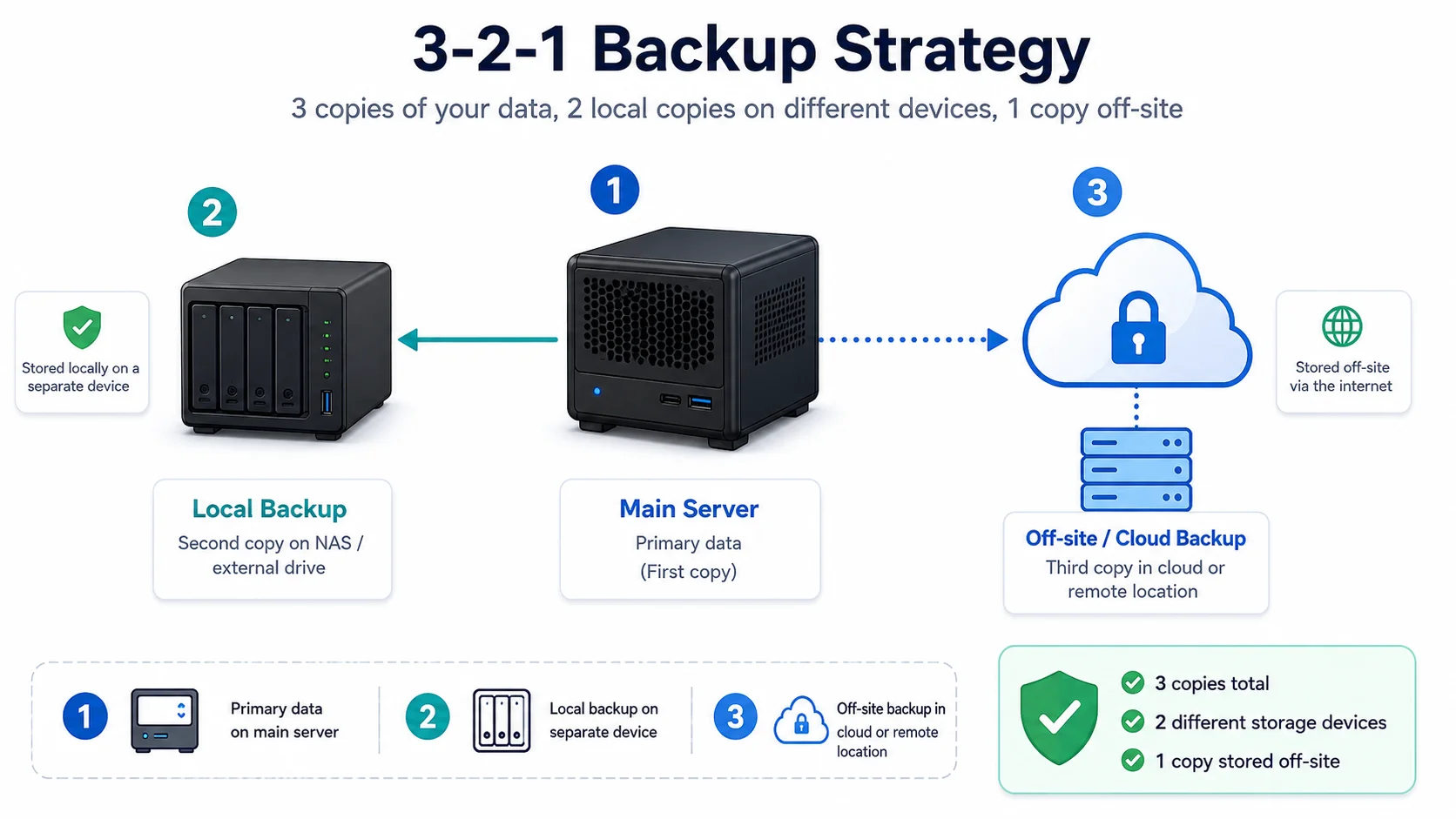
This follows the professional 3-2-1 backup rule:
• 3 copies of your data
• 2 different media (e.g., SSD + cloud)
• 1 offsite copy
You don’t need all three to start—but aim for it over time.
Maintain Your Backup System for Long-Term Reliability
A backup is only useful if it’s current and functional.
Monitor Backup Health Regularly
File History logs all activity automatically.
To check:
1. Open File History.
2. Click Advanced settings.
3. Review:
• Last backup time
• Backup frequency
• Disk space used
If backups stop, Windows will notify you. But don’t wait—check manually once a month.
Replace Old Drives Before They Fail
Hard drives don’t last forever. Average lifespan:
• HDD: 3–5 years
• SSD: 5–7 years
✅ Replace your backup drive every 5 years, even if it seems fine.
Keep the old one as a secondary archive—just don’t rely on it for active backups.
Key Takeaways for Saving Computer Files the Right Way
The best way to save computer files isn’t complicated or costly. It’s a simple, repeatable system using tools you already have:
- Buy a 1–2 TB SSD ($60 or less)
- Enable File History (free in Windows)
- Add custom folders to libraries
- Back up weekly and unplug the drive
- Test restores to confirm it works
This gives you:
• ✅ Automated, hourly backups
• ✅ Ransomware protection via air gap
• ✅ Full control—no subscriptions
• ✅ Fast recovery after crashes or deletions
No more excuses. No more “I’ll do it later.” Set it up this weekend. One hour now could save you months of lost work, irreplaceable memories, and thousands in data recovery costs.
Your future self—and your family, business, or creative projects—will thank you.
Frequently Asked Questions About Saving Computer Files
How do I know if File History is working?
Open File History in Control Panel and check the “Last backup” time. If it shows a recent date and time, your system is backing up. You can also click Advanced settings to see backup frequency and disk usage.
Can I use the same drive for backup and file transfers?
No. Using your backup drive for other tasks increases the risk of malware, accidental deletion, and hardware wear. Dedicate the drive only to backups to keep your data safe.
What happens if my backup drive fails?
If your drive fails, you lose your backup. That’s why you should replace your drive every 5 years and consider adding a second drive or cloud backup for redundancy.
Does File History back up everything on my computer?
No. File History only backs up libraries (Documents, Pictures, etc.) and folders you’ve added to them. It does not back up system files, programs, or the entire operating system. For full system images, use Windows Backup and Restore (Windows 7) or third-party tools.
Can I use File History on a Mac?
No. File History is a Windows-only feature. Mac users should use Time Machine, Apple’s built-in backup tool, with an external drive for similar protection.
Is cloud backup better than local backup?
Cloud backup is convenient but not enough on its own. It’s vulnerable to account breaches, internet outages, and subscription lapses. The best protection combines local (File History) and cloud backups for full redundancy.



