
Shipping a computer—whether it’s a custom-built desktop, high-end gaming rig, or work workstation—comes with real risks. A single drop, temperature spike, or rough handling can mean bent components, data loss, or a dead motherboard. The best way to ship a computer combines smart disassembly, military-grade packaging, insured shipping, and a reliable carrier. This guide walks you through every critical step: from backing up data and removing vulnerable parts, to double-boxing, choosing UPS vs. FedEx, and filing a successful insurance claim. You’ll learn how professionals protect $2,000+ systems and why physical protection beats “Fragile” labels every time.
Prepare Your Computer Before Packing
Before you touch a screwdriver, secure your data and power down the system. This phase prevents data loss and reduces internal stress during transit.
Back Up Files and Photograph the System
Back up all important data to an external drive or cloud service before shipping. Once packed, you can’t access the system if it arrives damaged.
Then, take clear photos of:
– The computer’s exterior (front, back, sides)
– Cable connections (for reassembly)
– Internal components (if case is open)
– Serial numbers and pre-packing condition
These images are essential for insurance claims. Pair them with your shipping receipt, tracking number, and insurance documents. Store copies in the cloud and on a USB drive.
Power Down and Disconnect All Peripherals
Shut down the system completely. Unplug from power and disconnect:
– Monitor
– Keyboard and mouse
– USB devices
– Ethernet and audio cables
Wait 30 seconds to discharge residual electricity. This prevents accidental surges during handling.
Disconnect Internal Cables from Key Components
For desktops, open the case and unplug cables from:
– GPU (power connectors)
– Motherboard (front panel, USB headers)
– Storage drives (SATA and power)
– CPU power (8-pin EPS)
This reduces strain on soldered connections. Reconnect everything after delivery.
Remove GPU and CPU Cooler? What Experts Recommend

High-profile components are the most vulnerable during shipping. Whether to remove them depends on size, weight, and recipient skill.
Remove Heavy or Large GPUs to Prevent Motherboard Damage
A heavy graphics card can bend the PCIe slot or crack the motherboard if the case is dropped. Remove the GPU if it:
– Weighs over 1.5 lbs
– Has a large cooler
– Lacks PCIe slot reinforcement
Carefully unseat it from the slot, place it in an anti-static bag, and pack it in a rigid box with foam. Label connectors to avoid damage during reassembly.
Community advice: “I would just because of the GPU” — Atron
Take Out Oversized CPU Coolers to Avoid Lateral Damage
Large air coolers or AIO liquid coolers are prone to damage from side impacts. Remove the cooler if it:
– Stands over 6 inches tall
– Isn’t tightly mounted
– Could shift during transit
Detach carefully, clean off old thermal paste, and store in original packaging or a padded case.
Never ship a full liquid cooling loop—some carriers classify them as hazardous. Drain or remove AIOs before shipping.
Expert tip: “If it has a large HSF I would remove it along with the GPU.” — vagabond139
Can You Leave RAM and SSDs Installed?
Most modern RAM and M.2 SSDs are low-profile and secure. You can usually leave them in, but for maximum safety:
– Remove RAM sticks and store in anti-static bags
– Unmount SSDs if they’re loose or in adapters
Ensure NVMe drives are tightly screwed in—vibration can loosen them mid-transit.
Pack the Computer Case to Survive Drops
How you pack the case interior determines whether components survive jolts and drops. Use internal padding for full protection.
Fill Empty Space with Bubble Wrap for Shock Absorption
Even with components inside, fill gaps inside the case to prevent movement.
Steps:
1. Open the side panel
2. Gently stuff bubble wrap around the GPU, PSU, and drive bays
3. Avoid pressing on fans or heatsinks
4. Close and secure the panel
This cushions internal parts and stops them from shifting during transit.
Use Expanding Foam for Total Component Immobilization
For maximum protection, use expanding foam in sealed plastic bags. As it expands, it molds around components, locking them in place.
How to:
1. Place small foam-in-a-can bags inside the case
2. Seal with plastic wrap
3. Let foam expand (do not overfill)
4. Close the panel
Result: A custom internal mold that absorbs shock and prevents movement.
Community endorsement: “EXPANDING FOAM. I think I’ll do this next time.” — Commenter
Warning: Never spray foam directly into the case—residue can damage components.
Choose the Right External Packaging Method

External packaging must resist crushing, drops, and rough handling. Use double-boxing or wooden crates for full protection.
Use Original Box with Double-Boxing for Maximum Protection
If you have the original manufacturer’s box, use it. It’s designed for your case and includes custom foam.
Then, double-box:
1. Place the original box inside a larger, sturdy outer box
2. Leave at least 3 inches of space on all sides
3. Fill gaps with bubble wrap, air pillows, or packing peanuts
4. Do not use crushed paper—it compacts and loses cushioning
This adds shock absorption and structural support.
Upgrade to Wooden Crate for High-Value or Custom Systems
For builds over $2,000, wooden crates offer the best protection. Professional builders like OriginPC use them.
Benefits:
– Resists crushing and punctures
– Handles warehouse drops
– Allows custom foam inserts
Available at specialty packing shops or The UPS Store (custom crating services).
Real-world example: “OriginPC ships theirs in big wooden boxes with a LOT of foam…” — OpsR4ng3r
Reinforce Corners with Foam Protectors
Use foam corner guards to protect box edges. These absorb impact from drops and prevent collapse.
Also consider:
– Corrugated cardboard edge protectors
– Plastic corner braces
Use with heavy systems or long-distance shipments.
Seal and Label the Box for Safe Handling

A poorly sealed box can burst open. Labels affect how carriers handle your package.
Seal with H-Taping Method for Burst Resistance
Use H-taping for maximum strength:
– Apply tape across all seams, flaps, and edges
– Use at least three strips of 2-inch-wide packing tape
– Reinforce top and bottom
This prevents the box from opening during stacking or drops.
Place Shipping Label on Top and Add “This Side Up”
Always put the shipping label on the top of the box. This increases the chance it will be handled upright.
Add a “This Side Up” label near the shipping label. Use only one—over-labeling can confuse handlers.
Are “Fragile” Labels Worth It?
Fragile labels are unreliable. Some carriers prioritize care; others assume high value and handle roughly.
Community concern: “Some might just treat it even worse as something unlabeled.” — Commenter
Better strategy: Focus on physical protection. If required by insurance, add one—but don’t rely on it.
Choose UPS or FedEx? Carrier Comparison for PC Shipping
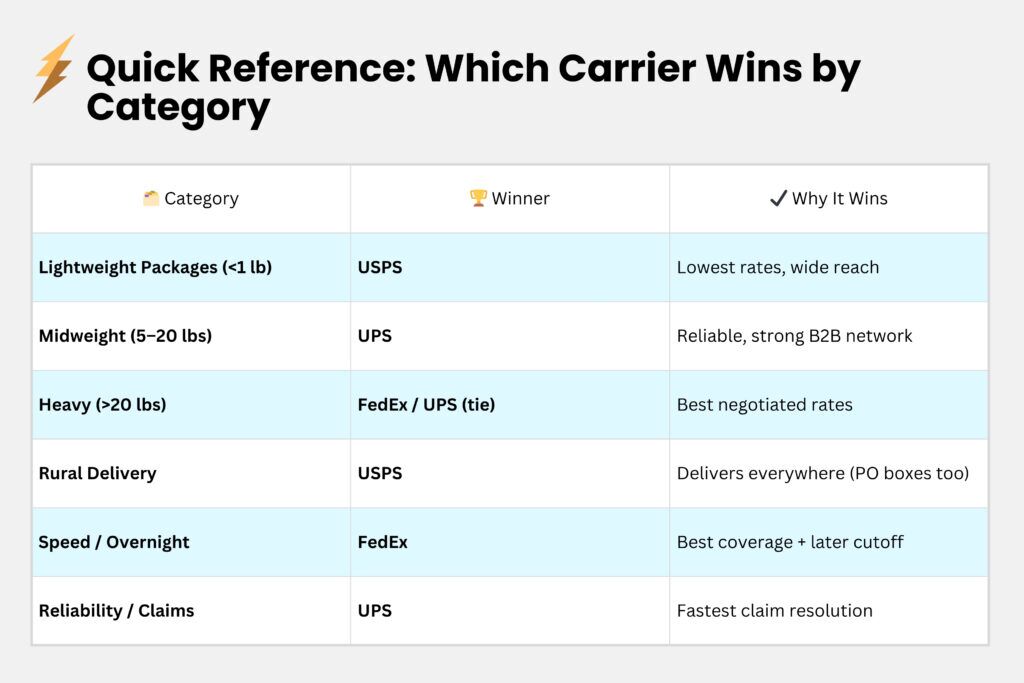
Not all carriers handle electronics the same. Pick one with tracking, insurance, and a solid claims history.
FedEx: Fast Delivery but Risky Claims Process
FedEx offers:
– FedEx Ground (1–5 days)
– FedEx Express Saver (3-day delivery)
– FedEx Priority Overnight (next business day)
Limits: Up to 150 lbs, 165″ length + girth
But beware: Multiple users report claim denials despite proper packaging and photos.
User experience: “FedEx has denied my claim twice… Never trusting them again.” — fullmetalmage
Tip: If denied, escalate via corporate email. One user got approval after contacting FedEx executives.
UPS: Reliable Claims and Re-Routing Options
UPS options:
– UPS Ground
– UPS 2nd Day Air
– UPS Next Day Air
Features:
– UPS Delivery Intercept®: Change address, return, or reschedule mid-transit (fee applies)
– Guaranteed Service Refund: Get shipping cost back if late (excludes holidays)
The UPS Store offers Pack & Ship Guarantee:
– Covers loss or damage
– If packed and shipped using their materials
Note: The UPS Store does not schedule pickups—contact UPS directly.
Compare Carrier Reliability for Electronics
| Carrier | Pros | Cons |
|---|---|---|
| FedEx | Fast, wide network | Inconsistent claims handling |
| UPS | Better claims support, re-routing | Stores don’t offer pickup |
| USPS | Affordable for small parts | Not ideal for full PCs |
For high-value systems, UPS is often preferred due to better customer service and guaranteed refunds.
Insure the Shipment and Handle Claims Successfully
Never ship a computer worth over $500 without insurance.
Buy Carrier-Declared Value Coverage
Both FedEx and UPS offer declared value programs:
– Declare the full value of the system
– Pay a fee (based on value)
– Required for claims
Insurance is not automatic—you must purchase it at shipping.
Document Everything for a Successful Claim
If damage occurs:
– Save all packaging (carrier may inspect it)
– Provide before and after photos
– Submit receipts, tracking, and insurance docs
Without proof, claims are often denied.
Resolve Denied Claims with Corporate Escalation
If your claim is rejected:
1. Gather all documentation
2. Contact carrier support
3. Escalate to corporate (use consumerist websites or email execs)
Success story: “Sent a corporate email… today they approved my claim! :D” — fullmetalmage
Track and Manage the Shipment in Real Time
Stay informed from pickup to delivery.
Enable Email Tracking Notifications
Most carriers allow up to three email alerts:
– Shipment dispatched
– Out for delivery
– Delivered
Add recipient and backup contacts.
Modify Shipment with UPS Delivery Intercept
With UPS, use Delivery Intercept® to:
– Change delivery address
– Hold at location
– Return to sender
Contact the shipping store immediately—changes are time-sensitive.
Handle Late or Missing Shipments
If late:
– UPS: May qualify for service refund
– FedEx: Check service guarantee terms
If lost or stolen:
– Report immediately
– Carrier investigates, but approval not guaranteed
Use Professional Packing Services for Peace of Mind
If unsure, hire experts.
The UPS Store Certified Packing Experts
Many UPS Stores have Certified Packing Experts who:
– Use industrial-grade materials
– Pack electronics to ISTA drop-test standards
– Offer damage protection guarantees
Cost varies by location (individually owned).
Consider Professional Movers for Multiple Systems
For business equipment or multiple PCs, hire movers experienced with IT gear. They use:
– Crating
– Palletizing
– Climate-controlled transport
Avoid Weather and Timing Risks
Temperature swings can damage components.
Don’t Ship During Extreme Heat or Cold
Avoid:
– Summer heatwaves (over 95°F)
– Winter freezes (below 32°F)
– Humid or rainy seasons
Heat can warp plastics; cold can cause condensation inside components.
Ship Early Around Holidays
Carriers suspend service guarantees during peak seasons (Thanksgiving to New Year). Delays are common.
Ship early or choose expedited services.
Frequently Asked Questions About Shipping a Computer
Should I remove the GPU when shipping a PC?
Yes, if it’s heavy (over 1.5 lbs) or lacks PCIe reinforcement. Removing it prevents motherboard bending during drops.
Can I leave RAM and SSDs in the computer?
Yes, for most systems. But remove them if the recipient isn’t technical or if they’re loose. Store in anti-static bags.
Is double-boxing necessary for shipping a computer?
Yes. It adds shock absorption and prevents crushing. Use a sturdy outer box with at least 3 inches of padding on all sides.
Does UPS or FedEx handle computers better?
UPS generally has better claims support and re-routing options. FedEx is fast but has inconsistent claims handling.
What should I do if my shipped computer arrives damaged?
Save all packaging, take photos, and contact the sender immediately. The sender must file a claim with tracking, receipts, and proof of insurance.
Is hand-delivering a computer safer than shipping?
Yes. “Driving it there yourself is the safest way,” says one user. But when not possible, follow this guide for maximum protection.
Key Takeaways for Shipping Your Computer Safely
The best way to ship a computer starts with removing the GPU and oversized CPU cooler, backing up data, and photographing the system. Pack the case interior with bubble wrap or expanding foam, then double-box with 3+ inches of padding. Use H-taping, label the top, and choose UPS for better claims support. Always insure systems over $500 and document everything.
For maximum safety, use The UPS Store’s Certified Packing Experts or a wooden crate for high-value builds. Avoid shipping during extreme weather or holidays. And remember: while shipping carries risk, proper prep makes it possible to send even a $3,000 rig with confidence.



