
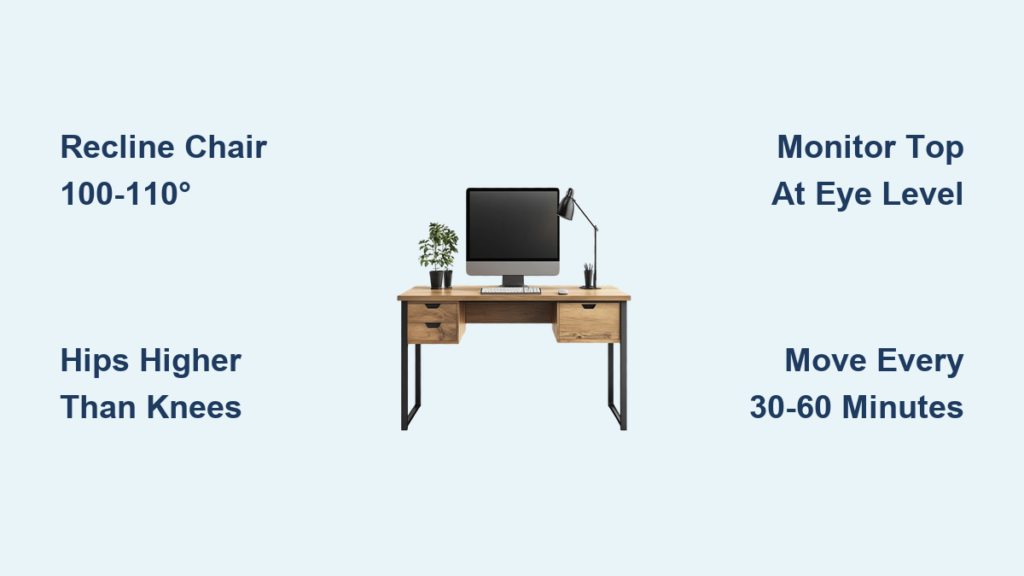
You’ve been hunched over your screen for hours, and now your lower back aches, your neck is stiff, and your shoulders feel like they’re climbing toward your ears. If this is your daily reality, the problem isn’t just how long you’re sitting—it’s how you’re sitting. The best way to sit at a computer desk isn’t about forcing a rigid, upright pose. It’s about creating an ergonomic setup that supports your body’s natural alignment and makes good posture effortless.
The secret lies in neutral posture—a position where your spine maintains its natural curves, your joints stay aligned, and your muscles work with minimal strain. When your desk, chair, and equipment are properly arranged, your body can stay comfortable and productive for longer. But even perfect posture fails if you stay still too long. That’s why the real key combines smart ergonomics with frequent movement. In this guide, you’ll learn how to set up your workspace, adjust your chair, position your screen, and shift postures to stay pain-free and focused.
Align Your Spine in Neutral Posture

Maintain Natural Spinal Curves
Your spine has three natural curves that must be preserved while sitting: a slight inward curve in the lumbar (lower back), a gentle outward curve in the thoracic (upper back), and a subtle inward tilt in the cervical (neck). When these curves are supported, pressure on discs and muscles drops significantly.
To check your alignment:
• Your ears should line up with your shoulders
• Your shoulders should sit directly over your hips
• Your head should not jut forward
Even a few inches of forward head tilt can increase neck strain to 60 pounds of force—a major reason for chronic neck and shoulder pain among desk workers.
Avoid Rigid, Upright Sitting
Sitting bolt upright may look professional, but it forces your lower back muscles to work constantly to prevent slouching. This leads to fatigue, discomfort, and eventually poor posture.
Fix: Slightly recline your chair to 100°–110° from vertical. This small tilt allows the backrest to support your spine’s natural curve, reducing disc pressure by up to 30%. Use a chair with adjustable lumbar support to maintain the inward curve of your lower back.
Use the Forward-Lean Technique
For short bursts of focused work, rest your abdomen lightly on the desk while reclining your legs slightly back. This creates a gentle forward force that stabilizes your torso with minimal muscle effort. It’s especially helpful for maintaining lumbar support during typing-intensive tasks.
Pro tip: Alternate this position with standing or reclined sitting every 30–60 minutes to prevent static strain.
Position Your Legs for Stability

Stop Sitting with Knees at 90 Degrees
The traditional advice to keep knees at 90 degrees and feet flat on the floor often backfires. This position shifts your center of gravity forward, forcing your lower back to compensate. The result? Muscle fatigue, slouching, and a tendency to slide forward in the chair.
Better approach: Position your feet directly below your hips, not in front of them. This aligns your pelvis under your spine, allowing your lumbar curve to stay neutral without effort.
Keep Hips Slightly Higher Than Knees
When seated, your hips should be slightly higher than your knees. This slight downward slope of the thighs promotes healthy blood flow, reduces pressure on the sciatic nerve, and supports spinal alignment.
If your chair is too high and your feet don’t reach the floor, use a footrest. Don’t let dangling feet pull your pelvis into a posterior tilt (tucked under), which flattens the lower back.
Choose Chairs That Promote Movement
Standard flat seats limit pelvic mobility. Consider saddle-style or swinging chairs that allow your legs to rest on the sides. These designs encourage natural pelvic movement, reduce pressure on the tailbone, and make it easier to maintain neutral posture over time.
Set Up Arms and Shoulders Correctly

Keep Keyboard and Mouse Close
One of the most overlooked causes of shoulder and neck pain is reaching too far for the keyboard or mouse. Even a few extra inches force your elbows to extend beyond 90 degrees, causing your shoulders to hike up and rotate inward.
Fix: Bring your keyboard and mouse as close to your body as possible. Your elbows should form a 90-degree angle, with forearms parallel to the floor and wrists straight.
When equipment is close, your desk acts as a physical boundary—making it uncomfortable to slouch forward. This passively enforces good posture.
Avoid Wrist Rests; Use Palm Rests
Resting your wrists on a hard surface while typing increases pressure on the carpal tunnel, raising the risk of numbness and nerve compression.
Better solution: Use a low-profile palm rest that supports the base of your hands, not your wrists. Or, use a low-profile mechanical keyboard that allows your entire forearm to rest on the desk, keeping wrists neutral.
Golden rule: Your wrists should float slightly above the desk while typing, not press down.
Optimize Monitor Height and Position

Set Top of Screen at Eye Level
Looking down at a screen—even slightly—bends your neck forward, increasing strain on the cervical spine. Over hours, this leads to “tech neck,” headaches, and chronic stiffness.
Fix: Adjust your monitor so the top edge is at or slightly below eye level. When you look straight ahead, your gaze should land in the upper third of the screen.
This ensures your head stays in a neutral position, aligned with your spine.
Elevate Non-Adjustable Monitors
If your monitor doesn’t adjust in height:
• Use a monitor riser
• Stack books or a sturdy box under a laptop
• Invest in a laptop stand
Avoid propping devices on cluttered stacks that wobble. Stability matters.
Choose the Right Desk and Chair
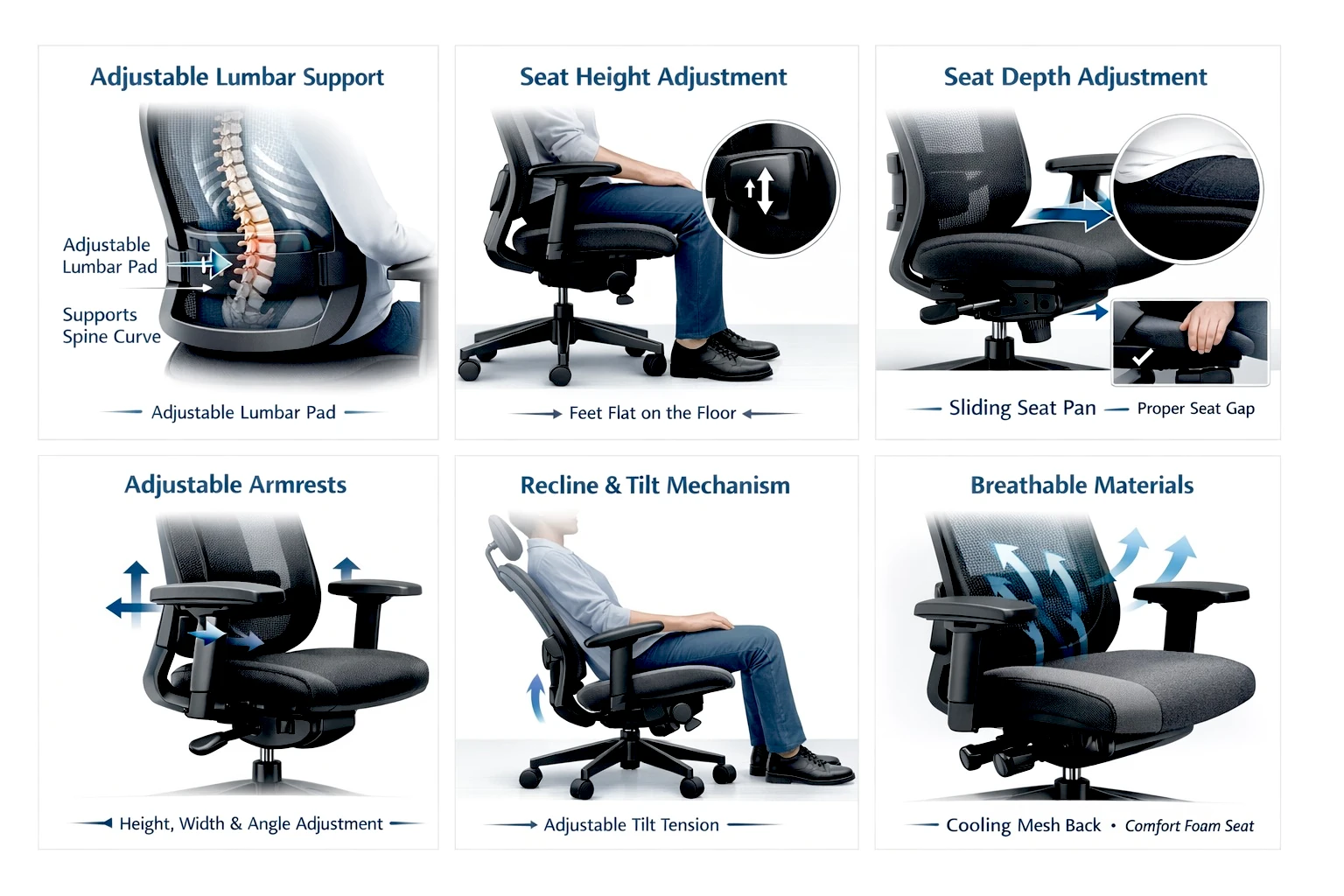
Pick a Chair with Key Adjustments
A poor chair undermines every other ergonomic effort. Prioritize these features:
• Adjustable seat depth (to support thighs without pressing behind knees)
• Lumbar support (to maintain lower back curve)
• Recline and tilt (to shift posture)
• Adjustable armrests (to keep shoulders relaxed)
Pro tip: Set chair height based on elbow position, not foot position. Your arms should be at 90 degrees when typing, regardless of where your feet land.
Select a Desk with Open Knee Clearance
Desks with thick central drawers block your knees from moving forward, forcing you to sit too far from your keyboard. This compromises arm and shoulder alignment.
Better options:
• Desks with thin, open fronts
• Drop-front designs
• Standing desks with height adjustability
If you’re stuck with a drawer desk, install a keyboard tray to bring input devices closer and free up legroom.
Break the Static Sitting Cycle
Stand and Move Every 30–60 Minutes
Sitting all day is harmful, but so is standing all day. The real enemy is prolonged stillness. Whether sitting or standing, staying in one position for hours reduces circulation and stiffens joints.
Action plan:
• Stand and walk for 2–5 minutes every 30–60 minutes
• Stretch your neck, shoulders, and hips
• Hydrate—it forces natural movement breaks
Use a timer or app to remind you if needed.
Alternate Between Four Reference Postures
Your body thrives on variation. Rotate through these scientifically supported positions:
Upright Sitting
• Torso and neck vertical
• Thighs horizontal, legs vertical
• Ideal for focused work
Standing
• Body in-line and vertical
• Feet slightly apart
• Elevate one foot on a rest to reduce lower back strain
Declined Sitting
• Buttocks higher than knees
• Thighs inclined, torso vertical or slightly reclined
• Promotes pelvic mobility and spinal alignment
Reclined Sitting
• Torso reclined 105°–120° from thighs
• Reduces lumbar disc pressure
• Best for reading or video calls
Bonus variations: Lean forward on the desk, use a stability ball, or sit cross-legged on the floor for short breaks.
Fix Common Desk Mistakes
Mistake: Using Wrist Rests Incorrectly
Many people rest their wrists on hard pads while typing, compressing nerves.
Fix: Use palm rests only during pauses, not while actively typing.
Mistake: Setting Chair Height by Feet
People often lower chairs so feet touch the floor, but this misaligns elbows and wrists.
Fix: Set height by keyboard position, then add a footrest if needed.
Mistake: Ignoring Desk Thickness
Thick desks block knee movement, forcing poor posture.
Fix: Choose open-front desks or use keyboard trays.
Mistake: Standing All Day
Standing for 8 hours causes fatigue, varicose veins, and back pain.
Fix: Alternate sitting and standing. Use a sit-stand desk if possible.
Frequently Asked Questions About Best Way to Sit at Computer Desk
What is the healthiest sitting position at a desk?
The healthiest sitting position maintains neutral posture: spine aligned with natural curves, shoulders over hips, head over spine, elbows at 90 degrees, and feet under hips. Slight recline (100°–110°) reduces lower back strain. Combine this with regular movement every 30–60 minutes.
How high should my monitor be when sitting at a desk?
The top of your monitor should be at or slightly below eye level. This keeps your head neutral and prevents forward neck tilt. Use a monitor riser, laptop stand, or stack of books if your screen can’t be adjusted.
Should my knees be higher than my hips when sitting?
No. Your hips should be slightly higher than your knees. This promotes healthy blood flow, reduces pressure on nerves, and supports spinal alignment. Use a footrest if your feet don’t reach the floor.
How often should I change my sitting position?
Change your position every 30–60 minutes. Stand, stretch, walk, or shift between upright, reclined, standing, and declined sitting. Frequent movement prevents stiffness and reduces the risk of musculoskeletal disorders.
Can a good chair fix poor desk posture?
A high-quality, adjustable chair is essential, but it can’t fix everything. Even the best chair fails if your monitor is too low, your keyboard is too far, or your desk blocks knee movement. Ergonomics requires a full-system approach—chair, desk, monitor, and habits all working together.
Is it better to sit or stand at a desk all day?
Neither. Sitting or standing all day leads to fatigue and strain. The best approach is to alternate between sitting, standing, and movement. Use a sit-stand desk if possible, and shift positions every 30–60 minutes.
Key Takeaways for Best Way to Sit at Computer Desk
The best way to sit at a computer desk isn’t about perfection—it’s about support and movement. Design your workspace so neutral posture happens naturally:
• Recline your chair 100°–110°
• Keep hips higher than knees
• Position keyboard and mouse close
• Set monitor top at eye level
• Use palm rests, not wrist rests
• Alternate between sitting, standing, and movement
Small, consistent changes add up to long-term comfort, better focus, and reduced risk of chronic pain. Start by adjusting your chair height based on elbow position, then add a footrest if needed. Set a timer to stand every hour. Over time, these habits will protect your body and improve your workday.



