
Is your computer running slow, bombarded with popups, or sending strange emails without your knowledge? These could be signs of a malware infection. Malware—short for malicious software—is one of the most common digital threats today. It includes viruses, ransomware, spyware, and rogue programs designed to steal passwords, hijack your device, or lock your files for ransom. The best way to protect computer from malware isn’t relying on a single tool, but building a strong, layered defense using built-in tools, smart habits, and proactive updates.
In this guide, you’ll learn how to block malware before it strikes, recognize early warning signs, and respond quickly if your system is compromised. You’ll discover how to use Windows Security effectively, avoid phishing scams, secure your accounts, and create reliable backups. These steps—based on official Microsoft and government cybersecurity guidelines—work whether you’re on Windows 10 or 11. By the end, you’ll have a complete action plan to keep your personal data safe and your computer running smoothly.
Enable Windows Security for Real-Time Protection
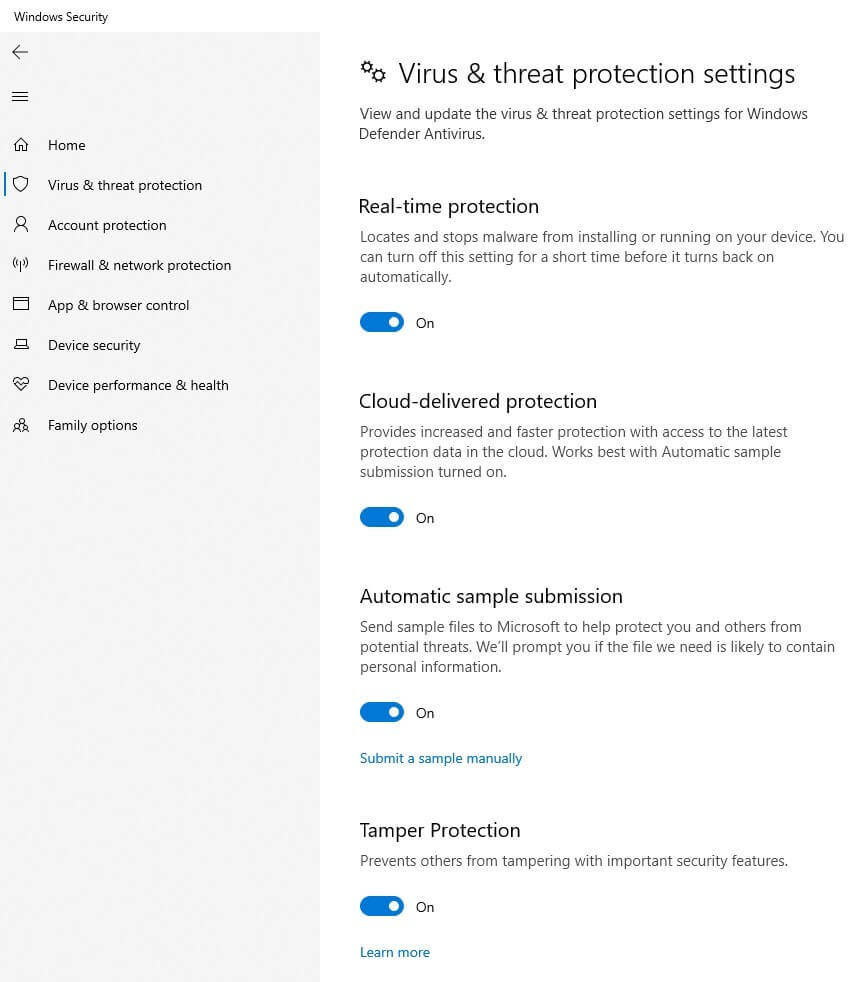
Turn On Built-In Virus & Threat Protection
Windows 10 and 11 include Windows Security, a free, powerful antivirus suite that defends against viruses, ransomware, and spyware in real time. It automatically downloads the latest virus definitions, so you’re protected without extra effort.
To verify it’s active:
1. Click Start > search for Windows Security
2. Select Virus & threat protection
3. Confirm that Real-time protection is turned on
This should be your primary defense. Avoid installing multiple antivirus programs—doing so can cause system conflicts and reduce protection.
Run Microsoft Safety Scanner for On-Demand Checks
Even with real-time protection, some threats may slip through. Use Microsoft Safety Scanner, a free, temporary tool for deep system scans.
- Download it directly from Microsoft’s official website
- Run it manually when you suspect an infection
- It expires after 10 days (for security), so download a fresh version each time
This scanner doesn’t replace Windows Security—it complements it by catching hidden threats during targeted checks.
Keep Windows and Apps Updated Automatically
Set Windows to Install Security Patches
One of the most effective ways to stop malware is keeping your operating system updated. Cybercriminals exploit known flaws in outdated software. Microsoft releases monthly security updates to fix these vulnerabilities.
To enable automatic updates:
1. Go to Start > Settings > Windows Update
2. Click Check for updates
3. Turn on Automatic downloads and installs
Always install pending updates promptly. Never ignore the “Restart to complete updates” prompt—unpatched systems are prime targets during this window.
Update Browsers, Drivers, and Third-Party Apps
Your browser (Edge, Chrome, Firefox) is a top entry point for malware. Enable auto-updates for:
– Web browsers
– Office software
– PDF readers
– Media players
– Device drivers
For drivers, use trusted sources like Windows Update, Dell SupportAssist, or the manufacturer’s official site. Avoid third-party driver updaters—they often bundle malware.
Activate and Monitor Windows Firewall
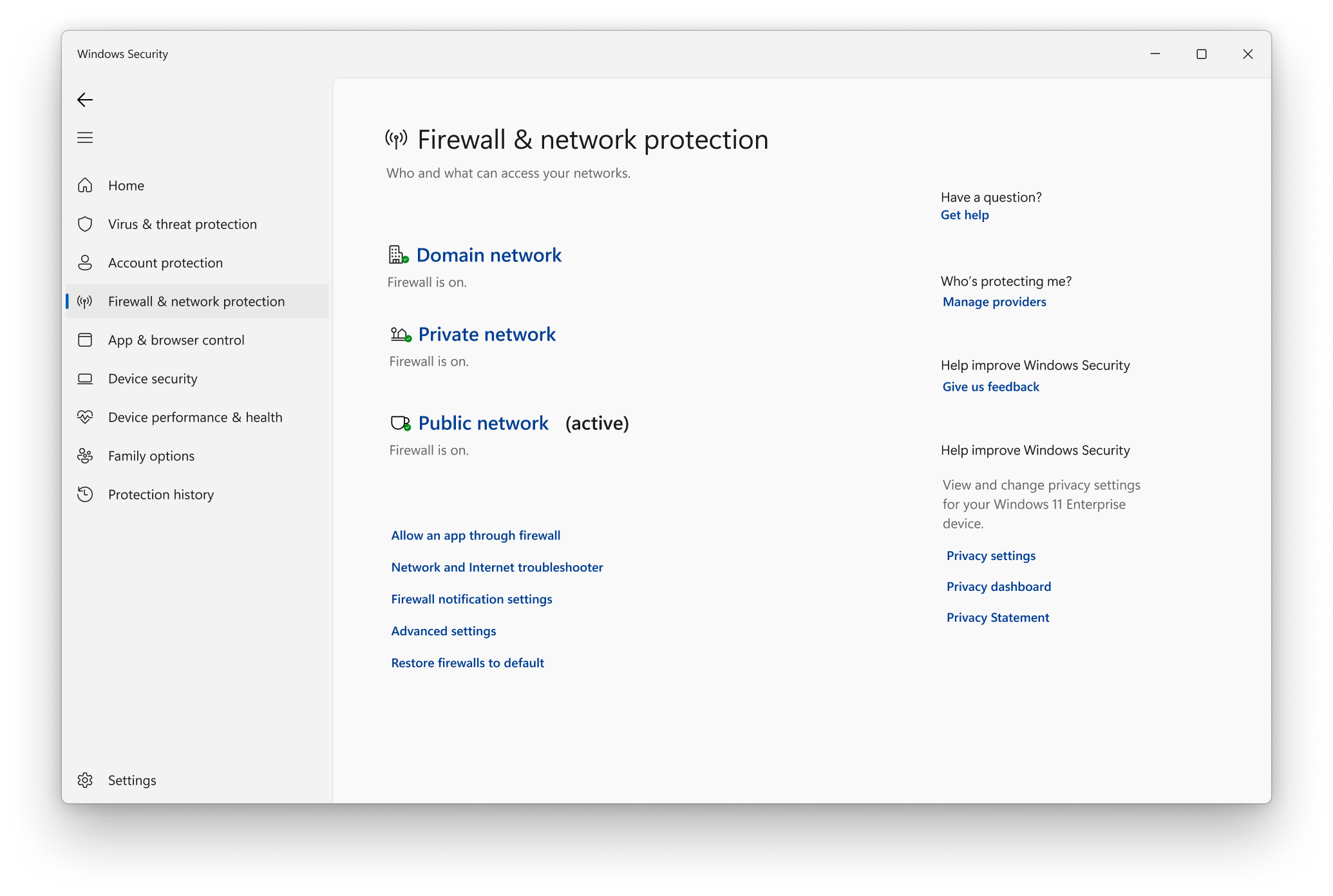
Ensure Firewall Is On for All Networks
A firewall blocks unauthorized access from the internet while allowing safe traffic. Windows Firewall is enabled by default, but it can be turned off by other software or user error.
To check:
1. Open Windows Security
2. Go to Firewall & network protection
3. Confirm “Firewall: On” for all network types (private, public)
If disabled, turn it on immediately. Most users don’t need third-party firewalls—improper setup can create security gaps.
Block Popups and Avoid Risky Websites
Enable Browser Pop-Up Blockers
Popups are a common way to spread adware and phishing scams. Enable your browser’s built-in blocker:
– In Edge or Chrome: Settings > Privacy and security > Site settings > Pop-ups and redirects > Block
Never click on popups claiming your PC is infected. These are often rogue security programs that trick you into downloading malware.
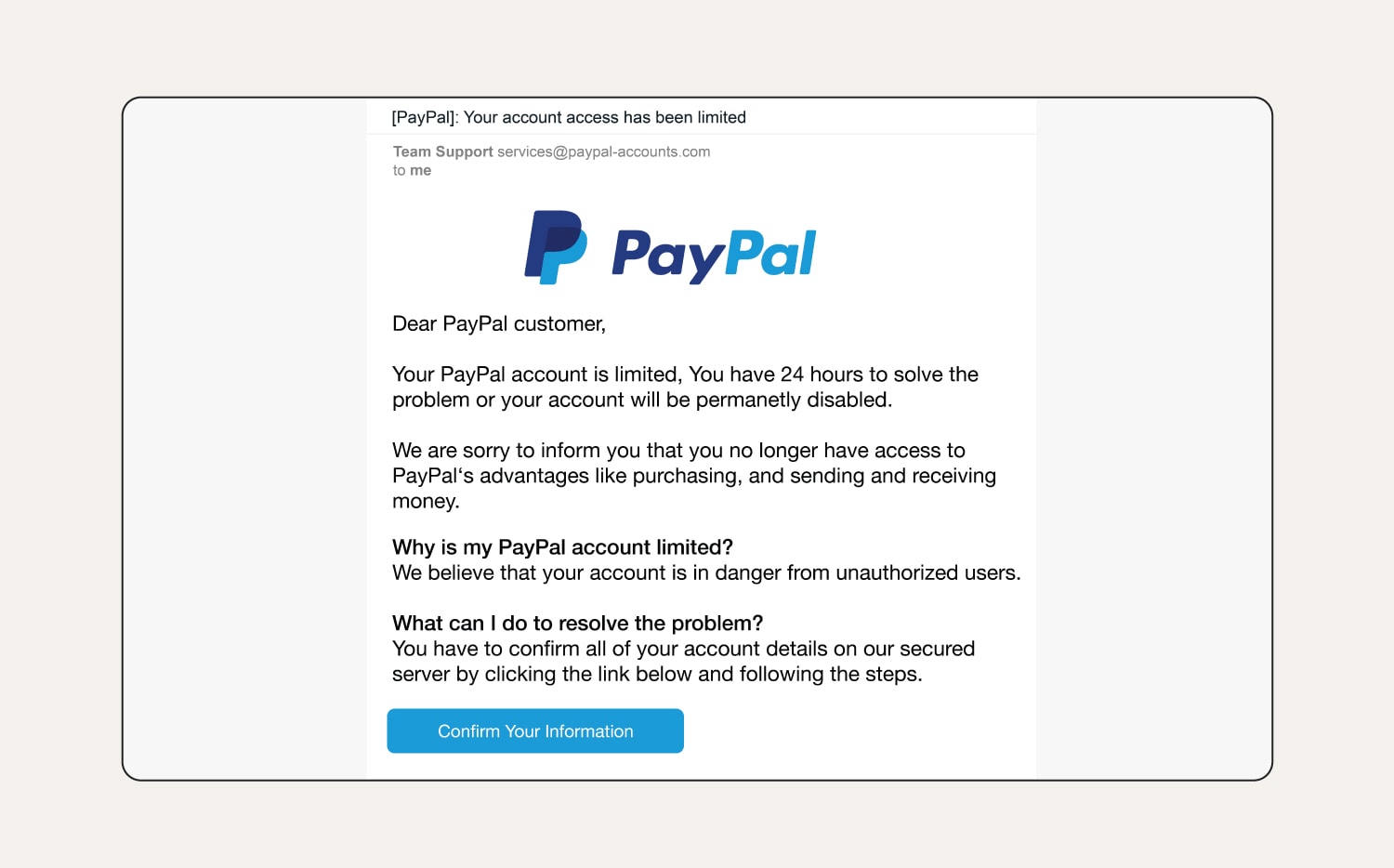
Recognize and Avoid Phishing Emails
Phishing emails mimic banks, tech companies, or delivery services to steal login details. Watch for:
– Generic greetings like “Dear Customer”
– Spelling and grammar mistakes
– Urgent messages like “Your account will be closed!”
Always check the sender’s email address. A message from “support@micros0ft-login.com” is fake. Legitimate companies never ask for passwords via email.
Create Strong Passwords and Enable 2FA
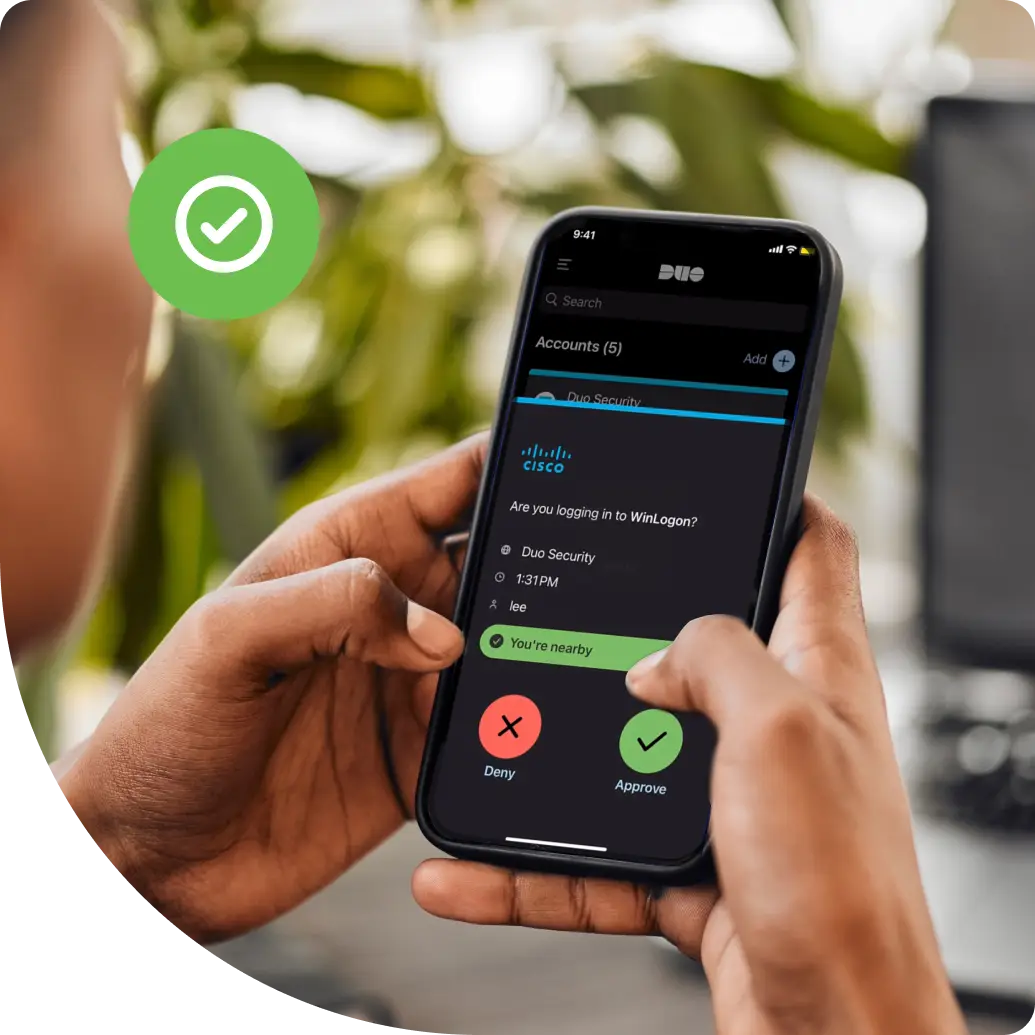
Use Unique, Complex Passwords for Every Account
Weak or reused passwords make it easy for hackers to access multiple accounts. Use passwords that are:
– At least 12 characters long
– A mix of uppercase, lowercase, numbers, and symbols
– Not based on personal info (birthdays, pet names)
Use your browser’s built-in password manager (like in Microsoft Edge) to generate and store strong passwords securely across devices.
Turn On Two-Factor Authentication (2FA)
Even strong passwords can be stolen. Two-factor authentication adds a second layer—like a code from your phone or an authenticator app.
Enable 2FA for:
– Email accounts
– Banking and financial apps
– Social media
– Cloud storage (OneDrive, Google Drive)
This stops most automated attacks, even if your password is compromised.
Download Software Only From Trusted Sources
Avoid Malware-Bundled Free Downloads
“Free” software from unknown sites often includes hidden malware. Only download from:
– Official vendor websites (e.g., Adobe.com)
– Microsoft Store
– Manufacturer support pages (like Dell Drivers & Downloads)
For drivers, use Windows Update or tools like Dell SupportAssist instead of third-party updaters, which are frequently malicious.
Set Browser Security to Medium-High
Protect yourself from malicious sites by adjusting browser settings:
– In Edge: Settings > Privacy, search, and services > Security
– Choose Balanced protection or Strict
This helps block dangerous websites and unauthorized downloads before they reach your system.
Back Up Data to Survive Ransomware Attacks
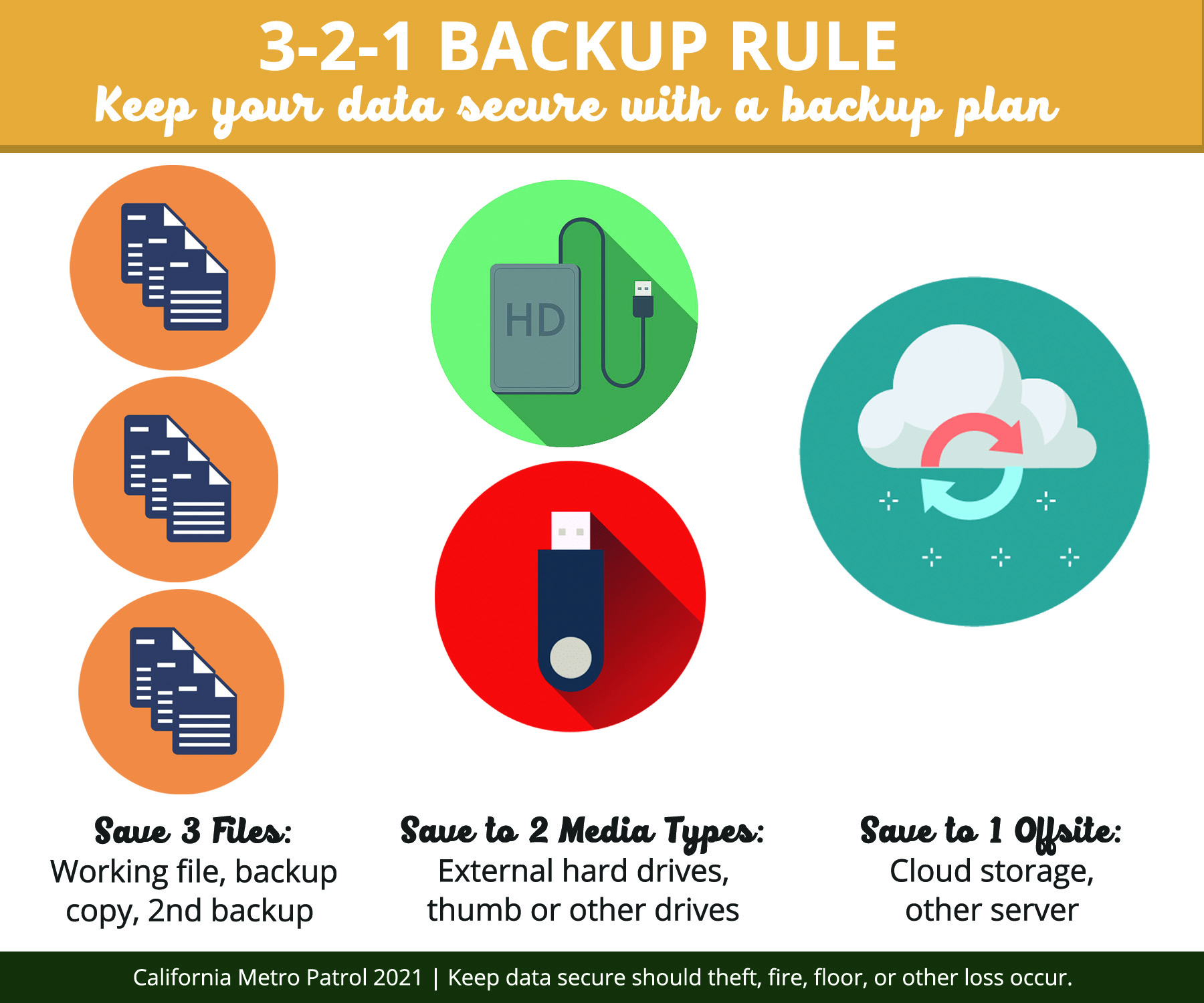
Follow the 3-2-1 Backup Rule
Ransomware encrypts your files and demands payment. The only reliable recovery? A recent backup.
Use the 3-2-1 rule:
– 3 copies of your data (original + 2 backups)
– 2 different media types (e.g., external drive + cloud)
– 1 offsite backup (cloud storage counts)
Recommended options:
– OneDrive (included with Microsoft account)
– External SSD or HDD (connect weekly, then disconnect)
Use File History or Backup and Restore in Windows to automate backups.
Perform Regular Malware Scans
Run Full System Scans Monthly
Even with real-time protection, run a full scan at least once a month:
1. Open Windows Security
2. Go to Virus & threat protection
3. Click Scan options > Full scan
4. Click Scan now
Avoid using your computer during the scan for better accuracy.
Use Custom Scans for Suspicious Files
If you suspect a specific file or folder:
– Choose Custom scan
– Navigate to the location (e.g., Downloads)
– Scan only that area
This saves time and focuses on high-risk zones like recently downloaded files.
Act Fast If Malware Is Detected
Stop Online Activities Immediately
If you suspect infection:
– Stop online banking, shopping, or logging in
– Malware may record keystrokes or steal session cookies
Change Passwords from a Clean Device
Use a different, trusted computer (like at a library or friend’s) to:
– Change passwords for email, banking, and social media
– Enable 2FA if not already active
Never change passwords on the infected machine—malware could capture the new ones.
Remove Threats Using Windows Security
After updating:
1. Run a Full scan
2. Quarantine or remove all detected threats
3. Restart and scan again
If threats remain, run Microsoft Safety Scanner in offline mode for deeper cleaning.
Prevent Future Infections With Smart Habits
Avoid Rogue Tech Support Scams
Scammers pose as Microsoft or antivirus companies, calling or showing popups claiming your PC is infected. Remember:
– Microsoft never makes unsolicited calls
– No legitimate company remotely scans your PC without permission
– Never grant remote access to unknown callers
Close the browser or hang up immediately.
Stay Informed About New Threats
Knowledge is your best defense. Follow trusted sources:
– OnGuardOnline.gov – U.S. government site for online safety
– Microsoft Security Blog – Updates on new threats and fixes
– Your device manufacturer’s support site – Security advisories and tools
Understanding phishing, social engineering, and malware tactics reduces your risk of falling victim.
Frequently Asked Questions About Malware Protection
What should I do if I suspect my computer has malware?
Stop online activities, update Windows Security, and run a full scan. Change your passwords from a different, clean device. If threats persist, use Microsoft Safety Scanner or contact your manufacturer for support.
Can I run two antivirus programs at once?
No. Running multiple antivirus programs can cause system conflicts and reduce protection. Stick with one trusted solution—like Windows Security or a reputable third-party tool.
Should I use my computer during a malware scan?
It’s best to avoid using your computer during a full scan. Activity can slow the process and reduce detection accuracy. Let the scan run undisturbed.
What if Windows Security can’t remove the malware?
Try Microsoft Safety Scanner for a deeper, on-demand scan. If the infection persists, consider resetting Windows or contacting professional tech support.
How do I reset Windows Security if it’s not working?
Open PowerShell as administrator, type Get-AppxPackage -Name Microsoft.SecHealthUI | Reset-AppxPackage, press Enter, then restart your computer.
What are rogue security programs?
These are fake antivirus popups or apps that claim your computer is infected to trick you into paying or downloading malware. Never click on unexpected security alerts from your browser.
Key Takeaways for Protecting Your Computer from Malware
The best way to protect computer from malware combines technology and behavior. Enable Windows Security, keep all software updated, use a firewall, and avoid suspicious downloads. Practice safe browsing, use strong passwords with 2FA, and back up your data regularly using the 3-2-1 rule. Run monthly full scans and act fast if you suspect infection.
No single tool offers complete protection—but together, these steps create a powerful defense. Stay informed, stay cautious, and make security a daily habit. Your data and privacy depend on it.



