
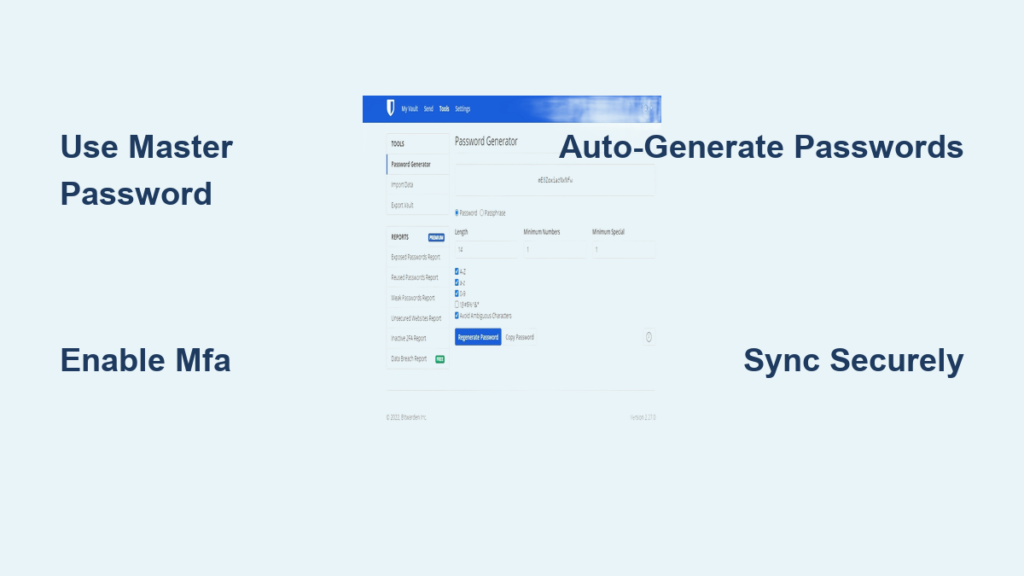
You likely have dozens of online accounts—from email and banking to shopping and social media—and remembering each password is impossible. Storing them in a plain text file or writing them on sticky notes might seem easy, but these methods leave you wide open to hackers. The best way to save passwords on computer is using a secure, encrypted password manager. It protects your credentials with military-grade encryption while making logins fast and effortless. This single tool lets you use unique, complex passwords for every site without memorizing a thing.
A reliable password system stops breaches before they happen and keeps your digital life organized. In this guide, you’ll learn why password managers are the gold standard, how to pick the right one, and what alternatives (if any) are safe. You’ll also discover dangerous habits to avoid, expert-backed security practices, and how to lock down your master password so only you can access it. Whether you’re new to password security or upgrading your strategy, this guide covers everything you need to stay protected.
Use a Password Manager
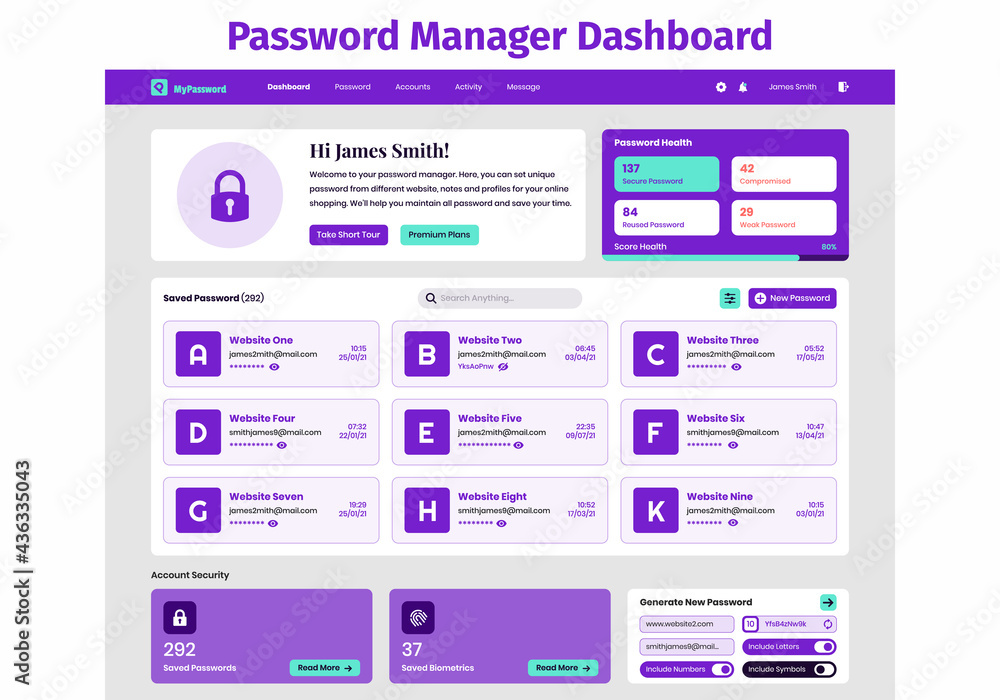
A password manager is the most secure and efficient method for storing passwords on your computer. It acts as an encrypted vault that holds all your login details behind a single master password. Once unlocked, it auto-fills credentials across websites and apps, eliminating guesswork and reducing exposure to phishing.
Why It’s the Top Choice
• Military-grade encryption: Data is protected with AES-256 encryption, making it unreadable to anyone without your master key
• Auto-fill across sites: Log in with one click—no typing required
• Cross-device sync: Access passwords seamlessly on Windows, Mac, iOS, and Android
• Random password generator: Create uncrackable 16+ character passwords like Xk9#vQ2!mP8&wLr@nS5
• Breach alerts: Get notified if your credentials appear in a known data leak
Without a password manager, people often reuse passwords or choose weak ones—both habits make accounts easy targets. A manager eliminates these risks by promoting strong, unique passwords for every service.
Choose Between Manager Types
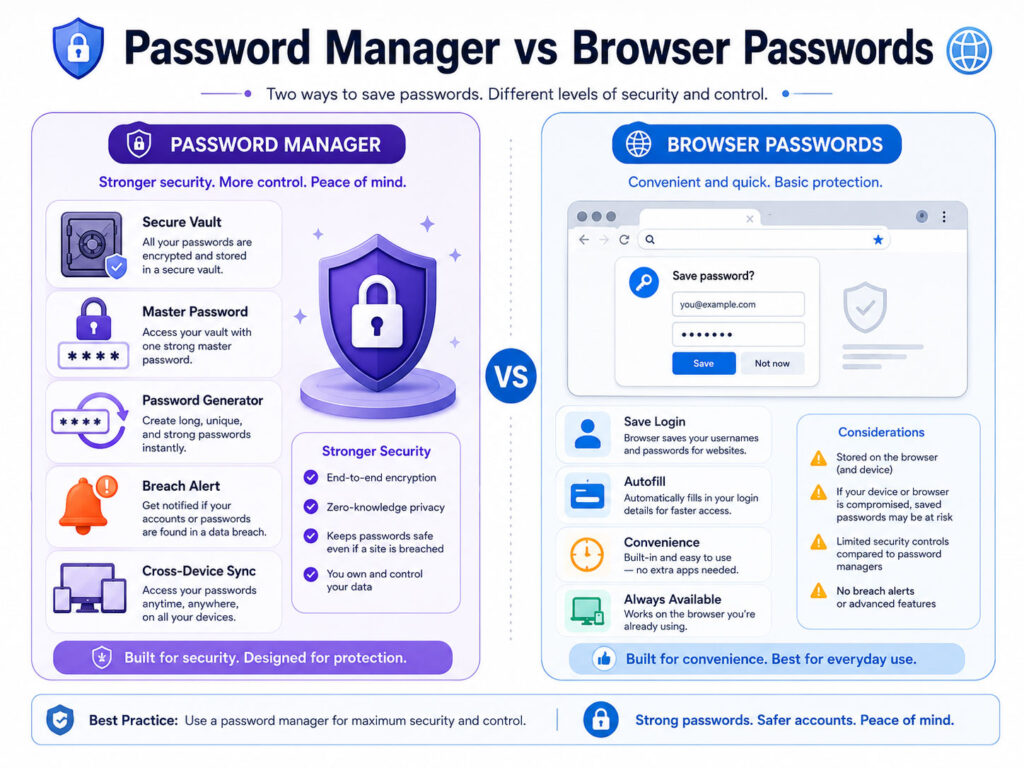
Not all password managers offer the same level of protection or usability. Your choice affects security, convenience, and control over your data.
Browser-Based Managers
These are built into Chrome, Firefox, Edge, and Safari. They remember passwords automatically and sync if you’re signed into your browser account.
Pros:
• No extra software needed
• Auto-saves login info
• Easy for casual users
Cons:
• Less secure on shared or public computers
• Limited syncing across different browsers
• Often lack multi-factor authentication (MFA)
• Vulnerable to browser exploits
Best for: Users who want basic convenience and already trust their browser ecosystem.
Standalone Password Managers
Dedicated apps like Bitwarden, 1Password, or KeePass store your data in a secure, encrypted vault with advanced features.
Pros:
• Zero-knowledge architecture—only you can access your data
• Full MFA support (TOTP, YubiKey, biometrics)
• Dark web monitoring and password health reports
• Cross-platform syncing with end-to-end encryption
Best for: Anyone serious about security, especially those managing business or financial accounts.
Recommended Password Managers
Here are the top tools trusted by cybersecurity experts and government agencies.
Bitwarden
• Free tier available: Full functionality without cost
• Open-source: Publicly audited code ensures transparency
• Self-hosting option: Store data on your own server
• Syncs across devices
• Supports MFA and password reuse detection
Ideal for budget-conscious users who want enterprise-level security.
1Password
• User-friendly interface
• Excellent customer support
• Travel mode: Removes sensitive data from devices when crossing borders
• Built-in authenticator (TOTP)
• Family plans with shared vaults
Best for individuals and families wanting a polished, secure experience.
KeePass
• Completely offline: Runs locally on your PC
• Free and open-source
• Stores data in encrypted .kdbx file
• Manual syncing via USB or Dropbox
Perfect for advanced users who want full control and no cloud dependency.
LastPass (Use with Caution)
• Once a leader, but suffered security breaches in recent years
• Still functional with strong MFA
• Free version limits device access
Only recommended if you enable MFA and monitor account activity closely.
Enable Multi-Factor Authentication
Even the best password manager isn’t secure without multi-factor authentication (MFA). This adds a second layer of protection beyond your master password.
How MFA Works
You need two of the following:
• Something you know: Master password
• Something you have: Phone, security key, or authenticator app
• Something you are: Fingerprint or facial recognition
For example, after entering your master password, you might approve login with a code from Google Authenticator or a tap on your YubiKey.
Why It Matters
• Blocks unauthorized access even if your master password is stolen
• Prevents phishing and keylogging attacks
• Required by standards like the Canadian Centre for Cyber Security
Always enable MFA on your password manager and critical accounts like email and banking.
Create a Strong Master Password
Your master password unlocks everything—so it must be unbreakable.
Use a Passphrase
Replace complex jumbles like P@ssw0rd!2024 with a random 4-word passphrase:



