
Moving to a new computer shouldn’t mean losing your digital life. The best way to transfer files to a new computer depends on your setup—whether you’re staying within Windows, switching from Mac, or need to move large media libraries. While no method transfers everything automatically, choosing the right approach ensures your photos, documents, and settings arrive safely and efficiently. From built-in tools to cloud syncing and high-speed cables, the right strategy saves time and avoids data loss.
This guide covers every reliable method—Windows Backup, OneDrive, external drives, transfer cables, network sharing, and third-party tools—so you can pick the fastest, safest option for your needs. You’ll learn exactly what gets moved (and what doesn’t), how to avoid common mistakes, and how to keep your old PC secure after the transfer. Whether you’re a beginner or a power user, you’ll walk away with a clear, step-by-step plan to migrate your data seamlessly.
Use Windows Built-in Transfer (Free)
Microsoft’s Windows Backup and Restore is now the official way to move files from Windows 10 to Windows 11—replacing the old Easy Transfer tool.
Transfer Files Wirelessly
This method moves personal data and settings over Wi-Fi or Ethernet without extra hardware.
- On your old PC, open Settings > Accounts > Windows Backup
- Click “Transfer information to a new PC”
- Make sure both devices:
– Are on the same network
– Are plugged into power
– Run updated versions (Windows 10/11 on old, Windows 11 2024+ on new) - Sign in with the same Microsoft account on both
- Enter the one-time code shown on the new PC into the old PC’s Backup app
The transfer starts automatically. You can choose which folders to move—like Documents, Pictures, and Desktop—and skip large files if the new PC has limited space.
What Gets Transferred
- ✅ Personal files (all user data)
- ✅ Wallpaper, themes, and personalization
- ❌ Installed applications
- ❌ OneDrive files (sync separately)
- ❌ Saved passwords
- ❌ BitLocker-encrypted drives (decrypt first)
Note: This feature is not available in China and requires a Microsoft account with no prior backup.
Fix Missing Transfer Option
If “Transfer to new PC” doesn’t appear:
1. Go to Settings > Windows Update
2. Install all pending updates
3. Restart and reopen Windows Backup
4. Search again for the option
This method is ideal for most users upgrading from Windows 10 to 11—it’s free, secure, and fully integrated.
Leverage Cloud Storage (Easy Sync)
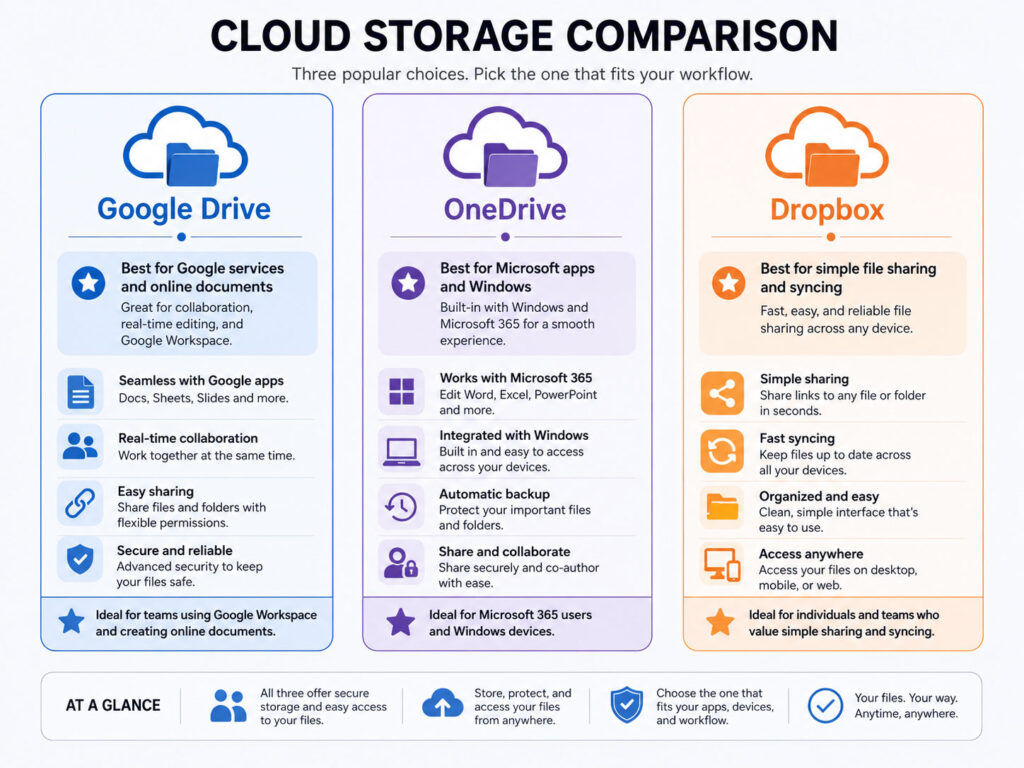
Cloud services like OneDrive, Google Drive, and Dropbox offer the simplest file transfer—especially for non-technical users.
Use OneDrive for Seamless Transfer
OneDrive syncs key folders directly with Windows and works out of the box on new PCs.
Steps:
- On your old PC, sign in to OneDrive with your Microsoft account
- Let it sync Desktop, Documents, Pictures
- On the new PC, sign in with the same account
- Files download automatically
OneDrive keeps everything updated across devices and is perfect for fresh Windows 11 setups.
Compare Cloud Services
| Service | Free Storage | Best For |
|---|---|---|
| OneDrive | 5 GB | Windows users, automatic folder sync |
| Google Drive | 15 GB (shared with Gmail/Photos) | Google ecosystem users |
| Dropbox | 2 GB | Cross-platform simplicity |
Limitations to Know
- ❌ No app transfers – Programs must be reinstalled
- ❌ No email data – Outlook PST files aren’t synced
- ⚠️ Internet required – Large libraries take hours or days to upload/download
Use cloud storage if you value convenience over speed and don’t mind a subscription for extra space.
Copy With External Drives (Full Control)

For complete control and large data volumes, external hard drives or USB flash drives are the most reliable method.
Choose the Right Drive
- USB 3.0+ flash drive: Fast, portable, $20–$100 (ideal for under 256 GB)
- External HDD/SSD: $50–$200+, stores 1TB+ (best for full backups)
- eSATA drives: Faster than USB 2.0 (if your PC supports it)
Transfer Files in 5 Steps
- Connect the drive to your old PC
- Open File Explorer and navigate to
C:\Users\[YourName] - Copy folders: Documents, Pictures, Videos, Desktop, Downloads
- Safely eject the drive
- Plug into the new PC and paste files into the matching user folder
Skip AppData (Usually)
Avoid copying AppData unless you know specific programs require it. Most settings regenerate on install.
This method works offline, costs nothing if you already own a drive, and gives you a physical backup—perfect for large media libraries.
Connect via Transfer Cable (Fast Direct Move)
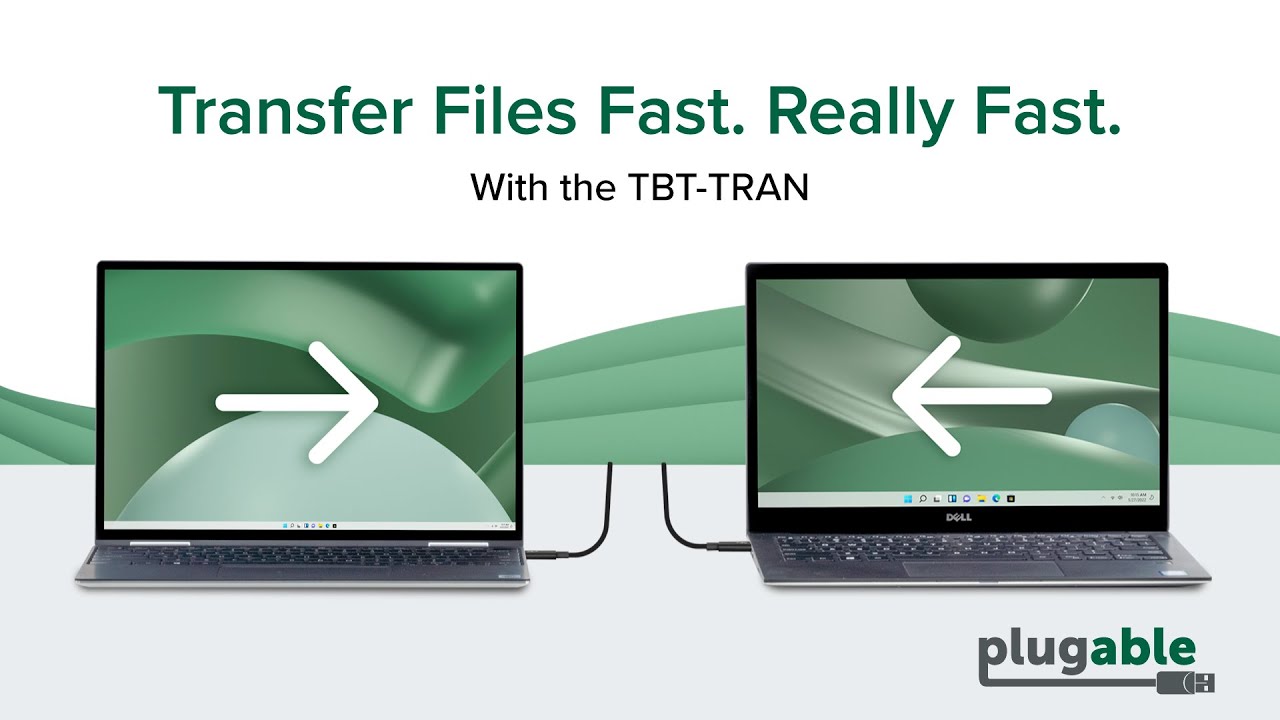
A USB transfer cable links two PCs directly for fast, hardware-based file migration.
Why Use a Transfer Cable?
- Faster than using an external drive as a middleman
- Includes software to automate file selection
- Works from Windows 7 through 11
Cables cost $15–$50 and plug into USB ports on both computers.
Setup Process
- Install the included software on both PCs
- Connect the cable
- Launch the transfer tool
- Select files to move
- Begin transfer
The software often highlights common folders and lets you preview what will be copied.
Thunderbolt™ Share for Ultra Speed
If both PCs have Thunderbolt™ 4 or 5, use a Thunderbolt™ cable for near-instant transfers.
- Speeds up to 40 Gbps (vs. 5 Gbps for USB 3.0)
- Ideal for 4K video editors, gamers, or creatives
- Requires compatible ports (look for the lightning bolt icon)
Thunderbolt™ Share moves massive files in minutes—no network or cloud needed.
Transfer Over Network (No Extra Hardware)
Move files between PCs on the same network without cables or drives.
Enable File Sharing
- On the old PC, right-click the folder to share > Give access to > Specific people
- Choose your user or select Everyone
- Click Share, then Copy
- On the new PC, open File Explorer > Network
- Find the old PC and open the shared folder
- Copy files over
Speed Tips
- Use Ethernet instead of Wi-Fi for faster transfer
- Ensure both PCs are on the same workgroup
- Disable password-protected sharing if needed (Control Panel > Network and Sharing Center)
This method is free and effective but requires basic networking knowledge. It’s great for home offices with multiple computers.
Use Third-Party Software (Automated Moves)
When you want more automation—or need to move applications—third-party tools fill the gap.
Try Laplink PC Mover
After Microsoft discontinued Easy Transfer, it partnered with Laplink to offer PC Mover.
Versions:
- PC Mover Express ($15): Moves files and settings
- PC Mover Professional ($70+): Also transfers installed programs
The software guides you through the process and ensures no hidden files are missed.
Reinstall Apps Fast With Ninite
You can’t transfer programs directly—but you can reinstall them quickly.
- Visit ninite.com
- Check boxes for apps you use (Chrome, Zoom, VLC, etc.)
- Download the custom installer
- Run it on your new PC to install all at once—no bloatware
Ninite is free and loved by IT pros for clean, silent installations.
Manually Copy User Folder (For Fresh Installs)
If you’re building a new PC or doing a clean Windows install, this is the best approach.
Copy Only Personal Files
“The ONLY thing to copy is your personal files. No apps or programs.” — USAFRet (Moderator)
Folders to Copy:
- Documents
- Pictures
- Music
- Videos
- Desktop
- Downloads
Avoid system files and installed software.
Step-by-Step Process
- Back up
C:\Users\[YourName]to an external drive - Optional: Delete
AppData,Local, andTempfolders - After installing Windows, paste the folder into
C:\Users\ - Log in to restore your file structure
This keeps your new system clean while preserving all your data.
Restore From File History (Built-in Backup)
If you used File History on Windows 10, you can restore files to your new PC.
Restore Process
- Connect the backup drive to the new PC
- Go to Settings > Accounts > Windows Backup
- Select “Restore from a backup”
- Choose files and folders to recover
What File History Saves
- Libraries (Documents, Music, etc.)
- Desktop
- Favorites
It does not back up programs or system settings.
Warning: Some Windows 11 versions hide the Backup menu. If missing, use OneDrive or external drives instead.
Move From Mac to PC (Cross-Platform)

Transferring from Mac to Windows—or vice versa—requires manual methods or Apple’s tool.
Use Mac Migration Assistant
If moving to a Mac, use Migration Assistant (OS X Lion or later):
- Open Migration Assistant on the new Mac
- Select “From a Windows PC”
- Follow prompts to transfer:
– Contacts
– Calendars
– Email accounts
– Files
It places data in the correct locations automatically.
Manual Transfer Options
For Mac to PC:
– Copy files via external drive
– Upload to Google Drive or OneDrive, then download
– Use a home network to share folders
No tool moves Mac apps to Windows—reinstall equivalents manually.
Know What Doesn’t Transfer
Understanding limitations prevents frustration.
Never Automatically Moved:
- ✅ Installed applications – Must be reinstalled
- ✅ Email data (Outlook PST) – Export/import manually
- ✅ Saved passwords – Re-enter or sync via browser
- ✅ System settings – Recreate preferences
- ✅ BitLocker drives – Decrypt before transfer
Always plan to reinstall software and reconfigure accounts.
Reinstall Programs Efficiently
You can’t move apps, but you can rebuild your setup fast.
Track Installed Software
Methods:
- Ninite: Batch install common apps
- PowerShell script: Export list of installed programs
- Control Panel screenshot: Manual record
Example PowerShell command:
Get-WmiObject -Class Win32_Product | Select-Object Name
Use this to recreate your software suite quickly.
Frequently Asked Questions About Transferring Files to a New Computer
Can I transfer everything from my old computer to my new one?
No method transfers everything automatically. Personal files (documents, photos) move easily, but installed applications, email data, and saved passwords must be reinstalled or reconfigured manually. Tools like Laplink PC Mover Professional can transfer apps, but most users will need to reinstall software.
Does Windows 11 have a built-in file transfer tool?
Yes. The Windows Backup app in Windows 11 (2024+) allows wireless transfer of files and settings from a Windows 10 or 11 PC. It requires a Microsoft account, both PCs on the same network, and no prior backup linked to the account. It’s not available in China.
How do I transfer large files quickly between computers?
Use a Thunderbolt™ 4/5 cable for the fastest transfer—up to 40 Gbps. If unavailable, a USB transfer cable or external SSD via USB 3.0+ offers high speeds. For wireless, ensure both PCs are on Ethernet for stable, fast network transfer.
Can I use OneDrive to move files to a new PC?
Yes. Sign in to OneDrive on your old PC to sync files, then sign in on the new PC to download them. It automatically syncs Desktop, Documents, and Pictures. No apps or system settings are transferred, but it’s ideal for seamless personal file migration.
What should I do with my old computer after transferring files?
Keep it for at least two weeks to verify all data moved. Then, wipe it securely using Darik’s Boot And Nuke (DBAN) before selling or recycling. Simply deleting files isn’t enough—secure erasure prevents data recovery.
Do I need to reinstall programs on my new computer?
Yes. No method transfers installed programs directly. You must reinstall apps manually. Use Ninite to batch-install common software without bloatware, or export your app list via PowerShell to track what you need.
Key Takeaways for Transferring Files to a New Computer
The best way to transfer files to a new computer depends on your needs:
• Use Windows Backup for free, wireless transfer between Windows 10 and 11
• Choose OneDrive for automatic, hands-off syncing
• Pick an external drive for full control and large data
• Opt for Thunderbolt™ or transfer cables for speed
• Use Laplink PC Mover if you need to move applications
Remember: No method transfers installed apps, email data, or passwords automatically. Always back up first, keep your old PC temporarily, and securely wipe it before disposal.
Next step: Back up your data using two methods—like OneDrive + external drive—for maximum safety before starting your transfer.



