
Switching computers shouldn’t mean losing your files, settings, or time. Whether you’re upgrading, replacing a failing system, or building a new PC, the best way to transfer from one computer to another depends on your data size, technical comfort, and what you want to move—just files, user settings, or a full system. You have multiple reliable options: cloud storage, external drives, network transfers, migration tools, or even full disk cloning. Each method balances speed, cost, and complexity differently. This guide breaks down every practical approach, highlights expert-backed strategies, and helps you choose the right one—so your transition is smooth, secure, and complete.
Choose the Right Transfer Method for Your Needs
Match Your Goal to the Best Transfer Option
The best way to transfer from one computer to another starts with knowing what you’re moving. Use this quick guide:
- Only personal files (photos, docs, videos)? → External drive or cloud
- Files + settings (wallpaper, themes, preferences)? → Windows Backup app or migration software
- Full system (OS, apps, everything)? → Disk cloning
- Large data (1TB+)? → External SSD or Ethernet network
- No internet? → USB drive or direct transfer cable
- Need remote access? → OneDrive or Dropbox
Copying only personal files and reinstalling apps fresh is often faster and cleaner than trying to migrate everything.
Compare Transfer Speeds by Method
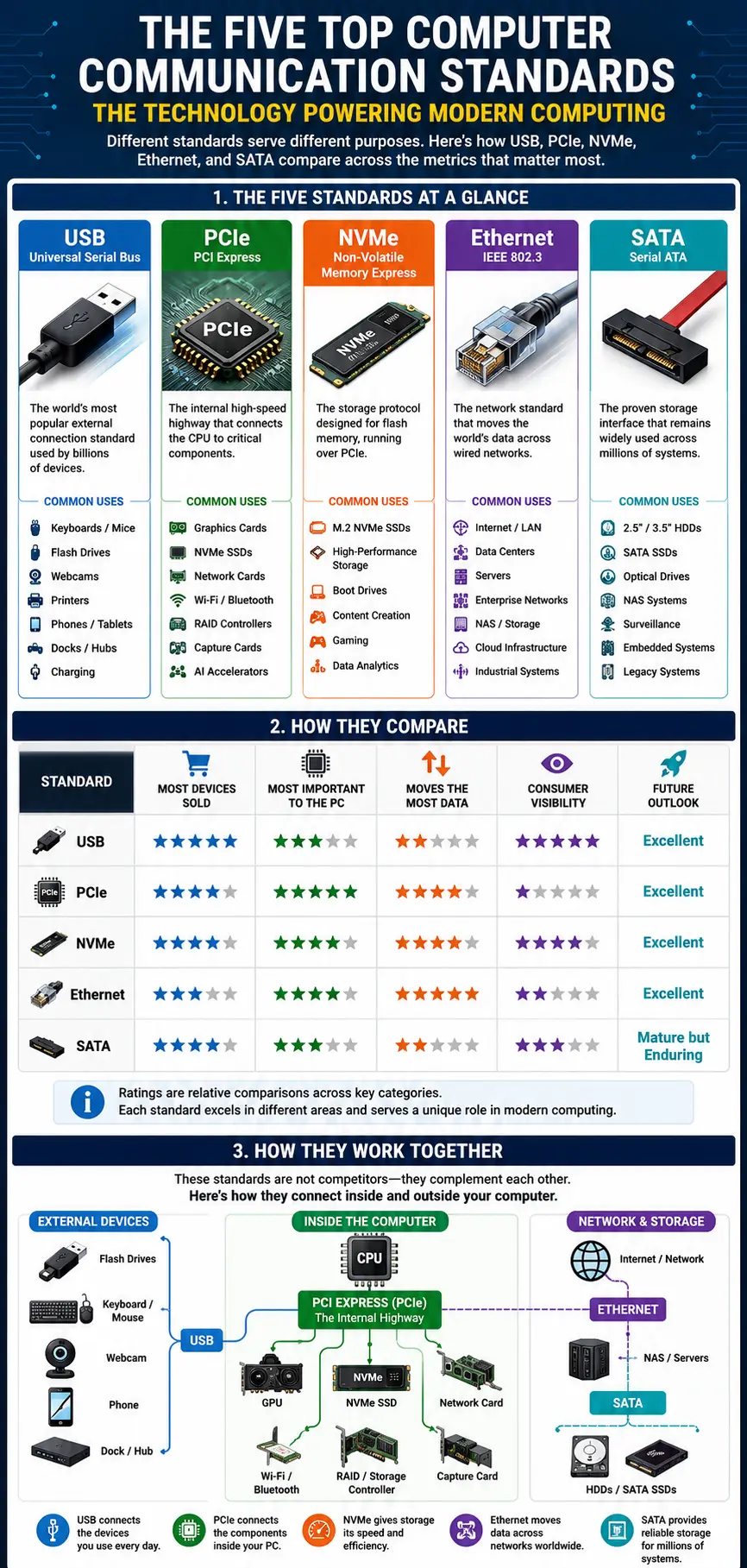
Speed matters—especially with large libraries. Here’s how common methods stack up:
| Method | Speed |
|---|---|
| External SSD | ⚡ Very fast |
| Ethernet network | ⚡ Very fast |
| Wi-Fi | 🚶 Moderate |
| USB flash drive | 🚶 Moderate |
| Cloud upload | 🐢 Slow (depends on upload speed) |
| Data transfer cable | ⚡ Fast (with proper software) |
For 4K videos, game backups, or 1TB+ data, skip cloud and Wi-Fi. Use external SSDs or wired Ethernet for fastest results.
Evaluate Cost and Long-Term Value
Some tools cost money—others are free and reusable:
- Free forever: Robocopy, Macrium Reflect Free, Ninite
- One-time purchase: Acronis, PCmover
- Subscription: OneDrive, Dropbox
- One-time hardware: External drives, transfer cables
A $60 external drive often offers better long-term value than a $70/year cloud plan for occasional use.
Use Cloud Storage for Automatic Sync and Access
OneDrive: Best for Windows Users
If you’re in the Microsoft ecosystem, OneDrive is the easiest cloud option.
Steps:
1. On old PC, sign in to OneDrive via File Explorer
2. Drag files into the OneDrive folder (Documents, Pictures, etc.)
3. Wait for upload (check system tray icon)
4. On new PC, sign in with the same Microsoft account
5. Files appear automatically
Pro Tip: Files sync in real time—open them directly from the cloud without full download.
Limitations:
– Free: 5GB
– Paid: 100GB ($2/month) or 1TB with Microsoft 365 ($7/month)
– Upload speed depends on your internet
Best For: Users who want automatic backup and cross-device access.
Dropbox: Cross-Platform and Secure
Dropbox works across Windows, Mac, and Linux.
How to Transfer:
1. Install Dropbox on old PC
2. Move files into the Dropbox folder
3. Wait for sync (green checkmarks)
4. Install Dropbox on new PC, sign in
5. Files download automatically
Security Note: Dropbox encrypts data in transit and at rest.
Delete Files Safely:
Always uninstall and sign out on the old PC before disposal—otherwise, deleted files sync everywhere.
Best For: Users who need reliability, encryption, and cross-platform access.
Avoid Cloud for Large Data
Uploading 1TB can take days on average internet (e.g., 10 Mbps upload = ~90 hours). Cloud is ideal for:
- Documents, photos, small projects
- Ongoing sync across devices
- Remote access
Not ideal for: Video libraries, game folders, or full system backups unless you have gigabit internet.
Transfer Files with External Drives

Use USB Drive or External HDD/SSD
This is the most reliable method—no internet needed.
Steps:
1. Plug drive into old PC
2. Open File Explorer, go to C:\Users\[YourName]
3. Copy key folders: Documents, Pictures, Videos, Desktop, Downloads
4. Paste into drive
5. Safely eject using system tray icon
6. Plug into new PC, copy files to user folder
Recommended Drives:
– SSD (e.g., Samsung T7): Fast, durable, $100 for 1TB
– HDD (e.g., WD My Passport): Slower but high capacity, $60 for 2TB
Pro Tip: Label the drive “PC Transfer” to avoid confusion.
Skip AppData (Usually)
Don’t copy the AppData folder unless you know what you’re doing. It contains:
- Temporary files
- App caches
- Registry-linked data
Most apps rebuild this on first launch. Copying it can cause conflicts.
Exception: Game saves or app-specific data (e.g., browser profiles). Back those up manually.
Use Robocopy for Large Transfers
For faster, error-resistant copying, use Robocopy (built into Windows):



